

Google Calendar Sync
Two-way, continuous sync. Changes in Slashy sync to Google Calendar and vice versa. Multiple Gmail accounts sync independently.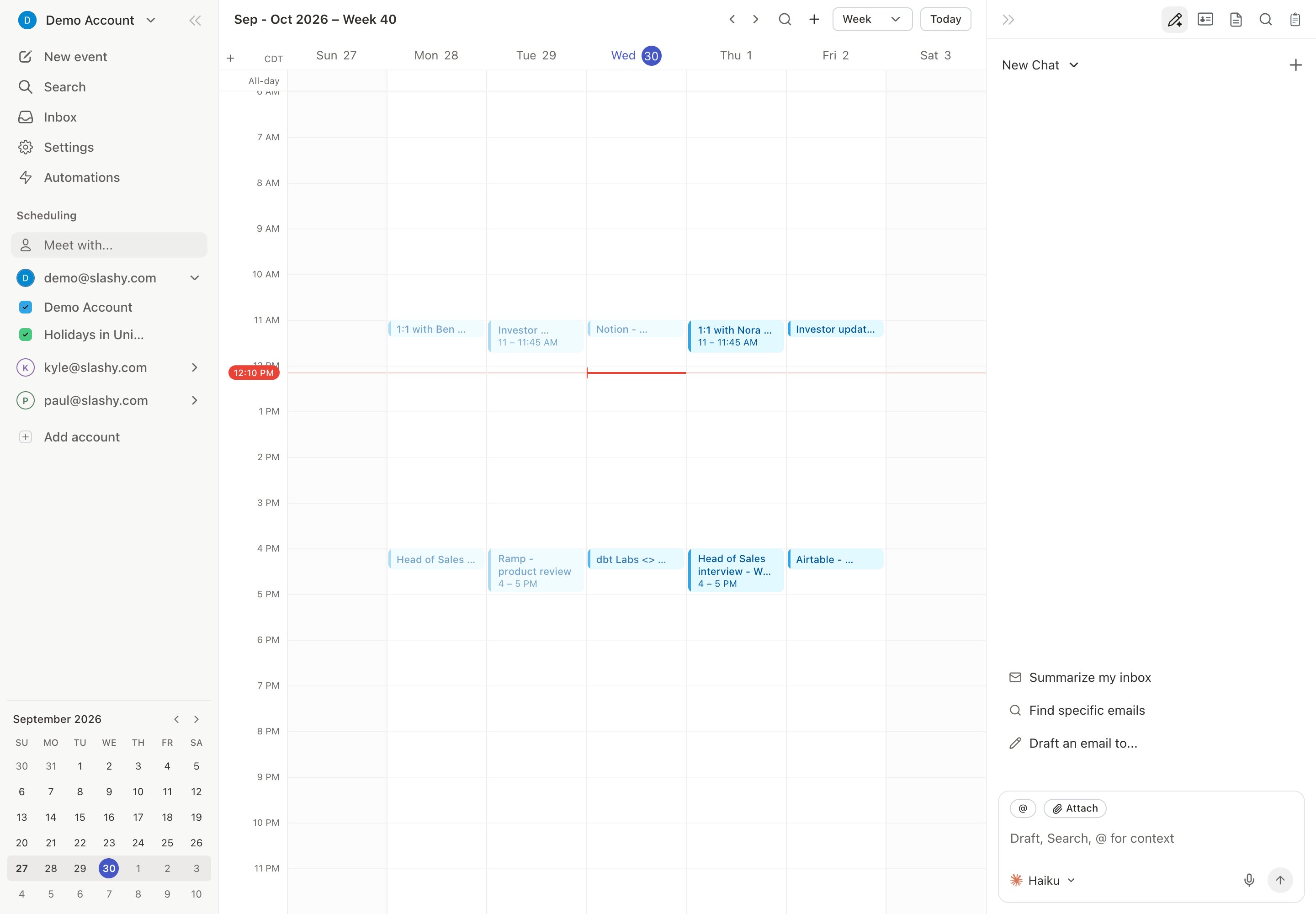
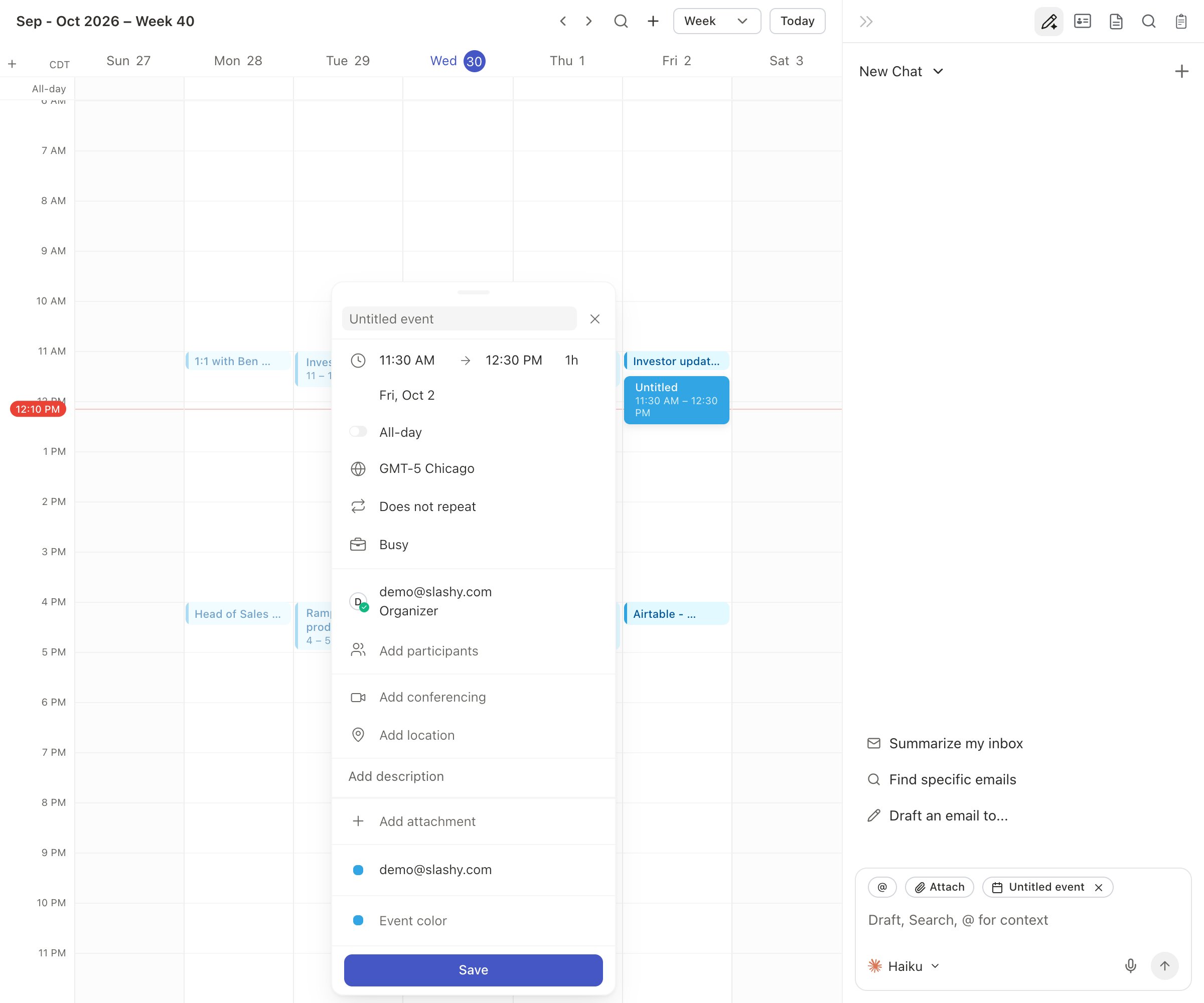
Choose Which Calendars to Show
1
Open calendar settings
Go to Settings (
Cmd+,) > Calendars.2
Toggle calendars on or off
Only enabled calendars appear in the calendar view. Disable calendars you don’t need to see.
3
Assign colors
Choose distinct colors to distinguish work from personal events. Changes take effect immediately.
Week Start Day
Choose whether your week starts on Sunday or Monday from Settings (Cmd+,) > Calendars > Week starts on. The change applies to Week and 3-day views immediately.
Timezone Display
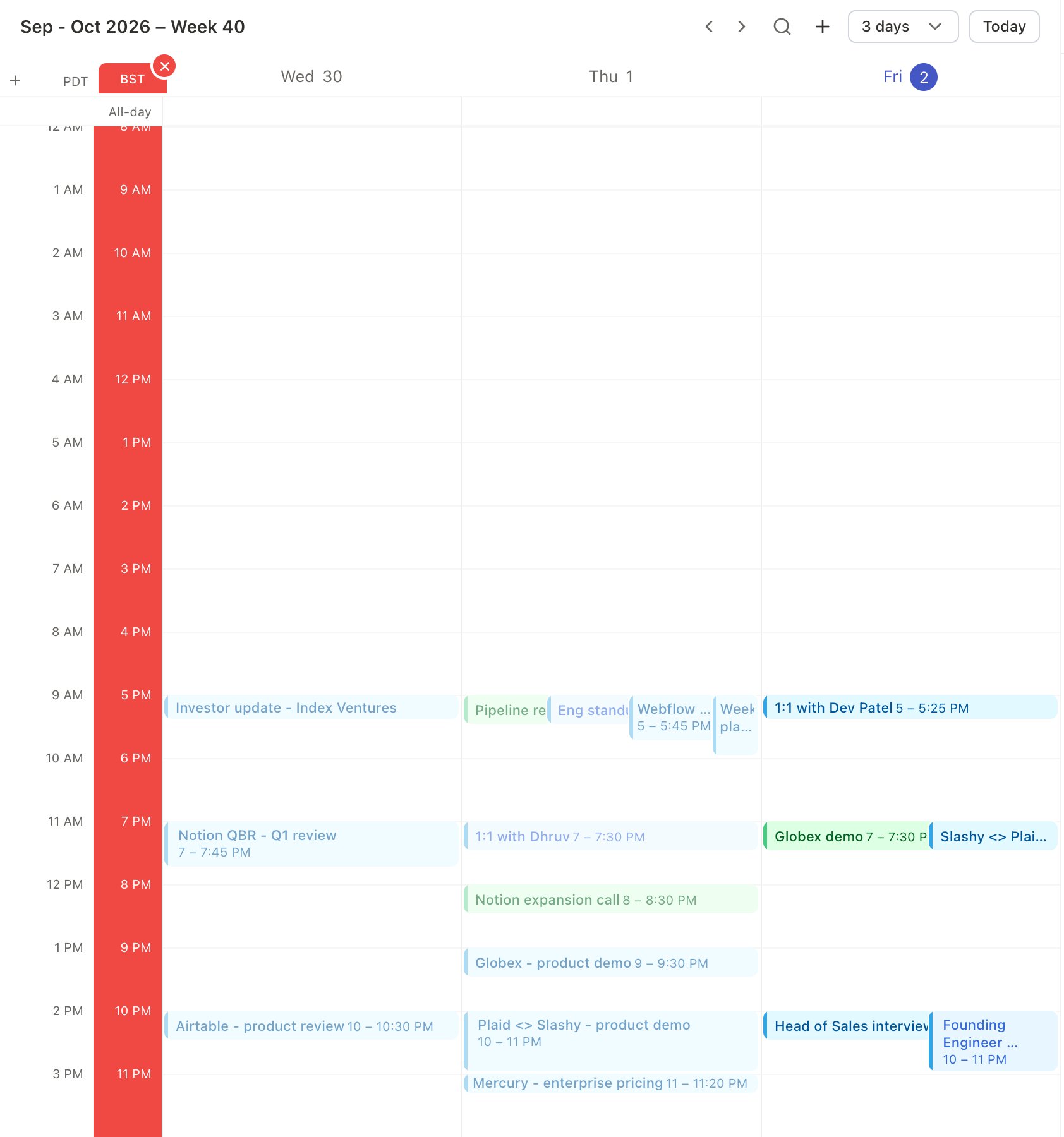
Slashy uses your system timezone and follows it when your device changes zone. Incoming invites auto-convert to your local time. When creating events with remote attendees, times display in your timezone, and attendees see their own. In the event editor you can set a different timezone for an event.Show more than one time zone
Click Add timezone at the top of the calendar’s time column to show another zone’s hours beside yours. Click or right-click any zone label for Change time zone, Make time zone primary, or Remove time zone from list. Your home zone’s menu has Make time zone secondary to swap the two back.Travel to another time zone
Pressz in the calendar, or choose Travel to time zone… from Cmd+K, and pick a zone. The whole calendar, including event times, the current-time line, and today, switches to that zone, with your home zone shown beside it. Press Esc or choose Travel back home to return. Traveling only changes how the calendar looks; new events are still saved in your home zone.
Cmd+K also has Make time zone primary…, Show additional time zones…, and Hide time zone….
RSVP from Email
Calendar invites show Yes, No, and Maybe buttons directly in the email thread. Answering also marks the email done. No need to open Google Calendar.Creating Events
- Click and Drag
- Keyboard
In calendar view, click a time slot and drag to set duration. The event editor opens with time pre-filled.
Event Editor Fields
Delete with
Backspace. Undo with Cmd+Z.
Share Your Availability
Instead of listing free times manually:1
Open availability picker
Press
Shift+Cmd+A in the compose window.2
Select time slots
Pick available times on the calendar overlay. Conflicts are visible.
3
Insert
Slashy inserts formatted availability into your email. The timezone dropdown pins your zone and your recipients’ zones first, so the times read in the zone you choose.
Meet With (Busy Time Overlay)
Find times that work for multiple people:1
Open calendar view
Press
2 to switch to the calendar.2
Add contacts to Meet With
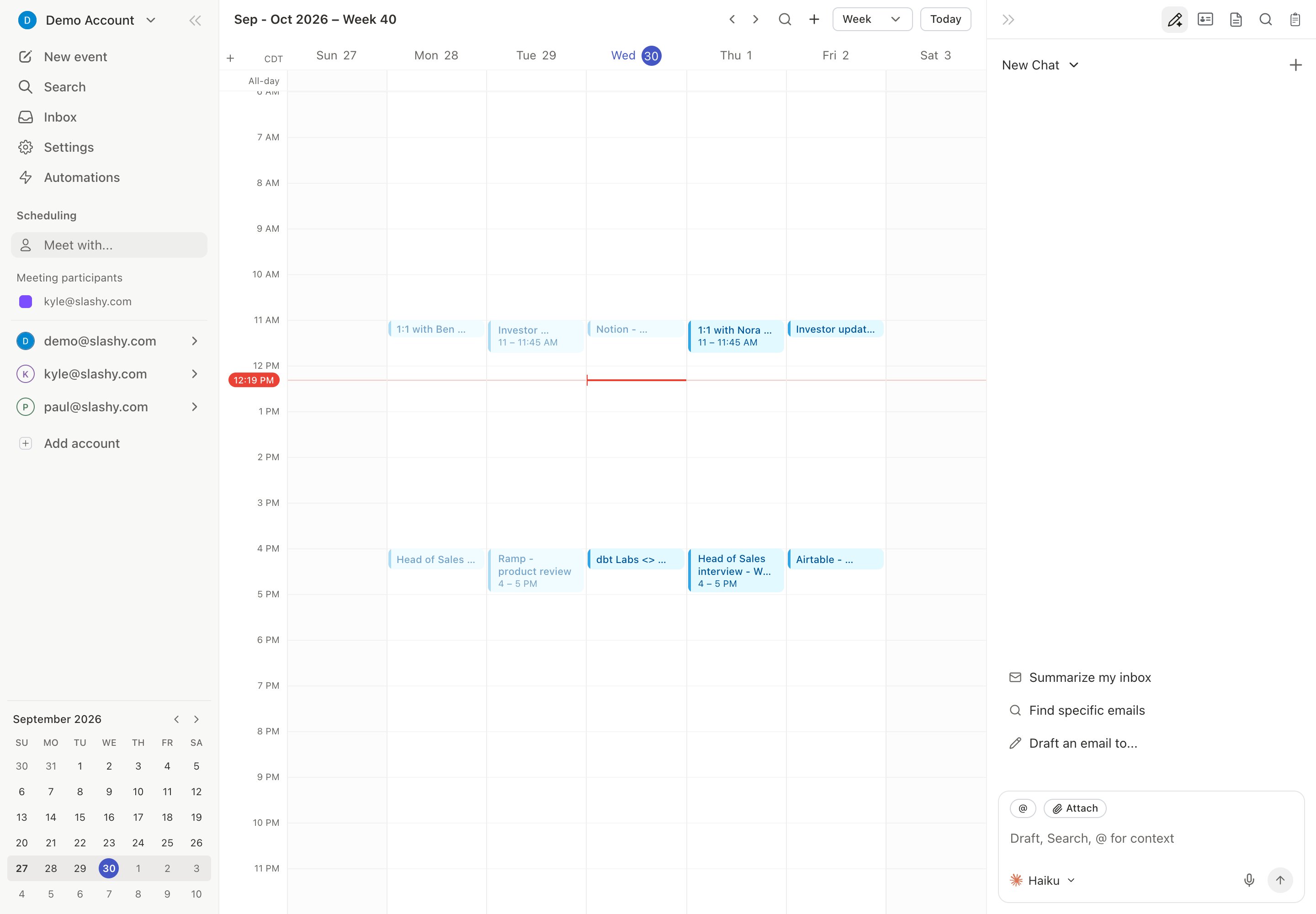
Use the Meet With feature and add the people you want to meet, or press
f from calendar view to jump straight to Meet With.3
Find a gap
Their busy times appear as shaded blocks alongside your events. Click any open gap to create an event.
Calendar widget on your Mac
The desktop app adds a Calendar widget for your Mac desktop that shows your next 8 days. See Installing the desktop app.Google Tasks on the calendar
If you connect Google Tasks, your dated tasks appear on the calendar and you can drag a task onto the grid to time-block it. See Tasks.Keyboard Shortcuts
Related Articles
Your First Week
Day-by-day onboarding guide.
Meeting Prep
Auto-generate attendee briefings before every meeting.
Slashy Mobile
iOS app setup and features.
Tasks
Plan your day and time-block tasks.