

The Tasks panel
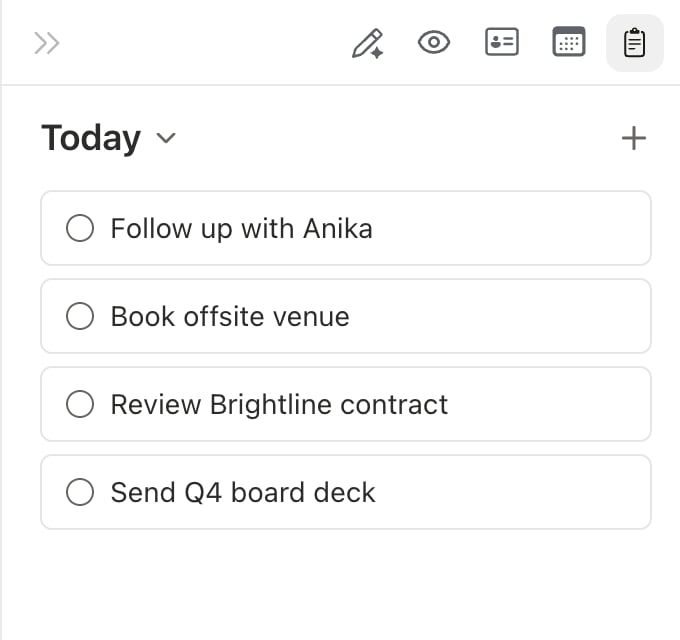
Pressd then t to open the Tasks panel beside your inbox or calendar. The panel works on its own, and it can also mirror your tasks to Google Tasks, Todoist, or ClickUp.
Add a task
Task cards
Each card shows a circle to mark it done, the title, where it lives (its list, or the email it came from), the due date, a repeat mark for recurring tasks, and any tags. Click a card to open it. From there you can:- Edit the title and notes.
- Pick a due date from the calendar picker, or choose No date.
- Open the source email.
- Delete the task.
Views
Click the panel title to switch views.
Click the filter button to narrow a view by list or tag, or to show tasks with no date on Today. Choose Save as view to keep a filter as a named view, then rename or delete it from the title menu. Long lists load more tasks as you scroll.
Tasks on your calendar
Open the Tasks tab in the calendar sidebar, or pressd then t on the calendar. With Google Tasks connected, your dated tasks appear on the calendar too: timed tasks in the grid and date-only tasks as chips in the all-day row. Click the circle to tick one off.
Drag a task from the panel onto the calendar grid to time-block it. Slashy creates a 30-minute busy event linked to the task, and you can move or resize it like any event. The block has the task’s circle, so ticking it completes the task.
Needs reply and Follow up
Presst on a thread to mark it as Needs reply or Follow up, or choose No action needed to clear it. Press p to set a priority of High, Medium, or Low. Threads with a task show an icon and priority bars in the list.
Press g h (or Shift+H) to open Reminders. Group it By type, or By date into Overdue, Today, Tomorrow, This week, Later, Someday, and No due date. Due dates come from the follow-up Slashy detects on the thread. Marking a thread done (e) clears its task. See Never miss a follow-up.
The Tasks panel is available on web and desktop.
Connect Google Tasks, Todoist, or ClickUp
Mirror your tasks to the app you already use.
Creating events
Time-block tasks and manage events.
Never miss a follow-up
How Slashy detects threads waiting on a reply.
Keyboard shortcuts
Full reference, including
Shift+T and n t.