

How It Works
1
You send an email
Works on all outgoing email automatically.
2
AI analyzes it
Reads content, tone, and whether you asked a question, made a request, or set a deadline.
3
AI sets wait time
Picks 1-14 days based on urgency and nature of the email.
4
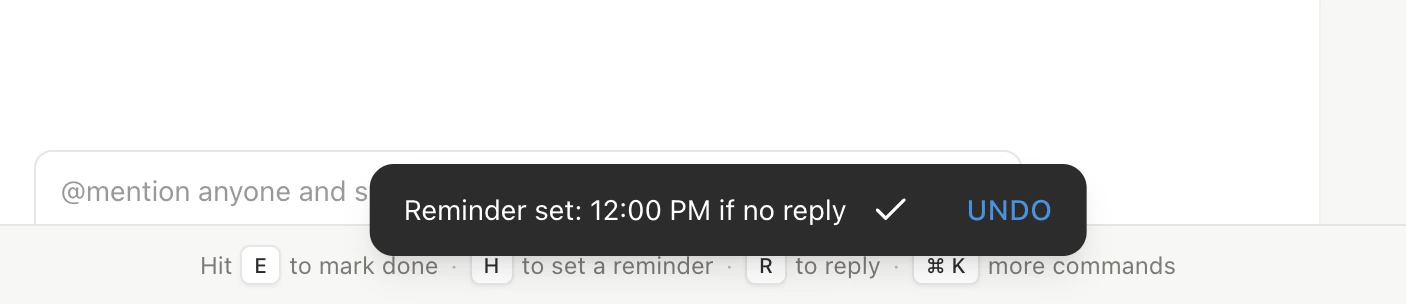
If no reply reminder created
Only fires if the recipient hasn’t replied by the wait period.
5
Reply cancels the reminder
If the recipient replies before the timer, the reminder is automatically canceled.
Enabling Auto-Reminders
Off by default. Turn on in Settings (Cmd+,) > Account > Auto-reminders toggle. Only applies to future sent emails — not retroactive.
What Gets a Reminder
The AI creates reminders when your email:- Asks a question expecting an answer
- Makes a request or asks someone to do something
- Proposes a meeting, deadline, or next step
- Sends information requiring confirmation
What Gets Skipped
Wait Time Selection
- 1-2 days — urgent requests, short deadlines
- 3-5 days — standard business requests, scheduling
- 7-14 days — low-urgency, informational, cold outreach
Auto vs. Manual Reminders
Both features work together. If both fire on the same thread, whichever triggers first moves it to your inbox.
Disabling
Toggle off in Settings > Account. Existing reminders still fire at their scheduled times; new sent emails won’t get auto-reminders.Related Articles
Never Miss a Follow-Up
Complete follow-up workflow
Email Triggers
Automate actions on incoming email
Scheduled Reminders
Schedule the agent for future tasks
Automations Overview
All automation types in one place