

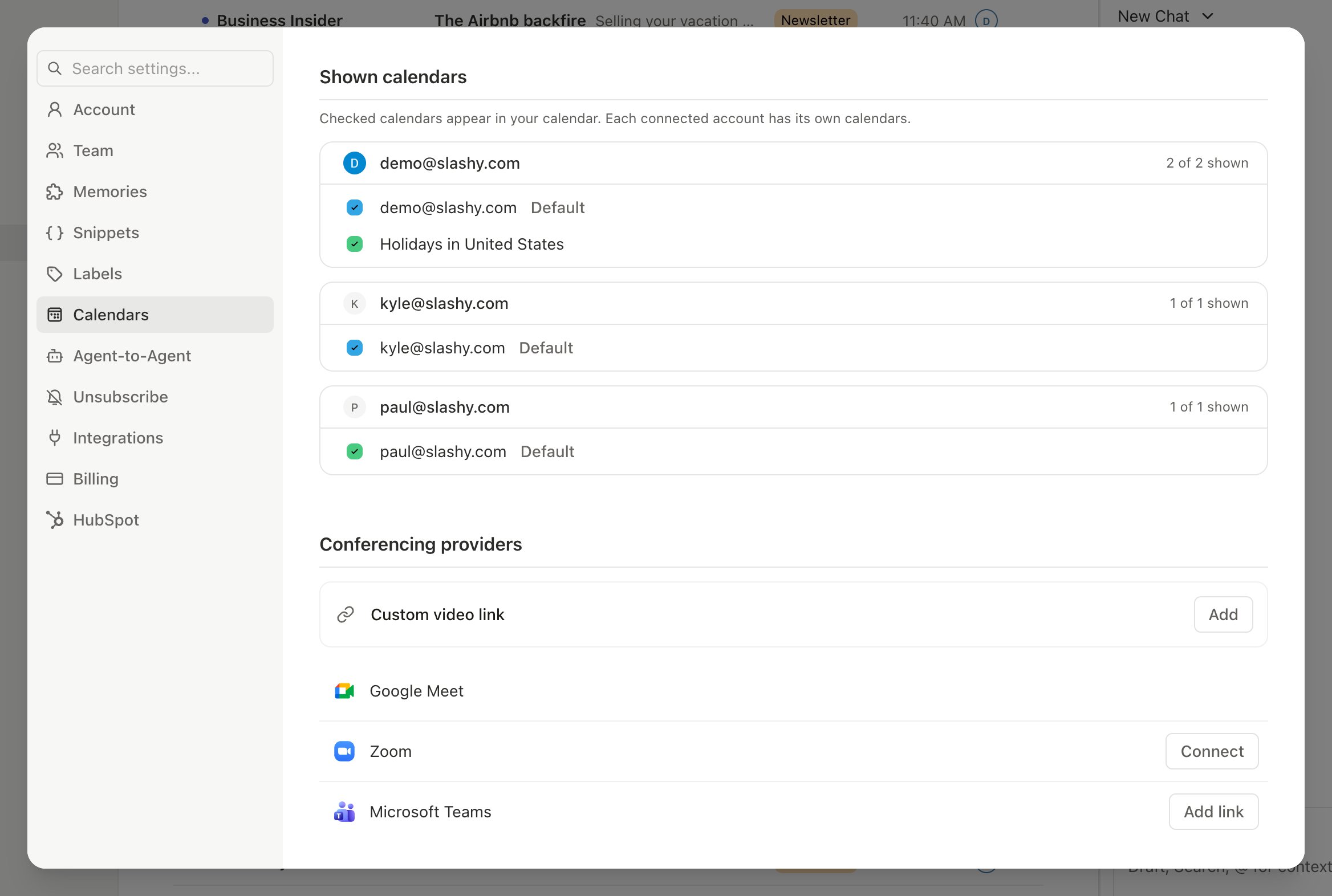
Connecting Zoom
1
Open Settings
Press
Cmd+, and select Calendars, then find Conferencing providers2
Connect
Click Connect on the Zoom row
3
Authorize
Sign in to Zoom and grant Slashy permission to create meetings
4
Done
You’re redirected back to Slashy with Zoom connected
Creating Zoom Meetings
Once connected, add Zoom to any calendar event:- Create or edit a calendar event
- In the Conferencing field, select Zoom
- Slashy creates the meeting and attaches the link automatically
Set Zoom as Default
Go to Settings > Calendars > Conferencing providers, hover the Zoom row, and click Set as default. Every new event automatically includes a Zoom meeting link. Override per-event by choosing a different provider in the event editor.Who’s in the Call
With Zoom connected, Slashy shows live presence on any event with an active Zoom meeting, who has joined and who is still on their way. Open the event to see the participant list update in real time as people join and leave the call. This uses the same first-party Zoom connection from setup. No extra permissions or configuration needed.Zoom with the AI Agent
When you ask Slashy’s AI to create an event (e.g., “Schedule a call with Sarah tomorrow at 2pm”), it uses your default conferencing setting. If Zoom is the default, the agent automatically creates and attaches a Zoom meeting.Zoom with Automations
Calendar trigger automations work seamlessly with Zoom. For example, the “Meeting Prep 30 Minutes Before” automation detects events with Zoom links and includes the Zoom meeting URL in the prep summary. No extra configuration needed; if the event has a Zoom link, the automation sees it.Troubleshooting
Zoom link not appearing on new events
Zoom link not appearing on new events
Verify Zoom is still connected in Settings > Calendars > Conferencing providers. If the Zoom row shows Connect, click it to reconnect. Also check that the Conferencing field in the event editor is set to Zoom rather than another provider.
AI creates events without Zoom links
AI creates events without Zoom links
The AI uses your default conferencing provider. If Zoom is not set as default, say explicitly: “Schedule a Zoom call with Sarah tomorrow at 2pm”. The keyword “Zoom” overrides the default.
Disconnecting Zoom
Go to Settings > Calendars > Conferencing providers, then click Disconnect on the Zoom row. After disconnecting:- New Zoom meetings can no longer be created from Slashy
- Existing Zoom links on events continue to work
- If Zoom was your default, no default provider is set
- Reconnect any time by repeating the setup steps
Other Conferencing Options
Google Meet
Available by default for all Google Calendar users. No setup needed.
Microsoft Teams
On Google calendars, connect a Microsoft work or school account in Settings to create a Teams meeting per event, or save a Teams room. Outlook and Microsoft 365 calendars create Teams meetings automatically.
Custom Link
Choose Add meeting link in the event editor to paste a Webex or any other meeting URL.
Calendar Setup
Connect and configure your calendars
Tasks & Reminders
Track to-dos and email reminders