

The model picker
The picker sits at the bottom left of the message box in the agent chat (Cmd+/). Click the model name to switch. You can change models between messages, but not while the agent is replying.
Models that need a key show a key icon until you add one. If you connect a ChatGPT subscription, Codex models appear in the same list. See Connect your Codex subscription.
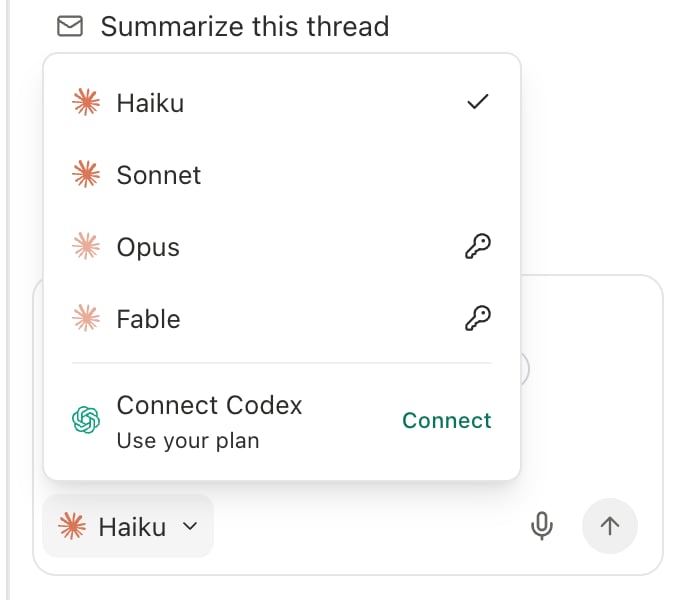
Unlock Opus and Fable with your own key
Opus and Fable are billed by Anthropic to the account that owns the key. Slashy does not charge for that usage. Don’t have a key yet? See Get an Anthropic API key.1
Open the model picker
Click the model name at the bottom of the agent chat message box.
2
Choose Opus or Fable
Slashy asks for your Anthropic key to unlock the model you picked.
3
Paste your key and save
Paste the key, which starts with
sk-ant-, and click Save. The model is selected as soon as the key is stored.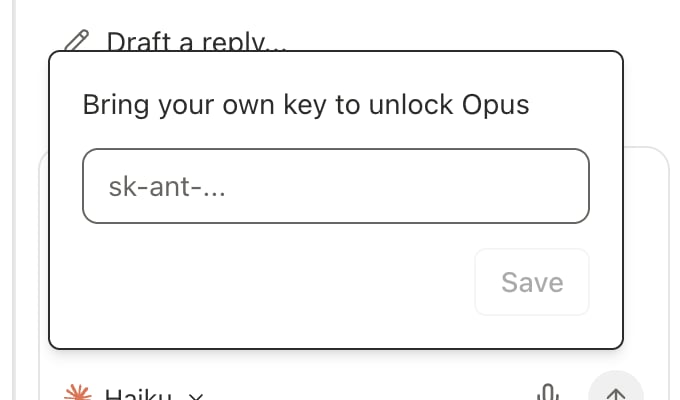
Manage your key
Open Settings, then Integrations, and find the Claude API key card. The AI filter narrows the page to it. Its status reads “Unlocks Claude Opus and Fable”. Click Connect to add a key or Disconnect to remove it. Without a key, Opus and Fable are unavailable and the picker returns to a model that doesn’t need one. You can also pressCmd+K and search for Manage Anthropic API key.
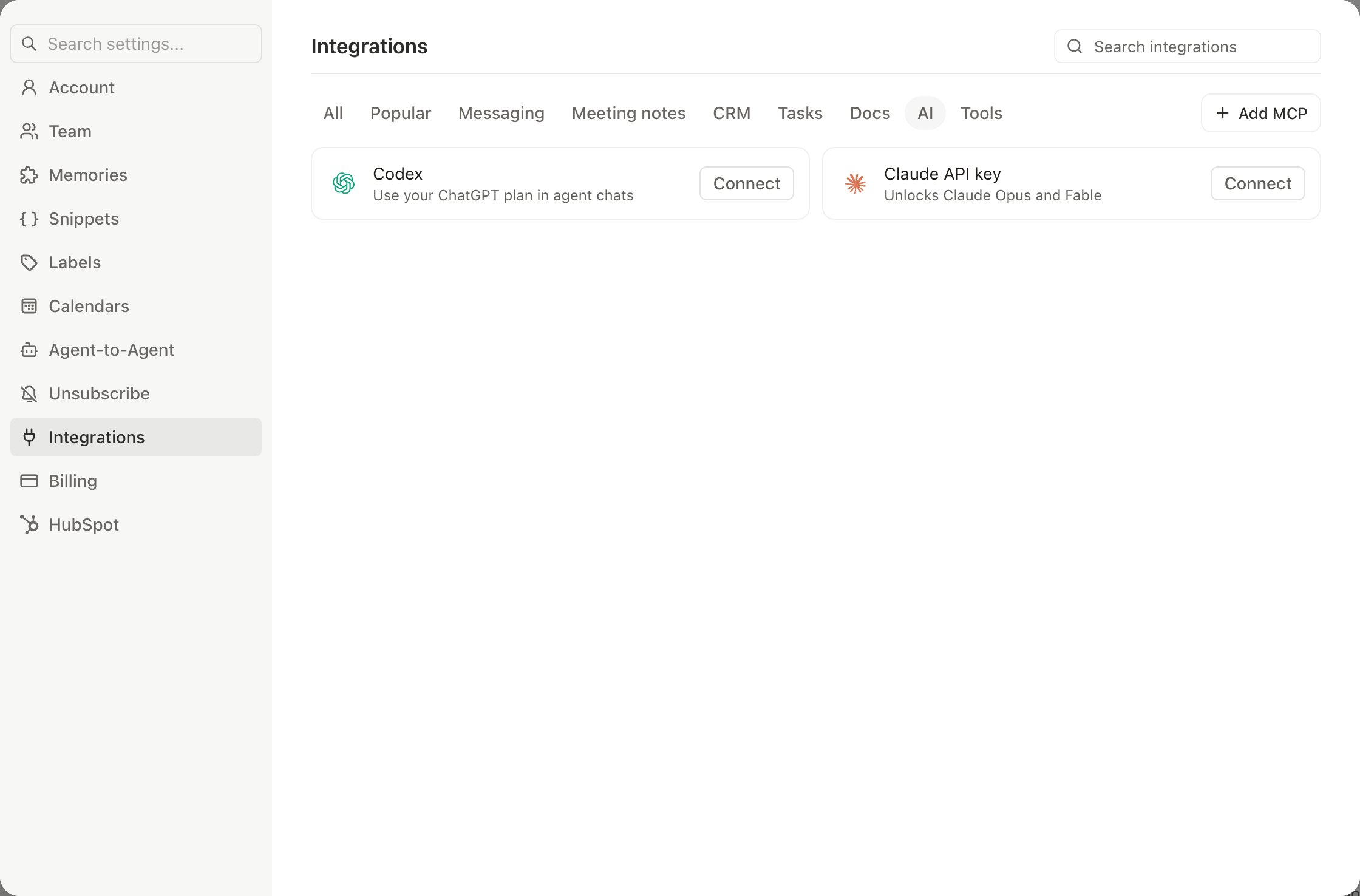
Your key is stored on your account only and is not shared with teammates. Each person brings their own.
Get an Anthropic API key
Create a key in the Anthropic Console.
Connect your Codex subscription
Use your own ChatGPT/Codex plan in agent chat.
Sidebar Agent & Command Palette
Chat with the agent and run commands.
AI privacy
How your data is handled.