

Connect
1
Open Settings
Press
Cmd+,, then choose Integrations in the sidebar.2
Find the Google cards
Click the Docs filter and click Connect next to Google Drive, Google Docs, or Google Sheets. Connect any combination — each is independent.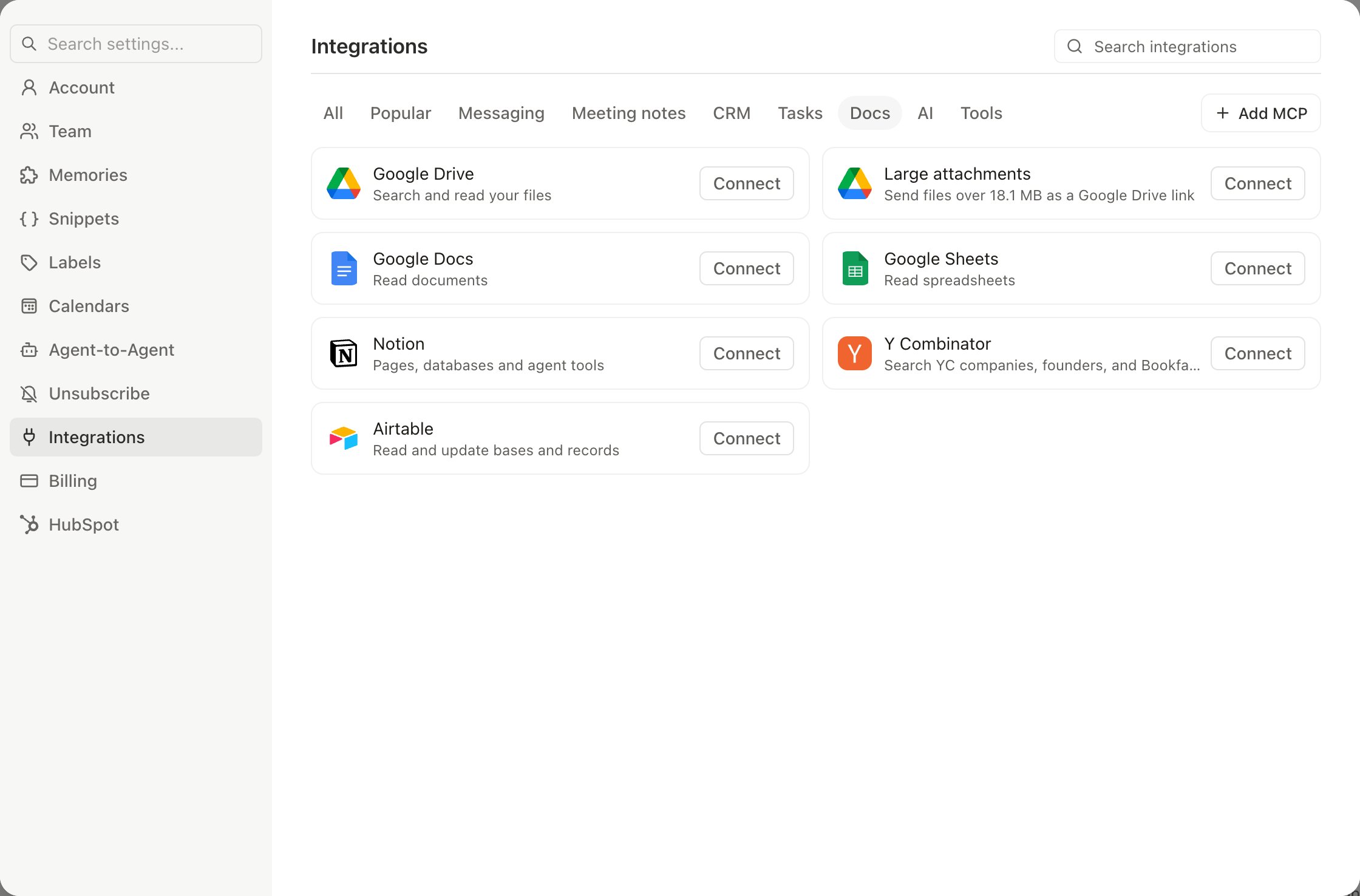
3
Authorize
Sign in to Google and approve the request. You land back in Slashy with the integration connected.
What each one does
Editing the contents of a file is available for Docs and Sheets specifically. In Drive itself, the agent searches, reads, and saves files into folders.
What the agent can do
With these connected, ask the agent (Cmd+/) in plain language:
Edits preserve formatting: tables, images, and styling in a Doc stay intact, and formulas in a Sheet are entered as real formulas, not text.
Sheet edits target the range you ask for and overwrite what’s there, so ask the agent to add to the end rather than a fixed range if you want to keep existing rows. It reads the sheet first to find the next empty row when you ask it to append.
Write actions are blocked when Read Mode is on, so the agent can still search and read without changing anything in Drive, Docs, or Sheets. See Agent autonomy.
Large attachments
A separate Large attachments card under the same Docs filter lets Slashy send files over the attachment size limit as a Google Drive link instead of refusing them (see Large attachments in Composing). Connect it in Settings, Integrations. It only touches the files Slashy uploads for this purpose.Disconnect
Open Settings, Integrations, find the card in the Docs section, and click Disconnect. Slashy stops using that access immediately; files already created, saved, or edited stay as they are.Notion
Save threads and summaries to Notion.
MCP
Connect Slashy to other tools over MCP.
Agent autonomy
Control what the agent can do on its own.
Connecting Gmail
What the base Gmail connection grants.
Google Tasks and Todoist
Sync your tasks with other apps.