

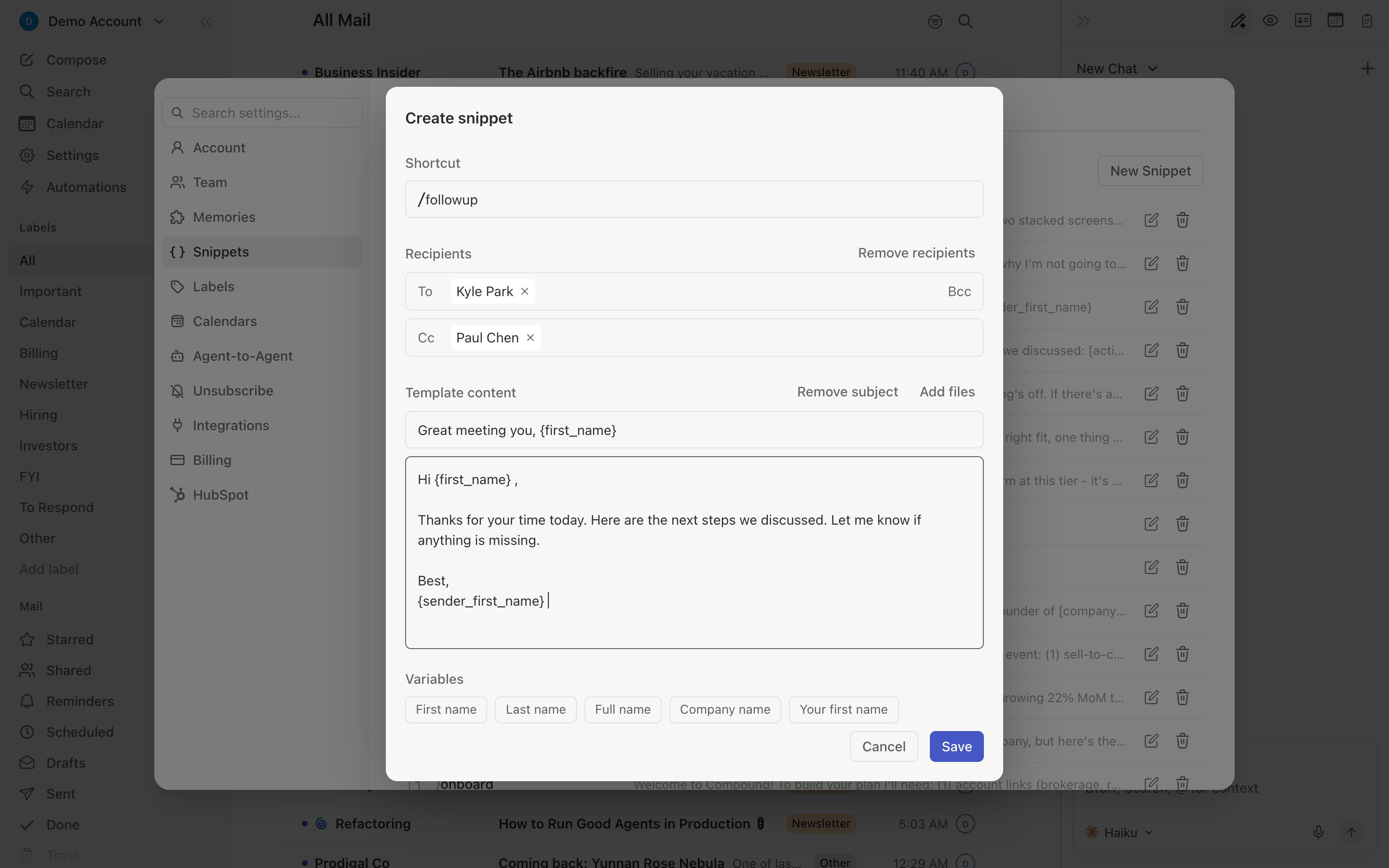
Creating a Snippet
Pressn s from anywhere, or go to Settings > Snippets > New Snippet.
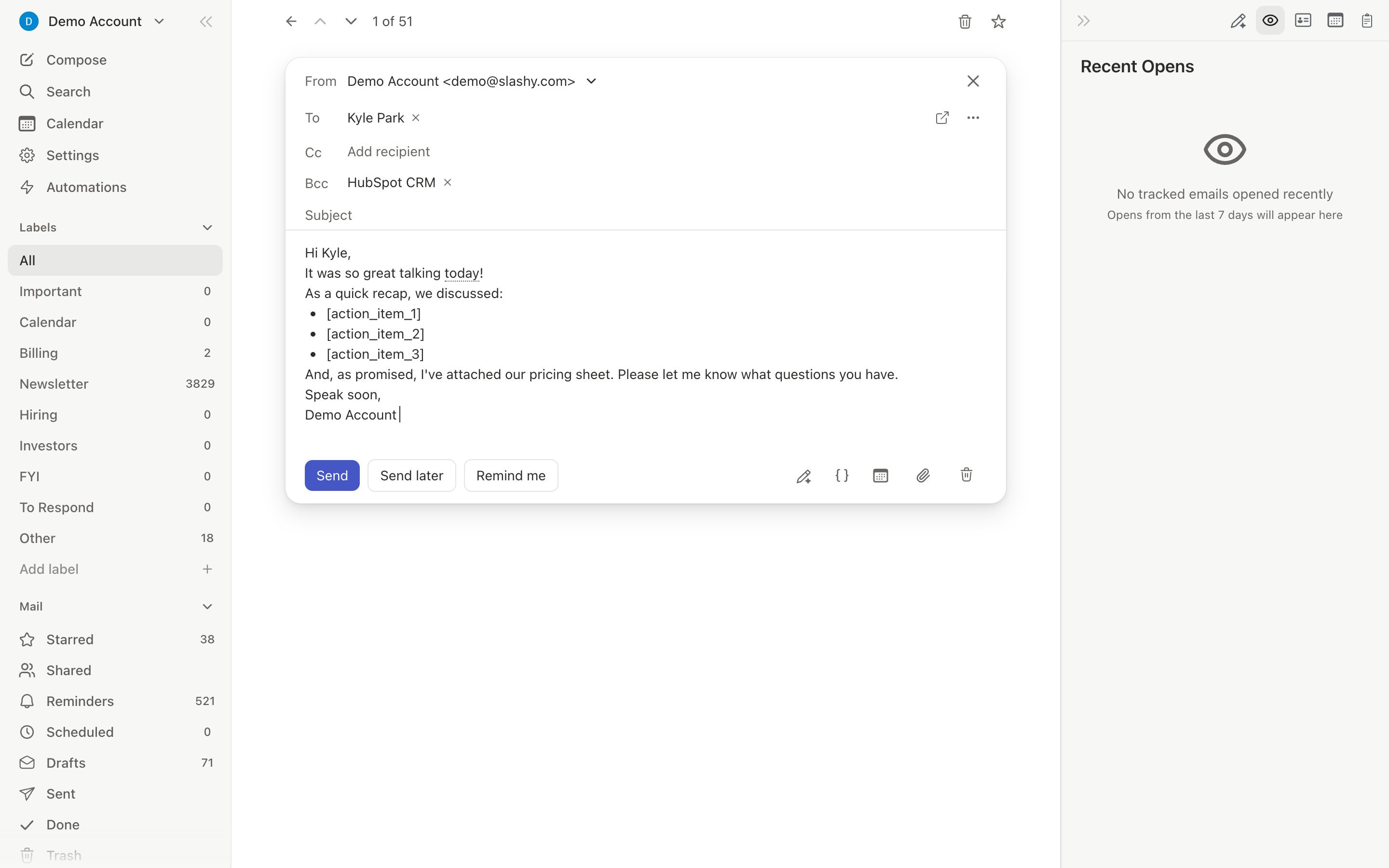
Creating a Snippet from Something You Wrote
You don’t have to start from a blank form. Any of these pre-fills the snippet editor:- From a draft: in the composer, press
/and choose Turn into snippet, or pressCmd+Kand choose Create snippet from draft. The subject, body, and recipients come along. - From a message you already sent or received: press
Cmd+Kon the thread and choose Create snippet from message. Your sent message’s To, Cc, and Bcc recipients are included, so a mailing you send to the same group is one snippet. - From part of an email: select text in an email and click Snippet in the toolbar that appears.
Snippet Suggestions
If you send nearly the same email three times in a row, Slashy offers to save it once it is safe to interrupt you: a toast reads “You’ve sent this email 3 times. Save it as a snippet?” Click Create snippet to open the editor pre-filled. Slashy doesn’t suggest a snippet you already have.Inserting a Snippet
Press/ while composing to open the snippet picker. Typing / or ; at the start of the To, Cc, Bcc, or Subject field opens it too. Search by name or shortcut, then select. The content inserts at your cursor, recipients populate To/CC, attachments attach, and subject pre-fills if empty.
You can also type the shortcut keyword directly in the composer — Slashy offers to expand it.
/ inserts a snippet only while your cursor is in the compose body. Outside the composer, / opens search.AI Variables
AI variables embed a prompt inside a snippet. When inserted, the AI generates personalized content based on the recipient, thread history, and your memories.Variables can be inserted into the Subject field as well as the body. Click into the Subject field first, then click the variable button, and the variable drops into that field.
1
Open the snippet editor
Press
n s or edit an existing snippet in Settings > Snippets.2
Add an AI variable
Click into the field you want to fill, either the Subject or Body, then click the variable or AI icon. The variable inserts into whichever field was last focused, so you can place dynamic content in the subject line as well as the body.
3
Write your prompt
Describe what the AI should generate. Examples:
- “Personalize a greeting based on our previous conversations”
- “Write a one-sentence summary of why I’m reaching out”
- “Generate a relevant icebreaker based on the recipient’s company”
4
Use the snippet
Insert with
/. The AI variable generates automatically based on the recipient context. Edit the output before sending.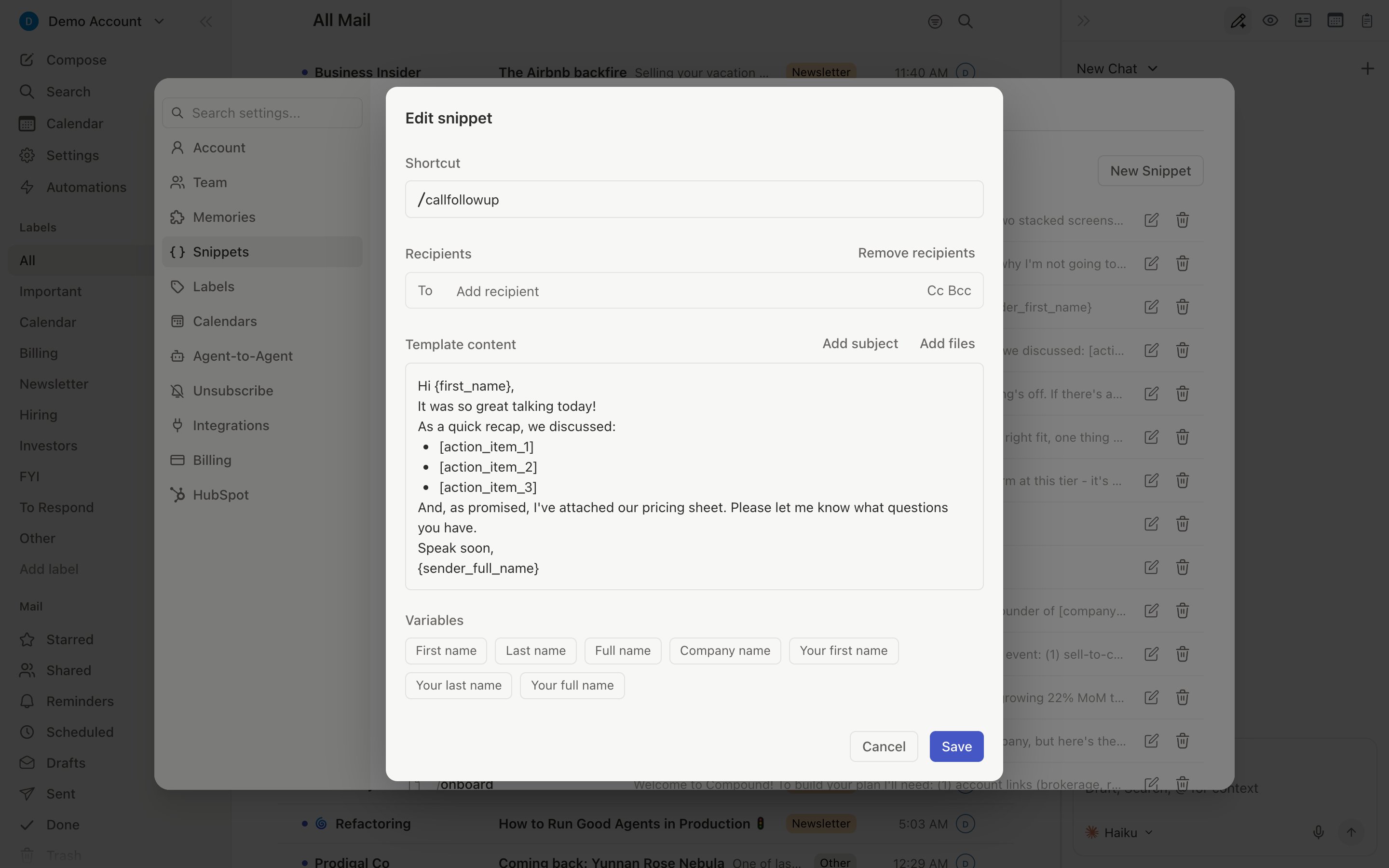
Pre-Set Recipients & Attachments
Add default To/CC recipients for templates where the same people are always included (e.g., weekly updates that CC your team lead). Recipients are added to existing fields, not replaced, and duplicates are auto-deduplicated. Attached files are stored with the snippet and included every time it’s used.Usage Tracking
View per-snippet analytics in Settings > Snippets:
Sort by any metric to find top performers or templates that need improvement.
Managing Snippets
All management lives in Settings > Snippets (Cmd+, then Snippets). Search, edit, delete, and sort by name, usage, last used, creation date, opens, or replies.
Related Articles
Composing Emails
Rich text editor and multi-account sending
How AI Drafts Work
Auto-suggestions and AI-generated replies
Slashy for Sales
Using snippets for outreach at scale
Slashy for Recruiters
Recruiting-specific snippet workflows