

Scheduling an Email
PressCmd+Shift+L after composing to open the schedule picker.
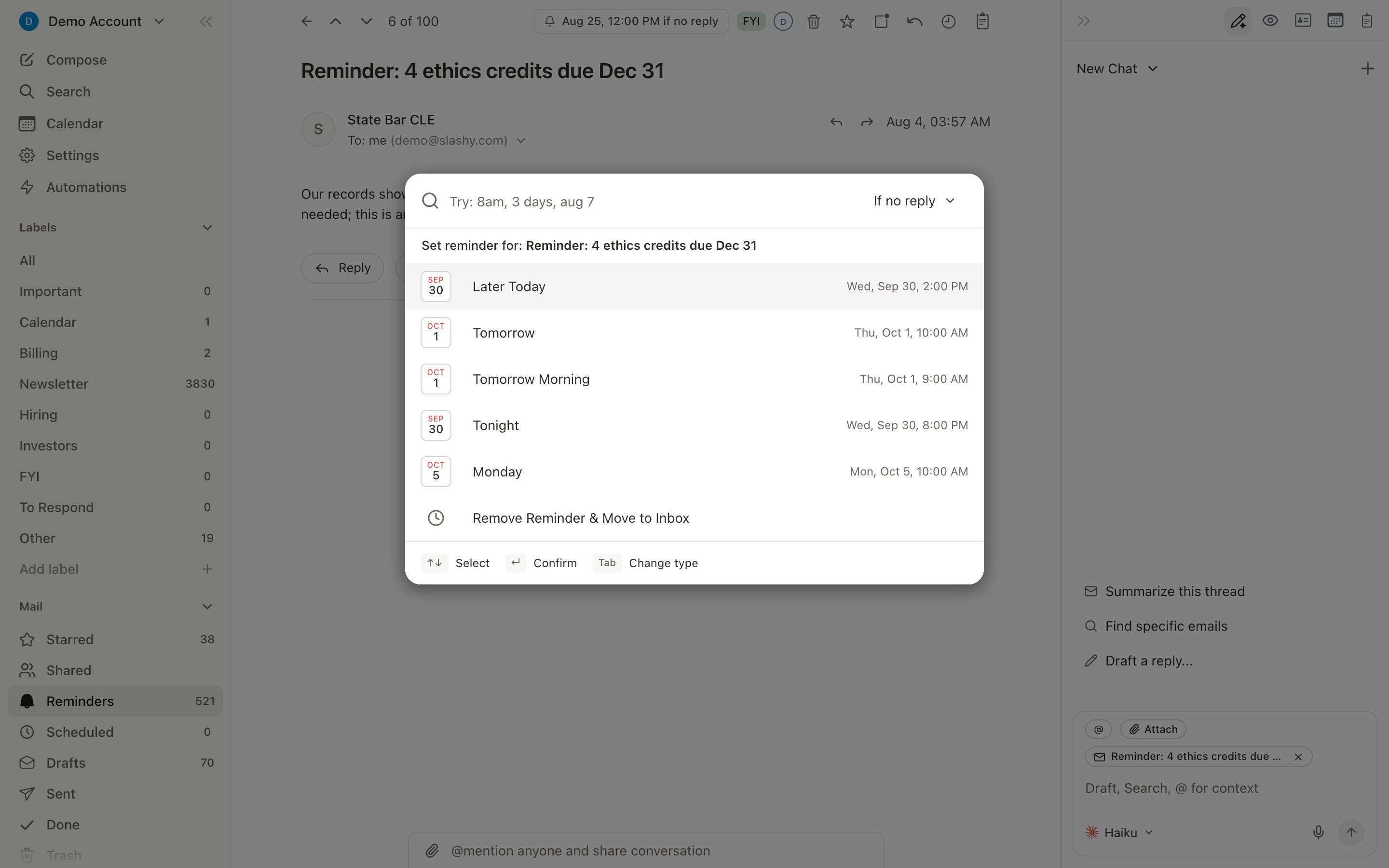
The picker opens with suggested times based on the current time: Later today, Tomorrow, Tomorrow morning, Tonight, Monday, and Next week. The time you used last appears at the top. Or type your own in the search box, such as 8am, friday 2pm, 21 sep, or 2pm in London, then press Enter.
Smart Send
When Slashy knows where the first person in To is based, and you haven’t typed a time yet, the picker adds a Smart Send row at the top, labeled with that recipient. It schedules the email for their next weekday at 9 AM in their own time zone, so it lands at the start of their working day. Smart Send appears only when Slashy is confident about the recipient’s time zone, and it skips weekends. You can still pick any other time from the list.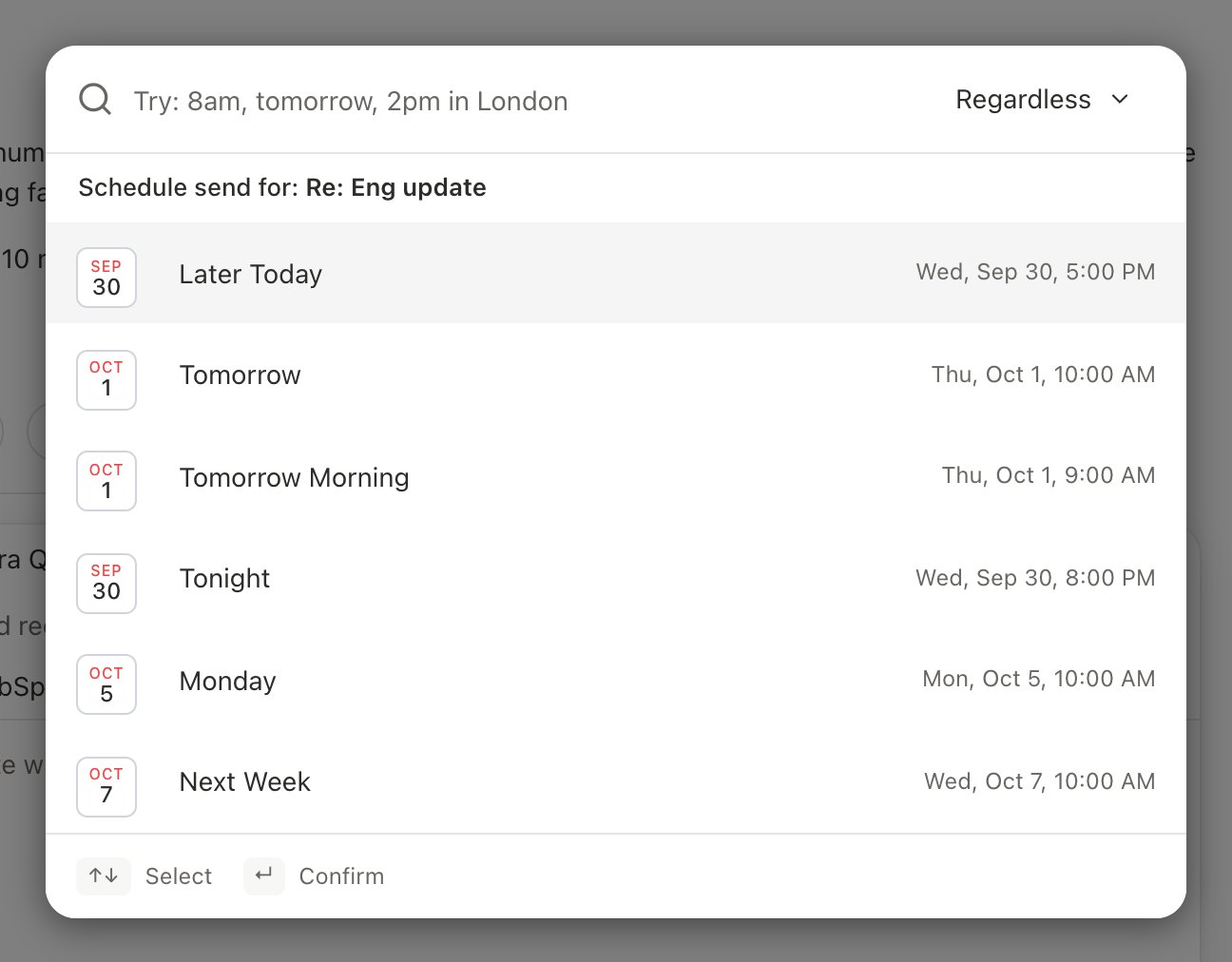
Cmd+Shift+H) in the schedule picker. Set it to “If no reply” and the scheduled send auto-cancels if the recipient replies before it fires, so you never send a follow-up into a conversation that already moved on. Slashy remembers your last choice.
Managing Scheduled Emails
Navigate to the Scheduled view (g l) to see all pending emails. For each one:
- Cancel: reverts to a draft
- Reschedule: pick a new send time
- Send now: skip the schedule and send immediately
Undo Send
Every email you send withCmd+Enter has an undo window. A toast appears with an Undo button and countdown. Click Undo or press z to cancel before it expires. Cmd+Shift+Enter skips the window and sends immediately.
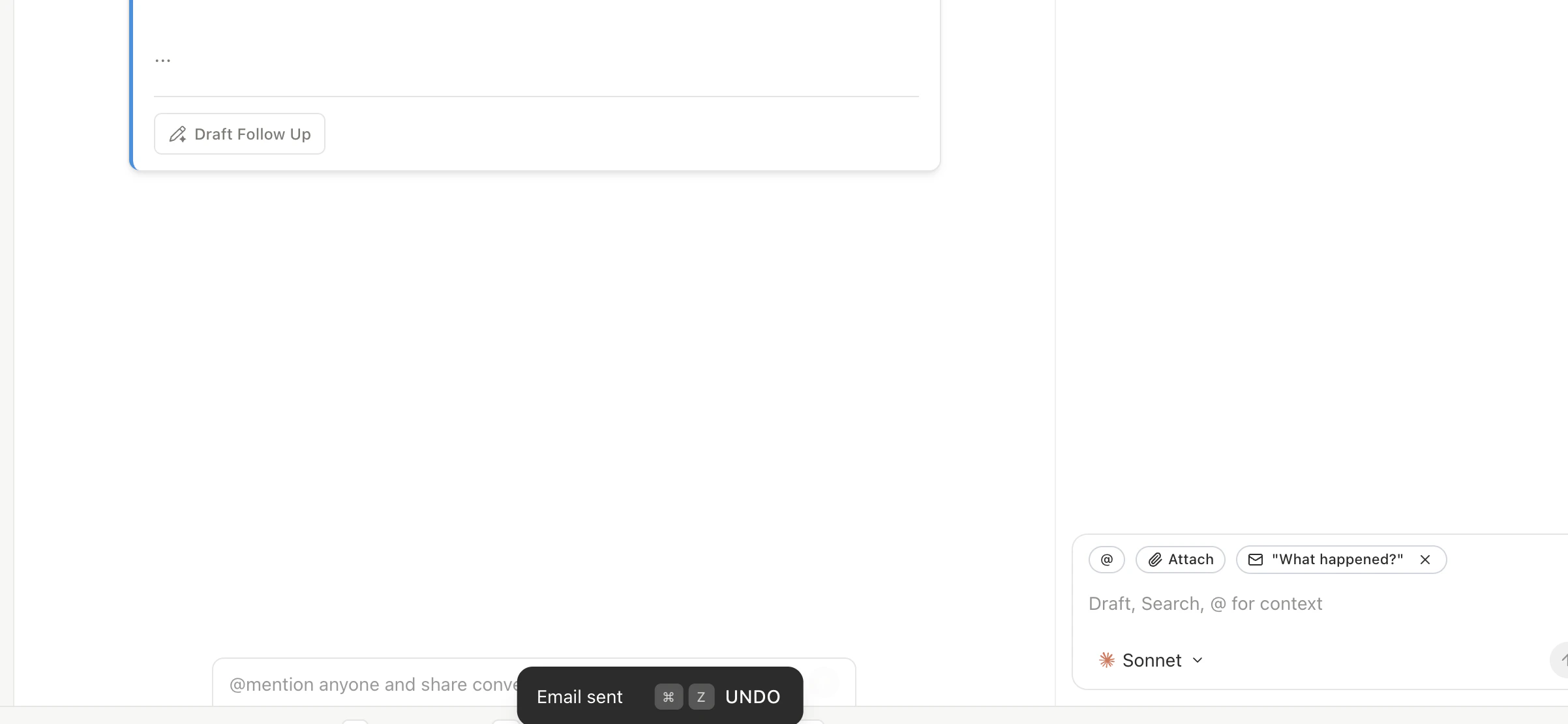
During the undo window, the email has not been delivered. If you undo, it reverts to a draft and the recipient never sees it. This is a true cancel, not a recall.
How Long You Have to Undo
The undo window is 30 seconds for every send. The toast counts down, and once it ends the email goes out. When you schedule an email, a short toast offers Undo, Send now, and Reschedule. After it disappears, manage the email from the Scheduled view.Undo Send vs. Scheduled Send
Both work together. Cancel a scheduled email any time before it sends, and use Undo for the 30 seconds after a normal send.
Replying & Forwarding
Reply, reply all, and forward with proper threading.
Inbox Views
Navigate all inbox views and filters.