

Connect Slack
1
Open integration settings
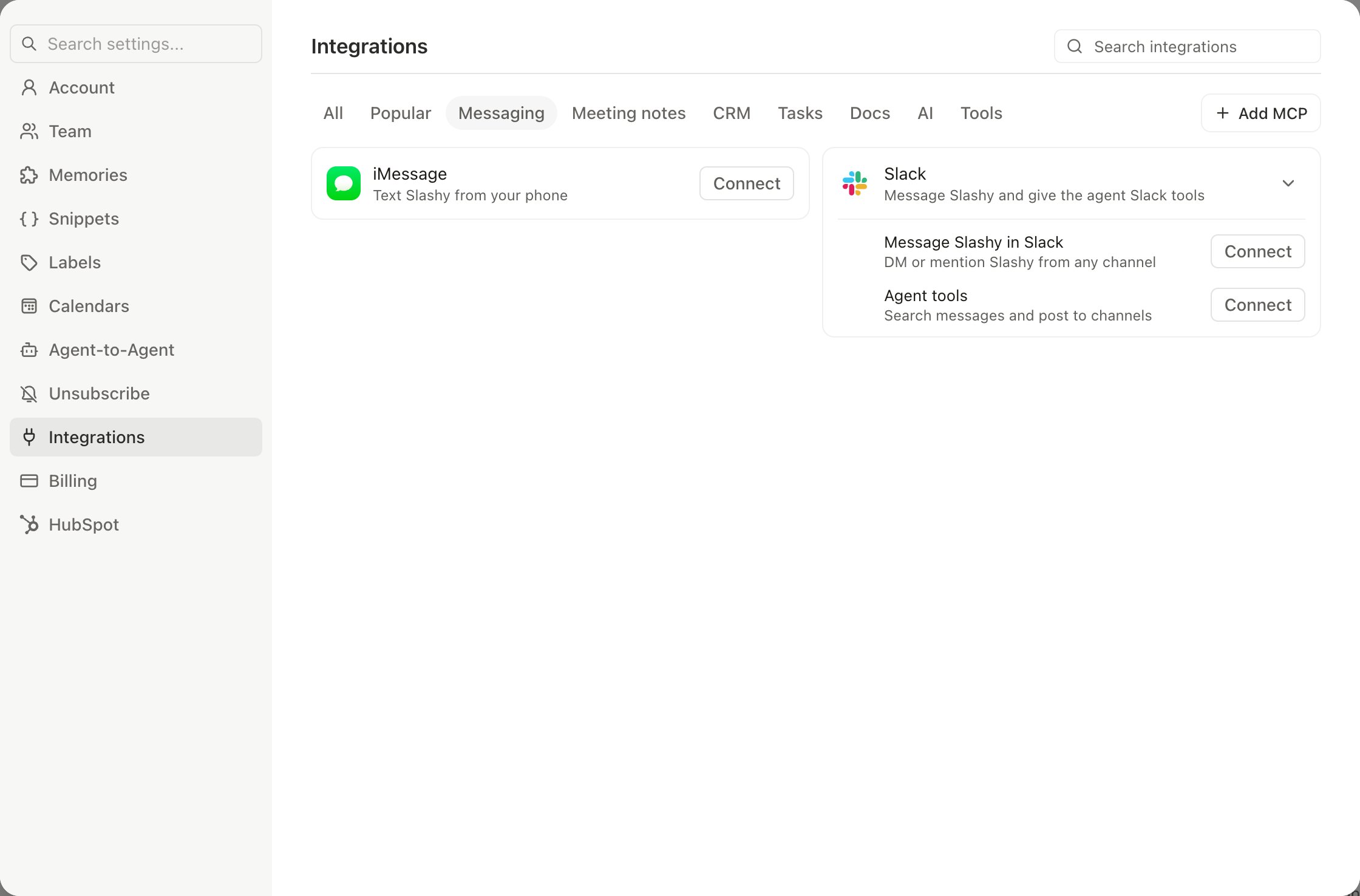
Go to Settings, Integrations and click the Slack card. The Messaging filter narrows the page to it.
2
Authorize the workspace
Click Connect next to Message Slashy in Slack. Sign in with the Slack workspace you want Slashy to post into, then approve the requested scopes.
3
Pick channels
Choose a default channel for general notifications. You can route specific event types to different channels later on the same screen.
Use the agent from Slack
Once connected, you have full two-way control over Slashy directly from Slack.DM the bot
Open a direct message with the Slashy bot and send any instruction in plain English. The bot handles the same actions available in the iMessage agent:- “Draft a reply to the last email from sarah@acme.com and tell her Thursday works”
- “What’s on my calendar tomorrow?”
- “Remind me to follow up with Alex on Friday at 9am”
- “Search my inbox for emails from investors this week”
- “Label everything from noreply@notion.so as Newsletter”
@mention in a channel
Tag the Slashy bot in any public or private channel and it replies in-thread. This lets your team trigger Slashy actions in context, such as asking for a quick email summary during a standup or pulling meeting prep into a deal channel.Only the account owner’s messages are treated as instructions. Messages from other channel members are treated as context, not commands, so teammates cannot act on your email or calendar.
Proactive messages
When iMessage is unavailable, reminders, daily digests, and trigger notifications fall back to Slack automatically.What the bot can post
Once connected, the bot posts:- Automation results. Every time an email or calendar trigger fires, Slashy can post a short summary to a channel. Useful for sales teams that want to see new replies, or ops teams that want to see when scheduled outreach lands.
- Daily briefings. The same morning briefing the iMessage agent delivers can be mirrored to a Slack channel. Helpful for shared accounts or team standups.
- VIP email alerts. When mail from a contact you’ve flagged as VIP arrives, the bot pings a channel so the thread doesn’t sit in the inbox unread.
Choose channels per event
Each notification category has its own channel selector. A common setup:#slashy-repliesfor reply notifications and VIP alerts#ops-automationsfor automation runs and scheduled sends- A DM with yourself for the daily briefing
Disconnect
To stop posting, open Settings, Integrations, Slack and click Disconnect. The Slack app stays installed in your workspace until a workspace admin removes it from the Slack app directory, but Slashy will stop sending messages immediately.Disconnecting does not delete past Slack messages. Channel history is owned by Slack.
HubSpot
Log emails to HubSpot contacts automatically.
Attio
Sync contacts and email activity with Attio.
iMessage agent
Run Slashy from text messages.
Automations
Triggers that post to Slack on every run.
MCP
Connect Slashy to other tools over MCP.