

What private notes are for
Use them for prep, post-meeting notes, talking points, links to internal docs, customer context, anything you would not want pasted into the actual invite. Because they live only in Slashy, you can be specific without worrying about who is on the invite. Slashy may also add private notes to events the agent creates on your behalf. Those notes follow the same rules: visible only to you, never synced out.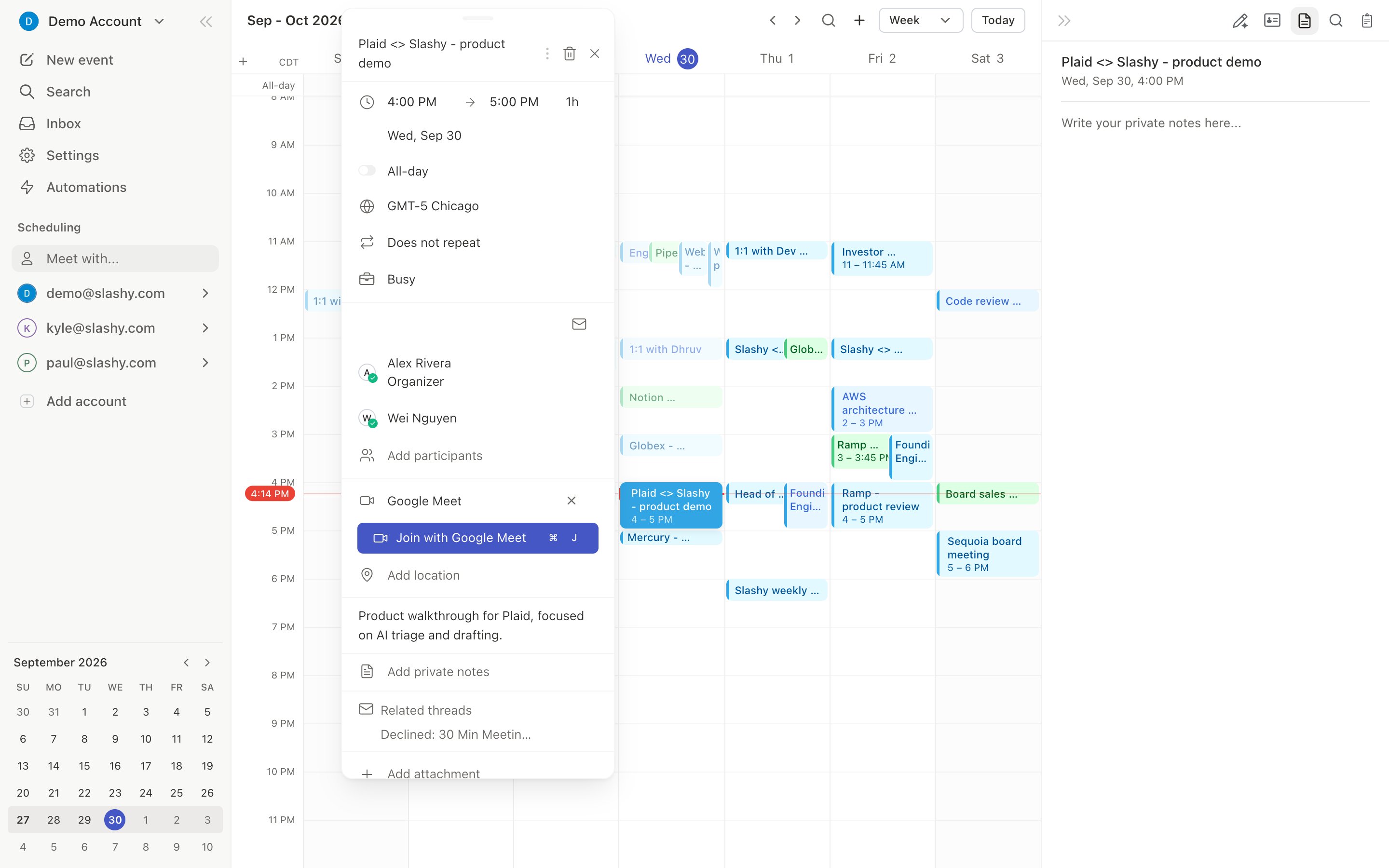
Opening the notes panel
Two ways to get there:- Keyboard
- Mouse
Select an event, then press
D to open event details, then N to focus the notes panel.Writing notes
The notes editor supports rich text. Bold, italics, lists, links, and headings all work, plus inline code. You can paste rich content from other docs and the formatting comes with it.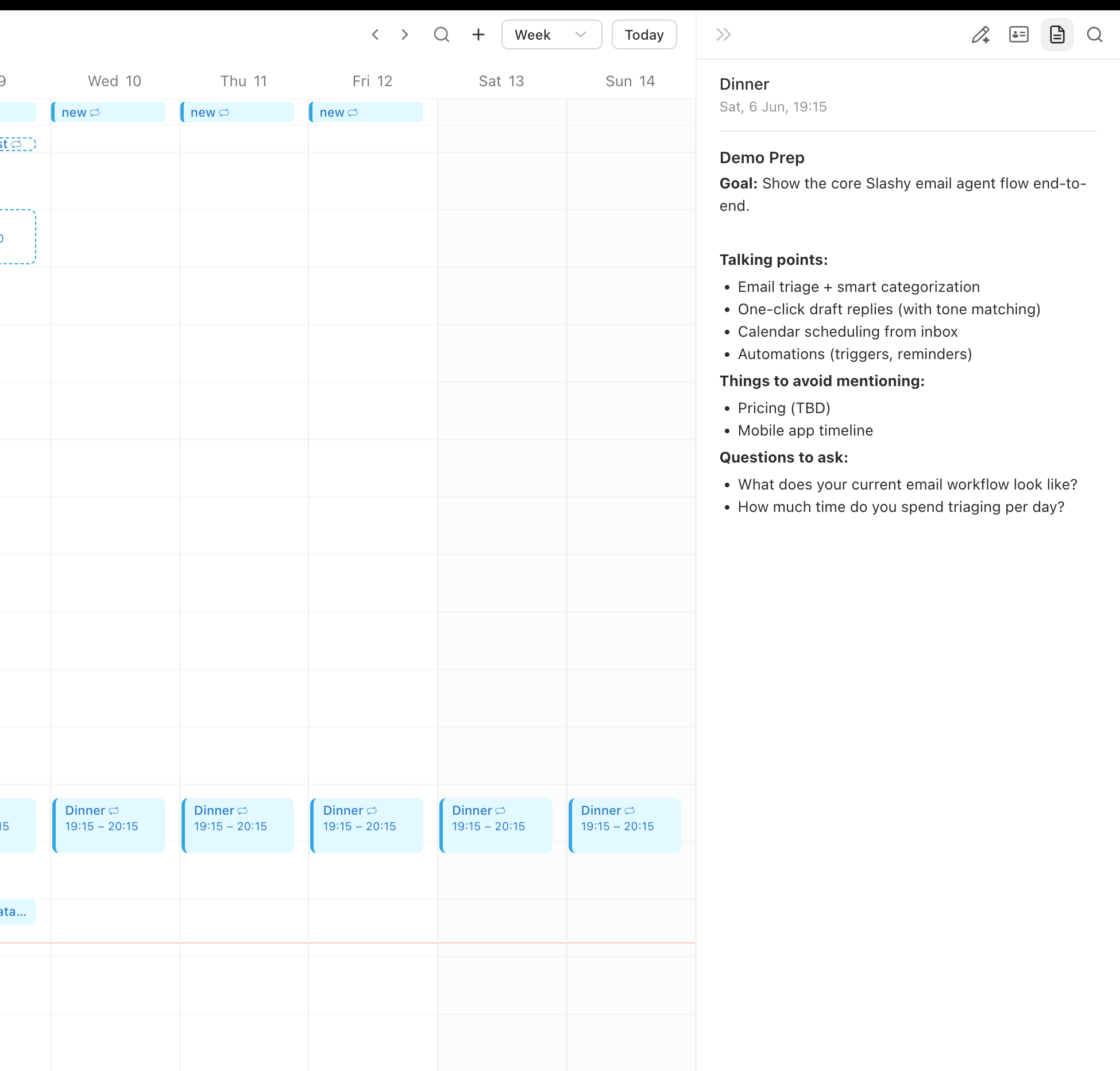
Who can see them
Only you. This holds even when:- The event is on a calendar you share with someone else.
- The event has external attendees.
- The event was created by the Slashy agent rather than by you.
If you want something visible to attendees, put it in the event description, not in private notes. The description syncs to Google Calendar and everyone on the invite sees it.
Mobile
On the iOS app, open an event and scroll down to the Notes section. The mobile editor supports the same autosave behavior. Rich formatting renders read only on mobile, but plain text edits work.Creating events
Schedule events directly from Slashy.
Granola integration
Sync meeting notes from Granola onto events.
Otter.ai integration
Attach Otter transcripts to calendar events.
Circleback integration
Pull Circleback notes onto your events.
Keyboard shortcuts
Move faster across the calendar.