

Connect Otter.ai
Authorization runs through OAuth, so you sign in with your Otter account and Slashy receives read access to your sessions.1
Open Settings
Press
Cmd+,.2
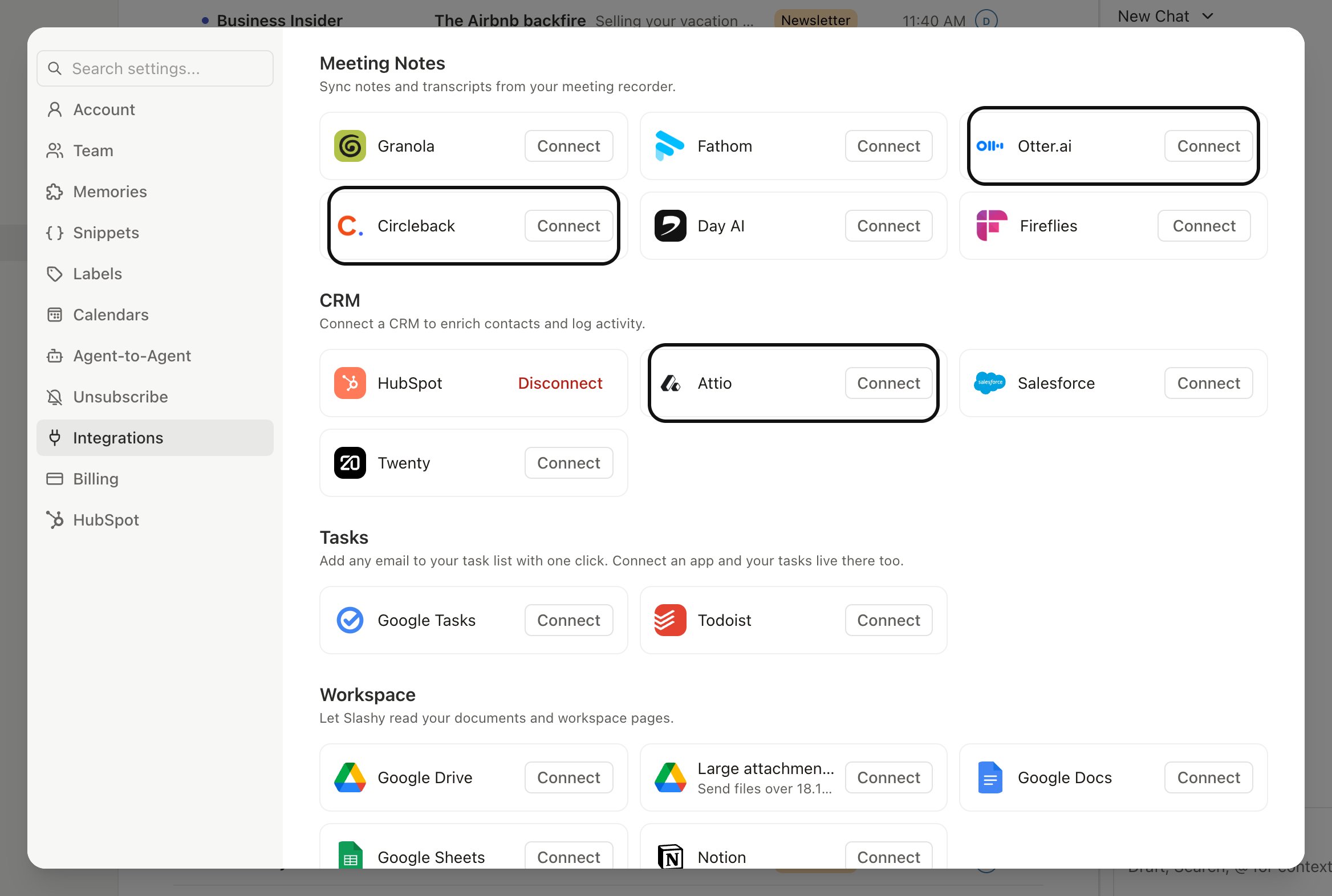
Go to Integrations
Choose Integrations in the sidebar, then Meeting Notes, then click Otter.ai.
3
Authorize
Click Connect Otter.ai. Sign in with the Otter account that records your meetings.
4
Return to Slashy
After Otter confirms access, you are redirected back. The integration page shows Connected.
What syncs
Once connected, Slashy pulls three things from each Otter session and attaches them to the matching calendar event:- The full transcript.
- Action items Otter extracted.
- Structured participant data, including names and the role Otter assigned to each speaker.
How matching works
Slashy matches an Otter session to a calendar event when both exist in your calendar at similar times. Matching is reliable when the event exists in both Otter and your calendar with a similar start window. If you record an ad hoc session that does not have a calendar invite, Slashy keeps it in your Otter session list but does not attach it to an event. If you ever see a mismatch, open the event in Slashy, click the Otter section, and reassign the session from a small dropdown of nearby sessions.Action items on events
Action items become a checklist on the event. Tick them off in Slashy and the state is preserved across reloads. You can pull an action item into the agent sidebar to schedule it, send a follow up email, or convert it into a reminder.Ask the agent about a meeting
Once sessions are syncing, ask the agent (Cmd+/) about a past call, like “What did we agree with Acme last week?” The agent searches your connected meeting notes and replies with an inline card showing the meeting, date, participants, and a link to the recording.
Disconnect
To remove the integration, open Settings, then Integrations, then Meeting Notes, then Otter.ai, and click Disconnect. Slashy stops pulling new sessions and removes existing Otter data from your events. Your data in Otter itself is untouched.Otter data refreshes shortly after a session ends. If a transcript has not appeared on an event yet, give it a moment, then reload the calendar.
Granola integration
Sync Granola notes to events.
Fathom integration
Sync Fathom recordings to events.
Circleback integration
Pull Circleback notes to events.
Fireflies.ai integration
Sync Fireflies transcripts to events.
Private notes
Slashy only notes on events.
Meeting prep
Prep briefings before each meeting.
Creating events
Schedule directly from Slashy.