

Opening the Sidebar
Two ways to open it:d a— pressdthenain sequence (display: agent)Cmd+/— direct shortcut from anywhere
What the Agent Can Do
The agent has full tool access for email and calendar. Tool use indicators show what it did (e.g., “Searched emails,” “Created draft”).- Search emails — “Find all emails from Sarah last week about the budget”
- Read threads — “What did John say in his last email?”
- Draft and send — “Draft a reply saying we accept the proposal”
- Manage calendar — “Schedule a 30-minute call with Mike tomorrow”
- Create automations — “Set up an email trigger for receipts”
- Research contacts — “Look up this person on LinkedIn”
- Manage memories — “Remember that I always CC finance@ on vendor invoices”
Ambient Context
When the sidebar is open, the agent automatically picks up what you have selected or open, and displays a context chip above the input:- Email threads selected: the chip shows “N emails selected.” Ask “draft a reply to this” or “summarize these threads” without saying which ones you mean.
- Calendar event open: the chip shows the event name. Ask “prep me for this meeting” and the agent uses the attendees, notes, and description from that event.
Cmd+Shift+F) to pin that exact selection as a chip. Ask the agent to work on just that part, for example “make this paragraph more concise,” and it edits precisely the span you selected instead of the whole draft.
File Upload
Upload files into the conversation via the attachment icon or drag-and-drop. Supports PDF, images, Word docs, and other common formats. The agent processes content and can reference it when drafting.Model Selector
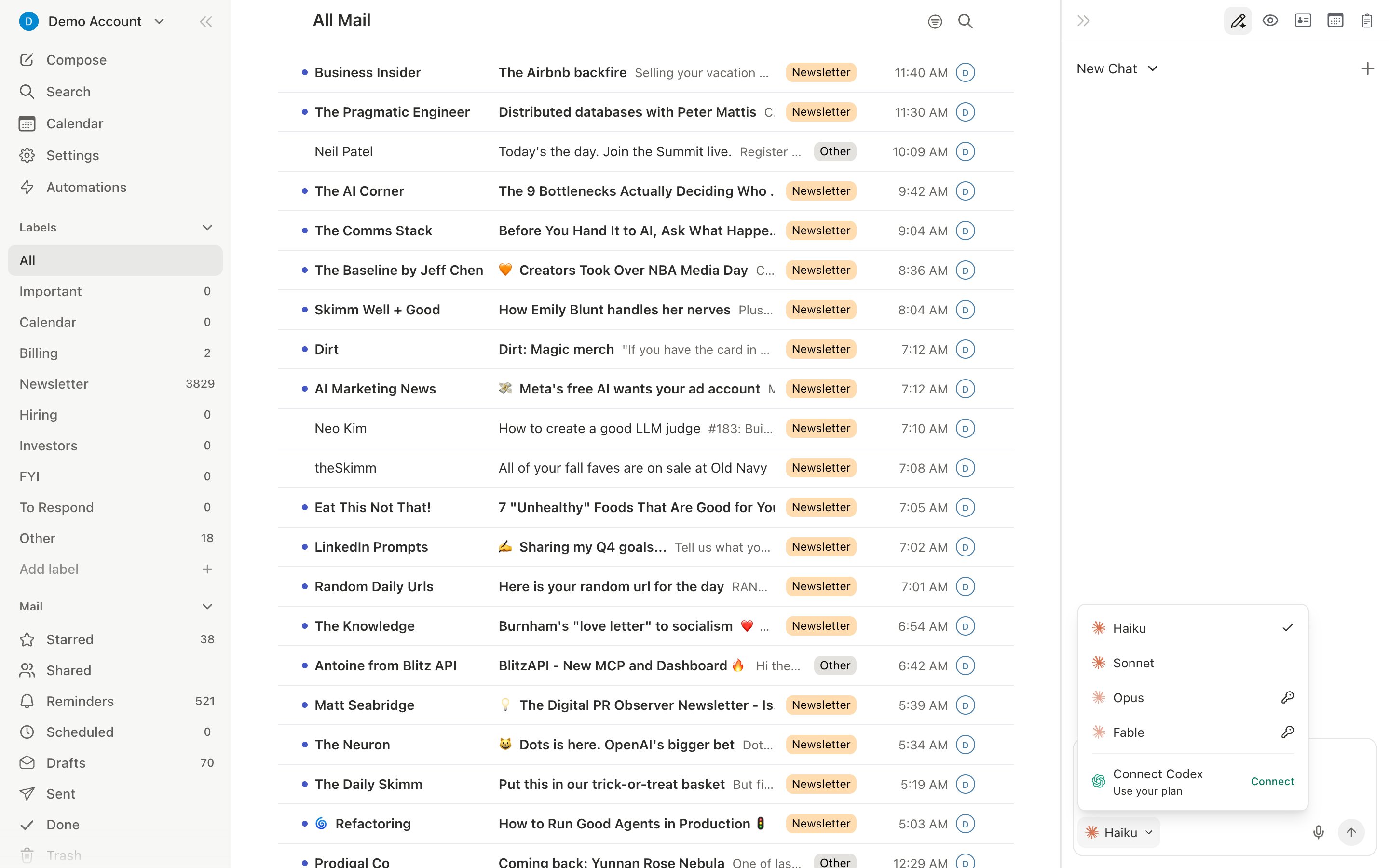
The model picker sits at the bottom left of the message box. Click the model name to switch between Haiku, Sonnet, Opus, and Fable, or between Codex models if you have connected a ChatGPT subscription. You can change models between messages. Opus and Fable need your own Anthropic API key. Codex models need a connected ChatGPT subscription. See AI models in Slashy and Connect your Codex subscription.When a Run Finishes
Long requests keep running while you work elsewhere. When a run finishes and you are in another window or app, Slashy shows an Agent complete notification saying your answer is ready. You see it in the desktop app, and on the web once your browser allows notifications. If you are already looking at the chat, there is no notification. If you press Stop, or a run ends before it finishes, a Resume button appears below the last message. Click it to have the agent keep going in the same conversation.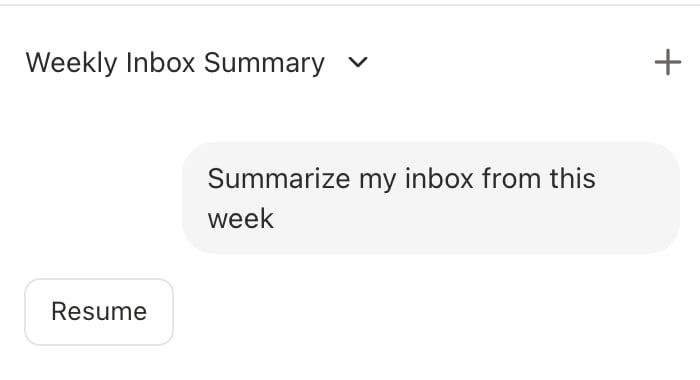
Conversation History
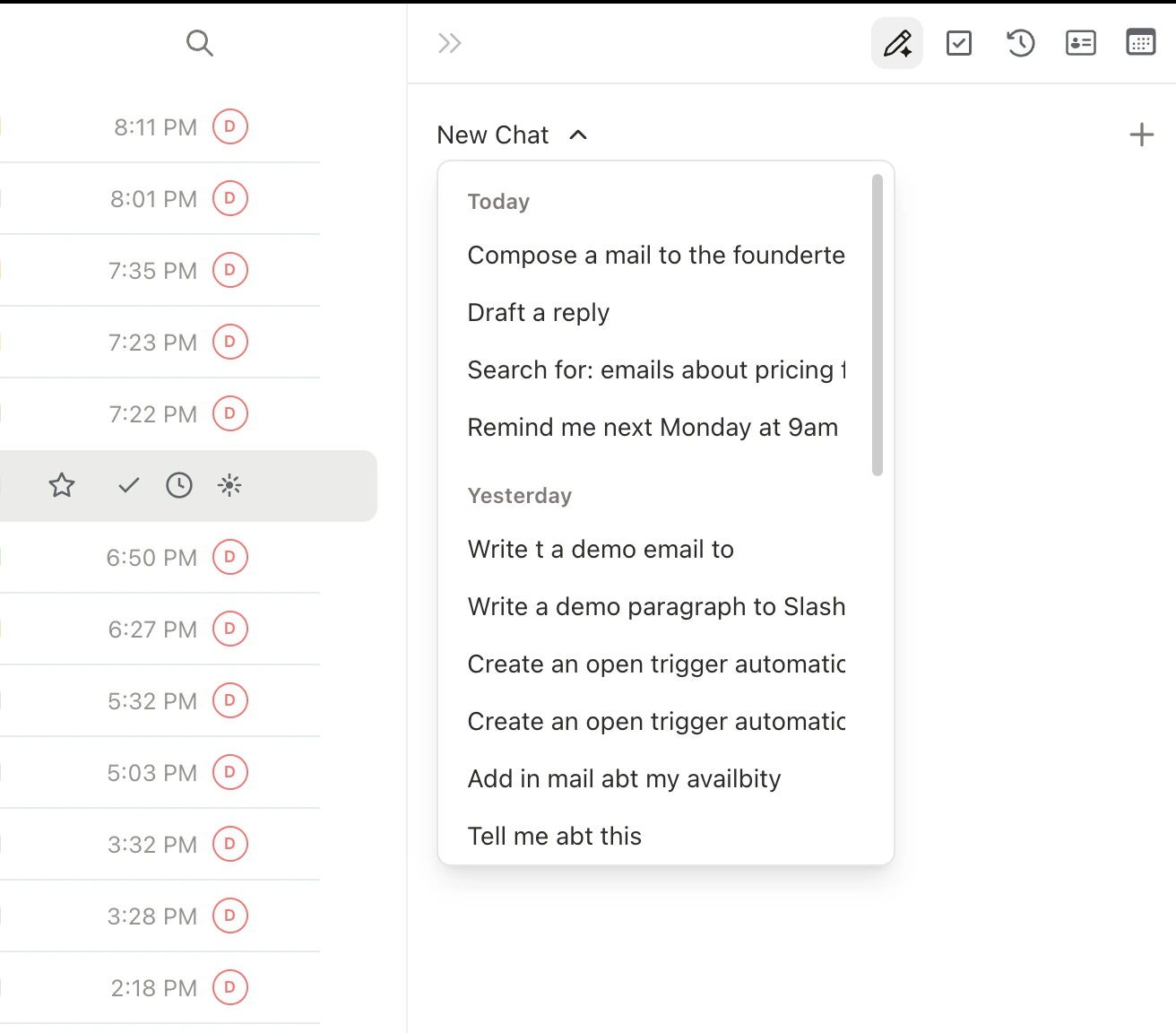
Past conversations are saved and searchable. Click the history icon at the top of the sidebar to browse previous chats. Start a fresh conversation withCmd+Alt+N.
The Command Palette
PressCmd+K to open the command palette. It has three modes:
- Commands
- Search
- Links
Type any action name: “Archive,” “Compose,” “Star,” “Go to Sent,” “Settings.” Every action in Slashy is accessible here.
Related Articles
Agent Autonomy
What the agent can and cannot do
Connect your Codex subscription
Use your own ChatGPT/Codex plan in agent chat
Agent Goals
Hand off work that takes days
Google Docs, Sheets & Drive
Search, read, and edit Google Workspace files
Email Triggers
Automate actions on incoming email
Scheduled Reminders
Schedule the agent for future tasks
Keyboard Shortcuts
Every shortcut for navigating Slashy faster