

Booking links are Slashy’s built-in scheduling tool. Create a link, share the URL, and people book time on your calendar without back-and-forth emails. Slashy handles availability, conflict checking, event creation, conferencing, and confirmations.Documentation Index
Fetch the complete documentation index at: https://help.slashy.com/llms.txt
Use this file to discover all available pages before exploring further.
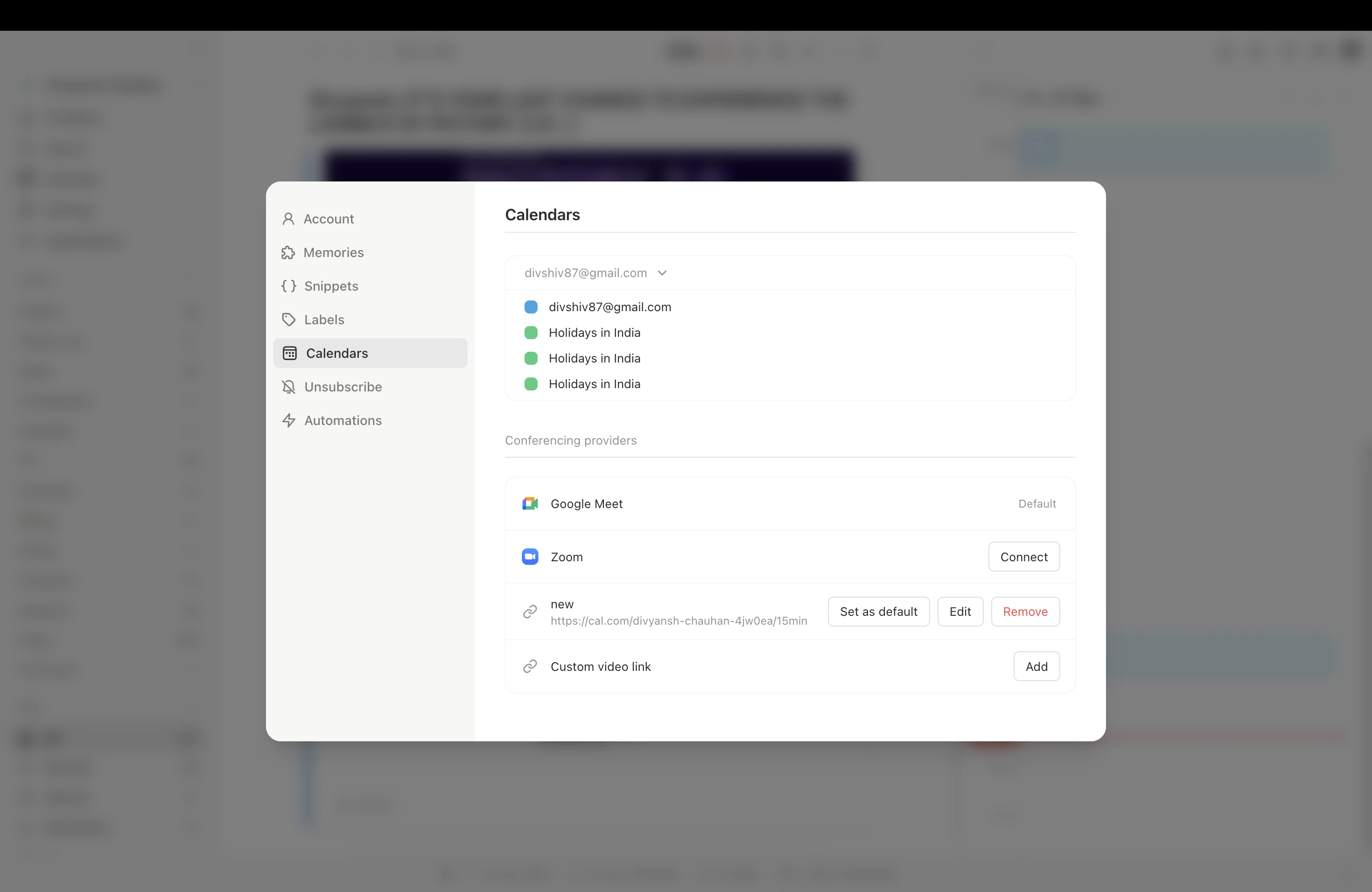
Creating a Booking Link
Go to Settings > Calendars and click New Booking Link. Configure these settings:| Setting | Description |
|---|---|
| Title | Name shown to guests (e.g., “30-Minute Intro Call”) |
| Slug | URL path (e.g., intro-call becomes slashy.com/book/you@email.com/intro-call) |
| Duration | Meeting length in minutes |
| Buffer before/after | Padding around each meeting |
| Minimum notice | How far in advance someone must book |
| Booking window | How many days ahead guests can book |
| Slot interval | Time between available start times |
| Available slots | Time windows when you are available |
| Conferencing | Google Meet, Zoom, Teams, Webex, or custom |
| Avoid conflicts | Hides slots overlapping existing events in real time |
Custom Booking Questions
Add questions guests must answer when scheduling. Each has a label, type (short or long text), and required flag. Responses appear in the confirmation and calendar event.The Public Booking Page
Each link has a public URL showing: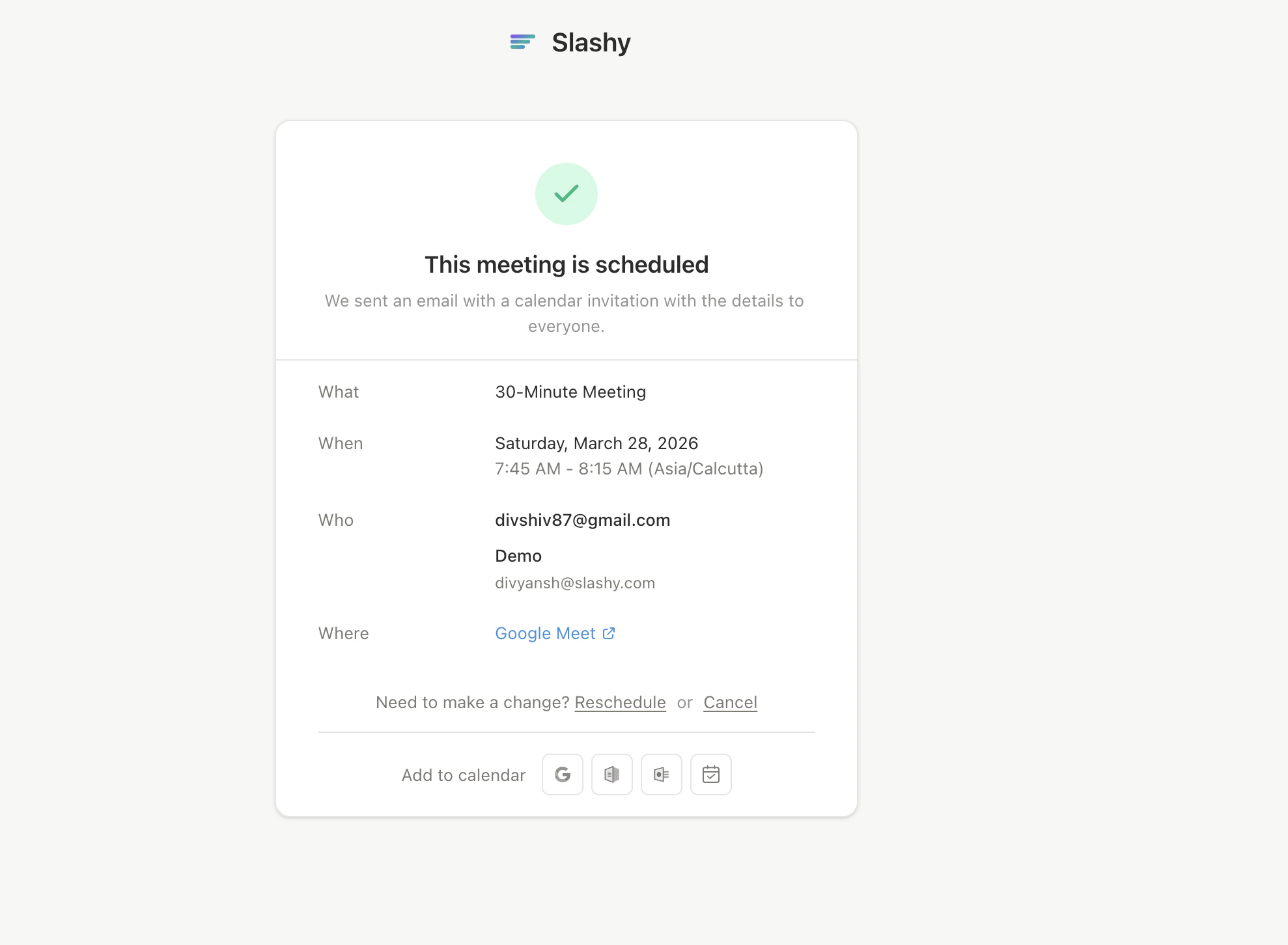
Cancel and Reschedule
Guests receive cancel and reschedule links in their confirmation. Both work via secure tokens — no account required.- Cancel — optionally provide a reason. The event is removed and you are notified.
- Reschedule — pick a new time from updated availability. The old event is replaced.
Conflict Avoidance
When Avoid conflicts is enabled, Slashy checks your calendar in real time. Overlapping slots and buffer zones are automatically hidden from guests.
Managing Booking Links
In Settings > Calendars, you can:- Edit any setting
- Activate/Deactivate a link (deactivated links show “unavailable”)
- Set expiration dates
- Copy URL to share
Quick Reference
| Action | Where |
|---|---|
| Create booking link | Settings > Calendars > New Booking Link |
| Insert availability | Shift+Cmd+A in composer |
| Open calendar | 2 or p c |
| Open settings | Cmd+, |
Sharing Your Availability
Insert available times directly into emails.
Creating Events
Create and manage calendar events in Slashy.