

Share a conversation
1
Open the conversation
Open the thread you want to share.
2
Open the share dialog
Press
Cmd+K and choose Share this email by link.3
Copy the link or invite people
Click Copy link to grab the address and paste it anywhere. Or pick people from your contacts, or search by name or email, and click Share with to email each of them the link.
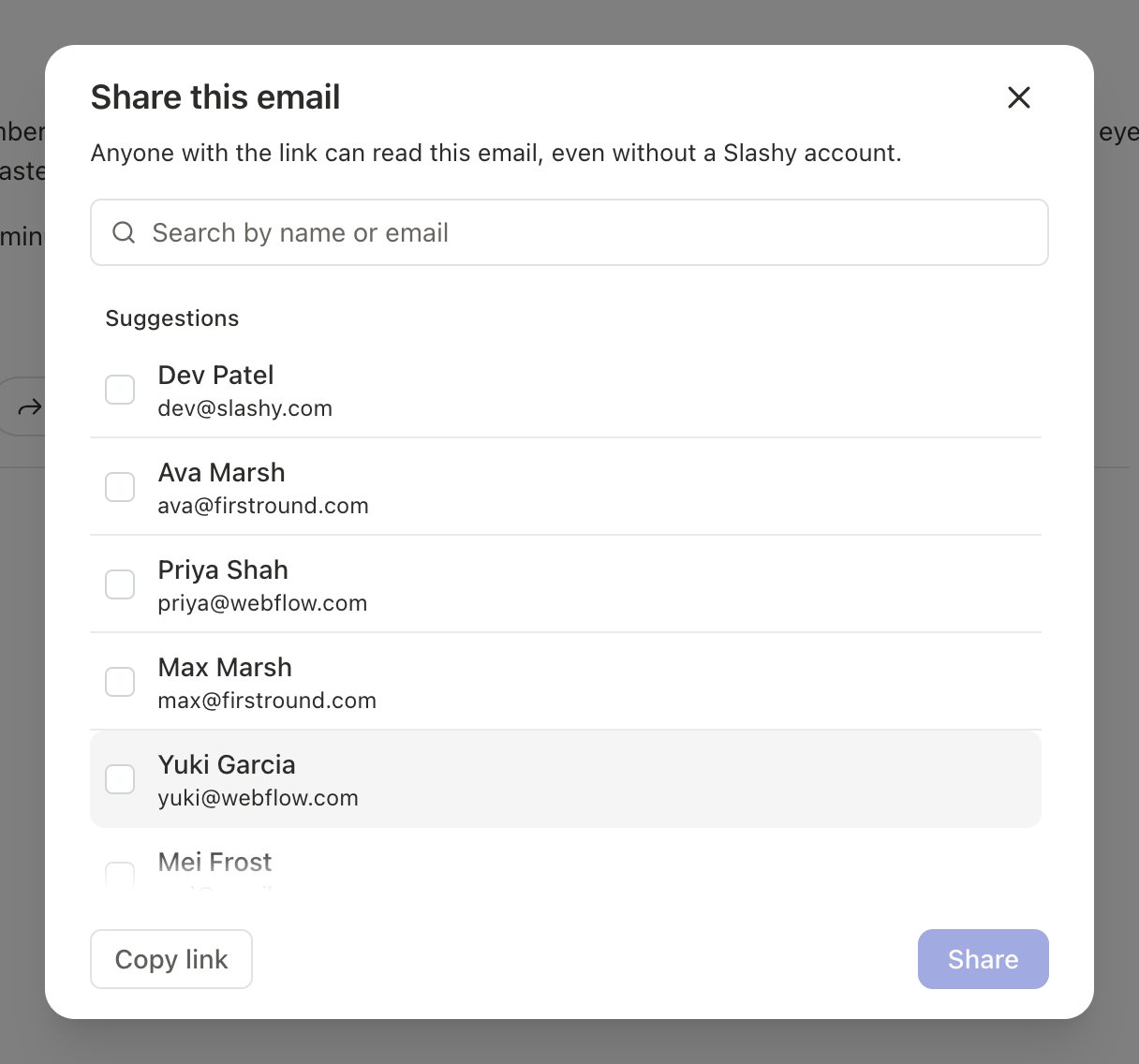
Anyone who holds the link can read the conversation, including attachments. Share it only with people you trust, and stop sharing when you are done.
What people see
Viewers open a clean page with every message in the thread, who sent it, and who shared it. They do not need an account to read. To comment, a viewer signs in with Google. Comments appear in your reading pane under Comments on the web, separate from your team’s internal comments, which never leave Slashy. Reply from that panel, react with an emoji, or type@ to mention someone on the conversation.
See what you have shared
A conversation with a live link shows Shared by link under its subject, and a link icon next to it in your inbox list. Click Shared by link to reopen the share dialog.Stop sharing
Turn a link off from the Slashy mobile app: open the conversation, open thread actions, and tap Stop sharing. The link stops working right away for everyone who has it, and visitors see “This link is not available.” Tap Share link in the same panel to share the conversation again with a link you can send through your phone’s share sheet.Team control
Team owners and admins can turn sharing off for everyone on the team in Settings > Team with the Share emails by link toggle. When it is off, members see a message that the team turned off public links. See Team management.Comments and @-mentions
Discuss a thread privately with teammates.
Command palette
Every action, one keystroke away.
Team management
Invite teammates and set team controls.
Print or save an email as PDF
Get a copy of a thread you can attach.