

Add people
1
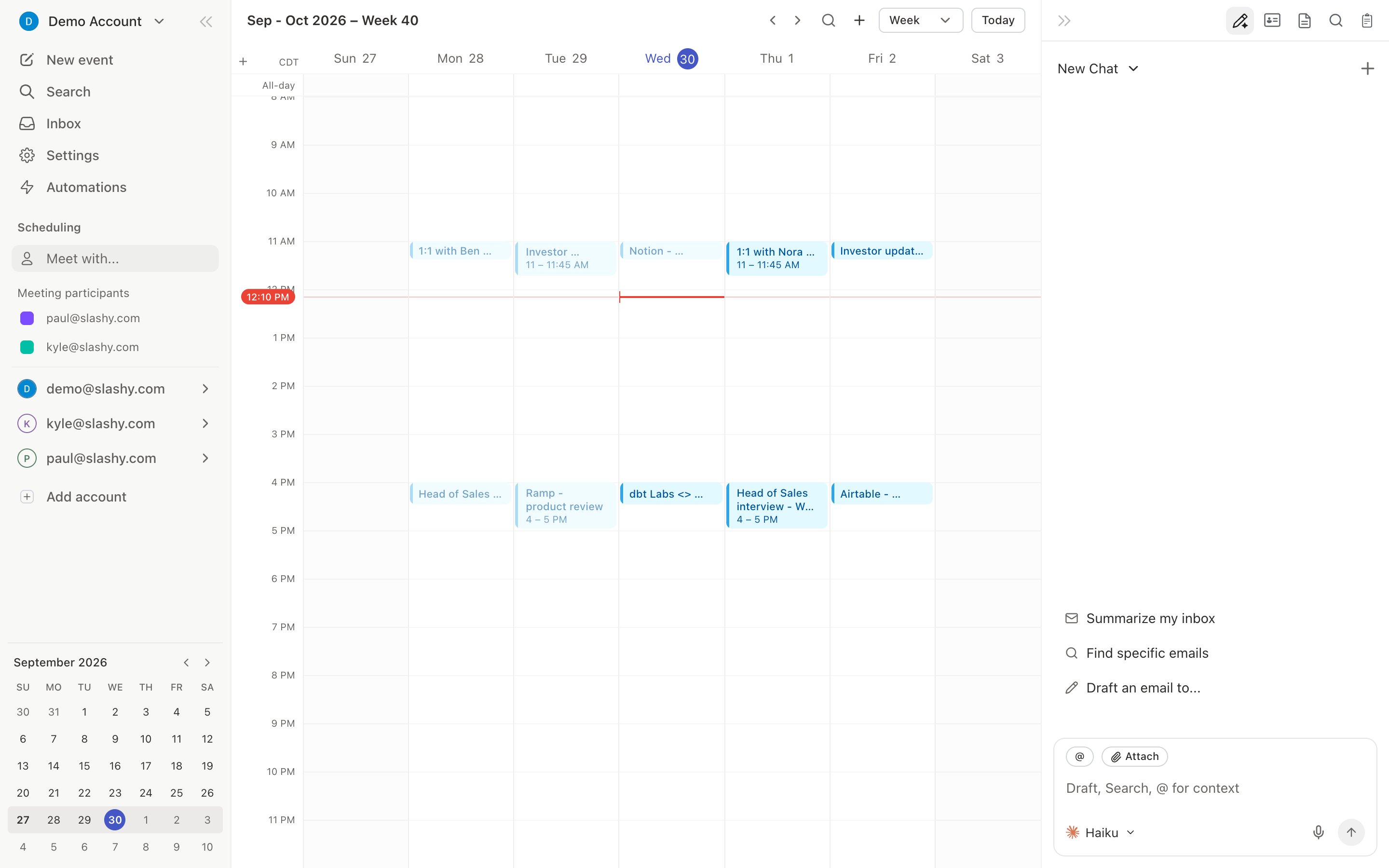
Open Meet with
In the calendar, press
f or click the Meet with… field in the calendar sidebar.2
Pick people
Start typing a name or email and choose from the matches. Each person you add gets their own color.
3
Find a gap
Their busy time appears as blocks alongside your events. Click an open gap to create an event.
Beside an email
The calendar panel next to an email works the same way. Add a guest to the event card and their busy time is drawn on the day view beside a new event, so you can pick a time before you send the invite.What you can see
Meet with shows what each person has chosen to share. For teammates in your organization, that is usually their busy time. For external people, it is whatever their calendar sharing allows. If a person’s calendar is not shared with you, their entry reads Calendar not shared rather than showing an empty column that looks free. Ask them to share their calendar with you in Google Calendar, or use availability to offer times instead. Busy time covers the whole range you can page through in the calendar, so you can plan weeks ahead.A teammate’s answer and guests
On a teammate’s Google calendar you can read, each meeting shows how they answered the invite, in the full calendar and in the day view beside an email:
This tells you which busy times are firm before you pick a slot. In the full calendar, click a teammate’s meeting to open its card, which says their answer in words (for example Not yet responded or Maybe, optional) and lists the other guests with each guest’s response. When the full guest list is available, the card also shows the total and a tally such as “2 yes, 1 awaiting”. Declined meetings never appear as busy time.
Best uses
- Internal scheduling. Add the three or four people who need to be in a meeting and pick a slot directly.
- Finding mutual gaps. Useful for recurring meetings that keep slipping. Page forward and look for open bands across everyone.
- Prepping availability. Identify which time bands actually work before sending availability out.
Mobile
The mobile agenda has no time grid. When you create an event, the create sheet shows each guest as Free, Busy with their time, or Calendar not shared. See Calendar agenda on mobile.Availability
Share when you’re free.
Creating events
Schedule from any surface.
Mobile agenda
14-day agenda on iOS.
Private notes
Notes that stay in Slashy.