

Reply, Reply All, and Forward
These shortcuts work from both the inbox list and thread detail view. The compose editor opens with correct recipients, subject line, and quoted content pre-filled.
Inline Reply
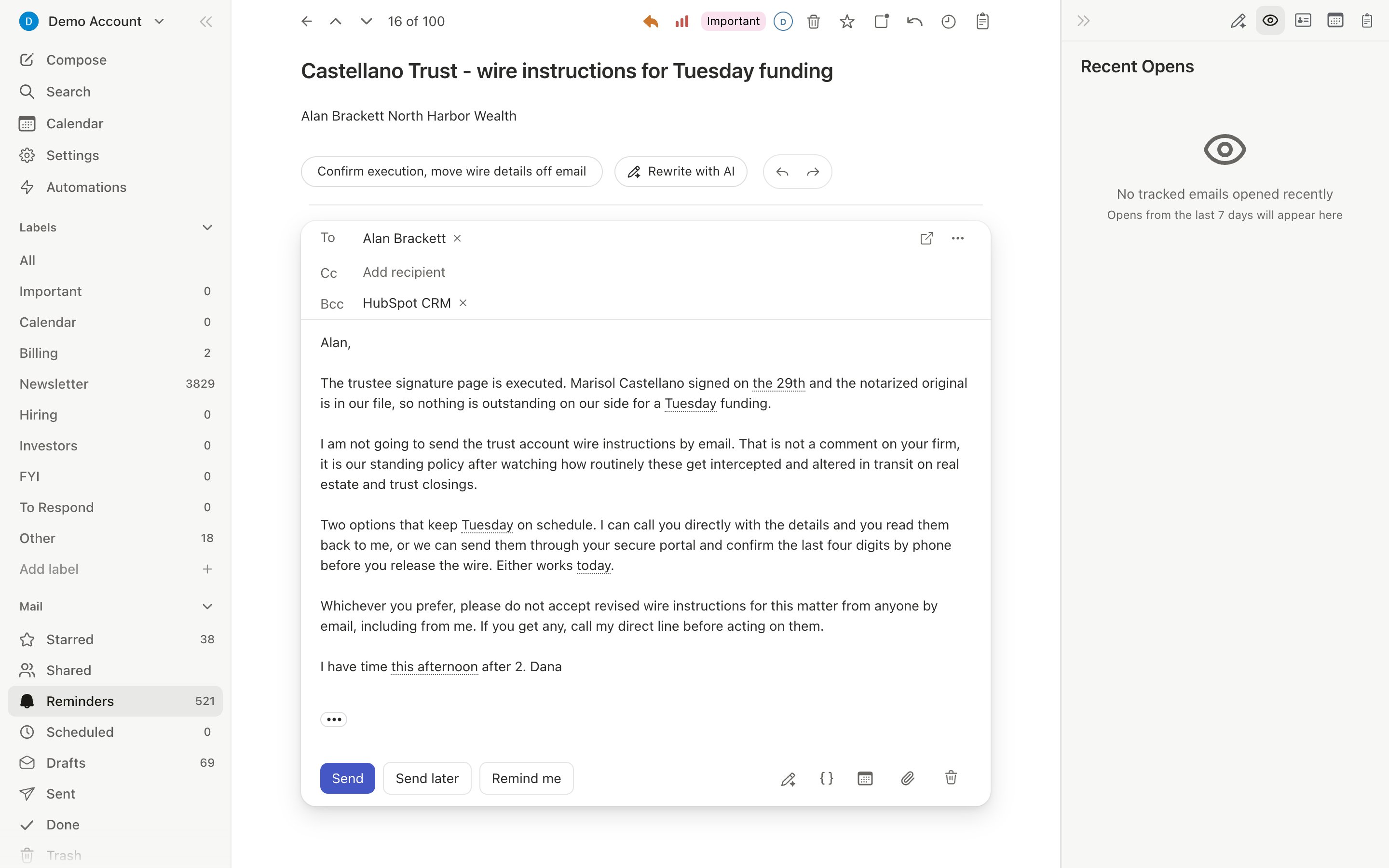
When viewing a thread, pressr to open the inline reply editor at the bottom. It includes:
- Pre-filled recipients based on the last message
- Subject carried over with “Re:” prefix
- Your signature auto-appended
- Full compose features (formatting, attachments, spellcheck, AI tools)
Quoted Content
Original email content is included as quoted text below your reply. Quoted content is collapsed by default behind a ”…” indicator — click to expand. You can edit or delete quoted text before sending. In received messages, quoted content is also collapsed to keep long threads readable. Quoted text carries the original sender’s signature along with the message. Toggle Hide quoted signature in the reply editor’s formatting menu to keep the quote focused on the message itself. Add a new recipient to CC while replying and Slashy carries over the original message’s attachments to them automatically, so they see everything the rest of the thread already has.Forwarding
Pressf to forward. The editor opens with:
- Empty To field (you choose recipients)
- Subject prefixed with “Fwd:”
- Original message content included
- All original attachments carried over
AI Draft Reply
PressCmd+Enter while in a reply to generate an AI-drafted response. The agent reads the full thread context, your memories, and sender profile to match your writing style.
Drafts that Slashy prepares for you automatically open as Reply all, so people who were copied on the message stay on the reply. Switch to a plain reply with r, or edit the To and Cc chips directly.
New Replies While You Read
If a new reply arrives on the thread you have open, a notice appears at the bottom of the window. Your reading position and your cursor stay where they were. Click View in the notice to scroll to the first reply you haven’t seen. The notice appears only for messages from other people, and it waits until an undo-send countdown has finished.Loom Videos in Emails
When an expanded email contains a Loom link, Slashy shows the video as a player under the message. Videos start paused and muted, and a link with a timestamp opens at that moment. If you have turned on Private reading, the player waits behind a Load Loom video button until you click it.Threading
Slashy setsReferences and In-Reply-To headers automatically. Your replies appear in the correct thread in Gmail, Outlook, Apple Mail, and every other client.
Reply Shortcuts at a Glance
Reply Compose Features
The reply editor has everything the new-email composer has:- Rich text formatting with keyboard shortcuts
- To/CC/BCC with autocomplete and drag-and-drop
- File attachments (shortcut, drag-and-drop, or paste)
- AI autocomplete, AI edit, and AI rating
- Snippets, scheduled send, undo send, forgotten attachment detection
Scheduled Send & Undo Send
Schedule emails for later or undo after sending.
How AI Drafts Work
Automatic draft suggestions and tone matching.
Share an email by link
Send a read-only link to people outside Slashy.
Comments and @-mentions
Discuss a thread with teammates.