

How It Works
When tracking is enabled, each outgoing email gets a tiny invisible image per recipient. When the recipient’s email client loads images, Slashy records:- Exact timestamp
- Device type and OS
- Email client
Tracking on Your Sent Emails
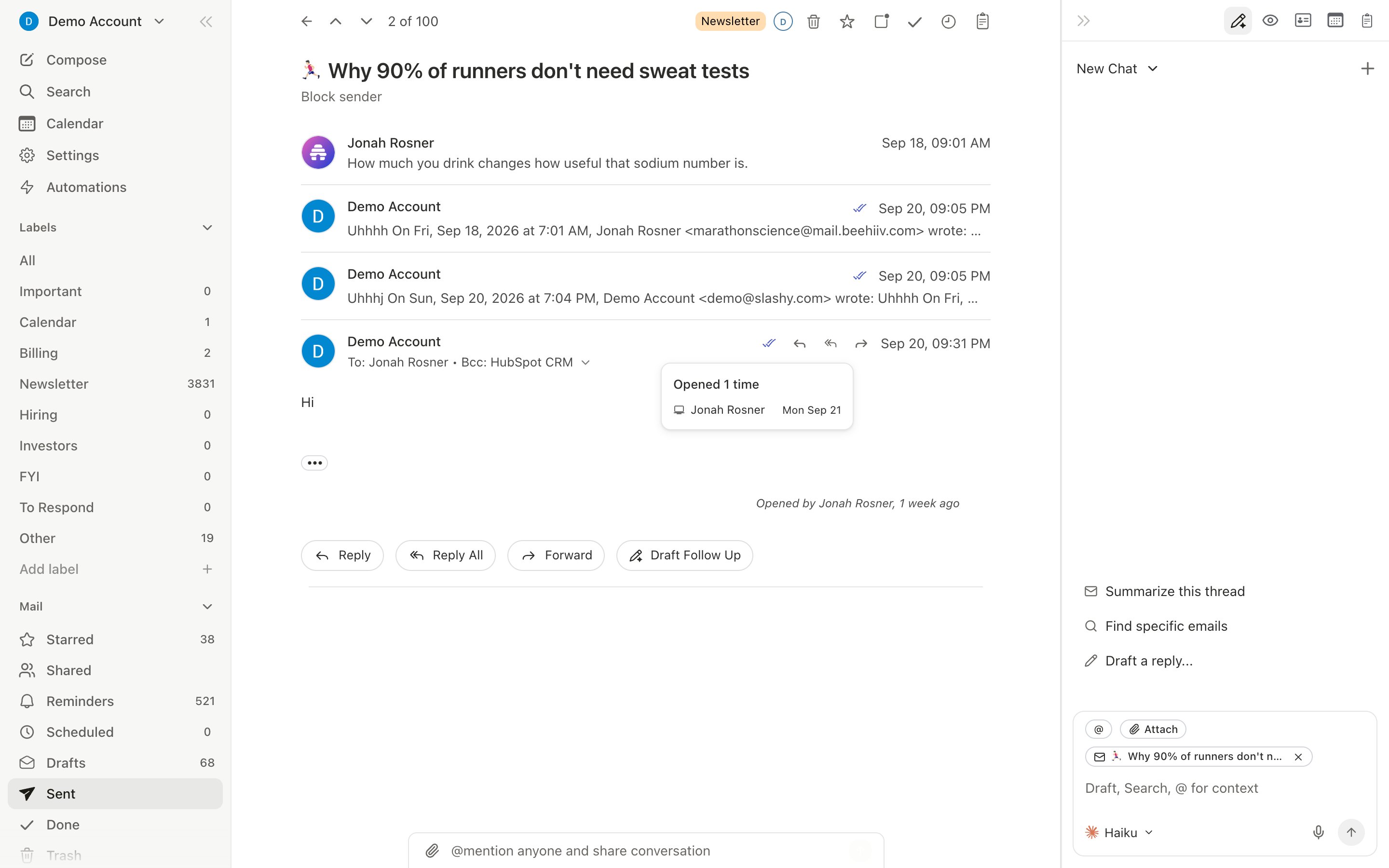
Open tracking is on by default for the emails you send. Slashy adds the invisible image to each outgoing message and records opens per recipient. There is no in-app switch to turn it off; if you would rather not track opens, email founders@slashy.com and we will turn it off for your account.Viewing Open Data
Pressd o to open the Recent Opens panel — a live feed of who’s reading your tracked emails.
Each entry shows: recipient name, email subject, time opened, device type, OS, and email client.
You can also view tracking data on individual threads — sent messages show an “Opened by” indicator.
On mobile, the read receipt sheet shows each recipient with their contact avatar next to their open status, so it’s easy to scan who has and hasn’t opened at a glance.
When Tracking Doesn’t Work
If a recipient replies to a tracked email but the pixel never fired, Slashy still shows the message as opened, labeled “Opened. Privacy protection likely blocked tracking.” so you’re not left guessing why the open count reads zero on a message you clearly got a reply to.
Private Reading for Emails You Receive
Tracking works both ways: many senders put hidden tracking pixels in the mail they send you, so they know when you open it. Private reading blocks those.1
Open Settings
Press
Cmd+, and go to Account.2
Turn on Private reading
Find Private reading in the Compose & Reply group and switch it on. You can also press
Cmd+K and search “private reading”.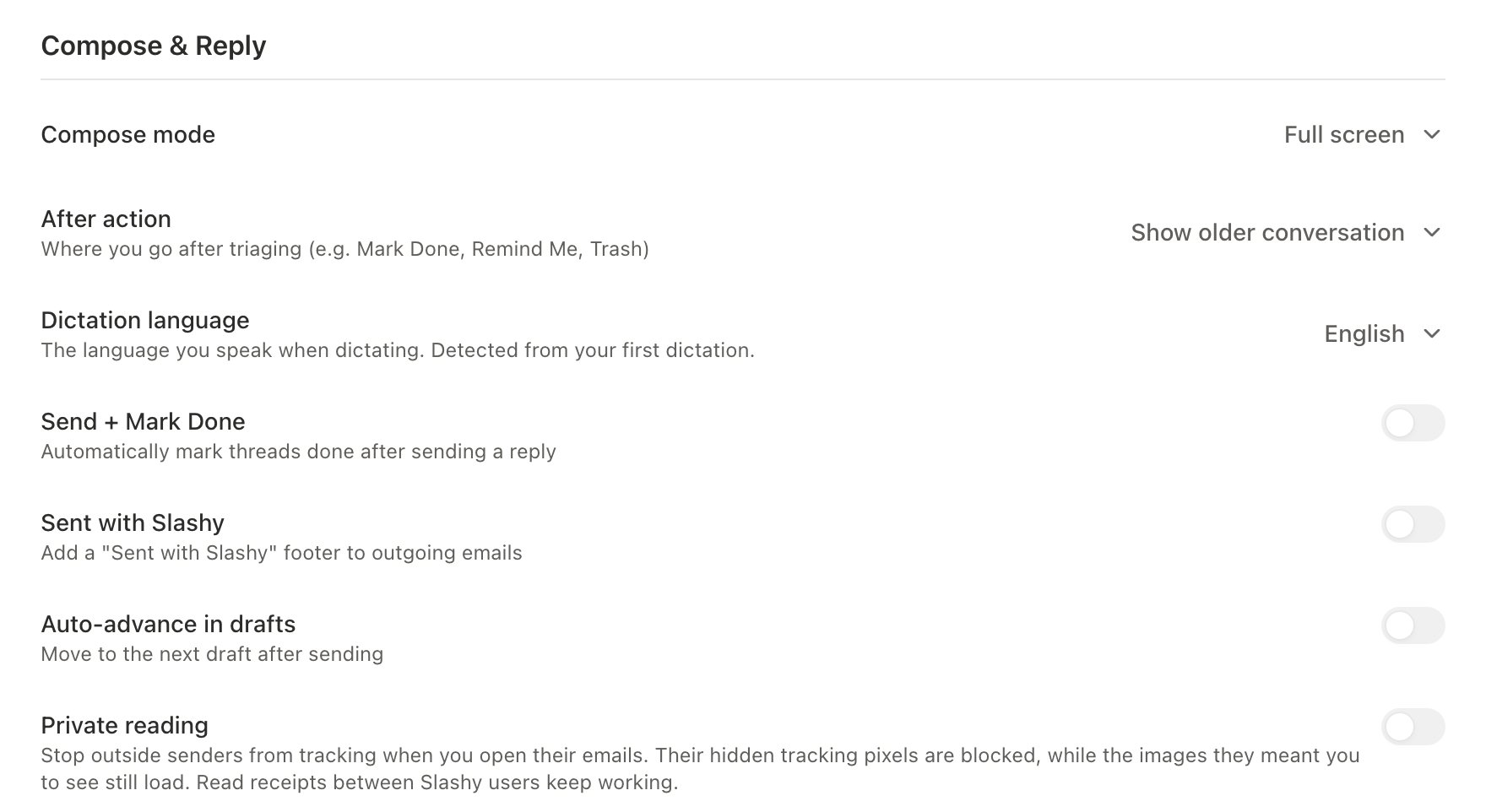
Team Read Receipts
If a teammate CCs you on an email they sent with tracking on, you see the same open data they do, right on the thread. There’s nothing to set up: as soon as you’re on a tracked message together, opens show for both of you. See Team management to invite teammates.Auto-Open Filtering
Slashy filters automated opens from Gmail Image Proxy, Apple MPP, Microsoft SafeLinks, and corporate security scanners. You may miss occasional real opens, but the ones you see are genuine.Open Trigger Automations
Create automations that fire when a tracked email is opened — for example, get notified when a prospect opens your proposal.1
Open the agent sidebar
Press
Cmd+/ or d a.2
Ask the agent to create an open trigger
Example: “Create an email open trigger: when anyone at @bigclient.com opens my email for the first time, message me on iMessage.”
3
Define your condition and action
The agent shows a preview of the trigger for your confirmation. Adjust the scope or action as needed.
Related Articles
10 Automations
Set up email open alerts and more
Never Miss a Follow-up
Four layers of follow-up protection
Slashy for Sales
Sales workflows using tracking and follow-ups
Customer Follow-ups
Automated follow-up tracking for key accounts
Security and privacy
What Slashy can and cannot do with your mail