

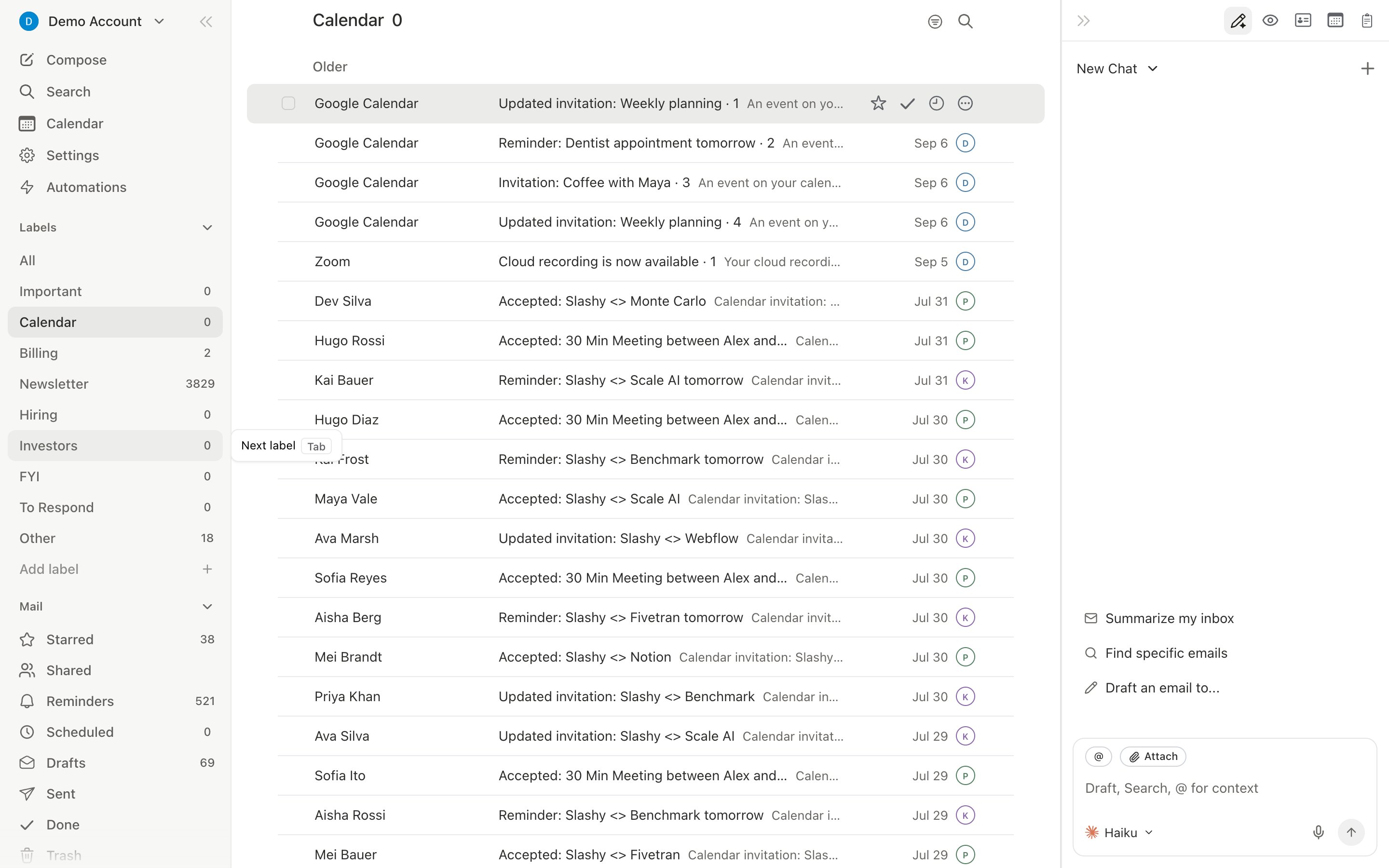
Configure Labels First
1
Open label settings
Go to Settings > Labels (
Cmd+,)2
Enable 3-5 labels
Choose labels that match your workflow: Important, Newsletter, Billing, plus any custom ones for your role. Gmail labels you already use can become tabs here too.
3
Reorder by priority
Drag labels so highest priority appears first. You’ll process them in this order.
4
Create custom labels if needed
Press
n l to create role-specific labels (e.g., “Prospects” for sales, “Portfolio” for VCs).Clear an Old Backlog with Get Me To Zero
When thousands of old conversations sit in your inbox, start from zero instead of working through them.1
Open the command
In the inbox, press
Cmd+K and choose Get Me To Zero.2
Pick an age
Under Older than, choose 1 day, 3 days, 1 week, 2 weeks, or 1 month. The default is 2 weeks.
3
Choose what to keep
Check Keep unread or Keep starred to leave those conversations in your inbox.
4
Confirm
The button shows how many conversations will move, for example Done (1,240). Click it and the cleanup runs in the background, even if you switch to Search or Settings.
g e), where search still finds them. A notice tracks progress, and Undo in it moves back exactly the conversations the cleanup moved. Get Me To Zero works on the inboxes you have selected and is available for Gmail inboxes in the web and desktop apps.

The 5-Minute Workflow
1
Important Tab First
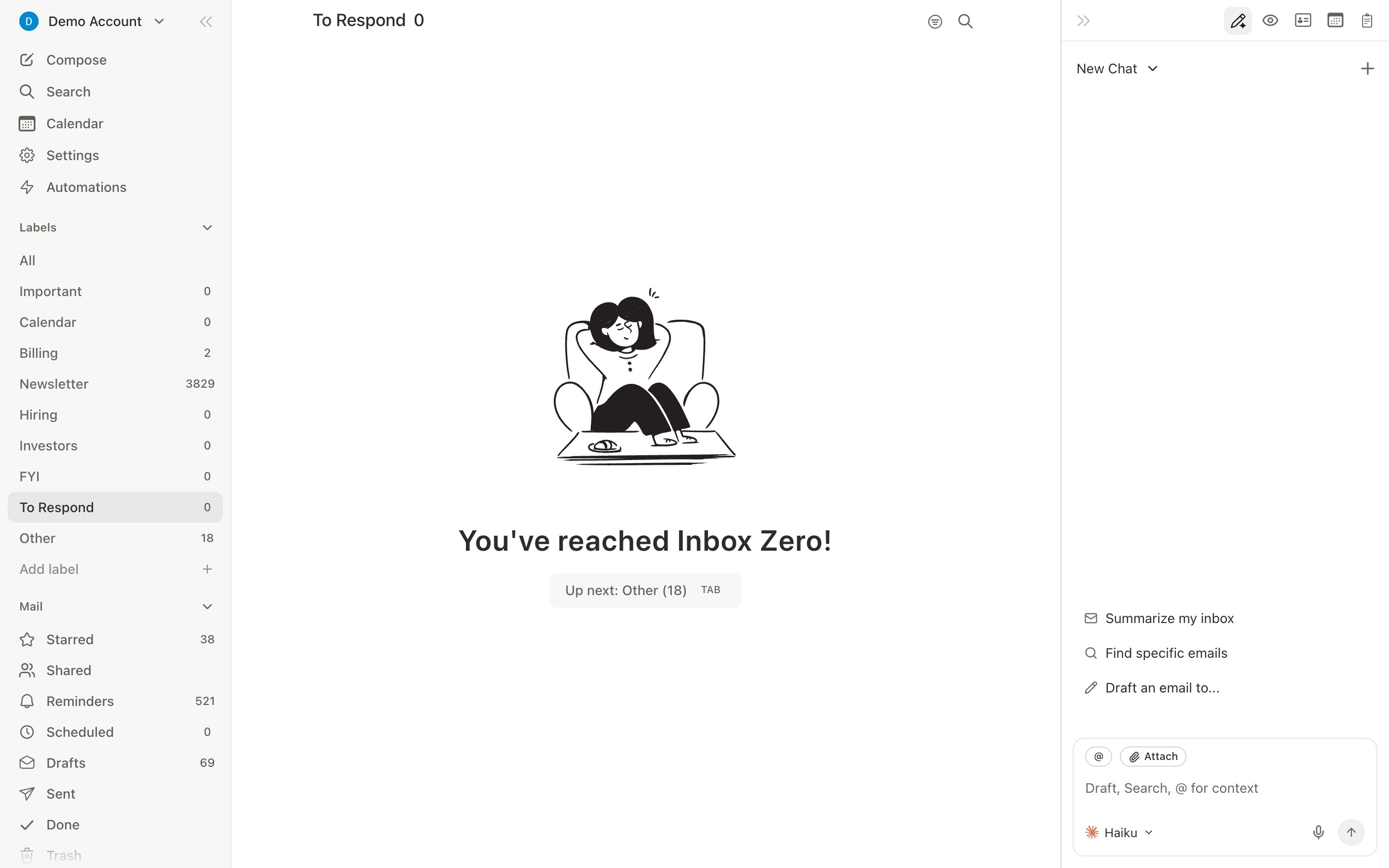
Tab to your Important label. For each email:rto reply (orCmd+Enterfor AI draft)eto archivesto star for laterhto set a reminder#to trash
2
Cycle Through Other Labels
Tab to the next label. For low-priority labels (Newsletter, Notifications), process in bulk:Shift+Jrepeatedly to select threadseto archive the entire batchsto star anything worth keeping first
3
Catch Stragglers
Shift+U— unread only (anything you skipped)Shift+R— no-reply threads (emails awaiting your response)Shift+S— starred items (review for pending action)
Bulk Actions Reference
The Daily Habit
Staying at Zero
- Get Me To Zero from
Cmd+Kif old mail piles up again - Bulk Unsubscribe in Settings > Unsubscribe to reduce incoming volume
- Block aggressively with
Cmd+U, and clear junk with Empty Spam (g !,Cmd+A, then Trash) - Trust AI labels — if newsletters are in the Newsletter tab, skim and bulk archive
- Set up the Dropped Ball Scanner to catch forgotten replies automatically
Related Articles
Batch Processing
Power user workflow for processing 50+ emails fast
Keyboard Shortcuts
Full shortcut reference for every view
The Slashy Method
The philosophy behind AI-first email
10 Automations
Essential automations for inbox management
Labels
Importance labels and Gmail label tabs