

Setup
1
Open MCP settings
In Cursor, open Settings → MCP (or press 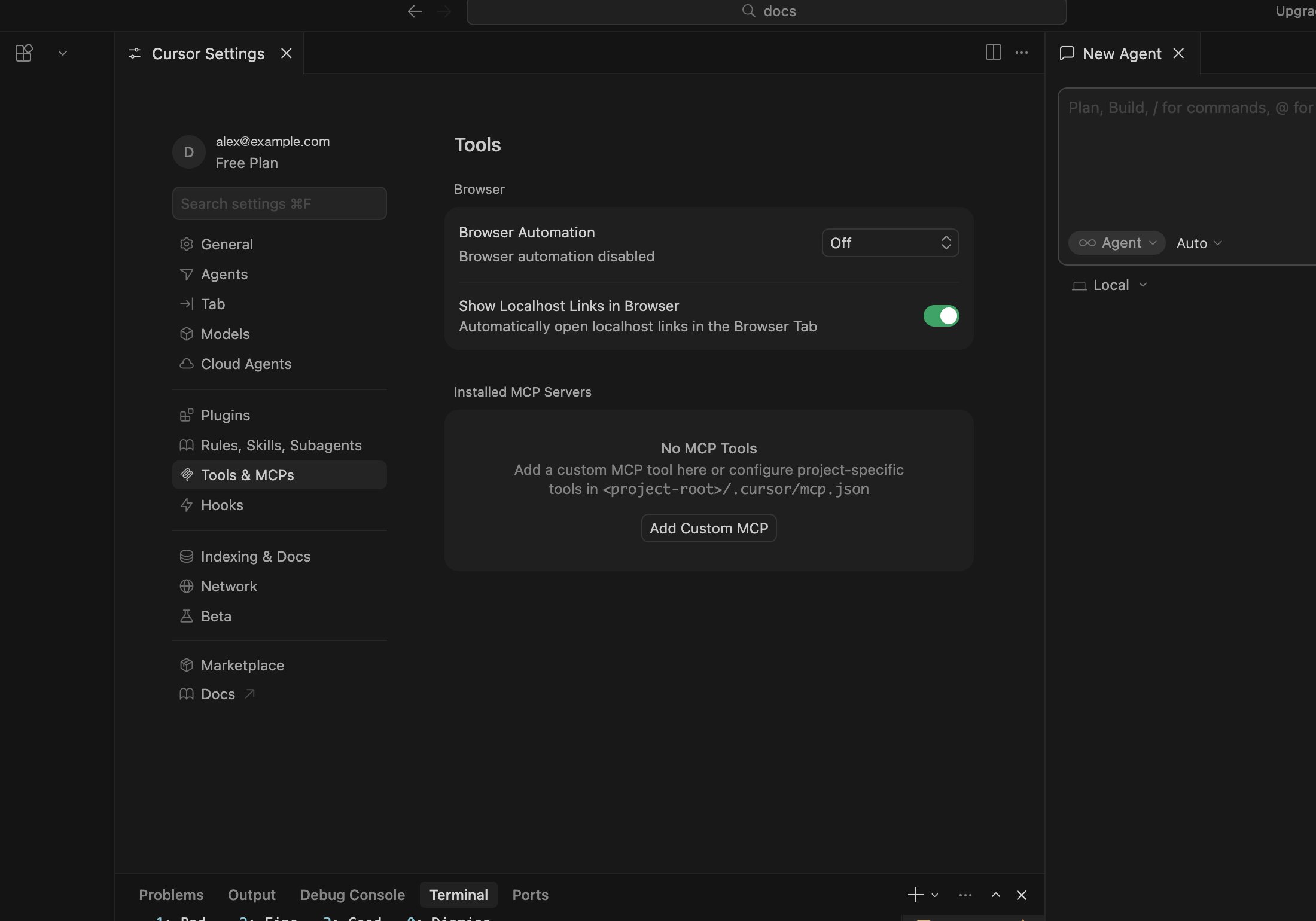
Cmd+Shift+J, then search for “MCP”).2
Add Slashy to your config
Paste this into your Save the file.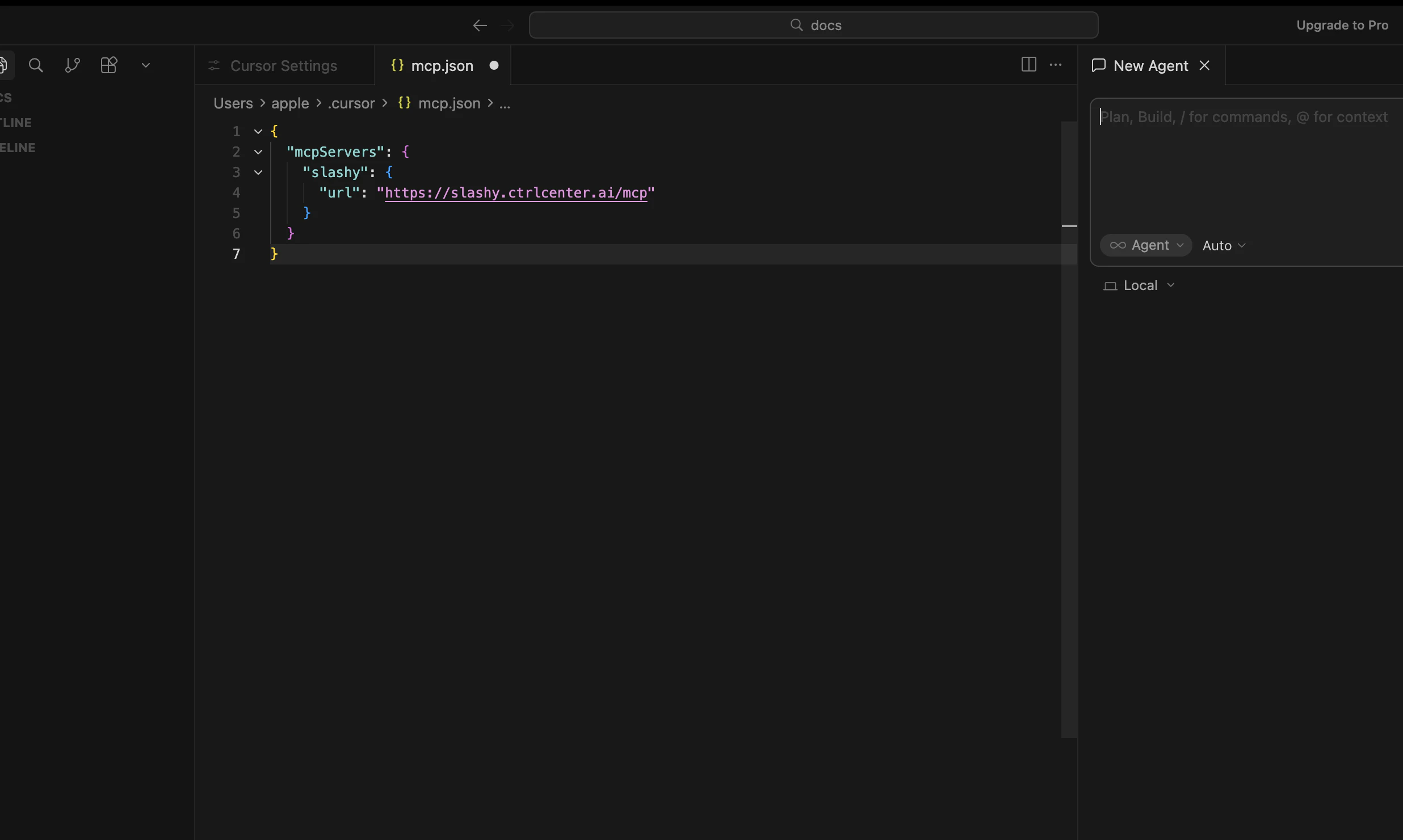
mcp.json (or the MCP section of settings.json):3
Restart Cursor and approve OAuth
Fully quit Cursor (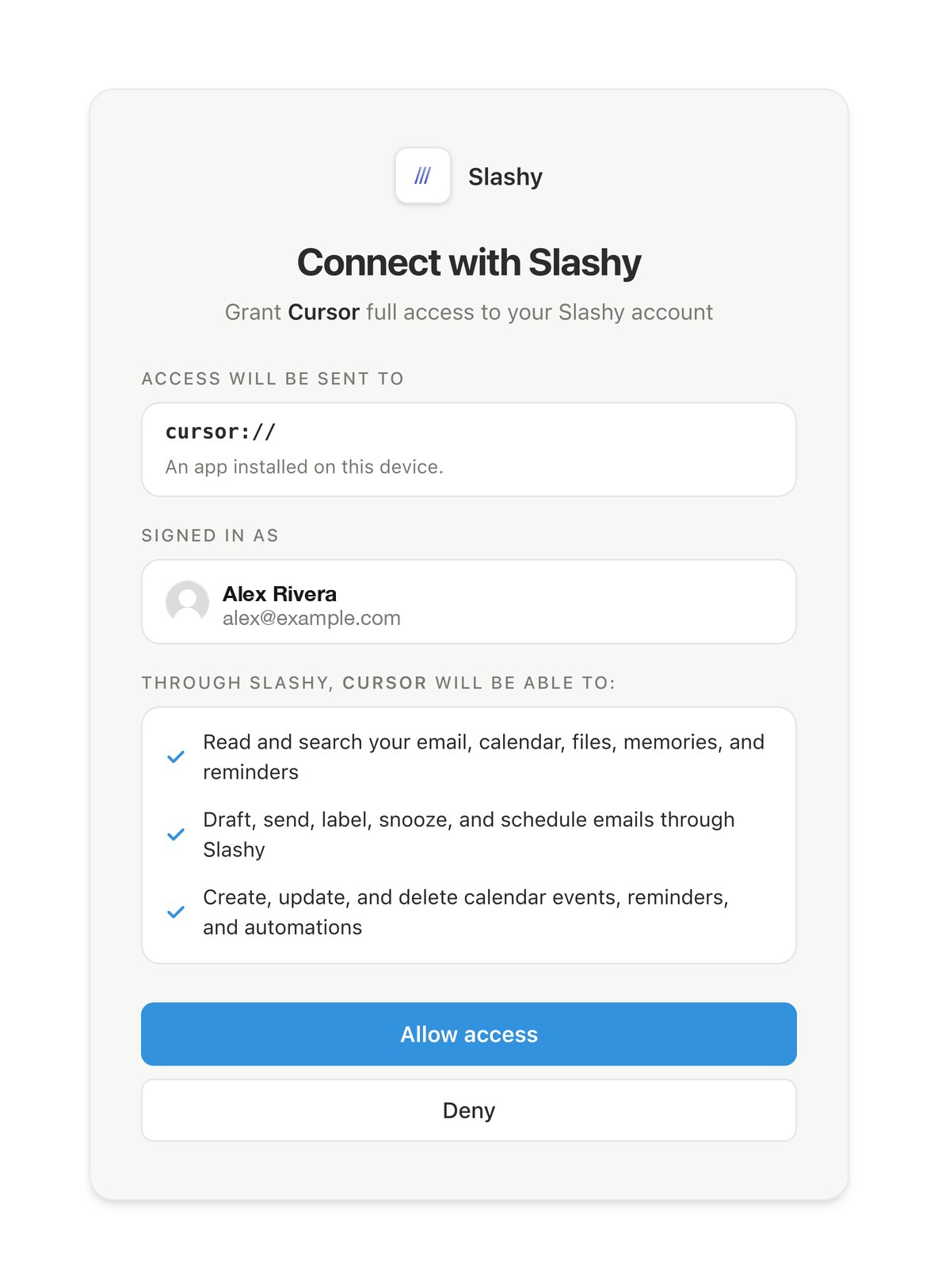
Cmd+Q) and reopen it. Cursor will open your browser to the Slashy login page. Sign in and click Allow.4
Verify the connection
Open the MCP panel in Cursor. Slashy should show a green dot. Open a chat and ask “What Slashy tools are available?” - the agent will list them.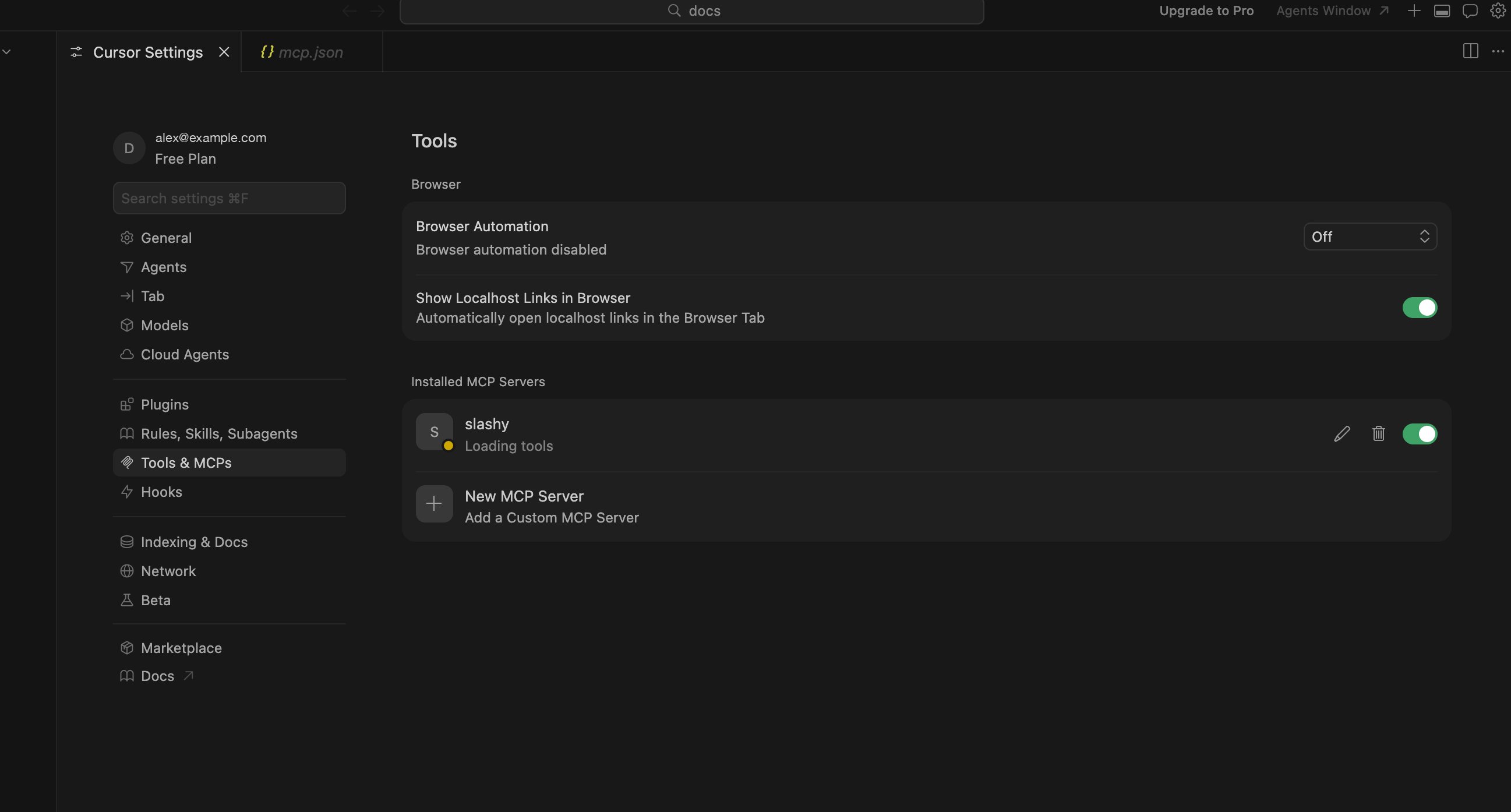
What happens after setup
Cursor stores the OAuth token in its secure credential store. The config file holds only the URL - never a secret.Next steps
Using Slashy MCP
Email prompts for triage, drafting, follow-ups, and scheduling.
Troubleshooting
Fixes for OAuth, missing tools, and wrong accounts.