

Layer 1: Daily Dropped Ball Scanner
Runs every morning and scans for emails where you owe a reply or are waiting for one.1
Open the agent sidebar
Press
Cmd+/2
Create the scanner
Say: “Set up a daily dropped ball scanner that runs every weekday at 8am”
3
Receive your summary
The agent scans for: unreplied received emails, unanswered sent emails, stalled threads, and approaching commitments.
Layer 2: AI Auto-Reminders
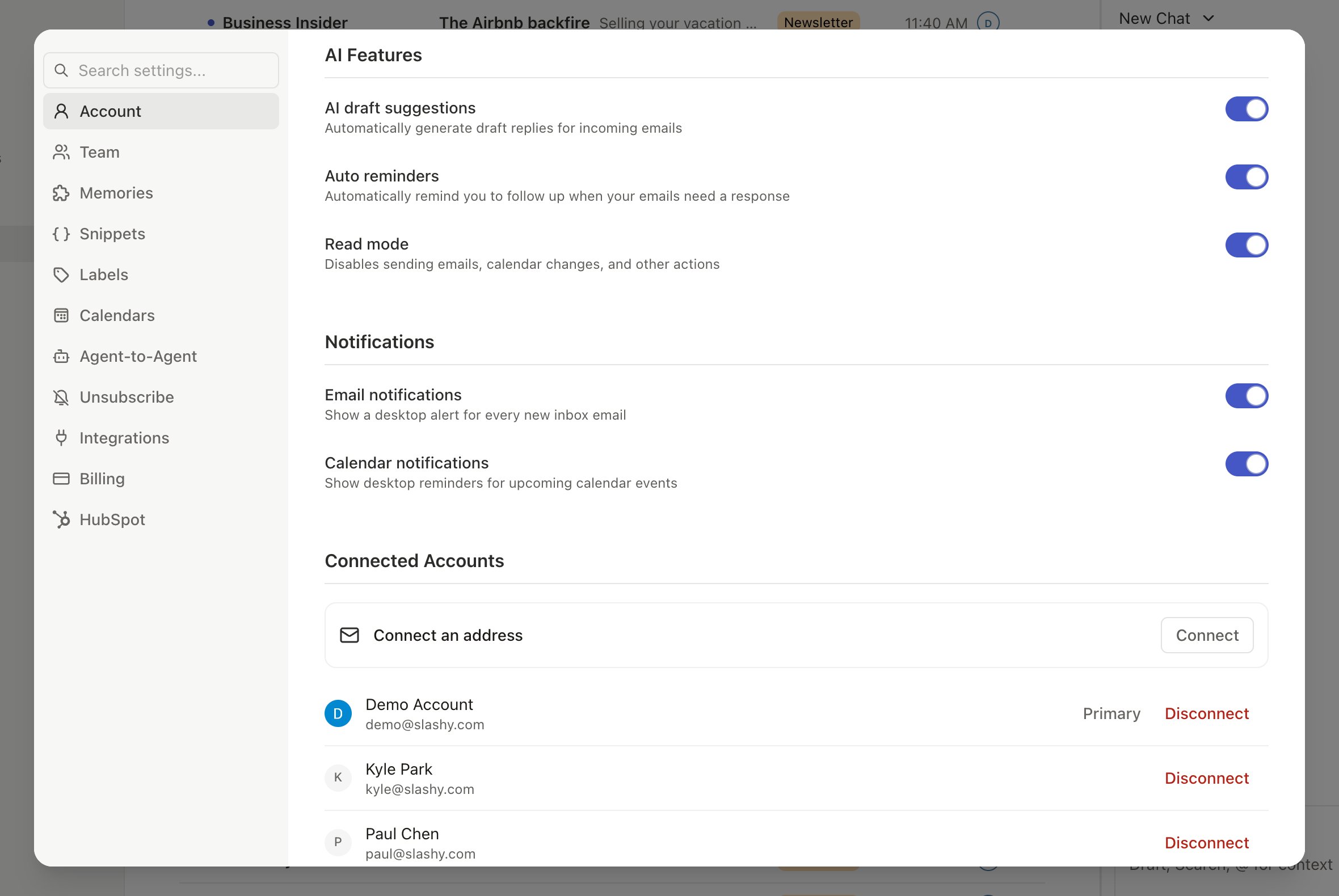
When enabled, Slashy evaluates every email you send and automatically sets a “remind if no reply” reminder with an appropriate delay (1-14 days based on urgency). If the recipient replies, the reminder cancels automatically. Enable: Settings (Cmd+,) > Account > AI Features > turn on Auto reminders
That’s it. Every outgoing email is now tracked for follow-up.
Layer 3: Manual Reminders
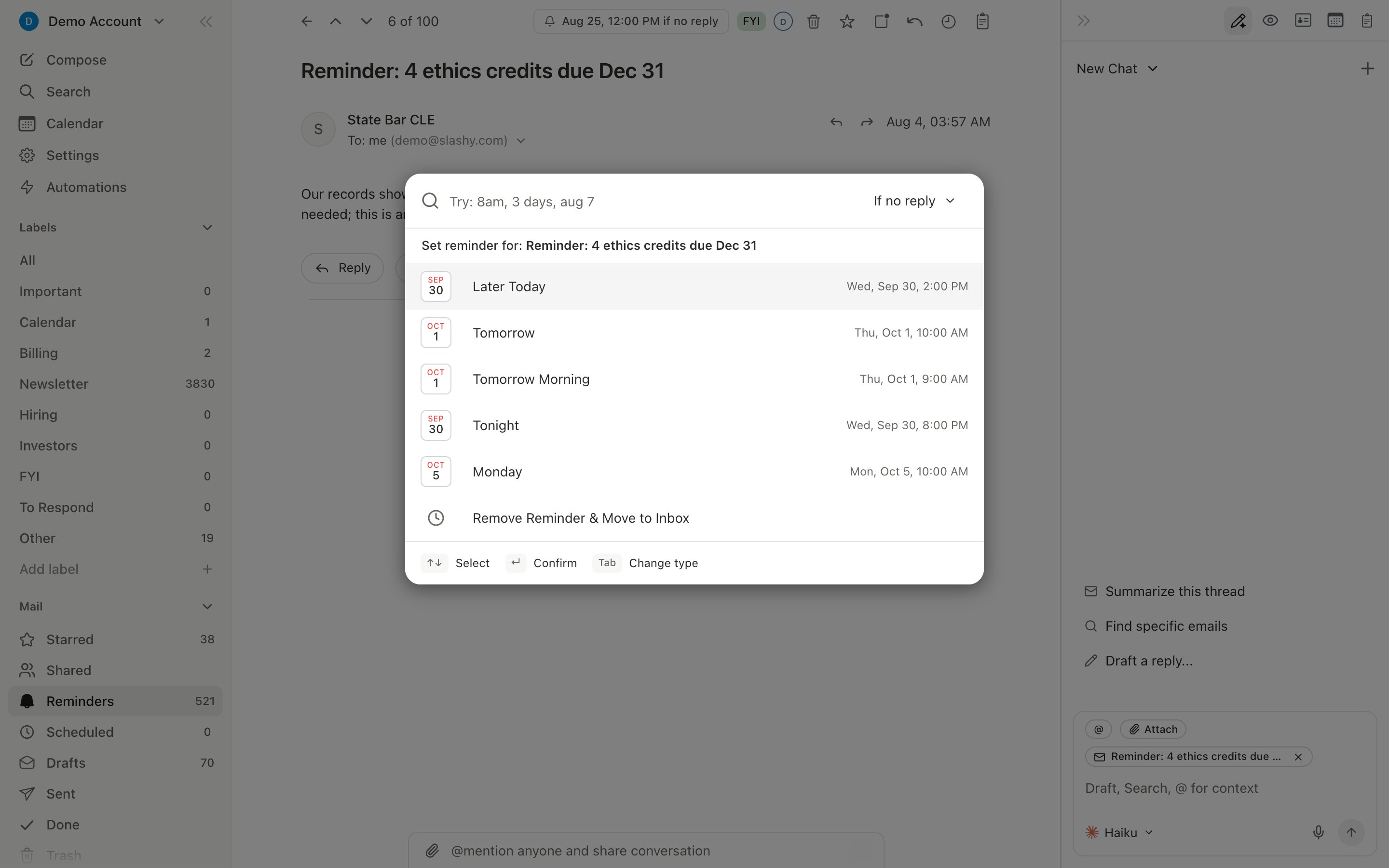
For any thread, pressh to set a reminder. The picker suggests Later today, Tomorrow, Tomorrow morning, Tonight, Monday, and Next week, and the time you used last. Or type your own: 3 days, friday 2pm, 21 sep, or a day number like 21.
Reminder types:
- If no reply: only fires if no one replied (best for follow-up tracking)
- Regardless: fires no matter what (for time-sensitive items)
Tab in the picker to switch between the two types without leaving the date field. Cmd+Shift+H does the same.
When a reminder fires, the thread moves back into your inbox.
Bulk reminders: Select multiple threads (Shift+J/Shift+K or Cmd+A), then press h.
Layer 4: Default Reminder on Send
Add a follow-up reminder to every email automatically at send time.- Settings (
Cmd+,) > Account > Compose & Reply > turn on Default reminders - Configure: Days (default: 2), Time (default: 8:00 AM), Type (default: if no reply)
Cmd+Shift+H sets a reminder for that message after it sends.
Override or remove the reminder on individual emails before sending.
Viewing Reminders
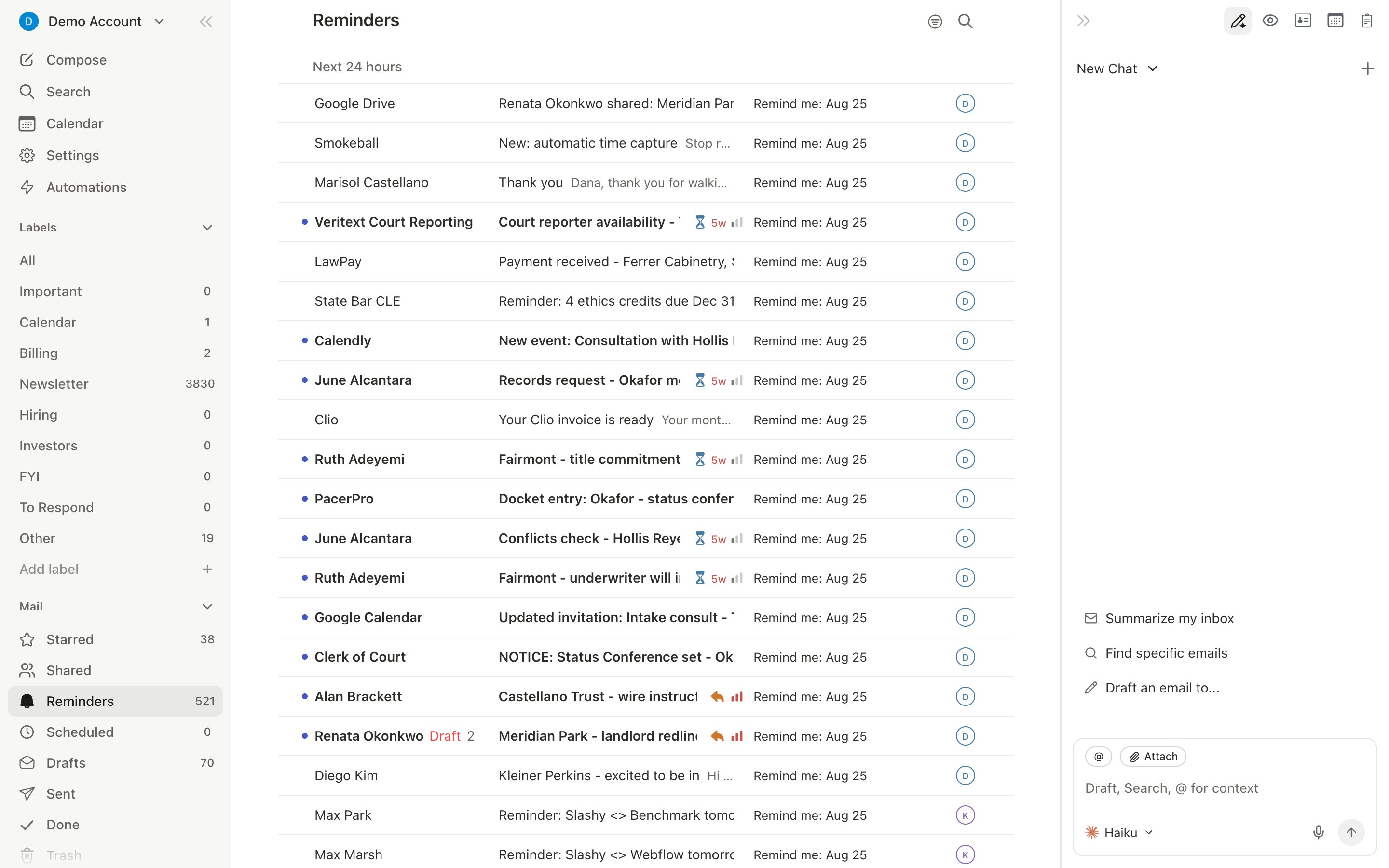
Pressg h to see all threads with active reminders, sorted by fire time. Cancel a reminder by opening the thread, pressing h, and selecting cancel.
Recommended Setup
1
Enable Auto-Reminders
Covers all outgoing email automatically
2
Set up the Daily Dropped Ball Scanner
Catches anything that slips through
3
Use manual reminders (h) for high-priority threads
Specific timing for important emails
4
Enable Default Reminder on Send
Safety net on every outgoing email
Related Articles
10 Automations
Set up impactful automations
Email Tracking
Track opens and read receipts
Customer Follow-ups
Automated follow-up tracking for key accounts
Inbox Zero
Process your entire inbox in 5 minutes
Tasks
Turn emails into tasks you can track.