

Open the sidebar
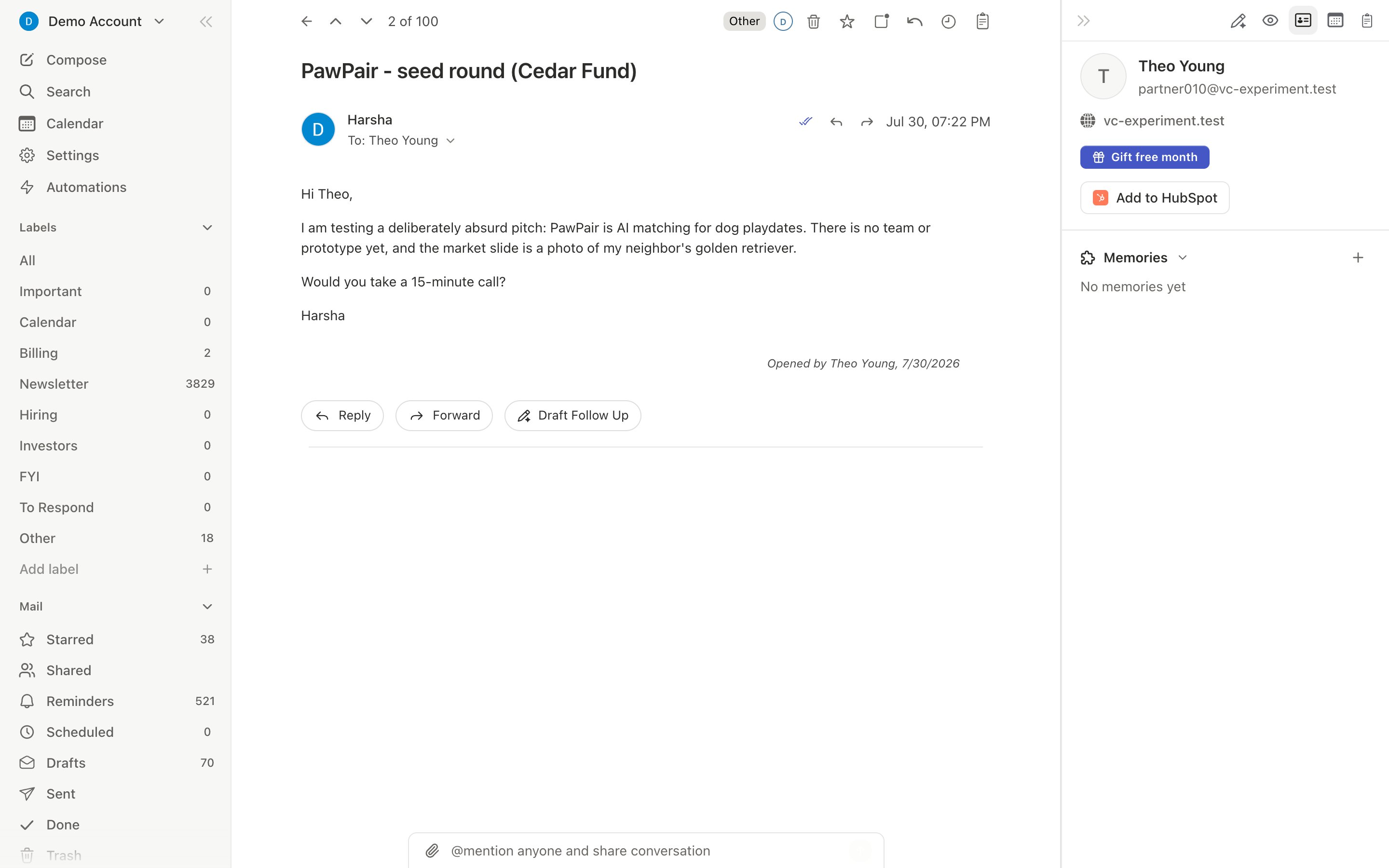
Open a recent thread with the person, or pressd c to jump straight to the contact panel and search them by name. Slashy pulls up the contact card with title, company, LinkedIn, and the rest of the profile.
Scan recent threads
The Recent emails section lists your latest threads with this person, newest first. A 30-second pass tells you:- What you last discussed and when.
- Whether the last message was from you or them.
- Whether you owe a reply going into the meeting.
j and k to walk through messages without losing the sidebar.
Check AI memories
The Memories section is where Slashy keeps facts about the contact: role, preferences, prior context, and anything you have added manually. Memories carry across every thread, so something you wrote down six months ago resurfaces now. If there is nothing useful here yet, click Add memory and write one sentence about the relationship while it’s fresh. It will be there for the next meeting.Review meeting history
The Meetings section lists past and upcoming events with this contact. Use it to:- Confirm when you last met and what the event was about.
- Open prior event details to read agenda notes you took (use private notes with
DthenNon any event). - Spot a pattern, for example, monthly check-ins or quarterly reviews.
Send a primed reply
If you owe a reply going into the meeting, open the most recent thread and pressCmd+Enter for an AI draft. Because the sidebar profile, recent threads, and memories all feed the drafting model, the reply already reflects the relationship context. Edit, then send.
When you want a deeper brief
For longer or higher-stakes meetings, open the agent (Cmd+/) and ask “Prep me for my meeting with [Name].” The agent uses the same contact data plus calendar context to produce a structured briefing, including talking points and any threads worth reading first.
Related
Contacts overview
Everything the contact sidebar shows.
AI memories
What memories are and how to write good ones.
Meeting prep automation
Auto-generate prep briefings before every meeting.
Agent autonomy
How the agent uses contact data when prepping for calls.
Granola integration
Sync meeting notes with Granola for richer context.