

This is the cloud/web version of the Claude Desktop setup. Same server URL, same one-time OAuth login - the only difference is where you add the connector.
Prerequisites
- A Slashy account signed in with Google. Sign up at slashy.com if you haven’t.
- A claude.ai account. Custom connectors are available on Free (one connector), Pro, Max, Team, and Enterprise.
- On Team / Enterprise, an Owner must add the connector for the organization first (see below).
Setup
1
Open Connectors
On claude.ai, open Settings, then under the Customize section click Connectors. (On Team/Enterprise, an Owner does this from Admin settings → Connectors first - see below.)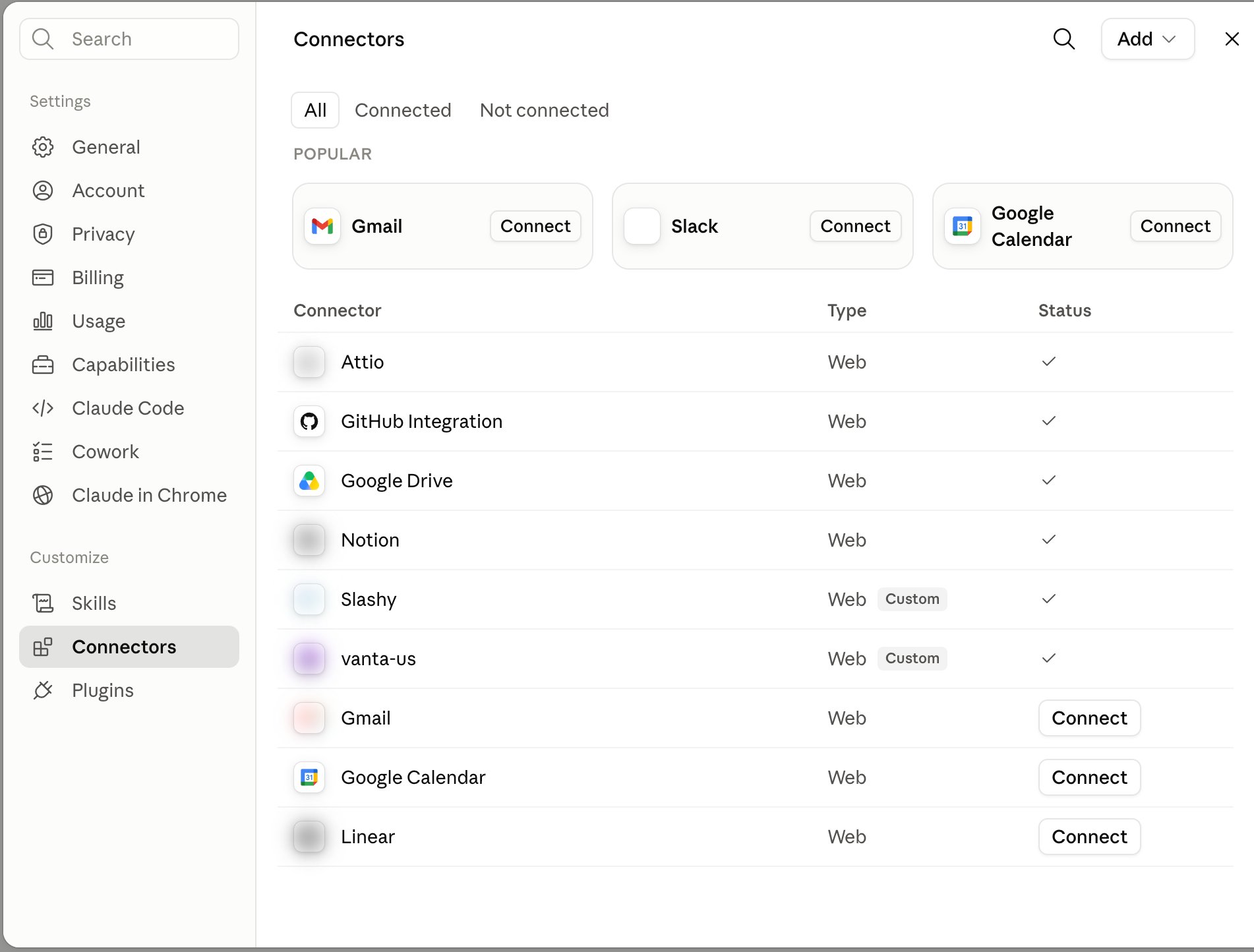
2
Add a custom connector
Click the Add dropdown in the top-right corner, then choose Add custom connector.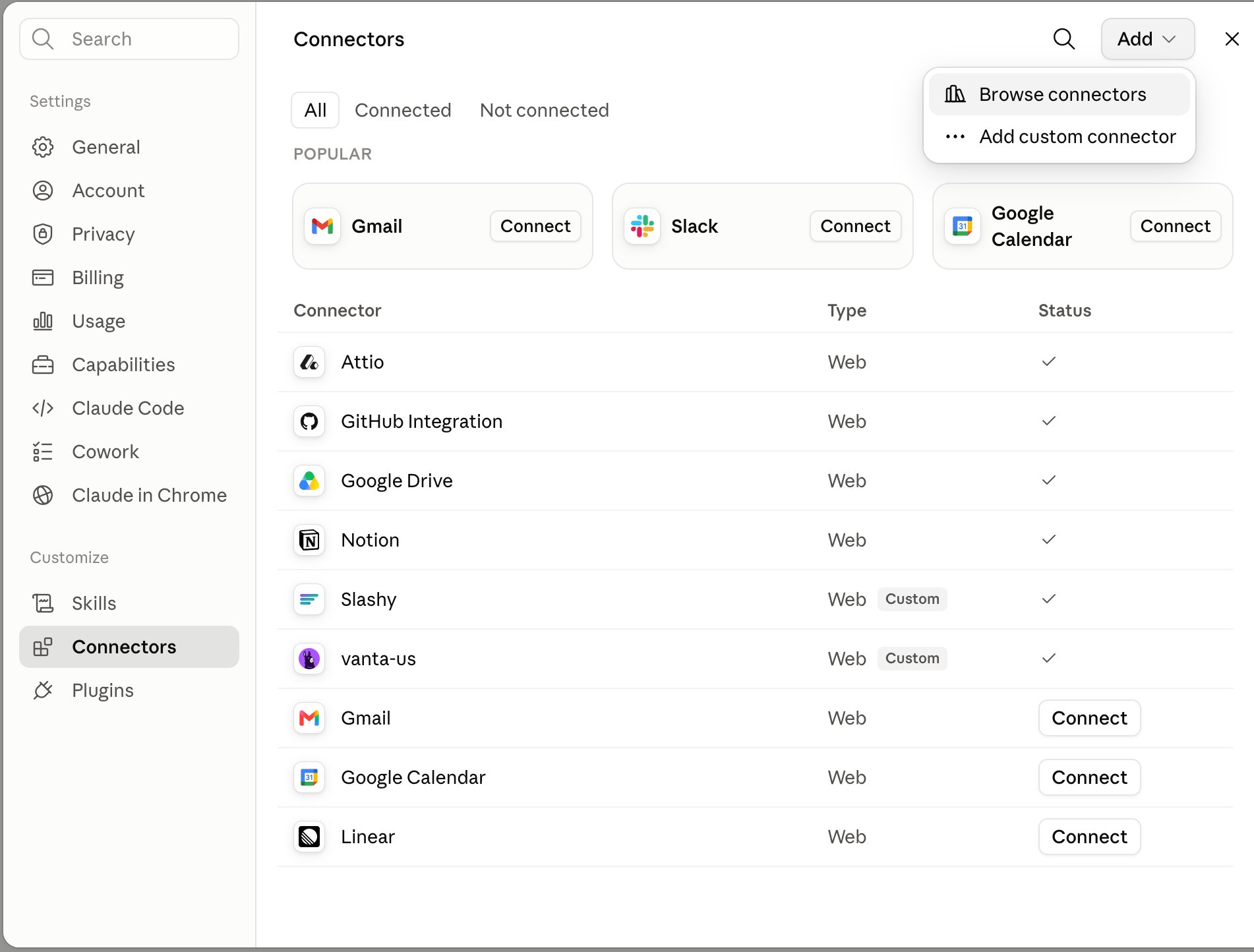
3
Enter the Slashy server details
In the Add custom connector dialog, fill in: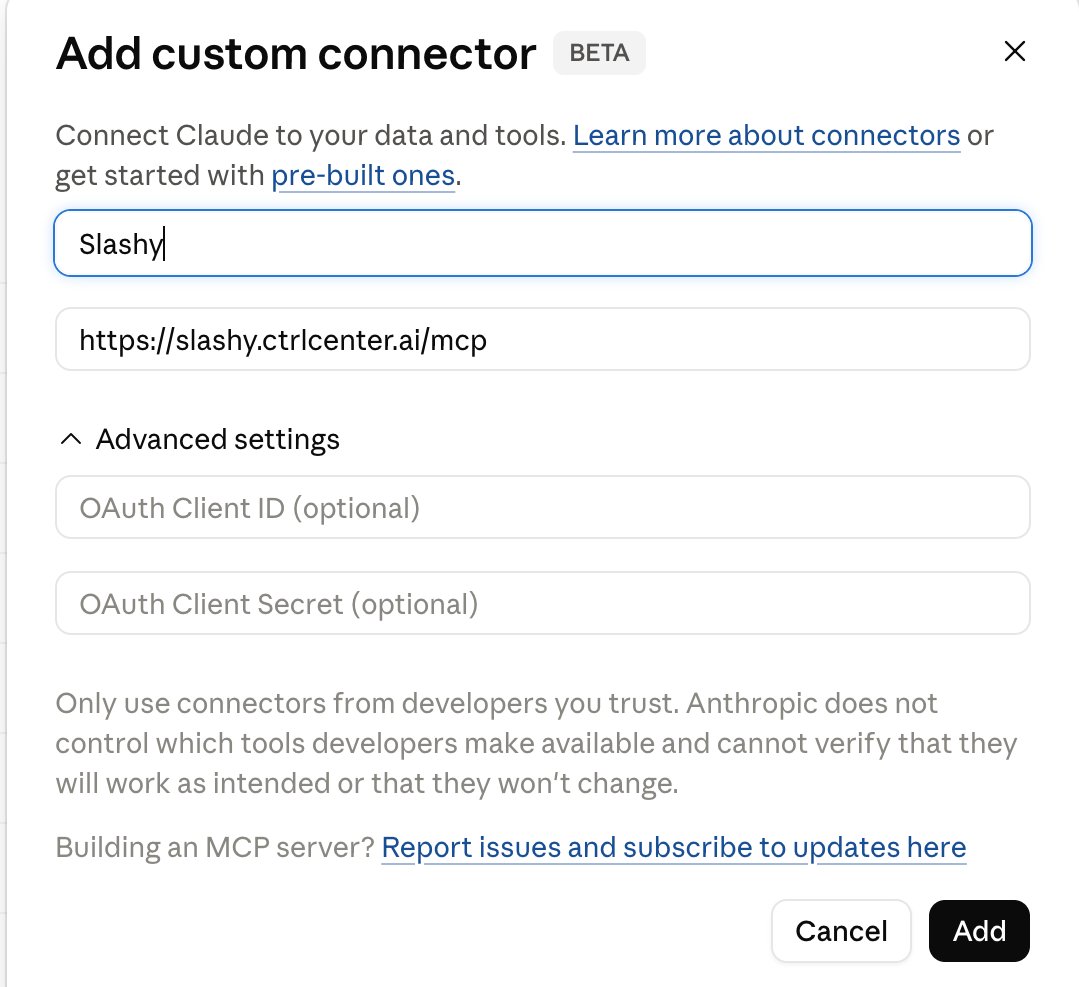
- Name:
Slashy - Remote MCP server URL:
https://slashy.ctrlcenter.ai/mcp
The custom connector dialog is labeled Beta by Anthropic. Only the name and URL are required.
4
Approve OAuth
Claude opens the Slashy login page. Sign in with Google and click Allow. Slashy uses OAuth 2.1 with PKCE - no API keys or static tokens to paste.
5
Verify the connection
Back on the Connectors page, Slashy shows in the list with type Web / Custom and a checkmark under Status. Start a new chat, and ask “What Slashy tools are available?” to confirm the tools loaded.
Team & Enterprise plans
On Team and Enterprise, only Owners can add a custom connector at the organization level:- An Owner adds Slashy at Admin settings → Connectors using the URL above.
- Each member then goes to their own Settings → Customize → Connectors, finds Slashy, and clicks Connect to complete their personal OAuth login.
Use Slashy in Claude Code cloud sessions
Once Slashy is connected on your account, it’s also available to Claude Code on the web (the Code tab / cloud sessions at claude.ai/code) - so a cloud agent can send email, prep meetings, or research contacts as part of a task.1
Open a cloud session
Go to the Code tab and start a New session.
2
Enable Slashy for the session
In the composer, click the + button, choose Connectors, and toggle Slashy on. Your account connectors (from Settings → Customize → Connectors) appear here.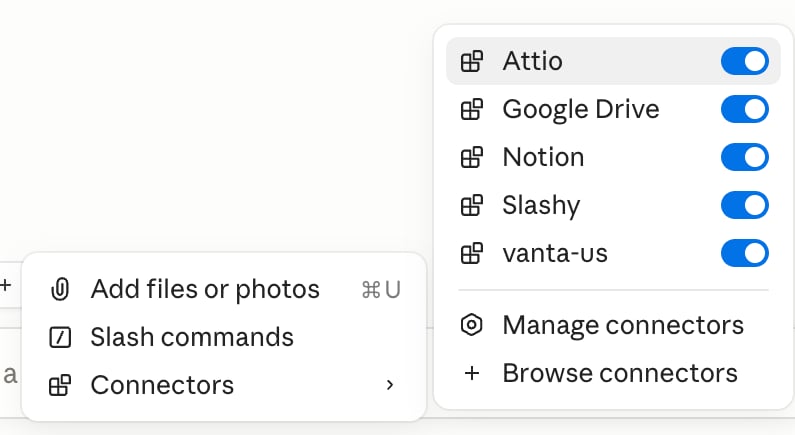
Recurring / scheduled loops (Routines)
Routines are Claude Code tasks that run on a schedule (or by API / webhook) - unattended, no browser open. Each routine has its own Connectors picker, so you choose which connectors its scheduled runs may use.1
Open or create a routine
On the Code tab, go to Routines and open a routine (or click + New routine).
2
Check Slashy under Connectors
In the routine’s Connectors section, tick Slashy. Every scheduled run of that routine can then use Slashy’s tools.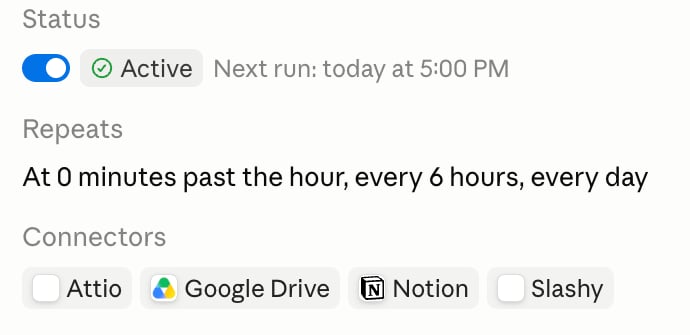
Because you approved OAuth once at the account level, scheduled runs use Slashy without re-prompting - the routine holds the connector selection, and the login persists.
What works, and where the line is
- claude.ai chat, Projects, Research: Slashy tools work in the browser. Claude manages the OAuth token for you.
- Claude Code cloud sessions (claude.ai/code): Slashy works - enable it per session via + → Connectors, or per routine via the routine’s Connectors picker for scheduled/recurring runs (both shown above).
- Fully programmatic / API cloud agents (Managed Agents): attaching a remote OAuth MCP server there is a developer path - you register the server URL and store credentials in a vault via the Claude API, not through this connector UI. Not needed for the interactive flows above.
Security
- OAuth 2.1 with PKCE - no static tokens; the connector stores only the URL.
- Scoped to your Slashy account - tools respect the same permissions as Slashy itself.
- Revoke any time - disconnect from your Slashy account settings or remove the connector on claude.ai.
Next steps
Using Slashy MCP
Email prompts for triage, drafting, follow-ups, and scheduling.
Troubleshooting
Fixes for OAuth, missing tools, and wrong accounts.
Claude Desktop setup
Prefer the desktop app? Same connector, visual settings panel.
Slashy MCP overview
What Slashy MCP is and how it works.