

Removing “Sent with Slashy”
Globally
- Go to Settings (
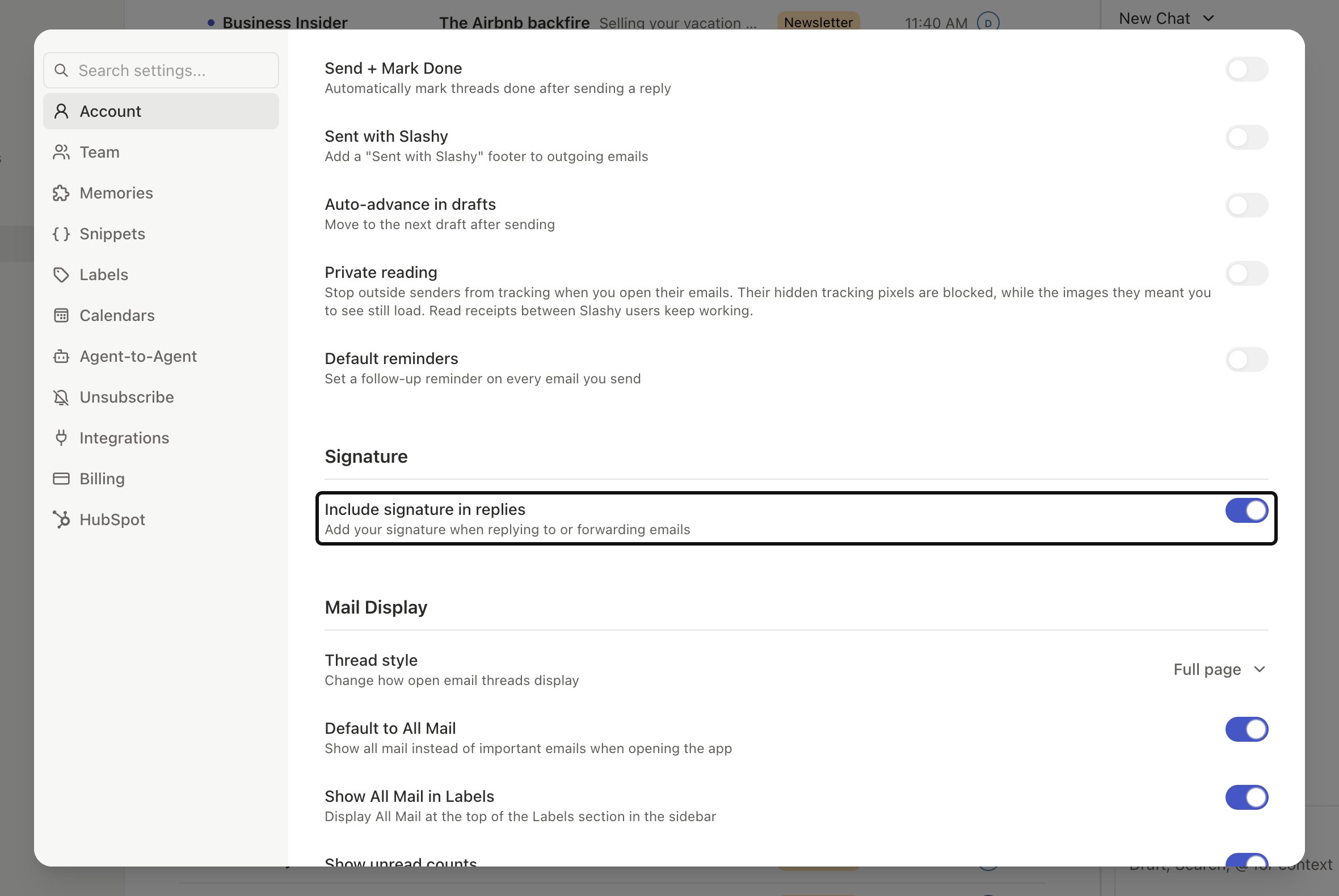
Cmd+,) > Account - Under Compose & Reply, turn off Sent with Slashy
Per Email
Delete the Slashy signature directly from the compose area before sending. Only affects that one email.Your Email Signature
Where your signature lives depends on the kind of account.
The Outlook signature editor appears in Settings only when an Outlook account is connected. Pick the address you want from the dropdown at the top of the section and edit the signature in place. Changes save automatically, and Slashy uses the signature when you compose from that address. Clear the field to go back to the signature Slashy detected.
Signatures in Replies
By default, Slashy does not include your full signature in replies and forwards, because most people don’t repeat it in every thread message. To change: Settings > Account > Signature group > turn on Include signature in replies. It applies to Gmail and Outlook accounts.How Signatures Work with AI Drafts
The AI knows whether to use your full signature block or just your first name, your preferred sign-off, and whether the context is formal or informal. If the AI uses the wrong sign-off, update your signature or tell the agent: “Remember: I sign off with just my first name, no closing phrase.”Per-Recipient Signatures
Not yet a built-in setting, but achievable with agent memories: Open the sidebar (d a) and say: “Remember: when emailing anyone @bigclient.com, use my full formal signature. When emailing my team, just sign with my first name.”
This works for AI-generated drafts. For manual emails, use a snippet (/) with your formal signature saved as a template.
Multiple Inboxes
Each connected account has its own signature. Switch the sending account using the From dropdown in the compose window. Outlook accounts need their signature added in Slashy; see Connecting Outlook.How AI Drafts Work
Auto-suggestions and learning
Customize Your Agent
Set writing style and preferences
10 Automations
Automate your inbox