

slashy@slashy.com. Connect a company mailbox so people see your company instead.
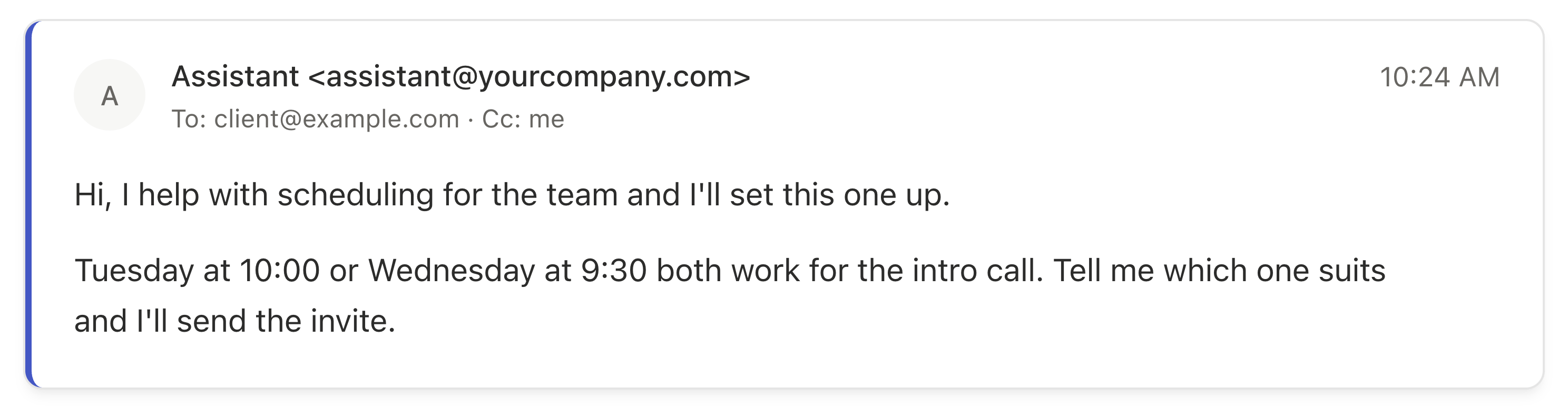
Here is what the people your assistant emails will see:
Before you start
- Your company email runs on Google Workspace.
- You, or someone on your team, can add users in Google Admin.
Adding a user in Google Workspace may use a Workspace license. Your Workspace admin can confirm.
Set it up
1
Open Google Admin
Go to admin.google.com and sign in with a Workspace admin account.
2
Add a user for your assistant
Open Directory → Users → Add new user. Pick a name people will recognize, such as Assistant or Scheduling, and an address such as
assistant@yourcompany.com.3
Connect it in Slashy
In Slashy, open Settings → Account → Assistant Email and select Connect.
4
Sign in as the assistant, not yourself
When Google asks you to choose an account, pick Use another account and sign in with
assistant@yourcompany.com. Allow the requested permissions.Use it
CC the new address on any thread you want handed off. The assistant replies from that address.Common questions
I'm not a Google Workspace admin
I'm not a Google Workspace admin
Send these steps to whoever manages your company’s Google Workspace, usually IT. Once they create the mailbox and share its sign-in with you, finish the last two steps yourself.
Google says “Access blocked”
Google says “Access blocked”
Your Workspace admin needs to allow Slashy. See Connecting Gmail for what to send them.
“This mailbox is already connected to Slashy”
“This mailbox is already connected to Slashy”
The address you signed in with is already one of your inboxes in Slashy. Your assistant needs a mailbox of its own, so create a separate user as in step 2.
“This Google account doesn't have a Gmail mailbox”
“This Google account doesn't have a Gmail mailbox”
The account you picked has no Gmail inbox, which happens with Google Groups and aliases. Create a full user in Directory → Users instead.
How do I switch back to the Slashy address?
How do I switch back to the Slashy address?
Open Settings → Account → Assistant Email and select Disconnect. New handoffs use
slashy@slashy.com again. Conversations that already ran through your company address stay separate.Connecting Gmail
Permissions and Workspace admin approval
Customizing Your Agent
Tone, style, and memories for your assistant
Connect a Second Account
Work across several inboxes
Does the AI send on its own?
What the assistant can send and when