

Connect Twenty
1
Open integration settings
Press
Cmd+,, choose Integrations, and scroll to the CRM section.2
Connect
Click Connect next to Twenty. Sign in and approve the access request. On the desktop app the sign-in opens in your browser and Slashy picks up the connection when you finish.
3
Confirm
Twenty shows as connected in Settings, Integrations, CRM. If the connection ever fails, the card shows the problem and a Reconnect button.
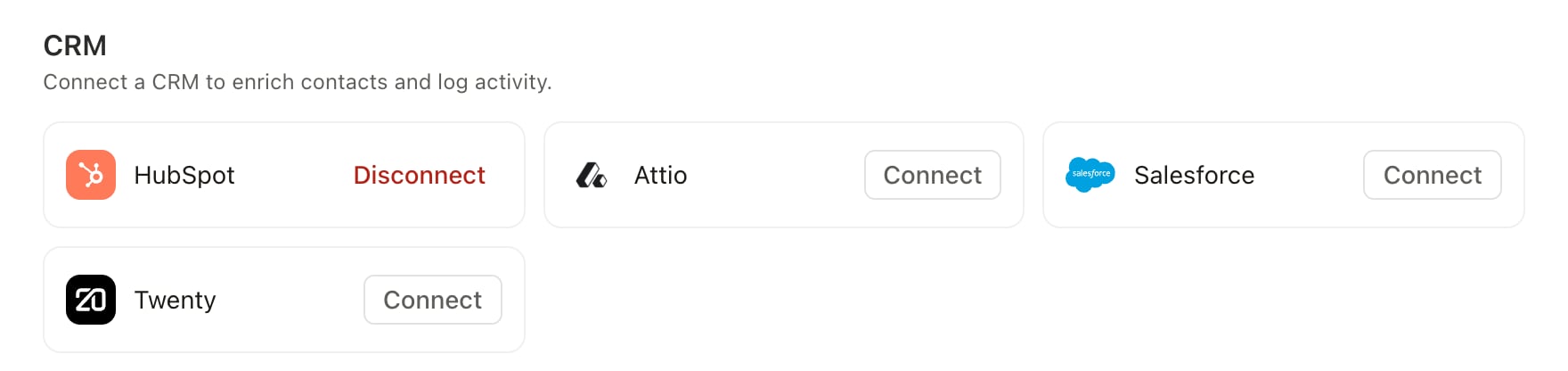
Slashy uses one connected CRM at a time. If you already have HubSpot, Attio, or Salesforce connected, disconnect it before relying on Twenty in the sidebar.
Records in the sidebar
Open any email and the contact sidebar shows the Twenty records that match the sender: the person, their company, and their opportunities. Choose which fields appear in Settings, then CRM, then Sidebar Properties, with separate tabs for People, Companies, and Opportunities.
Email is required on People and always stays on.
What the agent can do
With Twenty connected, ask the agent (Cmd+/) to work with your CRM:
Creating and updating records and adding notes are blocked when Read Mode is on, so the agent can still look things up without changing your CRM. See Agent autonomy.
Disconnect
Open Settings, Integrations, CRM and click Disconnect next to Twenty. Slashy stops showing records and the agent stops using Twenty. Records and notes already written to Twenty stay there.Attio
Log emails and sync contacts with Attio.
HubSpot
Auto-BCC HubSpot for CRM logging.
Salesforce
Account context and agent read/write.
Agent autonomy
What the agent can do on its own.