

Labels and tabs are account-wide, not per-inbox. If you connect multiple accounts, your label set is shared across all of them: the same labels classify every inbox, and a custom label with a
from: filter catches that sender no matter which account it lands in. A Gmail label with the same name in several accounts becomes one tab. See Gmail labels as tabs.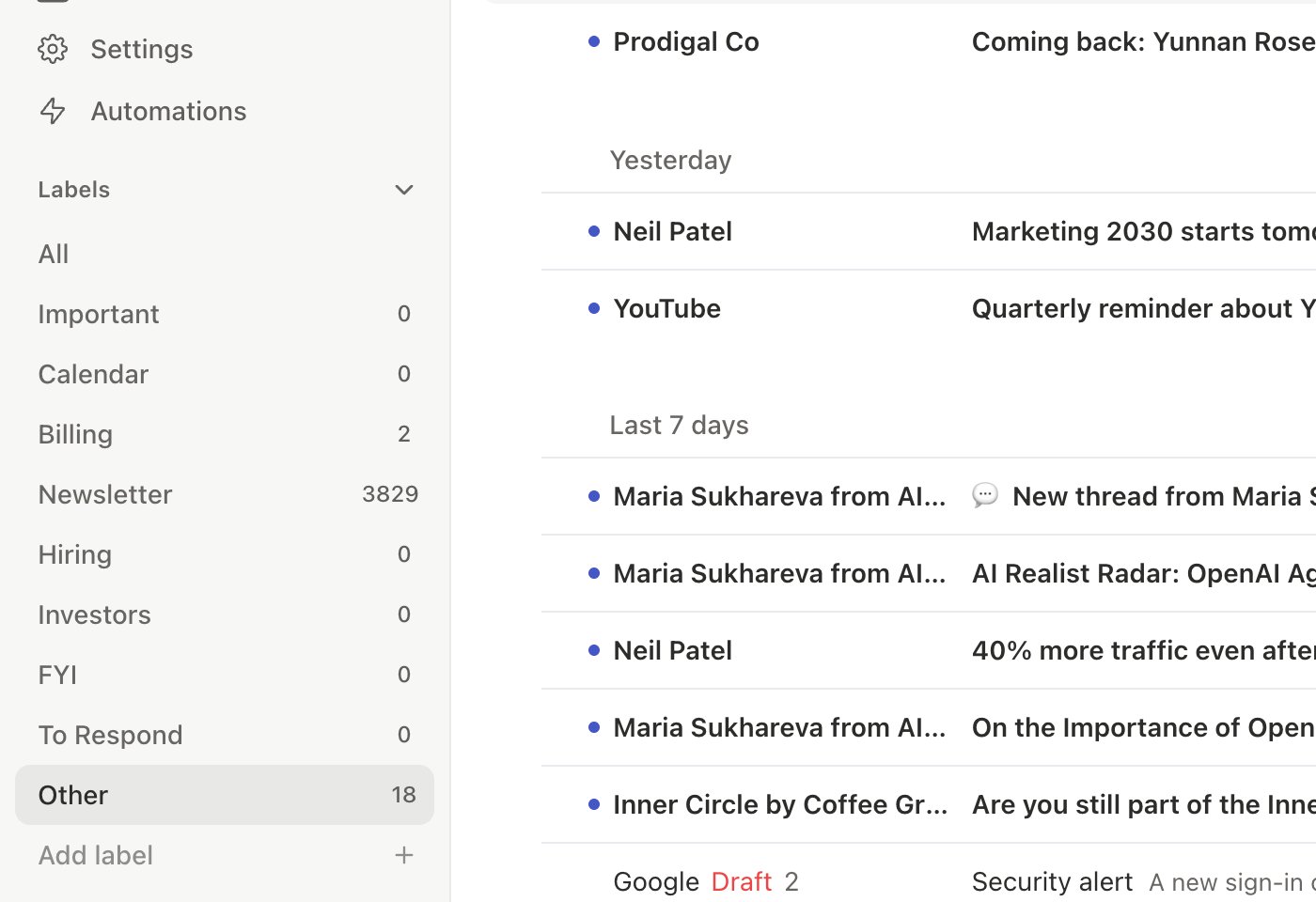
How Classification Works
When a new email arrives, the AI reads message content, sender info, and your contact history to assign a label. It considers:- Sender identity: real person vs. automated notification
- Message content: does it require a response?
- Thread history: part of an ongoing conversation?
- Label descriptions: your instructions guide the AI
- Deterministic filters:
from:,to:,subject:rules bypass AI entirely - Training examples: your past corrections improve accuracy
Default Labels
New accounts get notifications turned on for every default label. Accounts created earlier keep the notification settings they already had. Change any label’s notifications in Settings > Labels.
Creating Custom Labels
Pressn l from anywhere, or go to Settings > Labels > New Label.
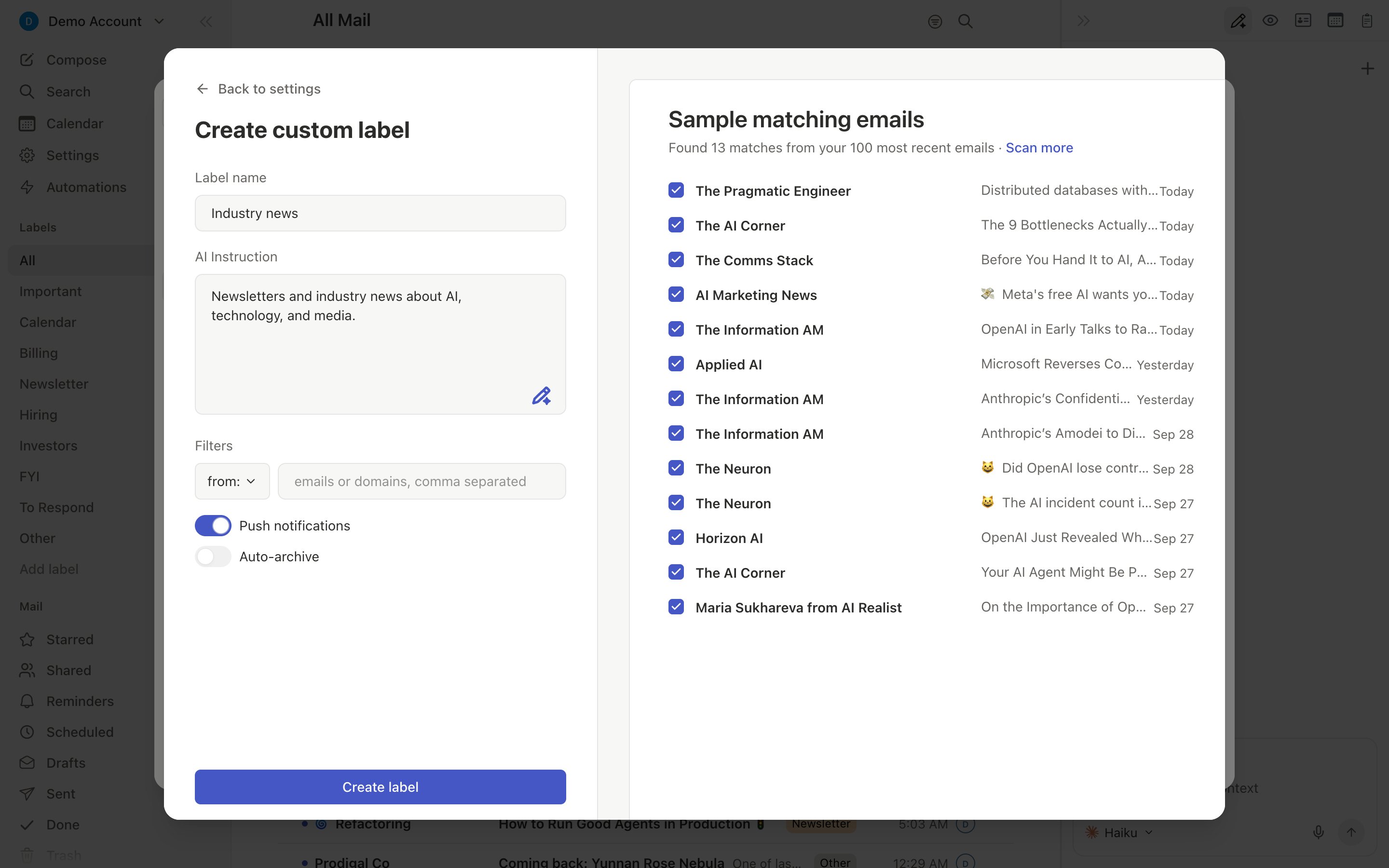
Provide a name, description (natural language instructions for the AI), and optional filters (from:, to:, subject: rules). Slashy can generate an AI-assisted description to improve accuracy.
A label can have several From senders. Type one address at a time, or paste a comma-separated list and each address becomes its own chip. Save changes appears as soon as you add a sender.
Gmail Labels as Tabs
Your Gmail labels can become inbox tabs alongside your importance labels.1
Open Settings > Labels
Your Gmail labels are listed at the end of the list as unchecked rows.
2
Tick a Gmail label
It becomes a tab. The tab shows every email that carries that label in Gmail.
Slashy’s AI does not file emails into Gmail label tabs. A tab only shows emails that already have that Gmail label. Renaming or deleting the label itself happens in Gmail, through Open Gmail label settings in
Cmd+K.Adding and removing Gmail labels from Slashy
PressCmd+K with an email open or selected, or with several emails selected, and use these commands:
Changes are written to Gmail and can be undone.
L and V keep working with Slashy’s importance labels, so pressing them never changes your Gmail labels. Gmail labels work on Gmail accounts.
Per-Label Behaviors
Notifications
Notifications
Each label has a Triggers Notification toggle. Keep it on for labels that matter (Important, VIP Clients) and turn it off for quiet categories (Newsletter, Billing). Configure in Settings > Labels.
Auto-Archive
Auto-Archive
Disable Show in All Mail for a label to auto-archive its emails. They appear only when you navigate to that label tab.
Auto-Reminders
Auto-Reminders
Enable reminders per label. Set timing with natural language (e.g., “2 days”). Reminders auto-dismiss if you reply or archive before they fire.
Training the AI
When you reclassify a thread (usingl or v, or drag-and-drop), Slashy asks why the classification was wrong. Your feedback becomes a training example that prevents the same mistake.
When creating or editing a label, Slashy shows a batch preview of matching emails. Approve or reject threads as training data before going live.
Quick Reference
Related Articles
Inbox Views
Navigate all views, filters, and multi-inbox switching.
Notification Preferences
Control desktop, mobile, and per-label notifications.
Inbox Zero Guide
Reach inbox zero using labels and AI triage.
Importance Labels Setup
Getting started guide for label setup.