

Opening the Calendar
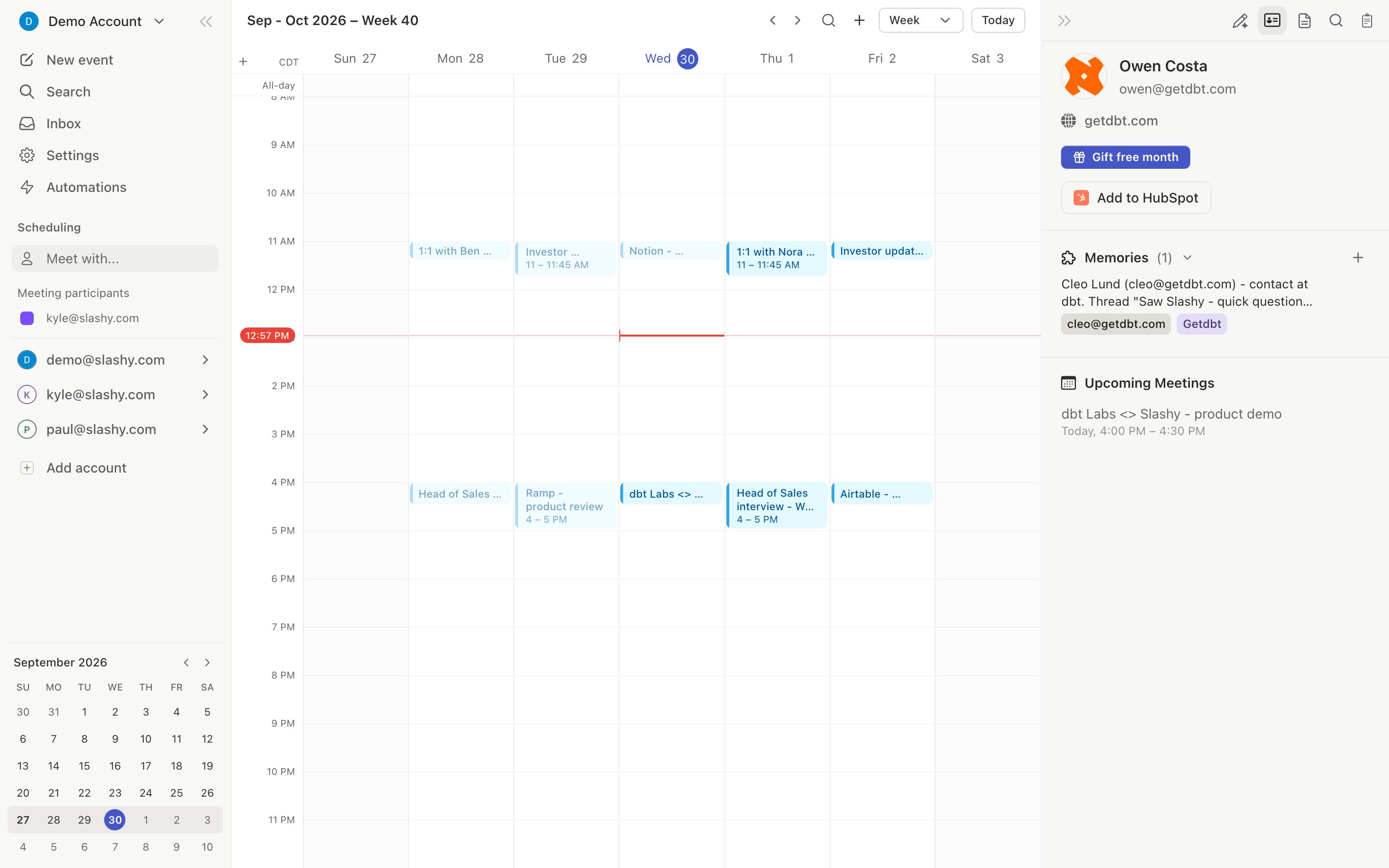
Press2 to switch to calendar view, or d c to open the calendar in the sidebar panel. Use arrow keys to navigate, t to jump to today, or . to go to a specific date.
Creating an Event
- Click and Drag
- From Email
- From a Draft
The fastest method: click on the start time in the calendar grid, drag to the end time, and release. The event editor opens immediately with the time pre-filled.
Creating an Event From a Draft
Write a time into any reply, for example “let’s do tomorrow at 1”, and Slashy reads it and shows a chip above the draft with the date and time it found. Click the chip to open the event card with the title, time, and the recipient filled in, then confirm to create the event and send the invite. The chip reads your real calendar, so the time it offers is one you are free for. Every date in a draft has a dotted underline, the same as in received mail. Click a date to jump to that day in the calendar. If the phrase includes a time, Slashy proposes the event there. Dates with a named time zone, such as “3pm Pacific” or “Spanish time”, are read in that zone.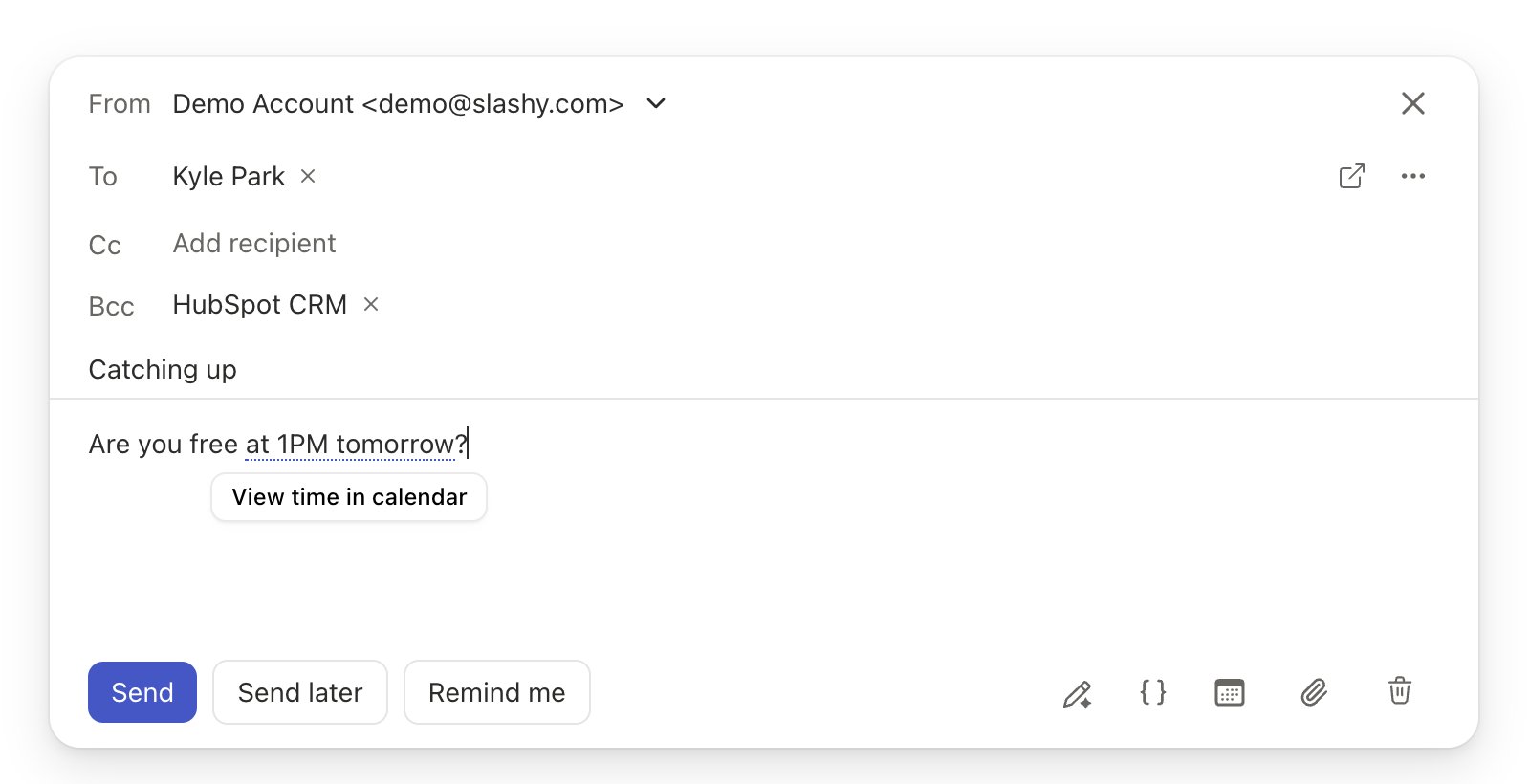
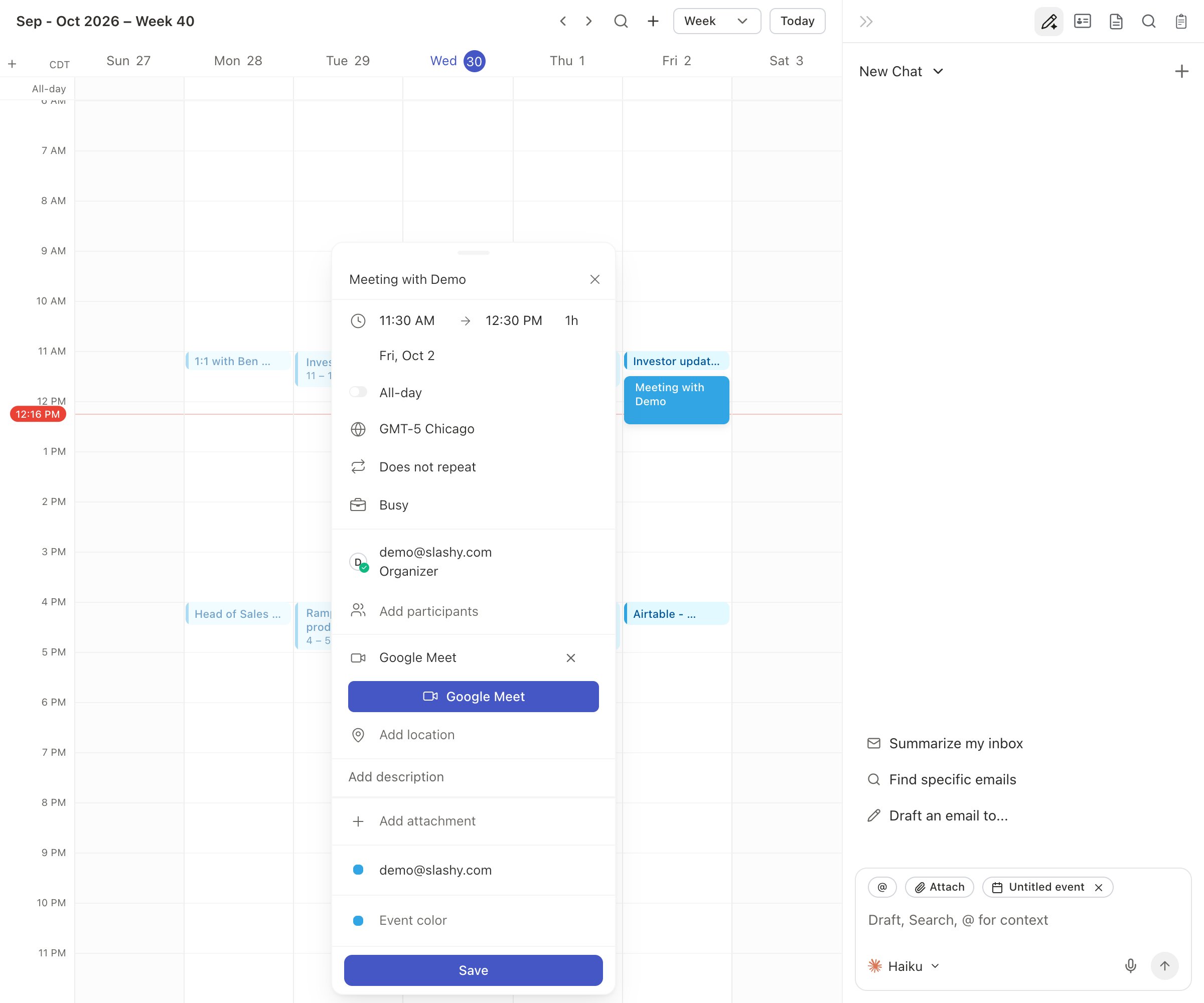
The Event Editor
Conferencing Options
Google Meet
Auto-creates a Meet link. Available by default for Google Calendar users.
Zoom
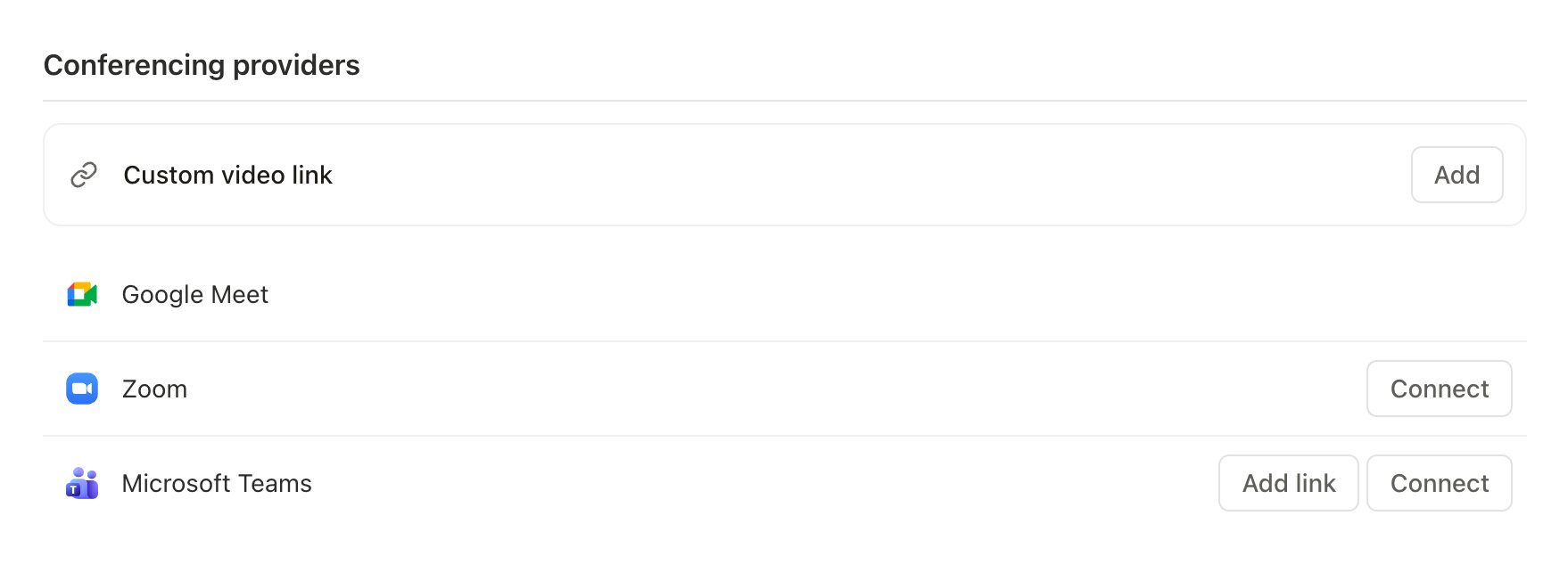
Creates a Zoom link. Connect your account in Settings > Calendars.
Microsoft Teams
On a Google calendar, connect a Microsoft work or school account to create a new Teams meeting for each event, or pick a saved Teams room. Outlook and Microsoft 365 calendars create a new Teams meeting for each event.
Webex / Custom
Choose Add meeting link in the conferencing menu to paste a Webex or any other meeting URL.
Teams meetings on a Google calendar
Connect a Microsoft work or school account and Slashy creates a new Teams meeting for each event on a Google calendar.1
Connect Microsoft Teams
Go to Settings > Calendars > Conferencing providers and click Connect next to Microsoft Teams. Sign in with your work or school Microsoft account. Personal Microsoft accounts cannot create Teams meetings.
2
Pick Teams for an event
Choose Microsoft Teams from the Conferencing menu. The event shows its Join with Teams link right away, before you save.
3
Make it the default
Hover the Microsoft Teams row in Settings and click Set as default to add a Teams meeting to every new event.
Save a Teams room
To reuse one fixed Teams room instead, save its link once.1
Open conferencing settings
Go to Settings > Calendars > Conferencing providers.
2
Add your room
Click Add link next to Microsoft Teams and paste your Teams meeting link. Pasting the full invite works too.
3
Use it
Choose your Teams room from the Conferencing menu in the event editor, or click Set as default on the room to add it to every new event.
Tasks on the Calendar
With Google Tasks connected, your dated tasks appear on the calendar. Timed tasks show in the grid, and tasks with only a date show as chips in the all-day row. Click the circle to tick a task off, or open it and choose Mark completed (Cmd+E).
Open the Tasks tab in the calendar sidebar (or press d then t) and drag a task onto the grid to time-block it. Slashy creates a 30-minute busy event linked to the task. Drop the same task on another slot to move its block, and drag the bottom edge to resize it. Dropping is off while you are choosing availability, proposing a time, or using Meet with.
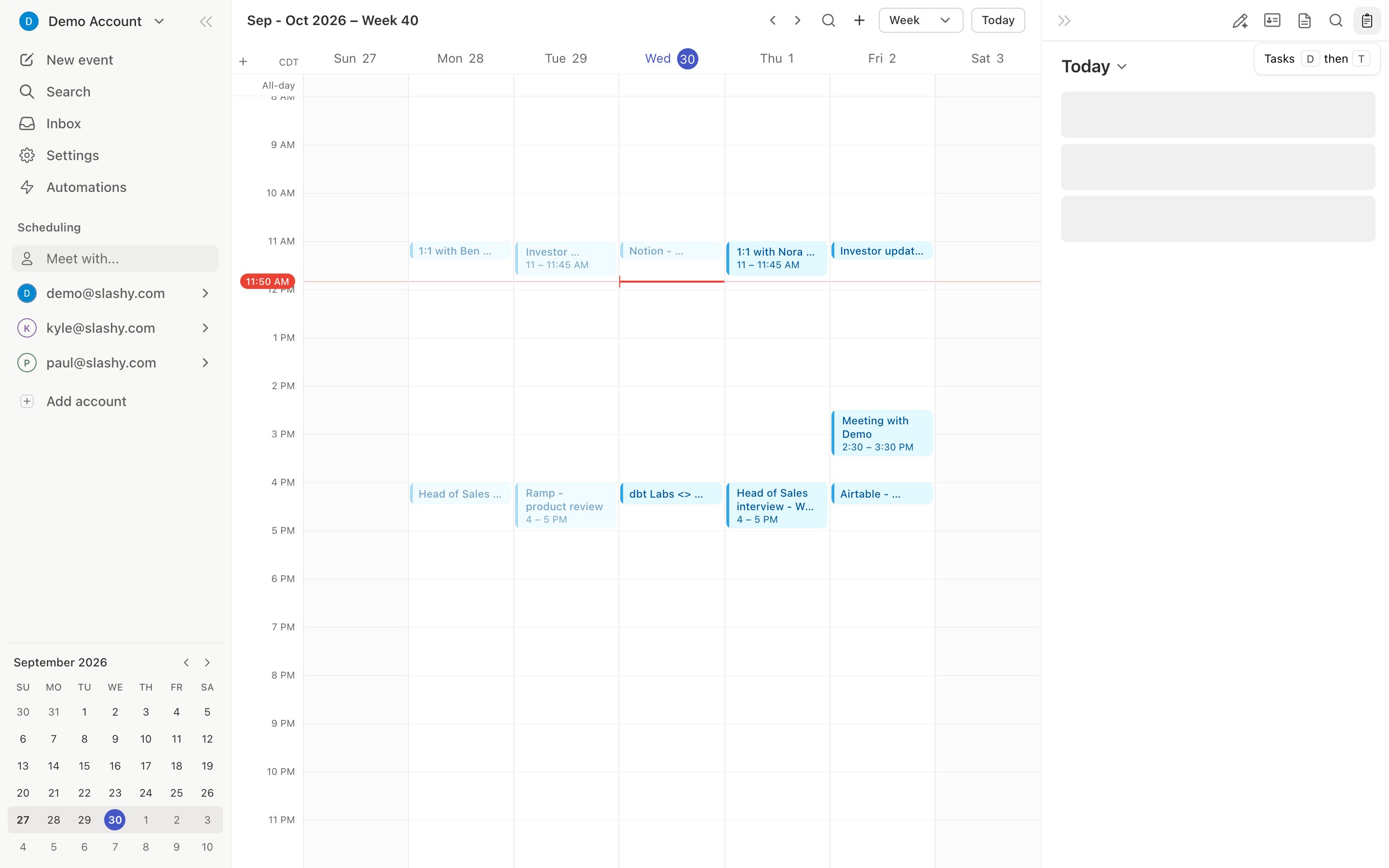
Calendar Sidebar
Calendars are listed like Google Calendar: your primary calendar first, then your other calendars, with subscribed calendars such as holidays last. Timed events longer than 24 hours sit in the all-day row so they do not squeeze the meetings on those days. Times follow your device time zone when it changes.Related Email Threads
Open any event and Slashy surfaces past email threads with the attendees, so you have context without leaving the calendar. Threads are matched by participant and, when relevant, by subject overlap with the event title. Click a thread from the list to open it in the reading pane, or ask the agent to summarize the history before you head into the meeting.Google Meet Transcripts
When an event uses Google Meet and no other connected notetaker (Otter, Fathom, Circleback, or Granola) already covered it, Slashy pulls the Meet transcript into the event’s meeting notes automatically. Sync runs hourly in the background, so notes typically appear within an hour after the call ends. There is nothing to connect or turn on. Google Meet transcripts sync for anyone with a connected Google Calendar and Meet events.Recurrence
Toggle recurrence in the event editor. Supported patterns: daily, weekly (specific days), monthly (date or day-of-month), yearly, and custom intervals. When editing or deleting a recurring event, choose to apply to this event only, this and following events, or all events.Drag to Reschedule
Drag any event to a new time slot. Drag the bottom edge to extend or shorten duration. Attendees are notified automatically.Creating Events with the AI Agent
You can also create events by telling the agent in natural language:Schedule a meeting
Schedule a meeting
Tell the agent: “Schedule a 30-minute meeting with jane@company.com tomorrow at 2pm.” The agent creates the event, adds a conferencing link, and sends the invite.
Find a time that works
Find a time that works
Tell the agent: “Find a time this week for a 1-hour meeting with the sales team.” The agent checks availability across attendees and suggests open slots.
Reschedule an event
Reschedule an event
Tell the agent: “Move my 3pm meeting to Thursday.” The agent updates the event and notifies attendees.
Deleting Events
Click an event to open its popover, then click the trash icon next to the close button. You can also pressBackspace. For recurring events, choose which instances to delete. Press z or Cmd+Z to undo within seconds.
Quick Reference
Sharing Your Availability
Insert available time slots directly into emails.
RSVP from email
Accept, decline, or propose new times from any thread.
Tasks
Plan your day and time-block tasks.
Zoom integration
Connect Zoom for one-click meeting links.