

i on the thread and choosing a person, which gives the conversation one owner. The owner’s avatar shows on the thread and in your inbox list, and a green check appears on it once they mark the thread done, so you see response status without asking in Slack.
Set up your team
1
Open Team settings
Press
Cmd+, and choose Team. If you aren’t on a team yet, enter your company name under Team name and click Create team.2
Invite teammates
Click Invite, add one or more email addresses, and click Send invite. Each person appears in your team list once they accept.
Assign a thread and track the reply
1
Assign
Focus a thread in the list, or open it, and press
i. Pick a teammate, or choose Assign to me from Cmd+K. Check several threads first to assign them all at once.2
See the owner
The owner’s avatar appears next to the sender in thread lists. Hover it to see “Assigned to” and their name.
3
See when it's handled
When the owner marks the thread done (
e), a green check appears on their avatar and the tooltip reads “Done by”.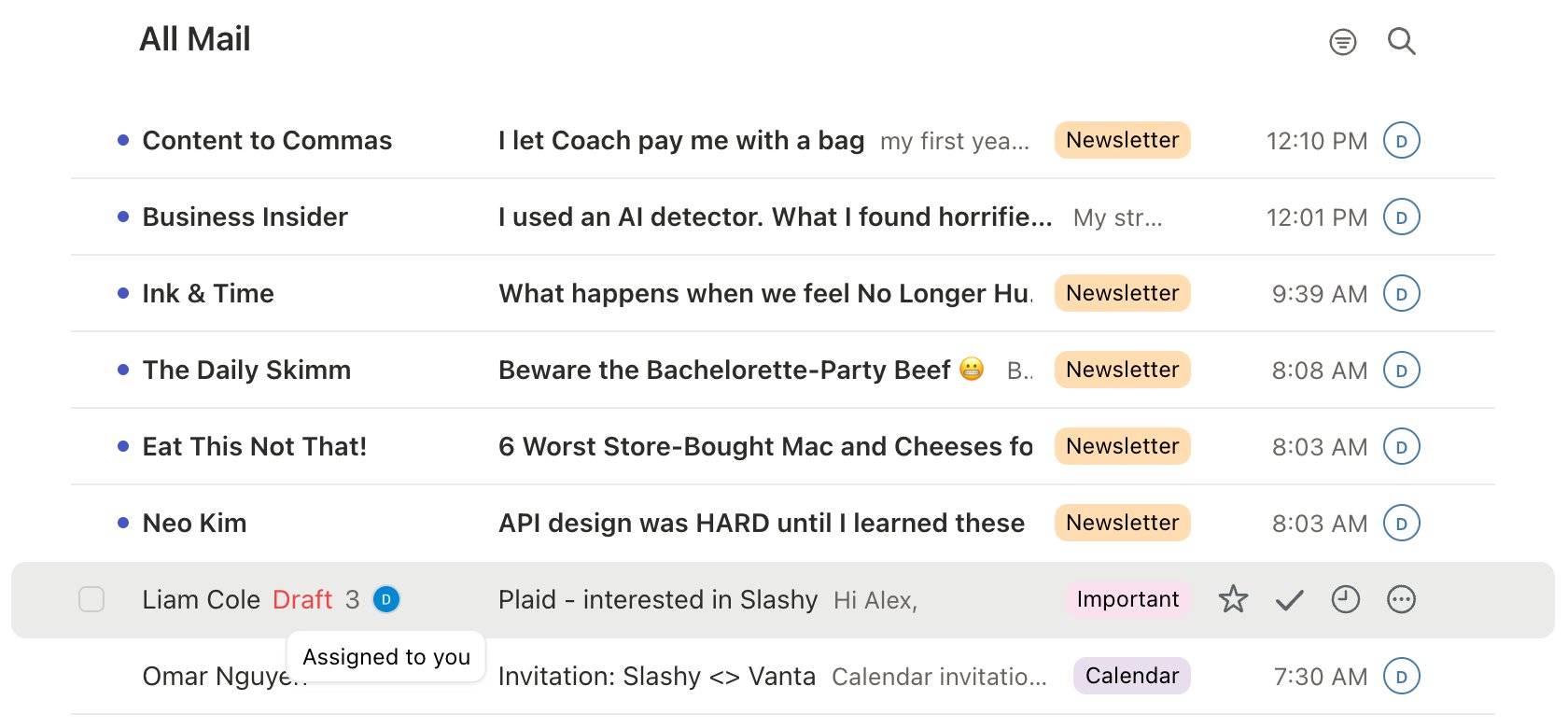
Shift+M to show only the conversations assigned to you. Use the Share dialog (Cmd+S) to see everyone who has a thread.
Discuss without forwarding
Pressm on a thread to open comments, and type @ to notify a teammate. Comments are visible only to people on your team who have the thread. Anyone on the email itself never sees them. See Comments and @-mentions.

What this looks like for a team
A customer question arrives. Your support lead pressesi and assigns it to an account manager. The account manager gets the thread in their inbox and in their Assigned view, @-mentions the lead in a comment to ask about a detail, replies to the customer, and presses e. The lead sees the green check next to the account manager’s avatar and moves on. Nobody forwarded anything or posted in a channel.
Who can I assign a thread to?
Who can I assign a thread to?
Anyone on your Slashy team. Each person belongs to one team. Invite more people from Settings → Team.
Can the person who emailed us see the assignment?
Can the person who emailed us see the assignment?
No. Owners, assignments, and comments are internal. People on the email never see them.
Can I reassign or clear an owner?
Can I reassign or clear an owner?
Yes. Press
i again and pick someone else, or choose No assignee. A toast with Undo puts the previous owner back.Can I ask the agent to assign threads?
Can I ask the agent to assign threads?
Yes. Open the agent (
d a) and say “Assign the Acme thread to Sam” or “What’s assigned to me that I haven’t finished?”.Does it work on mobile?
Does it work on mobile?
Yes. The mail menu has an Assigned view, and an assigned thread shows an owner pill you can tap to change the owner.
Assigning threads
Every assignment option in detail.
Comments and @-mentions
Discuss a thread privately with your team.
Managing your team
Invite and manage teammates.
Share an email by link
Give teammates a conversation.