

Connect Another Account
1
Open Settings
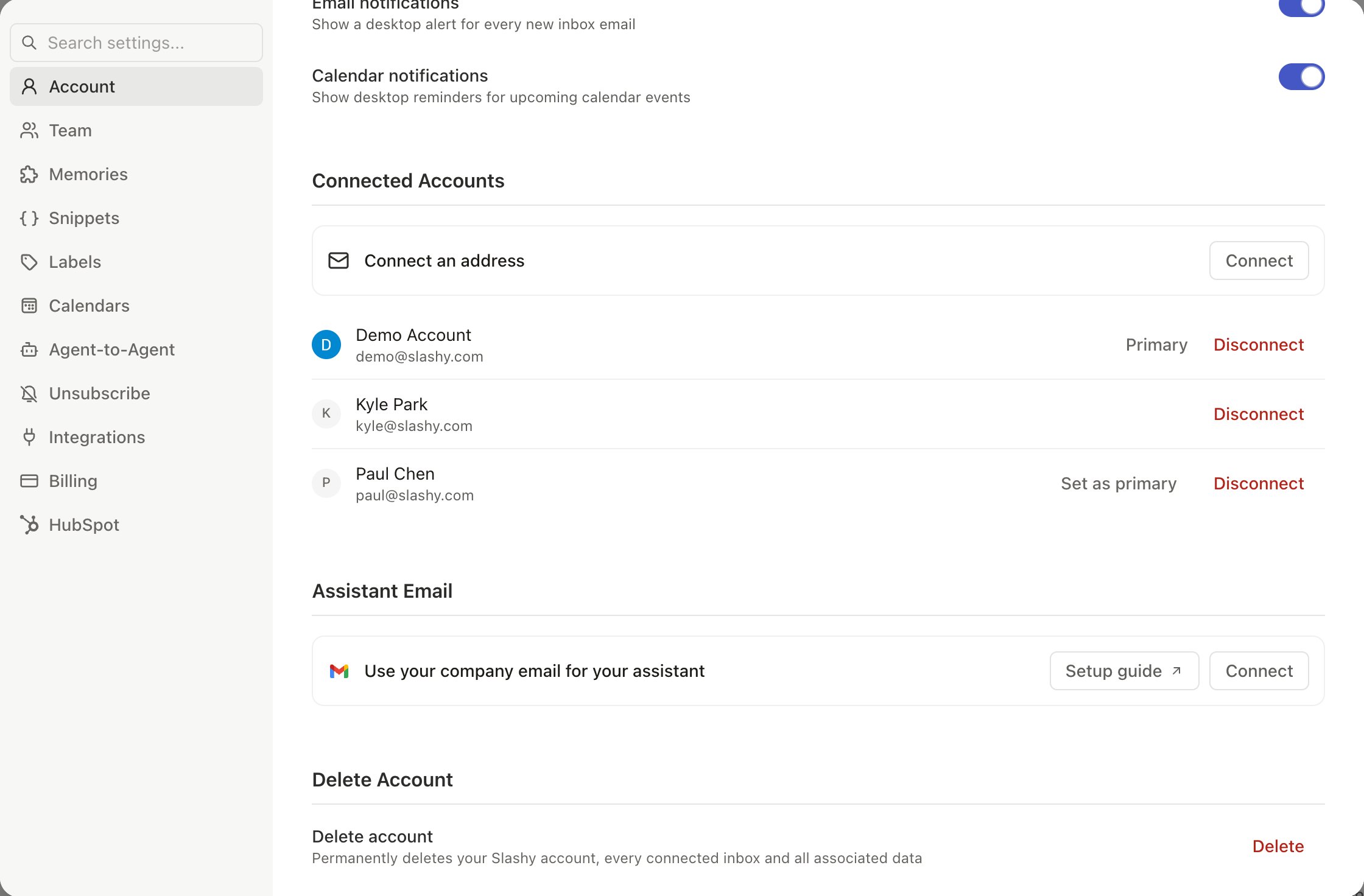
Go to Settings > Account (
Cmd+,).2
Add Account
Scroll to Connected Accounts, click Connect, and choose Connect Gmail or Connect Outlook. You can also click Add account at the bottom of the sidebar.
3
Authorize
Sign in with Google or Microsoft and grant the same permissions as your first account. See Connecting Outlook.
4
Sync
Initial sync takes 2-15 minutes depending on inbox size. Labels are set up automatically.
Switching Accounts
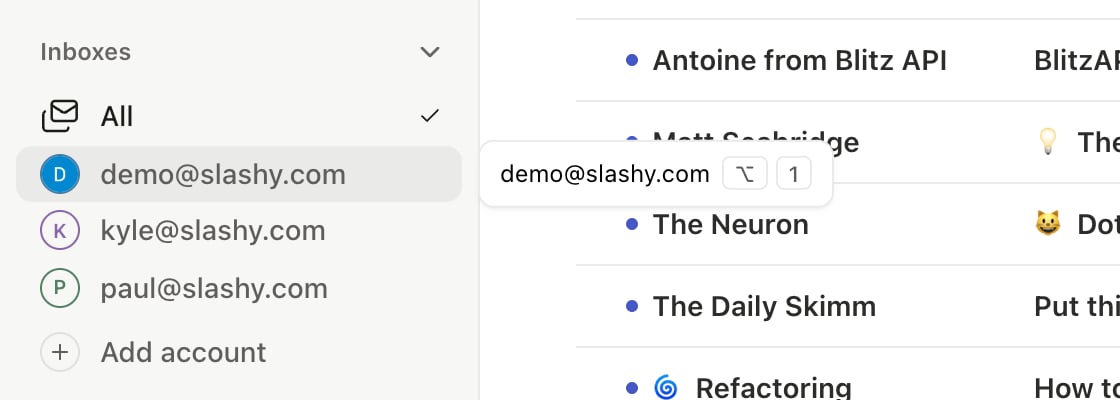
UseAlt+1, Alt+2, Alt+3 to switch accounts. Alt+0 opens All mode — a unified inbox showing emails from every account interleaved by date. On iOS, see Multiple accounts.
All Mode
In All mode:- Importance labels combine emails from all accounts under each tab
- Search covers all accounts at once
- Each thread row shows a small colored badge for the inbox that received it — hover it to see the full address
- When composing, choose which account to send from via the From dropdown
- Replies automatically use the account that received the email
What Merges vs. Stays Separate
Per-Inbox Settings
Each account has independent signatures and notification preferences. The undo send window is a fixed 30 seconds on every account; see Scheduled send and undo send. Switch to the target account first, then open Settings. Your importance labels are shared across all accounts — they are not per-account.Tips
- Set up your importance labels once. They are shared across every account — the same label set classifies all your inboxes.
- The AI agent has context from all accounts. Ask: “Did anyone from Sequoia email either of my accounts this week?”
Related Articles
Importance Labels
Customize AI sorting across all your accounts.
Why Primary Matters
How using Slashy full-time accelerates AI learning.
Manage Multiple Accounts
In-depth guide to per-inbox configuration.
Connecting Gmail
Permissions and security for connecting accounts.
Connecting Outlook
Add an Outlook or Microsoft 365 inbox.
Assistant email on your domain
Have your assistant email from your company address