

Common Issues
Stale Data
Inbox or threads look out of date
Inbox or threads look out of date
If emails, labels, or counts appear stale without a full sign-out, open the command palette (
Cmd+K), type Clear Cache and Reload, and select it. Slashy clears the local cache and reloads fresh data from the server. You stay signed in.When an update won’t install
Slashy downloads updates in the background and shows an Update ready card in the bottom-left corner. Click the install button to restart into the new version, or Later to keep working. If an update fails to install repeatedly, the card changes to Update isn’t installing and says what to do:Signed in to the wrong account
The desktop app keeps its own sign-in, separate from your browser. If you subscribed in the browser under one account and the desktop app shows the payment screen, check the address under Signed in as on that screen. Click Use a different account to sign out and sign in with the right one. During Gmail setup, Wrong Slashy account? Sign in with a different one does the same.Standard Reset Steps
1
Reload
Press
Cmd+R.2
Restart
Quit completely (including system tray) and reopen.
3
Sign out and sign in
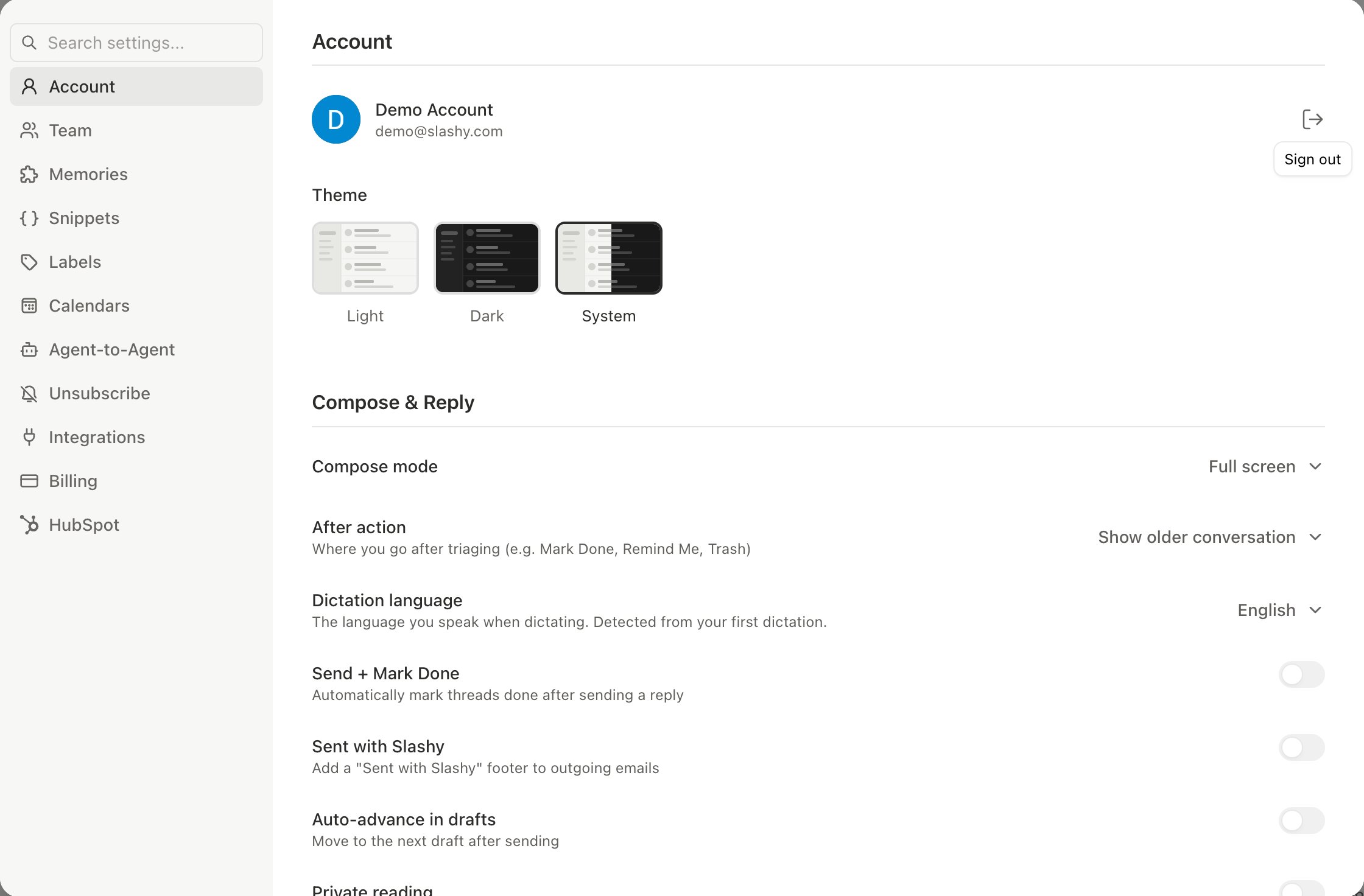
Click the sign-out icon beside your name in Settings > Account and confirm. Sign in again with Google or Microsoft for a fresh session and re-sync.
4
Reinstall
Download the latest version from slashy.com/download and install over the existing app.
Report a Bug
Need more help? Email founders@slashy.com or open the AI agent sidebar (
Cmd+/) and describe your issue. Include screenshots and your app version for fastest resolution.Mobile Troubleshooting
Fixes for iOS app issues.
Sync Issues
Email and calendar sync troubleshooting.