

slashy.com. Sign in at slashy.com/login, and once you’re signed in, slashy.com opens your inbox.
Where to go
1
Open slashy.com/login
Go to
slashy.com/login, or click Sign in on the Slashy homepage.2
Sign in with Google or Microsoft
Choose Sign in with Google or Sign in with Microsoft, pick the account you use for Slashy, and approve the requested permissions. Microsoft sign-in is for Outlook and Microsoft 365 accounts. See Connecting Outlook.
3
Land in your inbox
First load runs a quick sync. After that, you can close the tab and reopen
slashy.com anytime; you’ll stay signed in.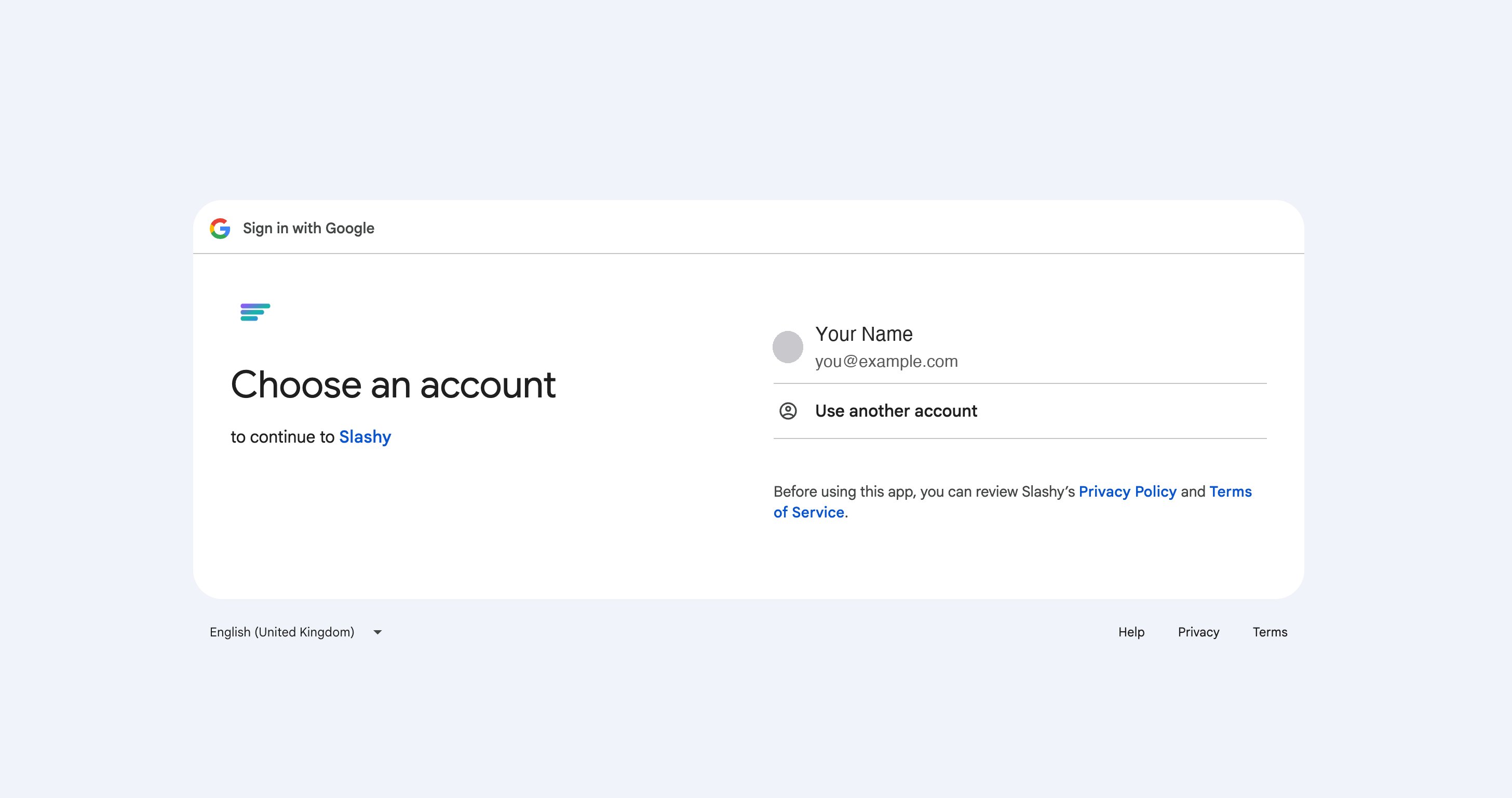
If you see the homepage instead of your inbox
You’re not signed in in this browser yet. Go toslashy.com/login and sign in with the account you use for Slashy. If you have several Google accounts in the same browser, pick the right one in the account chooser, or switch browser profiles.
If you sign in with the right account and still can’t reach your inbox, email support@slashy.com.
Desktop app
The Slashy desktop app wraps the same web experience and adds native notifications and a dock icon. Download it from slashy.com/download, or pressCmd+K and type “Download desktop app”, then sign in once. The desktop app reuses your browser session for the first sign-in.
Sign out of Slashy
Open Settings > Account and click the sign-out icon beside your name at the top. Slashy asks you to confirm with a Sign out of Slashy? dialog, because signing out ends your session for your entire Slashy account, not one inbox. To remove a single inbox, cancel and use Disconnect under Connected Accounts. See Disconnect, Pause, or Reconnect.Multi-device sign-in
Slashy keeps you signed in on every device until you sign out. You can use the web app, the desktop app, and mobile at the same time. Drafts, automations, and read state sync across all of them. If you’re getting kicked out repeatedly, your browser is likely clearing cookies on close. Allow cookies forslashy.com in your browser’s privacy settings.
Recovering an account
Slashy doesn’t store its own password. Recovery is your Google or Microsoft account recovery. If you can sign in to that account, you can sign in to Slashy. If the account itself is locked, recover it with Google or Microsoft first, then return toslashy.com/login.
If your company requires single sign-on, signing in with your work account sends you to your identity provider automatically. See Enterprise SSO.
Connecting Gmail
Authorize Gmail and add additional inboxes.
Connecting Outlook
Sign in with Microsoft or add an Outlook inbox.
Desktop app
Install and set up the Mac and Windows apps.
Trial and billing
How the 7-day trial works.
Multiple accounts
Use more than one inbox in the same workspace.
Enterprise SSO
Sign in through your company identity provider.
Disconnect an account
Sign out and remove access.