

Download and Install
1
Download
Go to slashy.com/download or open the command palette (
Cmd+K) and type “Download desktop app.”2
Install
Open the
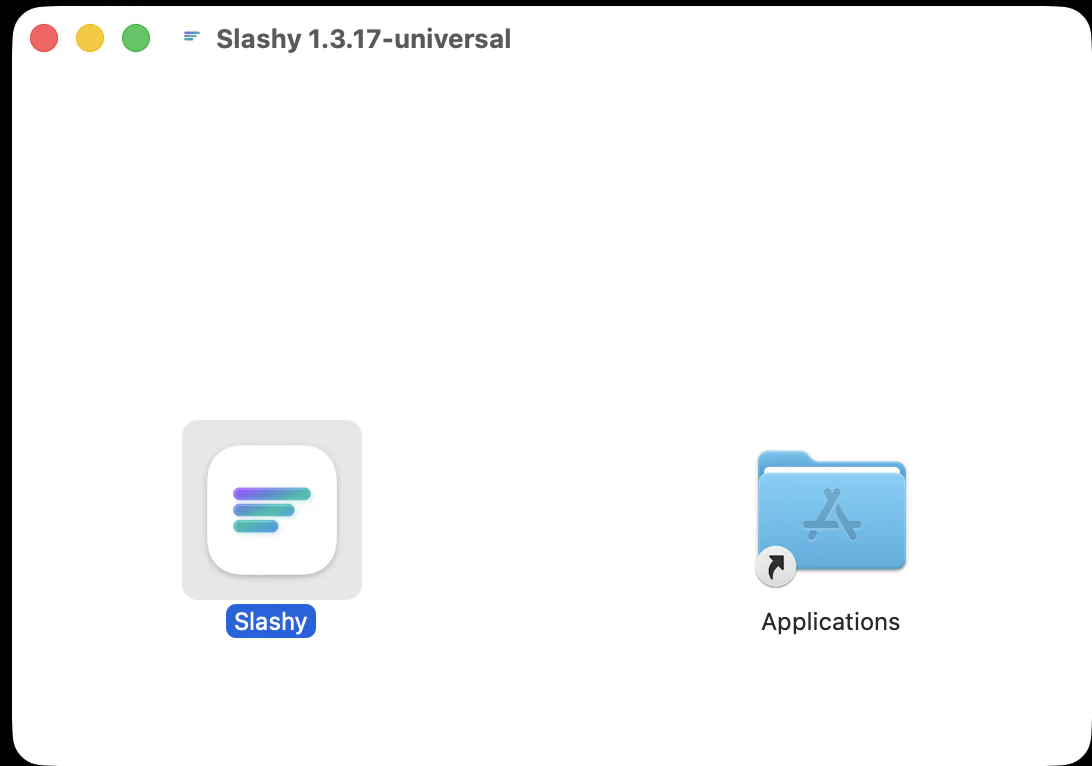
.dmg and drag Slashy into Applications.3
Launch and Sign In
Open Slashy from Applications. Sign in with the same Google account you use on the web. Your inbox, labels, memories, and settings sync immediately.
Key Features
Global Shortcut
Global Shortcut
Press
Cmd+/ from any application to bring Slashy to the front. Press again to hide it. Works system-wide, even when minimized. Change it in Settings > Account > Global Shortcut.Auto-Updates
Auto-Updates
Slashy downloads updates in the background. When one is ready, an Update ready card appears at the bottom of the sidebar. Click Update to restart into the new version, or Later to keep working.If an update repeatedly fails to install, the card changes to Update isn’t installing and explains what to do, for example freeing disk space, moving Slashy to your Applications folder, or downloading a fresh copy.
Preferences
Preferences
Open Settings from the app menu (Slashy > Preferences, shown as Settings on recent macOS) or press
Cmd+,.System Tray
System Tray
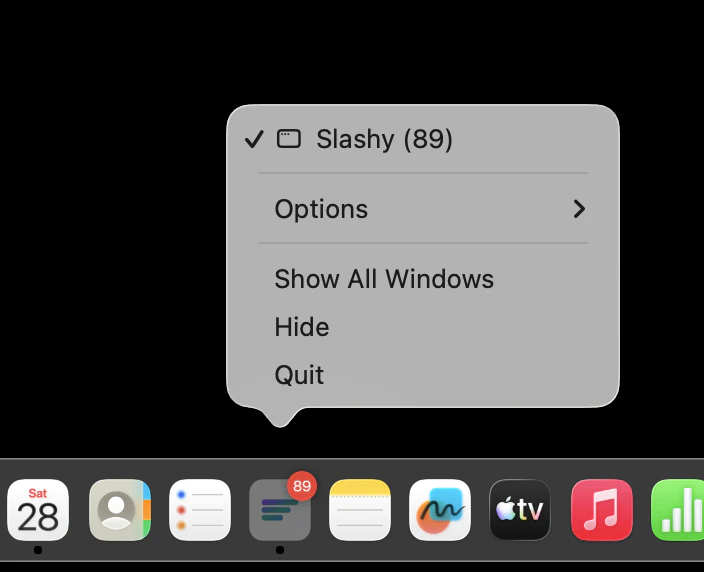
Slashy runs in the menu bar background, keeping email synced, notifications firing, and the global shortcut active. Closing the window with
Cmd+W hides to tray (use Cmd+Q to fully quit).Dock Badge Count
Dock Badge Count
Real-time unread count on the dock icon. Disable in Settings > Account > Show Unread Counts.
Native Notifications
Native Notifications
Uses macOS Notification Center. Respects Do Not Disturb. Control which labels trigger notifications in Settings > Labels.
Find in Page
Find in Page
Cmd+F searches text on the current screen — email threads, compose window, and settings.Multi-Window & Tabs
Multi-Window & Tabs
Open a second window with
Cmd+N — useful for keeping your inbox in one window and a thread or the calendar in another. Inside a window, drag a tab out of the strip to tear it into its own window, or Cmd+click a thread, label, or sidebar item to open it in a new tab without leaving the current one.Reopen a Closed Tab
Reopen a Closed Tab
Press
Cmd+Shift+T (or Window > Reopen Closed Tab) to bring back the tab you closed last. Each window remembers its most recent closed tabs.Drag Attachments to Finder
Drag Attachments to Finder
Drag an attachment from an email or draft straight onto your Desktop or into a Finder folder to save it there.
Download Location
Download Location
Attachments save to your Downloads folder by default. Change it in Settings > Account > Save attachments to. After a download, the confirmation toast includes a Show button that reveals the file in Finder.
Calendar Widget
Put your upcoming meetings on your Mac desktop. The widget shows your next 8 days from the calendars you have turned on in Slashy, in small, medium, large, and extra large sizes. Requires macOS 14 or later.1
Open the widget gallery
Right-click an empty spot on your desktop and choose Edit Widgets.
2
Add Slashy
Search for Slashy, pick the Calendar widget in the size you want, and drag it into place.
3
Keep Slashy running
The widget fills in from the desktop app. While Slashy is running, even hidden in the menu bar, the widget stays current. If it says Open Slashy, open the app once and it refreshes.
Troubleshooting
Related Articles
Importance Labels
Set up AI-powered inbox sorting.
Connect a Second Account
Add work and personal inboxes.
Keyboard Shortcuts
Every shortcut for power-user navigation.
Mobile App
Set up Slashy on your iPhone.