

What Feels Familiar
These work the same way you are used to:- Keyboard-first design — navigate, triage, and reply without touching the mouse
- AI drafts — select a thread and get an instant reply draft
- Split inbox — importance labels sort email automatically (like Superhuman’s splits)
- Snippets — templated text you insert with a shortcut
- Read receipts — see when your email was opened
- Scheduled send — compose now, send later
What’s Different (and Better)
| Superhuman | Slashy |
|---|---|
| AI writes drafts you review | AI agent drafts, sends, schedules, and automates on your behalf |
| No automations | Background automations: dropped ball scanner, meeting prep, receipt forwarding |
| No iMessage integration | iMessage alerts, summaries, and OTP forwarding |
| Calendar in sidebar only | Full calendar view with availability insert and Meet With overlay |
| Calendly needed for scheduling | Insert availability into replies with Shift+Cmd+A |
| Per-seat pricing adds up | No per-seat pricing anxiety |
Keyboard Shortcut Mapping
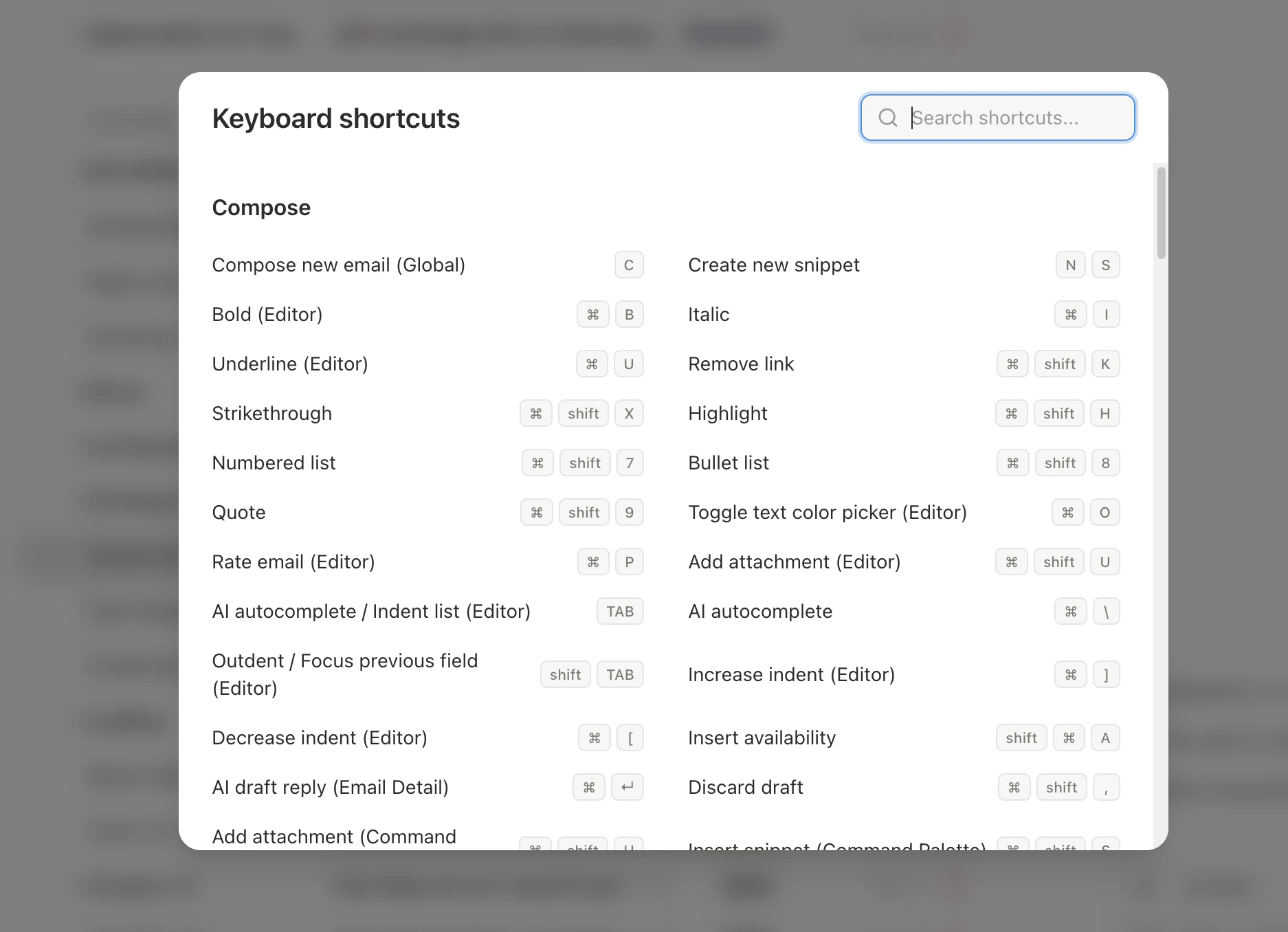
Most shortcuts transfer directly. Key differences:| Action | Superhuman | Slashy |
|---|---|---|
| Compose | c | c |
| Reply / Reply All | r / a | r / a |
| Forward | f | f |
| Send | Cmd+Enter | Cmd+Enter |
| Search | / | / |
| Archive | e | e |
| Star | s | s |
| Mark done | e | e (archive) |
| Snooze | h | h |
| Navigate up/down | j / k | j / k |
| Go to Inbox | Cmd+K > Inbox | g i |
| Label / Move | l | l or v |
| Undo | Cmd+Z | z or Cmd+Z |
| Command Palette | Cmd+K | Cmd+K |
| AI Draft | Cmd+J | Cmd+Enter (on a thread) |
| AI Agent | — | Cmd+Shift+L |
| Calendar | Cmd+K > Calendar | 2 |
| Settings | Cmd+K > Settings | Cmd+, |
| Shortcut reference | — | Shift+? |
Full Feature Comparison
| Capability | Superhuman | Slashy |
|---|---|---|
| Keyboard-first design | Yes | Yes |
| AI drafts | Yes (review only) | Yes (drafts, sends, and automates) |
| Split inbox | Splits | AI importance labels (trainable) |
| Snippets / templates | Yes | Yes + AI variable substitution |
| Read receipts | Yes | Yes |
| Scheduled send | Yes | Yes |
| Calendar | Sidebar only | Full view + availability insert + Meet With |
| Automations | None | Email triggers, calendar triggers, reminders |
| AI agent | None | Full conversational agent |
| iMessage integration | None | Alerts, summaries, OTP forwarding |
| Scheduling | Needs Calendly | Insert availability into replies |
| Search | Keyword + instant | AI-powered natural language |
| Pricing | $30/mo per seat | No per-seat pricing |
Feature Mapping
Superhuman Social Insights become Slashy Contact Memories. Instead of pulling LinkedIn data, Slashy builds context from your email history — what you have discussed, meeting notes, and facts you add manually. Open the contact sidebar withp i.
Superhuman Snippets become Slashy Snippets. Create with n s, insert with Cmd+Shift+S. Slashy snippets are more powerful — they support AI-powered variable substitution (e.g., {{first_name}} auto-fills from contact data).
Superhuman Splits become Slashy Importance Labels. Same concept (auto-sorted inbox sections), but powered by AI classification that learns from your corrections.
Setting Up Snippets
Migration Checklist
Connect your Gmail account
Sign up at slashy.com and connect via Google OAuth. All email, labels, and contacts sync automatically.
Recreate your Superhuman Splits as labels
Go to Settings > Labels and set up importance labels to match your Superhuman Splits. The AI classification learns from corrections.
Migrate snippets
Press
n s to create each snippet. Copy your Superhuman snippet text and add AI variables like {{first_name}} for extra power.Set up automations
Open the agent sidebar (
Cmd+Shift+L) and set up your first automation — start with the Dropped Ball Scanner. This is functionality Superhuman does not offer.Add AI memories
Settings > Memories — describe your communication style. This replaces Superhuman’s limited tone settings with full-context personalization.
Your First Week
Day-by-day onboarding guide.
Gmail Migration
What syncs, what doesn’t, and the full shortcut map.