> ## Documentation Index
> Fetch the complete documentation index at: https://help.slashy.com/llms.txt
> Use this file to discover all available pages before exploring further.
# When Slashy Does Something Unexpected
> What to do if the AI agent sends without permission, claims it did something it didn't, or reverts your edits.
**Quick fixes to try first:** Reload with `Cmd+R` | Reconnect Gmail in **Settings > Account** | Check [known issues](/troubleshooting/known-issues) | [Contact support](mailto:founders@slashy.com)
Slashy's AI agent is powerful but can occasionally behave in ways you did not intend. Here is exactly what to do.
## Agent Sent an Email Without Permission
This is the most serious scenario. Act immediately.
Press `g` then `t` to go to Sent. Check recent emails for anything you did not write or approve.
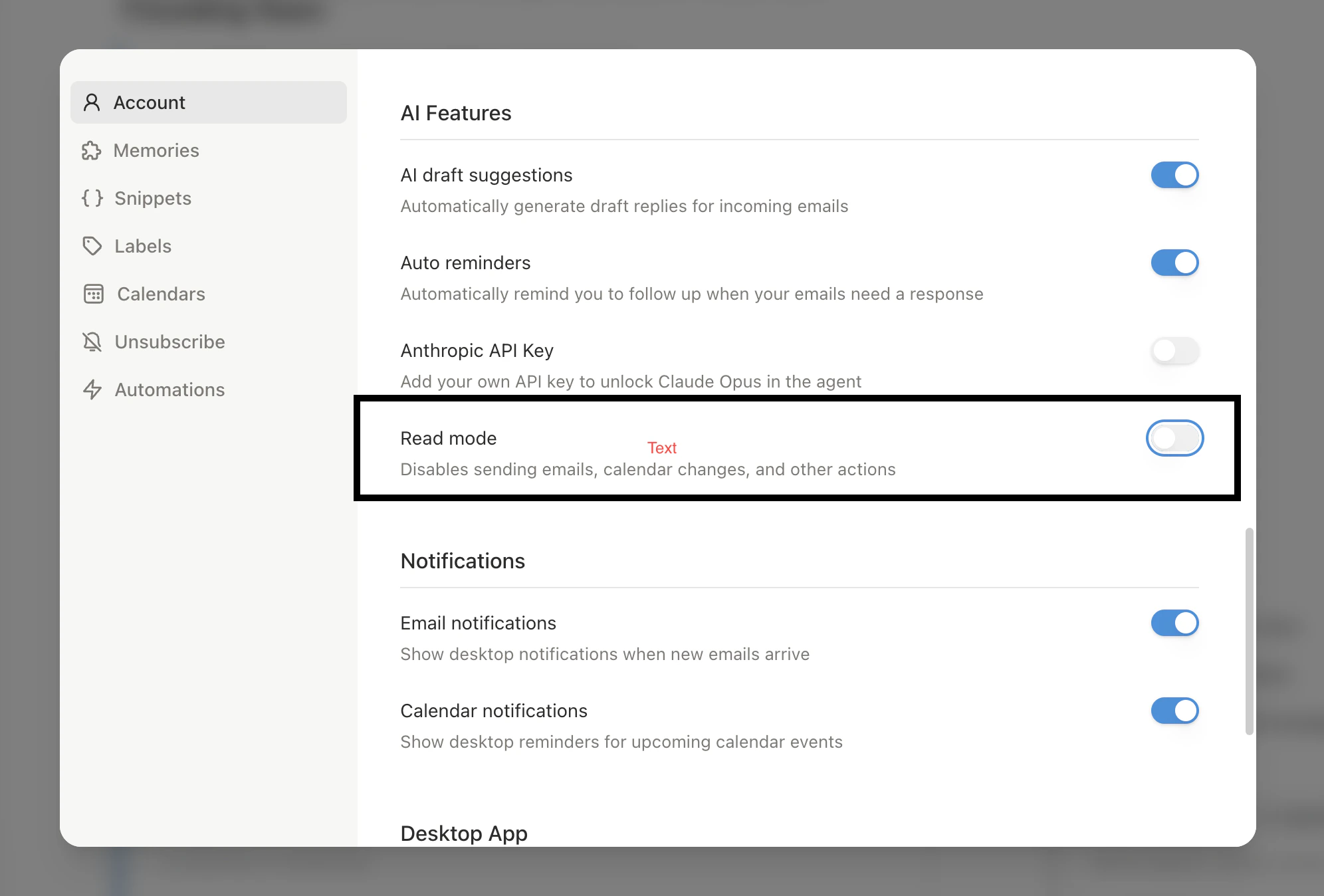
**Settings** (`Cmd+,`) > toggle on **Read Mode**. This prevents the agent from sending emails, modifying threads, or creating events. It can still search, read, and draft.
**Settings > Automations** -- review all enabled triggers and agent reminders. Disable any automation that might be sending on your behalf.
Contact support with: approximate send time, subject line, recipient, active automations, and a screenshot.
 ## Agent Says It Sent but Didn't
Sometimes the agent says "I've sent the email" when it actually created a draft. This is a known issue.
**How to verify:**
1. `g t` (Sent) -- if the email is not there, it was not sent
2. `g d` (Drafts) -- the email is likely here as an unsent draft
3. Open it, review, and send manually
**Why it happens:** The agent creates a draft and reports success, but the send step failed or the agent is configured to draft-only. By default, sending requires explicit approval.
## AI Review Reverts Your Edits
If you edit an AI draft to sound more natural, then run an agent review, the review may overwrite your changes with AI-generated text.
The agent review rewrites the full email. It does not know which parts you edited manually.
**How to avoid this:**
* Run agent review **before** your manual edits, not after
* Use `Cmd+Z` to undo if the review overwrites changes
* Select only the specific passage you want changed, rather than running a full review
## Read Mode: Your Safety Switch
* Search and read emails
* Answer questions about your inbox
* Create drafts for review
* Look up calendar events
* Send emails
* Archive, trash, or label threads
* Create or modify calendar events
* Execute action-based automations
Enable it: **Settings** (`Cmd+,`) > **Account** > **Read Mode**. Keep it on until you trust the setup.
## Disconnect Your Email
If you need to fully disconnect Slashy from Gmail:
1. **Settings > Account > Connected Accounts > Disconnect**
2. Or revoke access from [myaccount.google.com/permissions](https://myaccount.google.com/permissions)
Slashy never deletes emails from Gmail. It only adds/removes labels and sends on your behalf.
## Preventing Surprises
* **Audit automations regularly** -- disable anything you don't actively use
* **Use Read Mode when learning** -- disable once you trust the setup
* **Check Sent after agent interactions** -- `g t` to verify
* **Be explicit** -- say "draft a reply" instead of "reply" if you want to review first
* **Add a memory** -- "Always draft emails for my review, never send directly"
***
Configure and manage AI automations safely.
Train the agent to match your voice.
## Agent Says It Sent but Didn't
Sometimes the agent says "I've sent the email" when it actually created a draft. This is a known issue.
**How to verify:**
1. `g t` (Sent) -- if the email is not there, it was not sent
2. `g d` (Drafts) -- the email is likely here as an unsent draft
3. Open it, review, and send manually
**Why it happens:** The agent creates a draft and reports success, but the send step failed or the agent is configured to draft-only. By default, sending requires explicit approval.
## AI Review Reverts Your Edits
If you edit an AI draft to sound more natural, then run an agent review, the review may overwrite your changes with AI-generated text.
The agent review rewrites the full email. It does not know which parts you edited manually.
**How to avoid this:**
* Run agent review **before** your manual edits, not after
* Use `Cmd+Z` to undo if the review overwrites changes
* Select only the specific passage you want changed, rather than running a full review
## Read Mode: Your Safety Switch
* Search and read emails
* Answer questions about your inbox
* Create drafts for review
* Look up calendar events
* Send emails
* Archive, trash, or label threads
* Create or modify calendar events
* Execute action-based automations
Enable it: **Settings** (`Cmd+,`) > **Account** > **Read Mode**. Keep it on until you trust the setup.
## Disconnect Your Email
If you need to fully disconnect Slashy from Gmail:
1. **Settings > Account > Connected Accounts > Disconnect**
2. Or revoke access from [myaccount.google.com/permissions](https://myaccount.google.com/permissions)
Slashy never deletes emails from Gmail. It only adds/removes labels and sends on your behalf.
## Preventing Surprises
* **Audit automations regularly** -- disable anything you don't actively use
* **Use Read Mode when learning** -- disable once you trust the setup
* **Check Sent after agent interactions** -- `g t` to verify
* **Be explicit** -- say "draft a reply" instead of "reply" if you want to review first
* **Add a memory** -- "Always draft emails for my review, never send directly"
***
Configure and manage AI automations safely.
Train the agent to match your voice.