> ## Documentation Index
> Fetch the complete documentation index at: https://help.slashy.com/llms.txt
> Use this file to discover all available pages before exploring further.
# Email and Calendar Sync Issues
> Troubleshoot empty inbox on first login, missing emails, calendar not updating, and how to verify sync status.
**Quick fixes to try first:** Reload with `Cmd+R` | Reconnect Gmail in **Settings > Account** | Check [known issues](/troubleshooting/known-issues) | [Contact support](mailto:founders@slashy.com)
Slashy syncs email and calendar from Gmail in real time. Most issues resolve within minutes. This guide covers what is normal, what is not, and when to contact support.
## Empty Inbox After First Login
This is normal. Slashy downloads your entire email history on first connect.
| Timeframe | What to expect |
| ---------------- | ------------------------------------------------------------ |
| 2-5 minutes | Inbox may appear empty or show only a few emails |
| 5-15 minutes | Recent emails loaded. Older emails still syncing. |
| Up to 30 minutes | Full history complete. Large inboxes (10k+) may take longer. |
Do not disconnect and reconnect during initial sync. That restarts the process from scratch.
 ## Emails in Gmail but Not in Slashy
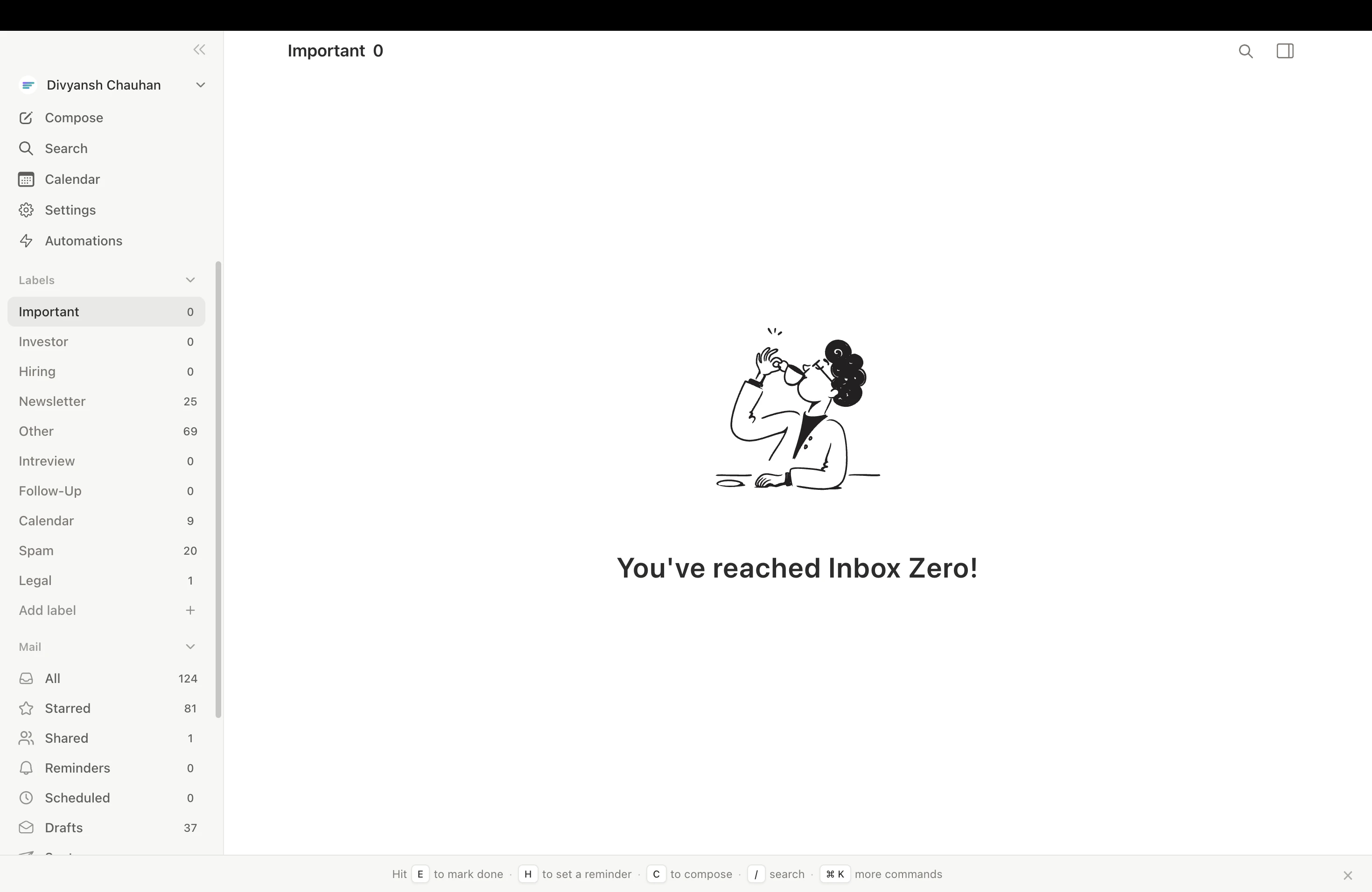
Gmail push notifications can be delayed. Wait 60 seconds, then `Cmd+R` to reload.
The email may be in a different importance label tab. Press `g a` for All Mail to see everything regardless of label. Clear any active filters (Unread Only, Starred, etc.).
Press `/` and search by sender, subject, or keywords. If it appears in search but not your inbox, it has synced but may be archived or in another label.
`g #` for Trash. Enable spam folder in **Settings > Account > Show spam folder**, then check it.
**Settings** (`Cmd+,`) > **Account** -- connected inbox should show as **Connected**.
If the email still does not appear, contact support with the subject, sender, and approximate date.
## Calendar Not Syncing
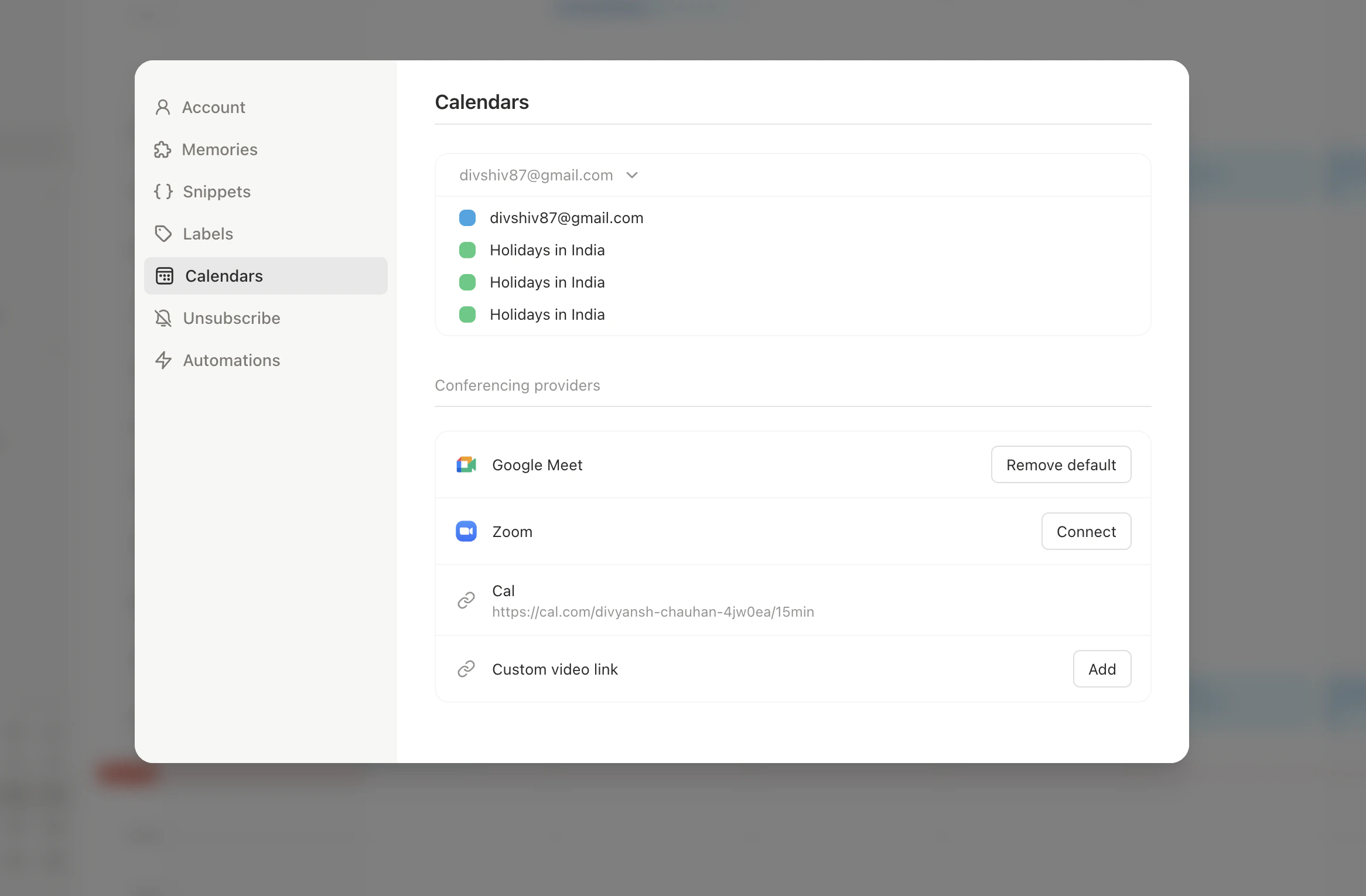
Press `2` for calendar view, then **Settings > Calendars**. Make sure the calendars you want are toggled on. Shared and conference room calendars appear here too.
Calendar changes typically appear within 30 seconds. If not, reload the page.
If events appear at the wrong time, verify your timezone in **Settings > Account**.
## Emails in Gmail but Not in Slashy
Gmail push notifications can be delayed. Wait 60 seconds, then `Cmd+R` to reload.
The email may be in a different importance label tab. Press `g a` for All Mail to see everything regardless of label. Clear any active filters (Unread Only, Starred, etc.).
Press `/` and search by sender, subject, or keywords. If it appears in search but not your inbox, it has synced but may be archived or in another label.
`g #` for Trash. Enable spam folder in **Settings > Account > Show spam folder**, then check it.
**Settings** (`Cmd+,`) > **Account** -- connected inbox should show as **Connected**.
If the email still does not appear, contact support with the subject, sender, and approximate date.
## Calendar Not Syncing
Press `2` for calendar view, then **Settings > Calendars**. Make sure the calendars you want are toggled on. Shared and conference room calendars appear here too.
Calendar changes typically appear within 30 seconds. If not, reload the page.
If events appear at the wrong time, verify your timezone in **Settings > Account**.
 ## How Sync Works
| Mechanism | What it does |
| --------------------------- | ------------------------------------------------------------- |
| Gmail push notifications | Google notifies Slashy within seconds of any change (primary) |
| Calendar push notifications | Real-time event create/update/delete notifications |
| Delta polling | Periodic fallback if push notifications are delayed |
| Sync monitor | Detects stalled syncs and auto-restarts them |
| Watch renewal | Push subscriptions renewed every 6 hours |
| Page reload (`Cmd+R`) | Fetches latest state from server |
## Multi-Account Sync
* Each inbox syncs independently
* Switch accounts with `Alt+0` through `Alt+9`
* Issues in one account do not affect others
## Common Scenarios
One client has a stale cache. Reload the app: `Cmd+R` on desktop, pull down to refresh on mobile.
Your OAuth token may need refreshing. Disconnect and reconnect your Gmail account in Settings.
Check that you are creating events on a calendar you own, not a shared read-only calendar.
This means Google revoked access to your inbox, usually after a password change or an admin action. Open Slashy and reconnect the account in **Settings > Account** to resume syncing. Your mail is untouched while the connection is paused.
If your Google Workspace admin renames your email (for example during a domain change), just sign in to Slashy again with the new address. Slashy reconnects you to your existing inbox and data automatically, so you do not start over.
## When to Contact Support
Contact support if:
* Inbox empty for 30+ minutes after first connecting
* Specific emails consistently missing (not a one-time delay)
* Inbox status shows an error after reconnecting
* Actions not reflected in Gmail after several minutes
* Calendar sync completely broken (no events at all)
**Need more help?** Email [founders@slashy.com](mailto:founders@slashy.com) or open the AI agent sidebar (`Cmd+Shift+L`) and describe your issue. Include screenshots and your app version for fastest resolution.
***
Full guide to moving from Gmail to Slashy.
Day-by-day onboarding guide.
## How Sync Works
| Mechanism | What it does |
| --------------------------- | ------------------------------------------------------------- |
| Gmail push notifications | Google notifies Slashy within seconds of any change (primary) |
| Calendar push notifications | Real-time event create/update/delete notifications |
| Delta polling | Periodic fallback if push notifications are delayed |
| Sync monitor | Detects stalled syncs and auto-restarts them |
| Watch renewal | Push subscriptions renewed every 6 hours |
| Page reload (`Cmd+R`) | Fetches latest state from server |
## Multi-Account Sync
* Each inbox syncs independently
* Switch accounts with `Alt+0` through `Alt+9`
* Issues in one account do not affect others
## Common Scenarios
One client has a stale cache. Reload the app: `Cmd+R` on desktop, pull down to refresh on mobile.
Your OAuth token may need refreshing. Disconnect and reconnect your Gmail account in Settings.
Check that you are creating events on a calendar you own, not a shared read-only calendar.
This means Google revoked access to your inbox, usually after a password change or an admin action. Open Slashy and reconnect the account in **Settings > Account** to resume syncing. Your mail is untouched while the connection is paused.
If your Google Workspace admin renames your email (for example during a domain change), just sign in to Slashy again with the new address. Slashy reconnects you to your existing inbox and data automatically, so you do not start over.
## When to Contact Support
Contact support if:
* Inbox empty for 30+ minutes after first connecting
* Specific emails consistently missing (not a one-time delay)
* Inbox status shows an error after reconnecting
* Actions not reflected in Gmail after several minutes
* Calendar sync completely broken (no events at all)
**Need more help?** Email [founders@slashy.com](mailto:founders@slashy.com) or open the AI agent sidebar (`Cmd+Shift+L`) and describe your issue. Include screenshots and your app version for fastest resolution.
***
Full guide to moving from Gmail to Slashy.
Day-by-day onboarding guide.