> ## Documentation Index
> Fetch the complete documentation index at: https://help.slashy.com/llms.txt
> Use this file to discover all available pages before exploring further.
# Disconnect, Pause, or Reconnect
> How to pause the AI agent, disconnect an inbox, revoke access via Google, or delete your account.
Whether you need to temporarily pause the AI, disconnect an inbox, or delete your account, here are your options and what happens to your data at each step.
 ## Pause the AI Agent (Read Mode)
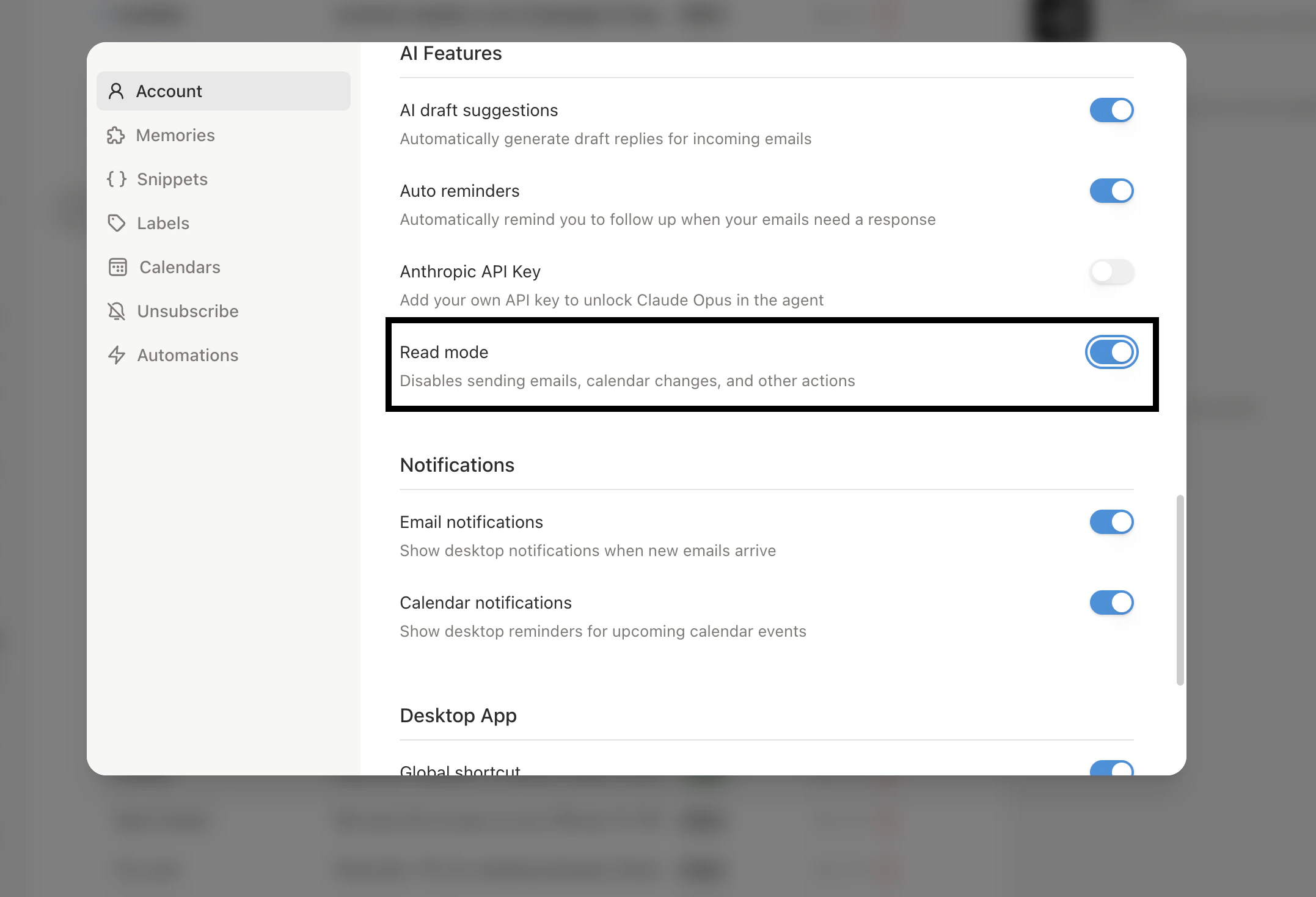
Toggle **Read Mode** in Settings > Account. The agent can still search, read, and draft for your review, but cannot send emails, archive, modify labels, or create events. Action-taking automations pause; read-only automations (like dropped ball scanner) continue.
Toggle Read Mode off to resume full functionality.
Read Mode is the safest first step if something feels off. It stops all outbound actions instantly while keeping search, reading, and draft generation active so you can investigate without disruption.
### What Read Mode Preserves vs. Stops
| Active | Paused |
| -------------------------------- | -------------------------------- |
| Search and read emails | Send emails |
| Answer inbox questions | Archive, label, or trash |
| Generate drafts for review | Create or modify calendar events |
| Dropped ball scanner (read-only) | Action-based automations |
## Disconnect an Inbox
Settings > Account > Connected Accounts.
Click **Disconnect** next to the inbox.
**What happens:** Sync stops, automations disable, tracking stops, agent loses access. Your emails in Gmail are completely unaffected. Your Slashy account still exists and you can reconnect anytime.
## Reconnect After Disconnect
Go to Settings > Account, click **Add Account**, and sign in with the same Google account. Slashy re-syncs your history (2-15 minutes). Previous labels, memories, and automations may still be available.
## Pause the AI Agent (Read Mode)
Toggle **Read Mode** in Settings > Account. The agent can still search, read, and draft for your review, but cannot send emails, archive, modify labels, or create events. Action-taking automations pause; read-only automations (like dropped ball scanner) continue.
Toggle Read Mode off to resume full functionality.
Read Mode is the safest first step if something feels off. It stops all outbound actions instantly while keeping search, reading, and draft generation active so you can investigate without disruption.
### What Read Mode Preserves vs. Stops
| Active | Paused |
| -------------------------------- | -------------------------------- |
| Search and read emails | Send emails |
| Answer inbox questions | Archive, label, or trash |
| Generate drafts for review | Create or modify calendar events |
| Dropped ball scanner (read-only) | Action-based automations |
## Disconnect an Inbox
Settings > Account > Connected Accounts.
Click **Disconnect** next to the inbox.
**What happens:** Sync stops, automations disable, tracking stops, agent loses access. Your emails in Gmail are completely unaffected. Your Slashy account still exists and you can reconnect anytime.
## Reconnect After Disconnect
Go to Settings > Account, click **Add Account**, and sign in with the same Google account. Slashy re-syncs your history (2-15 minutes). Previous labels, memories, and automations may still be available.
 ## Revoke Access via Google
For maximum certainty, revoke from Google's side:
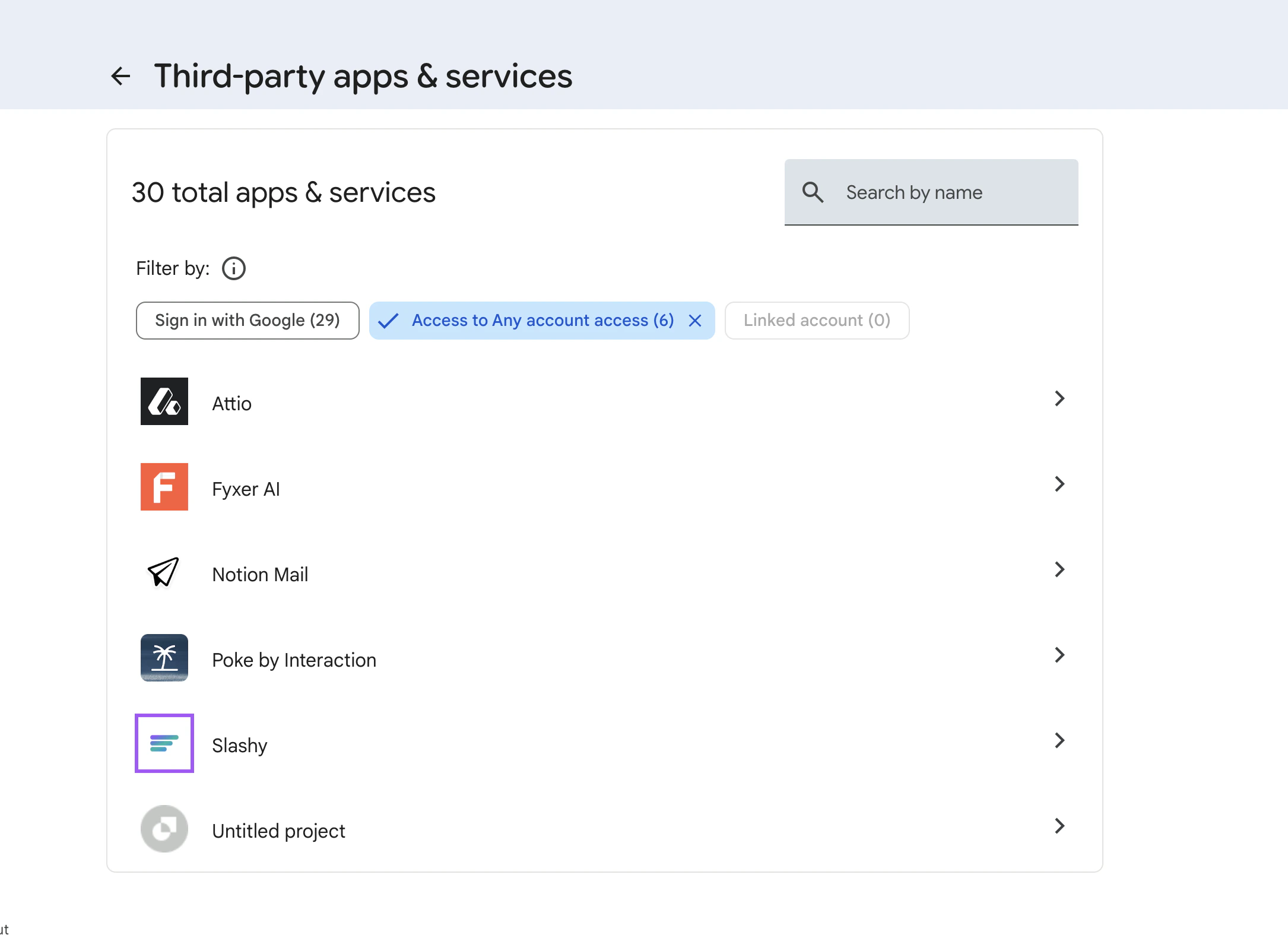
1. Go to [myaccount.google.com/permissions](https://myaccount.google.com/permissions)
2. Find **Slashy** and click **Remove Access**
3. This immediately revokes the OAuth token
Re-authorization through onboarding is required to reconnect.
## Revoke Access via Google
For maximum certainty, revoke from Google's side:
1. Go to [myaccount.google.com/permissions](https://myaccount.google.com/permissions)
2. Find **Slashy** and click **Remove Access**
3. This immediately revokes the OAuth token
Re-authorization through onboarding is required to reconnect.
 ## What Happens to Your Data
| Action | Data Impact |
| --------------------- | ----------------------------------------------------------------------- |
| **Read Mode** | All data preserved. Agent stops taking actions. |
| **Disconnect inbox** | Slashy account preserved. Cached data remains but stops updating. |
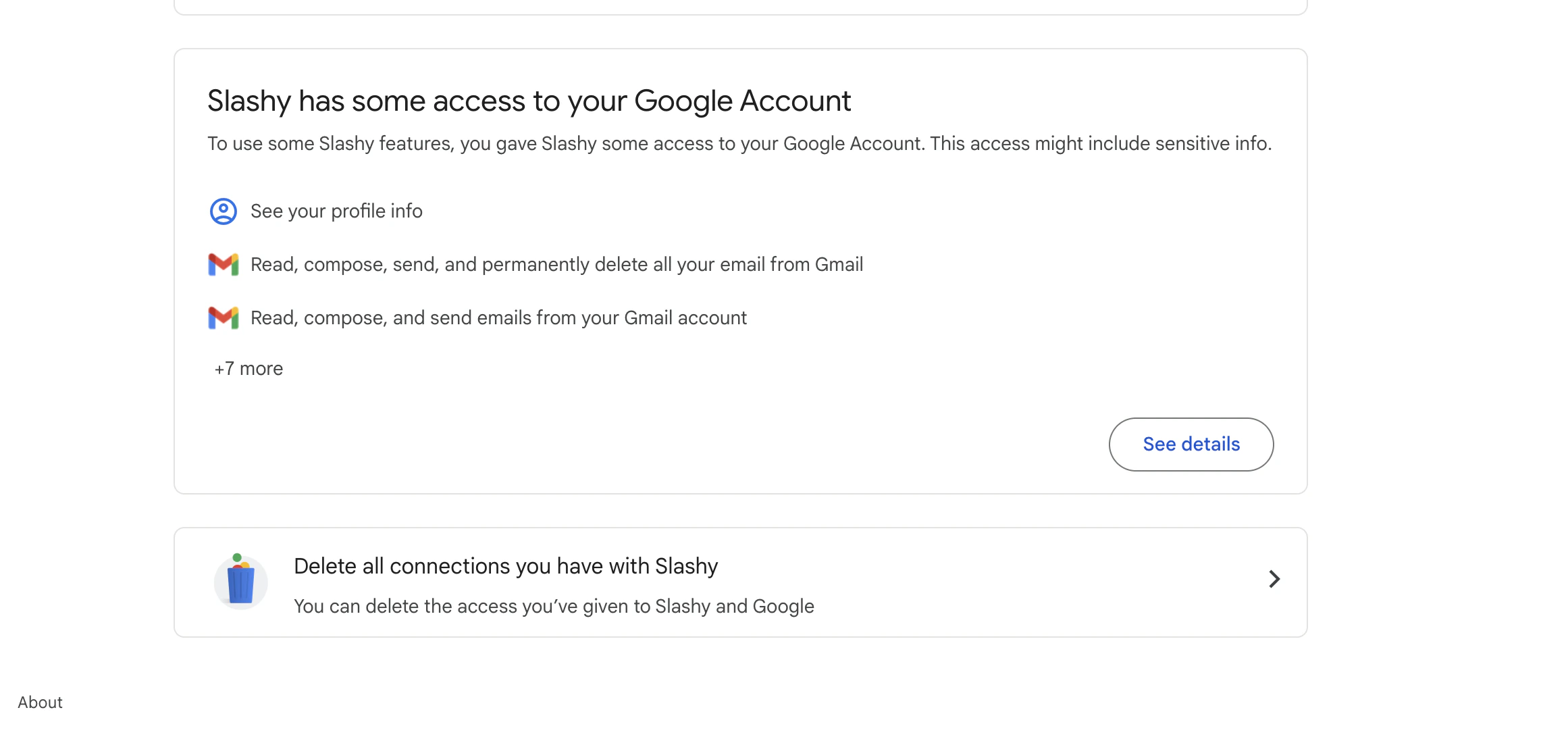
| **Revoke via Google** | Immediate access loss. Slashy account exists but inbox is disconnected. |
| **Delete account** | All Slashy data permanently deleted. Gmail unaffected. Irreversible. |
## Delete Your Account
Email [founders@slashy.com](mailto:founders@slashy.com) from your Slashy email address and request deletion. All data is removed within 30 days: account, memories, automations, snippets, cached email data, and any enrichment profiles.
Account deletion is permanent and cannot be undone. If you might come back, consider disconnecting instead -- your configuration, memories, and automations are preserved.
## Choosing the Right Option
Use **Read Mode**. Everything stays configured. Toggle it back off when you return and pick up exactly where you left off.
**Disconnect the inbox**. Your Gmail continues working normally in any other client. Reconnect later and Slashy re-syncs within minutes, with your memories and automations intact.
**Revoke via Google** for immediate access cutoff, then request **account deletion** via email. This removes all Slashy data permanently.
***
Common questions answered.
Troubleshoot email and calendar sync.
## What Happens to Your Data
| Action | Data Impact |
| --------------------- | ----------------------------------------------------------------------- |
| **Read Mode** | All data preserved. Agent stops taking actions. |
| **Disconnect inbox** | Slashy account preserved. Cached data remains but stops updating. |
| **Revoke via Google** | Immediate access loss. Slashy account exists but inbox is disconnected. |
| **Delete account** | All Slashy data permanently deleted. Gmail unaffected. Irreversible. |
## Delete Your Account
Email [founders@slashy.com](mailto:founders@slashy.com) from your Slashy email address and request deletion. All data is removed within 30 days: account, memories, automations, snippets, cached email data, and any enrichment profiles.
Account deletion is permanent and cannot be undone. If you might come back, consider disconnecting instead -- your configuration, memories, and automations are preserved.
## Choosing the Right Option
Use **Read Mode**. Everything stays configured. Toggle it back off when you return and pick up exactly where you left off.
**Disconnect the inbox**. Your Gmail continues working normally in any other client. Reconnect later and Slashy re-syncs within minutes, with your memories and automations intact.
**Revoke via Google** for immediate access cutoff, then request **account deletion** via email. This removes all Slashy data permanently.
***
Common questions answered.
Troubleshoot email and calendar sync.