> ## Documentation Index
> Fetch the complete documentation index at: https://help.slashy.com/llms.txt
> Use this file to discover all available pages before exploring further.
# Quick Fixes for Desktop
> Solutions for common Slashy desktop app issues: search, dark mode, shortcuts, notifications, and more.
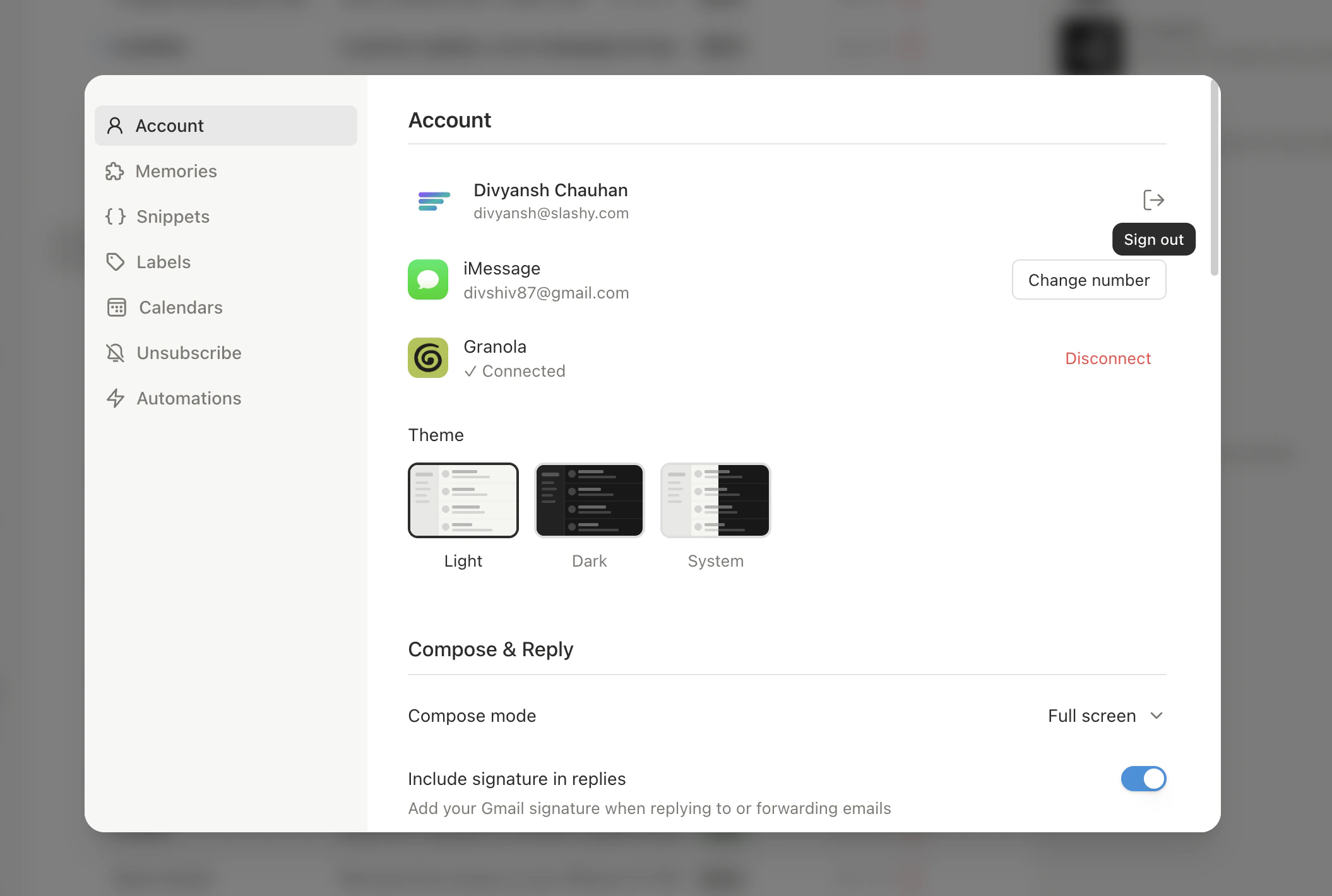
**Quick fixes to try first:** Reload with `Cmd+R` | Reconnect Gmail in **Settings > Account** | Check [known issues](/troubleshooting/known-issues) | [Contact support](mailto:founders@slashy.com)
Most desktop issues resolve with a quick action. Find your problem below and apply the fix.
## Common Issues
| Problem | Fix |
| ----------------------------------------- | ------------------------------------------------------------------------------------------------------------------------------- |
| **Search not working** | `Cmd+R` to reload. If still broken, quit and reopen. Persistent? Sign out and sign back in (Settings > Account). |
| **Dark mode not persisting** | Settings > Account > Theme -- set to **Dark** explicitly instead of System (which follows macOS). |
| **Refresh goes to wrong view** | Set your preferred **Default View** in Settings > Account. |
| **Agent sidebar won't focus input** | Press `Cmd+Shift+L`, then click the text field. If stuck, `Cmd+R` to reload. Known intermittent issue. |
| **App feels slow or laggy** | Quit and reopen. Check for pending updates (toast in bottom-left corner). |
| **Notifications not appearing** | Check **System Settings > Notifications > Slashy** (macOS). Also verify in Slashy Settings > Account. |
| **Global shortcut (`Cmd+/`) not working** | **System Settings > Privacy & Security > Accessibility** -- ensure Slashy is listed. Check no other app uses the same shortcut. |
| **Dock badge stuck** | `Cmd+R` to reload. Badge corrects on next sync (usually within 30 seconds). |
| **Stuck on loading screen** | Wait 10 seconds, then `Cmd+R`. If still stuck, fully quit (dock + system tray) and reopen. Requires network connection. |
| **Calendar events missing** | Check Settings > Calendars -- toggle specific calendars on. `Cmd+R` to force sync. |
## Stale Data
If emails, labels, or counts appear stale without a full sign-out, open the command palette (`Cmd+K`), type **Clear Cache and Reload**, and select it. Slashy clears the local cache and reloads fresh data from the server. You stay signed in.
## Standard Reset Steps
Press `Cmd+R`.
Quit completely (including system tray) and reopen.
Settings > Account > Sign Out. Sign in again with Google for a fresh session and re-sync.
Download the latest version from [slashy.com/download](https://slashy.com/download) and install over the existing app.
 ## Report a Bug
**Need more help?** Email [founders@slashy.com](mailto:founders@slashy.com) or open the AI agent sidebar (`Cmd+Shift+L`) and describe your issue. Include screenshots and your app version for fastest resolution.
***
Fixes for iOS app issues.
Email and calendar sync troubleshooting.
## Report a Bug
**Need more help?** Email [founders@slashy.com](mailto:founders@slashy.com) or open the AI agent sidebar (`Cmd+Shift+L`) and describe your issue. Include screenshots and your app version for fastest resolution.
***
Fixes for iOS app issues.
Email and calendar sync troubleshooting.