> ## Documentation Index
> Fetch the complete documentation index at: https://help.slashy.com/llms.txt
> Use this file to discover all available pages before exploring further.
# Switching from Superhuman to Slashy
> What's familiar, what's better, and a keyboard shortcut mapping for Superhuman users.
You chose Superhuman because you wanted fast, keyboard-first email. Slashy shares that DNA -- plus an AI agent that actually does things, not just summarizes.
 ## What Feels Familiar
These work the same way you are used to:
* **Keyboard-first design** -- navigate, triage, and reply without touching the mouse
* **AI drafts** -- select a thread and get an instant reply draft
* **Split inbox** -- importance labels sort email automatically (like Superhuman's splits)
* **Snippets** -- templated text you insert with a shortcut
* **Read receipts** -- see when your email was opened
* **Scheduled send** -- compose now, send later
## What's Different (and Better)
| Superhuman | Slashy |
| ------------------------------ | ------------------------------------------------------------------------------ |
| AI writes drafts you review | AI agent drafts, sends, schedules, and automates on your behalf |
| No automations | Background automations: dropped ball scanner, meeting prep, receipt forwarding |
| No iMessage integration | iMessage alerts, summaries, and OTP forwarding |
| Calendar in sidebar only | Full calendar view with availability insert and Meet With overlay |
| Calendly needed for scheduling | Insert availability into replies with `Shift+Cmd+A` |
| Per-seat pricing adds up | No per-seat pricing anxiety |
## Keyboard Shortcut Mapping
Most shortcuts transfer directly. Key differences:
| Action | Superhuman | Slashy |
| ------------------ | ------------------ | ------------------------- |
| Compose | `c` | `c` |
| Reply / Reply All | `r` / `a` | `r` / `a` |
| Forward | `f` | `f` |
| Send | `Cmd+Enter` | `Cmd+Enter` |
| Search | `/` | `/` |
| Archive | `e` | `e` |
| Star | `s` | `s` |
| Mark done | `e` | `e` (archive) |
| Snooze | `h` | `h` |
| Navigate up/down | `j` / `k` | `j` / `k` |
| Go to Inbox | `Cmd+K` > Inbox | `g i` |
| Label / Move | `l` | `l` or `v` |
| Undo | `Cmd+Z` | `z` or `Cmd+Z` |
| Command Palette | `Cmd+K` | `Cmd+K` |
| AI Draft | `Cmd+J` | `Cmd+Enter` (on a thread) |
| AI Agent | -- | `Cmd+Shift+L` |
| Calendar | `Cmd+K` > Calendar | `2` |
| Settings | `Cmd+K` > Settings | `Cmd+,` |
| Shortcut reference | -- | `Shift+?` |
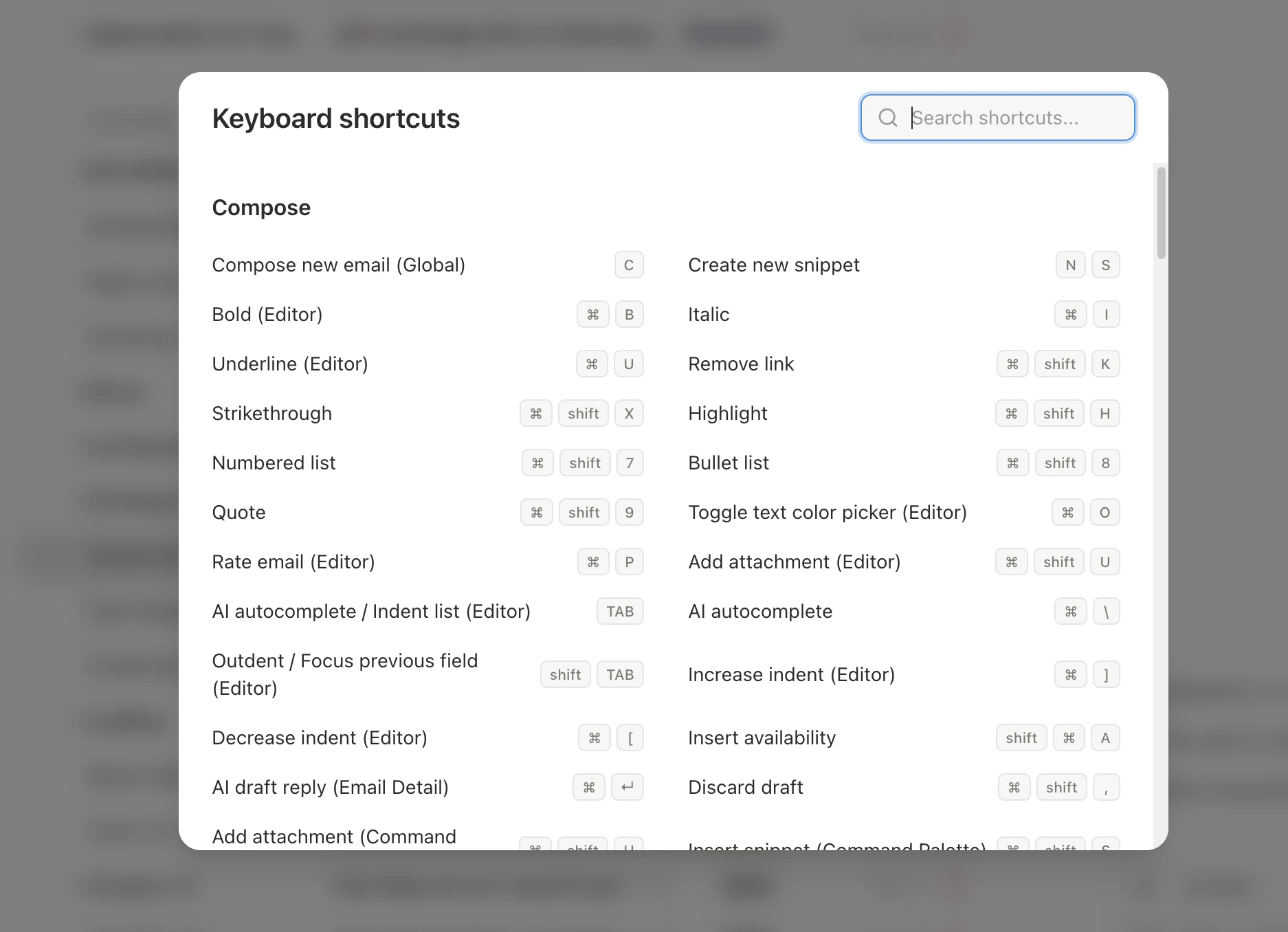
**Keyboard shortcuts cheatsheet** -- press `Shift+?` anytime to see every shortcut in Slashy, or visit the [full cheatsheet](/how-to-guides/keyboard-shortcuts).
## Full Feature Comparison
| Capability | Superhuman | Slashy |
| ------------------------- | ----------------- | -------------------------------------------- |
| **Keyboard-first design** | Yes | Yes |
| **AI drafts** | Yes (review only) | Yes (drafts, sends, and automates) |
| **Split inbox** | Splits | AI importance labels (trainable) |
| **Snippets / templates** | Yes | Yes + AI variable substitution |
| **Read receipts** | Yes | Yes |
| **Scheduled send** | Yes | Yes |
| **Calendar** | Sidebar only | Full view + availability insert + Meet With |
| **Automations** | None | Email triggers, calendar triggers, reminders |
| **AI agent** | None | Full conversational agent |
| **iMessage integration** | None | Alerts, summaries, OTP forwarding |
| **Scheduling** | Needs Calendly | Insert availability into replies |
| **Search** | Keyword + instant | AI-powered natural language |
| **Pricing** | \$30/mo per seat | No per-seat pricing |
## Feature Mapping
**Superhuman Social Insights** become **Slashy Contact Memories**. Instead of pulling LinkedIn data, Slashy builds context from your email history -- what you have discussed, meeting notes, and facts you add manually. Open the contact sidebar with `p i`.
**Superhuman Snippets** become **Slashy Snippets**. Create with `n s`, insert with `Cmd+Shift+S`. Slashy snippets are more powerful -- they support AI-powered variable substitution (e.g., `{{first_name}}` auto-fills from contact data).
**Superhuman Splits** become **Slashy Importance Labels**. Same concept (auto-sorted inbox sections), but powered by AI classification that learns from your corrections.
## Setting Up Snippets
Press `n s` to open the snippet creator. Give it a name, shortcut, and body text.
While composing, press `Cmd+Shift+S` to search and insert a snippet.
Add `{{first_name}}`, `{{company}}`, or custom fields. Slashy fills them from contact data automatically.
## Migration Checklist
Sign up at [slashy.com](https://slashy.com) and connect via Google OAuth. All email, labels, and contacts sync automatically.
Go to **Settings > Labels** and set up importance labels to match your Superhuman Splits. The AI classification learns from corrections.
Press `n s` to create each snippet. Copy your Superhuman snippet text and add AI variables like `{{first_name}}` for extra power.
Open the agent sidebar (`Cmd+Shift+L`) and set up your first automation -- start with the Dropped Ball Scanner. This is functionality Superhuman does not offer.
**Settings > Memories** -- describe your communication style. This replaces Superhuman's limited tone settings with full-context personalization.
Once you have used Slashy for a week and confirmed your workflow is set up, cancel your Superhuman subscription.
***
Day-by-day onboarding guide.
What syncs, what doesn't, and the full shortcut map.
## What Feels Familiar
These work the same way you are used to:
* **Keyboard-first design** -- navigate, triage, and reply without touching the mouse
* **AI drafts** -- select a thread and get an instant reply draft
* **Split inbox** -- importance labels sort email automatically (like Superhuman's splits)
* **Snippets** -- templated text you insert with a shortcut
* **Read receipts** -- see when your email was opened
* **Scheduled send** -- compose now, send later
## What's Different (and Better)
| Superhuman | Slashy |
| ------------------------------ | ------------------------------------------------------------------------------ |
| AI writes drafts you review | AI agent drafts, sends, schedules, and automates on your behalf |
| No automations | Background automations: dropped ball scanner, meeting prep, receipt forwarding |
| No iMessage integration | iMessage alerts, summaries, and OTP forwarding |
| Calendar in sidebar only | Full calendar view with availability insert and Meet With overlay |
| Calendly needed for scheduling | Insert availability into replies with `Shift+Cmd+A` |
| Per-seat pricing adds up | No per-seat pricing anxiety |
## Keyboard Shortcut Mapping
Most shortcuts transfer directly. Key differences:
| Action | Superhuman | Slashy |
| ------------------ | ------------------ | ------------------------- |
| Compose | `c` | `c` |
| Reply / Reply All | `r` / `a` | `r` / `a` |
| Forward | `f` | `f` |
| Send | `Cmd+Enter` | `Cmd+Enter` |
| Search | `/` | `/` |
| Archive | `e` | `e` |
| Star | `s` | `s` |
| Mark done | `e` | `e` (archive) |
| Snooze | `h` | `h` |
| Navigate up/down | `j` / `k` | `j` / `k` |
| Go to Inbox | `Cmd+K` > Inbox | `g i` |
| Label / Move | `l` | `l` or `v` |
| Undo | `Cmd+Z` | `z` or `Cmd+Z` |
| Command Palette | `Cmd+K` | `Cmd+K` |
| AI Draft | `Cmd+J` | `Cmd+Enter` (on a thread) |
| AI Agent | -- | `Cmd+Shift+L` |
| Calendar | `Cmd+K` > Calendar | `2` |
| Settings | `Cmd+K` > Settings | `Cmd+,` |
| Shortcut reference | -- | `Shift+?` |
**Keyboard shortcuts cheatsheet** -- press `Shift+?` anytime to see every shortcut in Slashy, or visit the [full cheatsheet](/how-to-guides/keyboard-shortcuts).
## Full Feature Comparison
| Capability | Superhuman | Slashy |
| ------------------------- | ----------------- | -------------------------------------------- |
| **Keyboard-first design** | Yes | Yes |
| **AI drafts** | Yes (review only) | Yes (drafts, sends, and automates) |
| **Split inbox** | Splits | AI importance labels (trainable) |
| **Snippets / templates** | Yes | Yes + AI variable substitution |
| **Read receipts** | Yes | Yes |
| **Scheduled send** | Yes | Yes |
| **Calendar** | Sidebar only | Full view + availability insert + Meet With |
| **Automations** | None | Email triggers, calendar triggers, reminders |
| **AI agent** | None | Full conversational agent |
| **iMessage integration** | None | Alerts, summaries, OTP forwarding |
| **Scheduling** | Needs Calendly | Insert availability into replies |
| **Search** | Keyword + instant | AI-powered natural language |
| **Pricing** | \$30/mo per seat | No per-seat pricing |
## Feature Mapping
**Superhuman Social Insights** become **Slashy Contact Memories**. Instead of pulling LinkedIn data, Slashy builds context from your email history -- what you have discussed, meeting notes, and facts you add manually. Open the contact sidebar with `p i`.
**Superhuman Snippets** become **Slashy Snippets**. Create with `n s`, insert with `Cmd+Shift+S`. Slashy snippets are more powerful -- they support AI-powered variable substitution (e.g., `{{first_name}}` auto-fills from contact data).
**Superhuman Splits** become **Slashy Importance Labels**. Same concept (auto-sorted inbox sections), but powered by AI classification that learns from your corrections.
## Setting Up Snippets
Press `n s` to open the snippet creator. Give it a name, shortcut, and body text.
While composing, press `Cmd+Shift+S` to search and insert a snippet.
Add `{{first_name}}`, `{{company}}`, or custom fields. Slashy fills them from contact data automatically.
## Migration Checklist
Sign up at [slashy.com](https://slashy.com) and connect via Google OAuth. All email, labels, and contacts sync automatically.
Go to **Settings > Labels** and set up importance labels to match your Superhuman Splits. The AI classification learns from corrections.
Press `n s` to create each snippet. Copy your Superhuman snippet text and add AI variables like `{{first_name}}` for extra power.
Open the agent sidebar (`Cmd+Shift+L`) and set up your first automation -- start with the Dropped Ball Scanner. This is functionality Superhuman does not offer.
**Settings > Memories** -- describe your communication style. This replaces Superhuman's limited tone settings with full-context personalization.
Once you have used Slashy for a week and confirmed your workflow is set up, cancel your Superhuman subscription.
***
Day-by-day onboarding guide.
What syncs, what doesn't, and the full shortcut map.