> ## Documentation Index
> Fetch the complete documentation index at: https://help.slashy.com/llms.txt
> Use this file to discover all available pages before exploring further.
# Moving from Gmail to Slashy
> What syncs automatically, what doesn't, keyboard shortcut mapping, and your first week plan.
Slashy is a full replacement for the Gmail web interface. You keep the same Gmail backend -- Slashy reads and writes to it directly. Nothing is lost.
## What Syncs Automatically
When you connect your Gmail account, all of these sync with no action required:
* **All email** -- inbox, sent, archives, trash, spam. Full history.
* **Labels** -- system and custom, bidirectional.
* **Read/unread status** and **stars** -- bidirectional.
* **Drafts** -- existing Gmail drafts appear in Slashy and vice versa.
* **Contacts** -- names, emails, profile photos from Google Contacts.
* **Calendar** -- Google Calendar events sync bidirectionally in real time.
* **Signatures** -- Slashy detects and uses your Gmail signature.
## What Does NOT Sync
| Gmail Feature | Slashy Equivalent |
| ---------------------------------------- | -------------------------------------------------------------------------------------- |
| Filters | AI importance labels (more flexible, no manual rules) |
| Categories (Primary, Social, Promotions) | AI importance labels (customizable, more accurate) |
| Gmail Chat / Spaces | Not available -- Slashy focuses on email + calendar + AI |
| Gmail Tasks | Slashy tasks (`p t`). Gmail Tasks do not migrate. |
| Canned Responses | Snippets (`Cmd+Shift+S` to insert, `n s` to create). Support AI variable substitution. |
## Keyboard Shortcut Mapping
Most Gmail shortcuts work identically. Key differences:
| Action | Gmail | Slashy |
| --------------------------- | --------------------- | ------------------------- |
| Compose | `c` | `c` |
| Reply / Reply All / Forward | `r` / `a` / `f` | `r` / `a` / `f` |
| Send | `Cmd+Enter` | `Cmd+Enter` |
| Search | `/` | `/` |
| Archive | `e` | `e` |
| Star | `s` | `s` |
| Mark read/unread | `Shift+I` / `Shift+U` | `u` (toggle) |
| Trash / Spam | `#` / `!` | `#` / `!` |
| Navigate | `j` / `k` | `j` / `k` |
| Go to Inbox / Sent / Drafts | `g i` / `g t` / `g d` | `g i` / `g t` / `g d` |
| Label | `l` | `l` or `v` |
| Select all | `*+a` | `Cmd+A` |
| Settings | -- | `Cmd+,` |
| Command Palette | -- | `Cmd+K` |
| AI Draft Reply | -- | `Cmd+Enter` (on a thread) |
| AI Agent | -- | `Cmd+Shift+L` |
| Snooze / Reminder | -- | `h` |
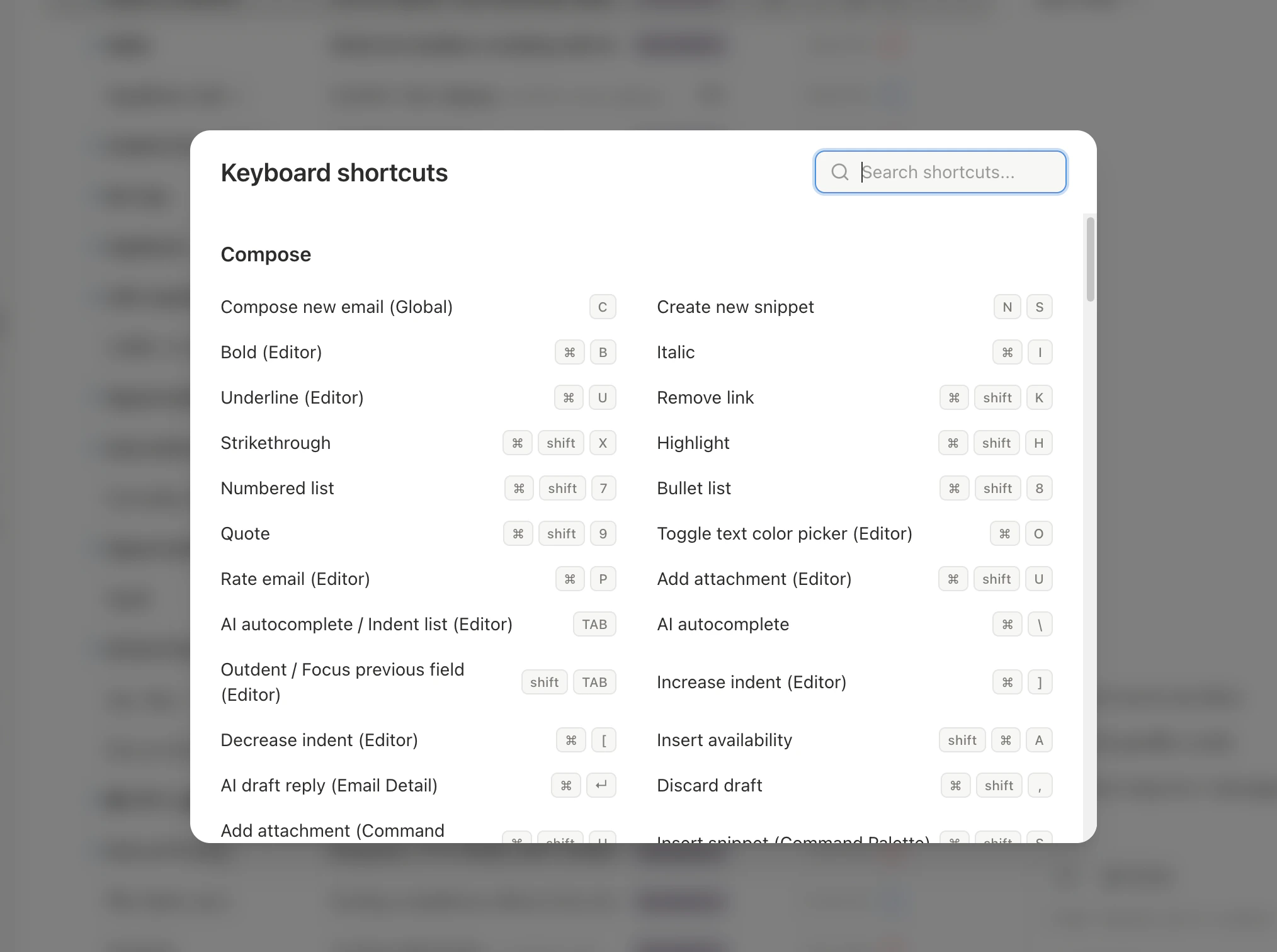
| Shortcut reference | `?` | `Shift+?` |
 ## Setting Slashy as Your Primary Client
Bookmark the web app or install the desktop app. Download the [iOS app](https://apps.apple.com) for mobile.
Enable native OS notifications (desktop app) or browser notifications (web app).
**Settings > Labels** -- enable and customize importance labels to replace Gmail's category tabs.
**Settings > Memories** -- add your role, preferences, and communication style so AI drafts are accurate from day one.
## Your First 7 Days
* Connect Gmail and wait for initial sync (2-15 minutes)
* Set up importance labels and add 3-5 memories
* Explore shortcuts with `Shift+?`
* Reply using Slashy instead of Gmail
* Try AI Draft Reply (`Cmd+Enter`) and edit the result
* Use the AI Agent (`Cmd+Shift+L`) to ask questions about your inbox
* Ask the agent for a Daily Dropped Ball Scanner
* Enable auto-reminders for unanswered contacts
* Create a meeting prep automation
* Create Snippets for frequent emails (`n s`)
* Insert availability in replies (`Shift+Cmd+A`)
* Use Bulk Unsubscribe in Settings to clean up newsletters
## Gmail vs Slashy at a Glance
| Capability | Gmail | Slashy |
| --------------------------- | ----------------------------- | ------------------------------------------------ |
| **Email reading & sending** | Yes | Yes (same Gmail backend) |
| **Filters / sorting** | Manual rules | AI importance labels (learns from corrections) |
| **Drafts** | Manual | AI-generated drafts in your voice |
| **Calendar** | Separate app | Built-in, side-by-side with inbox |
| **Scheduling** | Requires Calendly/third-party | Insert availability into replies (`Shift+Cmd+A`) |
| **Search** | Keyword-based | AI-powered natural language search |
| **Automations** | None | Background triggers, scanners, and reminders |
| **iMessage integration** | None | Alerts, summaries, OTP forwarding |
| **Keyboard shortcuts** | 30+ shortcuts | 80+ shortcuts (Gmail-compatible) |
| **AI agent** | Gemini sidebar (limited) | Full agent: drafts, sends, searches, automates |
**Keyboard shortcuts cheatsheet** -- press `Shift+?` anytime to see every shortcut in Slashy, or visit the [full cheatsheet](/how-to-guides/keyboard-shortcuts).
## Migration Checklist
Use this checklist to track your transition:
Sign up at [slashy.com](https://slashy.com) and connect via Google OAuth. Wait for initial sync (2-15 minutes).
Go to **Settings > Labels** and customize your importance categories. These replace Gmail's Primary/Social/Promotions tabs.
**Settings > Memories** -- add your role, writing style, and preferences so AI drafts are accurate immediately.
Download from [slashy.com/download](https://slashy.com/download). Enable OS notifications.
Open the agent sidebar (`Cmd+Shift+L`) and describe your old Gmail filters in plain English. The agent creates equivalent automations.
Press `n s` to create snippets that replace Gmail canned responses. Slashy snippets support AI variable substitution.
Turn off Gmail desktop/mobile notifications so you only get alerts from Slashy. This avoids double-notifications.
## Can I Still Use Gmail?
Yes. Slashy and Gmail share the same backend -- switch freely. But using Slashy as your primary client makes the AI smarter. It learns your writing style, patterns, and preferences over time.
***
Day-by-day guide from onboarding to trained AI.
Troubleshoot email and calendar sync problems.
## Setting Slashy as Your Primary Client
Bookmark the web app or install the desktop app. Download the [iOS app](https://apps.apple.com) for mobile.
Enable native OS notifications (desktop app) or browser notifications (web app).
**Settings > Labels** -- enable and customize importance labels to replace Gmail's category tabs.
**Settings > Memories** -- add your role, preferences, and communication style so AI drafts are accurate from day one.
## Your First 7 Days
* Connect Gmail and wait for initial sync (2-15 minutes)
* Set up importance labels and add 3-5 memories
* Explore shortcuts with `Shift+?`
* Reply using Slashy instead of Gmail
* Try AI Draft Reply (`Cmd+Enter`) and edit the result
* Use the AI Agent (`Cmd+Shift+L`) to ask questions about your inbox
* Ask the agent for a Daily Dropped Ball Scanner
* Enable auto-reminders for unanswered contacts
* Create a meeting prep automation
* Create Snippets for frequent emails (`n s`)
* Insert availability in replies (`Shift+Cmd+A`)
* Use Bulk Unsubscribe in Settings to clean up newsletters
## Gmail vs Slashy at a Glance
| Capability | Gmail | Slashy |
| --------------------------- | ----------------------------- | ------------------------------------------------ |
| **Email reading & sending** | Yes | Yes (same Gmail backend) |
| **Filters / sorting** | Manual rules | AI importance labels (learns from corrections) |
| **Drafts** | Manual | AI-generated drafts in your voice |
| **Calendar** | Separate app | Built-in, side-by-side with inbox |
| **Scheduling** | Requires Calendly/third-party | Insert availability into replies (`Shift+Cmd+A`) |
| **Search** | Keyword-based | AI-powered natural language search |
| **Automations** | None | Background triggers, scanners, and reminders |
| **iMessage integration** | None | Alerts, summaries, OTP forwarding |
| **Keyboard shortcuts** | 30+ shortcuts | 80+ shortcuts (Gmail-compatible) |
| **AI agent** | Gemini sidebar (limited) | Full agent: drafts, sends, searches, automates |
**Keyboard shortcuts cheatsheet** -- press `Shift+?` anytime to see every shortcut in Slashy, or visit the [full cheatsheet](/how-to-guides/keyboard-shortcuts).
## Migration Checklist
Use this checklist to track your transition:
Sign up at [slashy.com](https://slashy.com) and connect via Google OAuth. Wait for initial sync (2-15 minutes).
Go to **Settings > Labels** and customize your importance categories. These replace Gmail's Primary/Social/Promotions tabs.
**Settings > Memories** -- add your role, writing style, and preferences so AI drafts are accurate immediately.
Download from [slashy.com/download](https://slashy.com/download). Enable OS notifications.
Open the agent sidebar (`Cmd+Shift+L`) and describe your old Gmail filters in plain English. The agent creates equivalent automations.
Press `n s` to create snippets that replace Gmail canned responses. Slashy snippets support AI variable substitution.
Turn off Gmail desktop/mobile notifications so you only get alerts from Slashy. This avoids double-notifications.
## Can I Still Use Gmail?
Yes. Slashy and Gmail share the same backend -- switch freely. But using Slashy as your primary client makes the AI smarter. It learns your writing style, patterns, and preferences over time.
***
Day-by-day guide from onboarding to trained AI.
Troubleshoot email and calendar sync problems.