> ## Documentation Index
> Fetch the complete documentation index at: https://help.slashy.com/llms.txt
> Use this file to discover all available pages before exploring further.
# Slashy for Sales
> Never drop a lead. Track opens, automate follow-ups, and prep for every prospect call without lifting a finger.
Every unanswered email is a lost deal. Slashy makes sure no prospect falls through the cracks and every call starts with context.
## Your Setup Checklist
Press `p o` on any sent email to enable open tracking. You will see exactly when a prospect opens your message -- and how many times.
Press `n s` to create snippets for cold outreach, follow-ups, pricing responses, and meeting confirmations. Insert with `Cmd+Shift+S` and personalize the last 20%.
Press `Shift+Cmd+A` while composing to insert open time slots into emails, or ask the AI to suggest times that work for everyone on the thread.
Send 5-10 replies using `Cmd+Enter` drafts, editing each to match your sales tone. The AI learns fast -- within days it handles routine replies on its own.
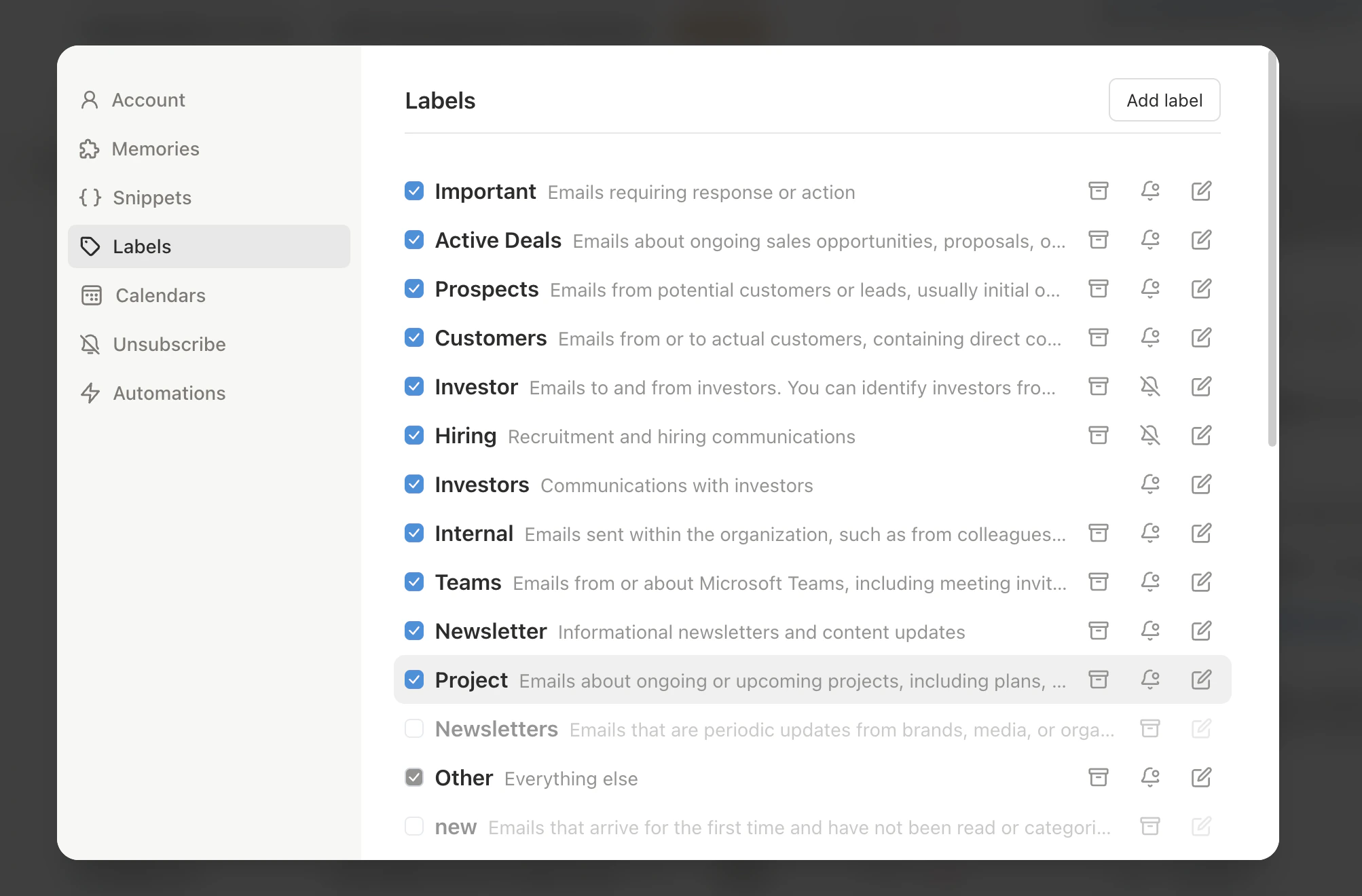
Create importance labels for prospects, active deals, and customers. Slashy auto-sorts incoming emails so hot leads always surface first.
 ## Automations For You
Open the AI agent sidebar (`Cmd+Shift+L`) and set up these automations:
If a prospect hasn't replied in 3 days, Slashy drafts a follow-up and queues it for your review. You approve with one click instead of manually tracking who ghosted you.
15 minutes before a prospect call, get an iMessage briefing with their recent emails, company info from your threads, and any open questions. No more scrambling for context.
Compose emails anytime, then schedule delivery for the prospect's morning. Emails that land at 8:30 AM local time get opened more than emails sent at your convenience.
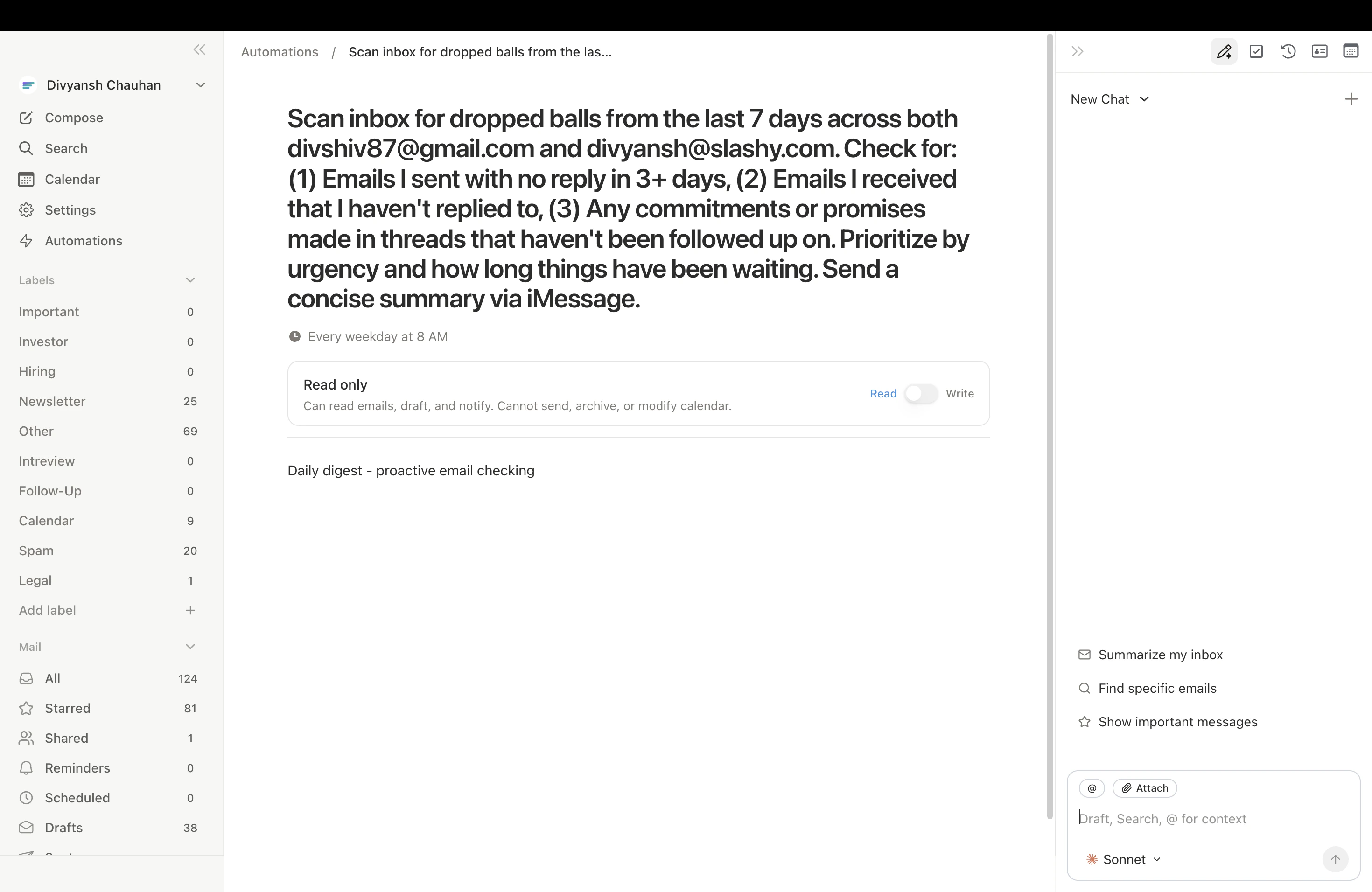
Daily scan for leads you haven't responded to. One morning summary tells you exactly which deals need attention today.
## Automations For You
Open the AI agent sidebar (`Cmd+Shift+L`) and set up these automations:
If a prospect hasn't replied in 3 days, Slashy drafts a follow-up and queues it for your review. You approve with one click instead of manually tracking who ghosted you.
15 minutes before a prospect call, get an iMessage briefing with their recent emails, company info from your threads, and any open questions. No more scrambling for context.
Compose emails anytime, then schedule delivery for the prospect's morning. Emails that land at 8:30 AM local time get opened more than emails sent at your convenience.
Daily scan for leads you haven't responded to. One morning summary tells you exactly which deals need attention today.
 ## Workflow: Process Your Morning Pipeline in 10 Minutes
Press `1` for email view. Your importance labels surface hot leads and active deals at the top automatically.
Navigate with `j`/`k`. For each prospect email, press `Cmd+Enter` to generate a draft. Review, quick-edit the personalization, then `Cmd+Shift+Enter` to send.
Press `p o` to see which prospects opened your emails overnight. A prospect who opened your proposal three times is ready for a call.
Check your morning iMessage summary for leads waiting on a reply. Draft follow-ups for any that slipped past day 3.
For prospects in different timezones, compose now and schedule delivery for their morning using **Scheduled Send** in the compose window.
## Pro Tips
* **Track strategically:** Use `p o` on important outreach, not every email. When you see a prospect opened your proposal three times, that is your signal to call.
* **Snippet + personalize:** Start every cold email from a snippet, then add one personal line. You get consistency and speed without sounding like a template.
* **Batch prospect replies:** Use `j`/`k` to navigate, `Cmd+Enter` to draft, review, send. Process your entire prospect inbox in one focused block.
* **Ask the agent for summaries:** Before a QBR or pipeline review, ask *"List all prospects who haven't replied in the last 7 days"* for an instant stale-deal report.
## Sample Agent Commands
Try these in the agent sidebar (`Cmd+Shift+L`):
* *"List all prospects who haven't replied in the last 7 days"*
* *"Summarize my email activity with @bigclient.com this month"*
* *"Which deals have gone cold in the last 2 weeks?"*
* *"Draft a follow-up to \[prospect] referencing our last conversation"*
* *"Write a cold email to \[name] at \[company] about \[product]. Keep it under 4 sentences."*
* *"Create a snippet for initial outreach to engineering leaders"*
* *"Prep me for my call with \[prospect] in 10 minutes"*
* *"Summarize all emails with \[company] from the last 30 days"*
* *"What open questions do I have with \[prospect]?"*
***
## Related Articles
How open and click tracking works
Create, organize, and insert reusable templates
Four layers of automated follow-up protection
Auto-prep for every prospect call
## Workflow: Process Your Morning Pipeline in 10 Minutes
Press `1` for email view. Your importance labels surface hot leads and active deals at the top automatically.
Navigate with `j`/`k`. For each prospect email, press `Cmd+Enter` to generate a draft. Review, quick-edit the personalization, then `Cmd+Shift+Enter` to send.
Press `p o` to see which prospects opened your emails overnight. A prospect who opened your proposal three times is ready for a call.
Check your morning iMessage summary for leads waiting on a reply. Draft follow-ups for any that slipped past day 3.
For prospects in different timezones, compose now and schedule delivery for their morning using **Scheduled Send** in the compose window.
## Pro Tips
* **Track strategically:** Use `p o` on important outreach, not every email. When you see a prospect opened your proposal three times, that is your signal to call.
* **Snippet + personalize:** Start every cold email from a snippet, then add one personal line. You get consistency and speed without sounding like a template.
* **Batch prospect replies:** Use `j`/`k` to navigate, `Cmd+Enter` to draft, review, send. Process your entire prospect inbox in one focused block.
* **Ask the agent for summaries:** Before a QBR or pipeline review, ask *"List all prospects who haven't replied in the last 7 days"* for an instant stale-deal report.
## Sample Agent Commands
Try these in the agent sidebar (`Cmd+Shift+L`):
* *"List all prospects who haven't replied in the last 7 days"*
* *"Summarize my email activity with @bigclient.com this month"*
* *"Which deals have gone cold in the last 2 weeks?"*
* *"Draft a follow-up to \[prospect] referencing our last conversation"*
* *"Write a cold email to \[name] at \[company] about \[product]. Keep it under 4 sentences."*
* *"Create a snippet for initial outreach to engineering leaders"*
* *"Prep me for my call with \[prospect] in 10 minutes"*
* *"Summarize all emails with \[company] from the last 30 days"*
* *"What open questions do I have with \[prospect]?"*
***
## Related Articles
How open and click tracking works
Create, organize, and insert reusable templates
Four layers of automated follow-up protection
Auto-prep for every prospect call