> ## Documentation Index
> Fetch the complete documentation index at: https://help.slashy.com/llms.txt
> Use this file to discover all available pages before exploring further.
# Slashy for Recruiters
> Scale candidate outreach, track who opened your emails, and automate follow-ups so no candidate slips through.
Recruiting is a volume game with a personal touch. Slashy handles the volume so you can focus on the personal touch.
## Your Setup Checklist
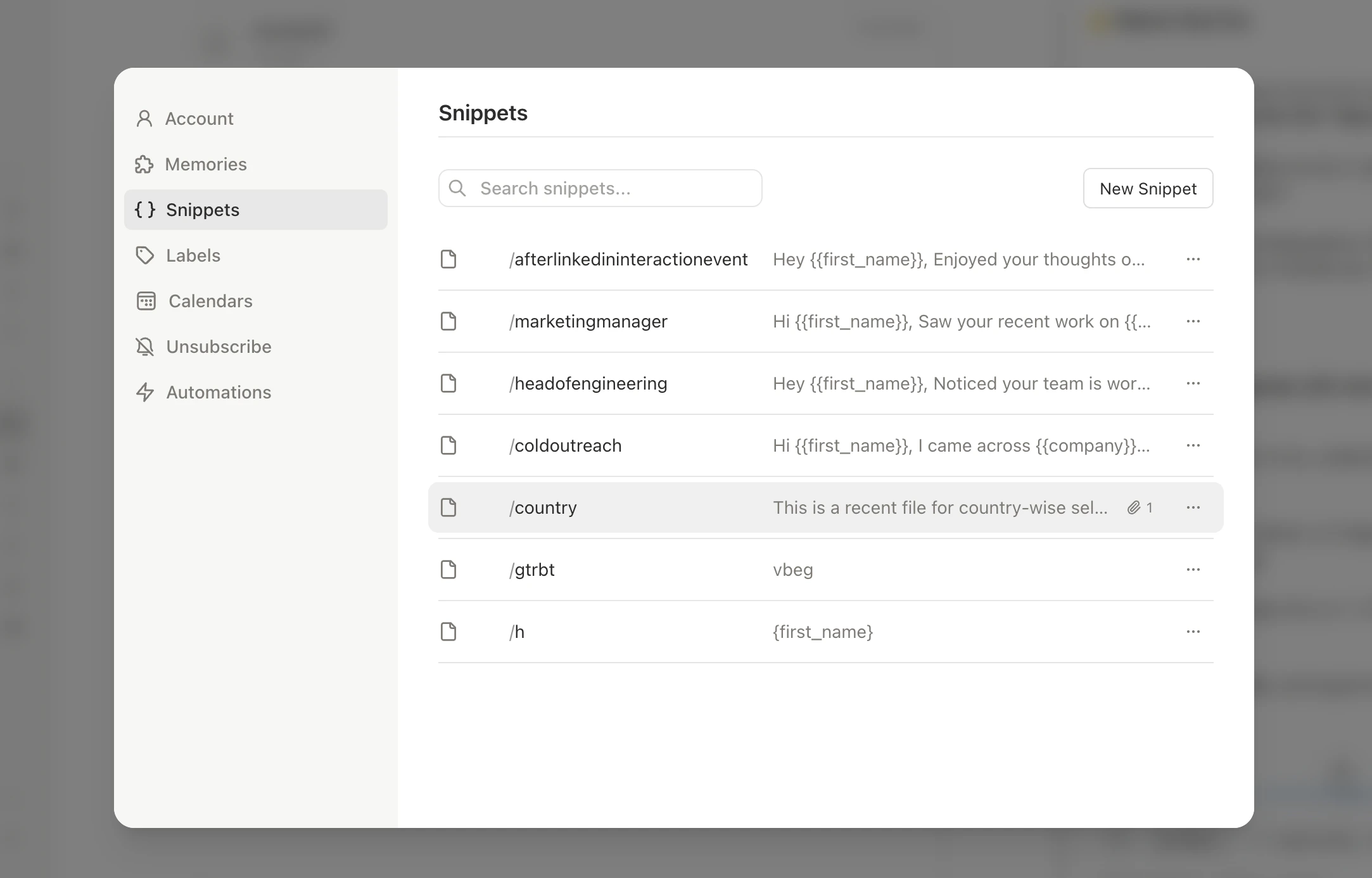
Press `n s` to create snippets for initial outreach, follow-ups, scheduling requests, and rejection emails. Insert with `Cmd+Shift+S` and personalize the opening line for each candidate.
Press `p o` on outreach emails to see when candidates open them. A candidate who opened three times but hasn't replied is worth a phone call.
Press `Shift+Cmd+A` while composing to drop open time slots for phone screens, interviews, and coffee chats straight into any email -- no back-and-forth.
Create importance labels for active candidates, hiring managers, and agencies. Hot candidates always surface first in your inbox.
Send 5-10 replies using `Cmd+Enter` drafts. Edit each to match your warm-but-professional recruiting voice. The AI adapts within days.
 ## Automations For You
Open the AI agent sidebar (`Cmd+Shift+L`) and set up these automations:
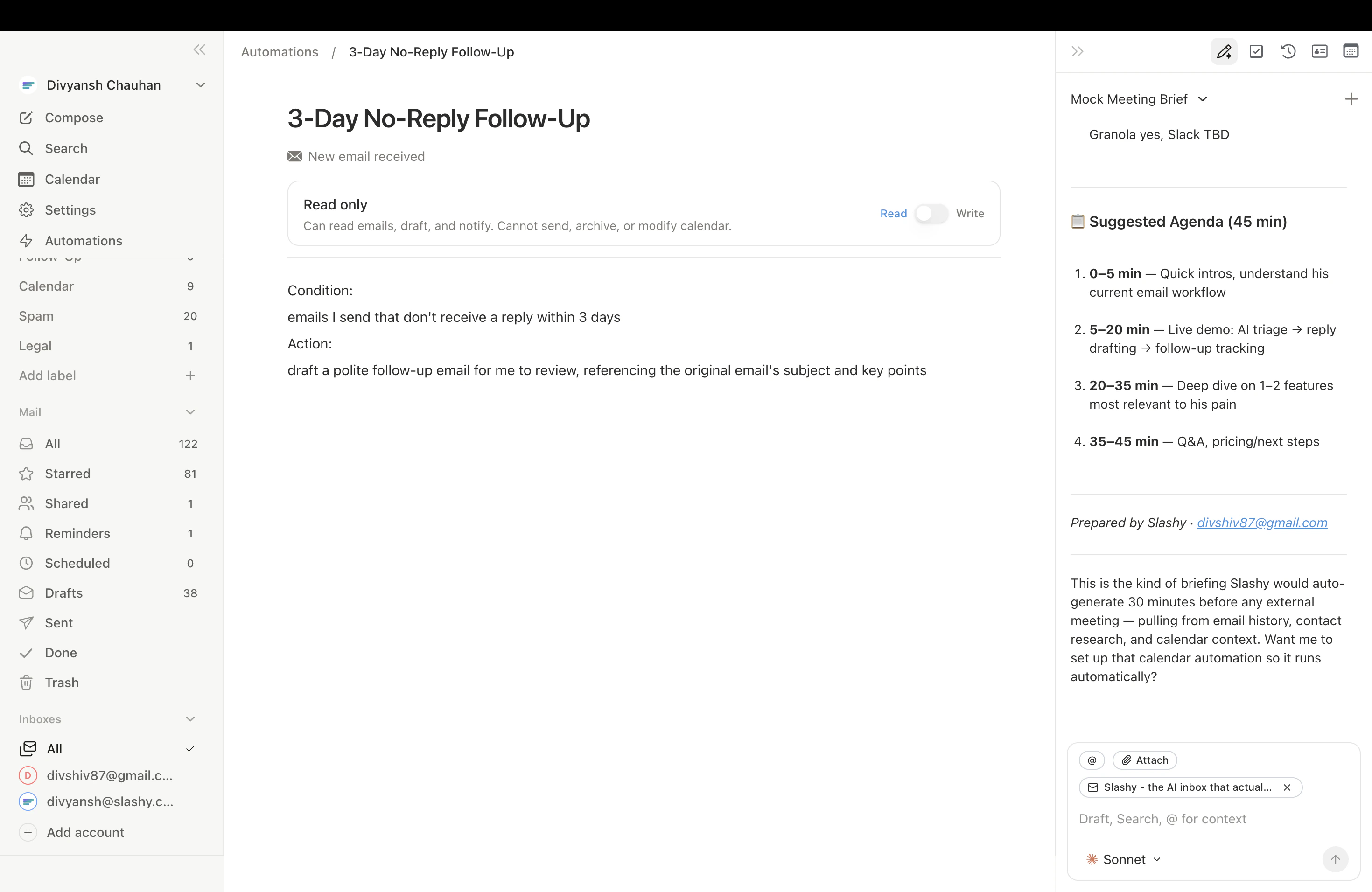
If a candidate hasn't replied in 3 days, Slashy drafts a follow-up and queues it for review. You approve or tweak -- no more manually tracking who needs a nudge.
Before each interview, get a briefing with the candidate's email history, resume details from prior threads, and any scheduling notes. Walk in with full context.
Daily morning scan for candidates you haven't responded to. One summary tells you exactly who is waiting on you today.
Weekly summary of all candidate activity per role, sent to you via iMessage. Forward relevant updates to hiring managers without compiling them manually.
## Automations For You
Open the AI agent sidebar (`Cmd+Shift+L`) and set up these automations:
If a candidate hasn't replied in 3 days, Slashy drafts a follow-up and queues it for review. You approve or tweak -- no more manually tracking who needs a nudge.
Before each interview, get a briefing with the candidate's email history, resume details from prior threads, and any scheduling notes. Walk in with full context.
Daily morning scan for candidates you haven't responded to. One summary tells you exactly who is waiting on you today.
Weekly summary of all candidate activity per role, sent to you via iMessage. Forward relevant updates to hiring managers without compiling them manually.
 ## Workflow: Send 20 Personalized Outreach Emails in 15 Minutes
Press `Cmd+Shift+S` in a new compose window to browse your outreach snippets. Pick the template that matches the role you are hiring for.
The snippet fills in the body, subject, and any AI variables. Edit the first sentence with something specific to the candidate -- their recent project, company, or LinkedIn headline.
Press `Shift+Cmd+A` to insert open slots so candidates can pick a phone screen time. No back-and-forth needed.
Toggle email tracking on in the compose window, then send. Repeat for each candidate -- the snippet does the heavy lifting.
Press `p o` to check who opened. Candidates who opened 2-3 times without replying are warm -- reach out on LinkedIn or phone.
## Pro Tips
* **Personalize at scale:** Start every outreach from a snippet, then swap the first sentence for something specific to the candidate. You send 50 emails a day that each feel handwritten.
* **Track opens strategically:** When a candidate opens your email multiple times without replying, switch to a different channel -- call or LinkedIn message. They are interested but stuck.
* **Batch scheduling:** Insert available times (`Shift+Cmd+A`) in every outreach email. Candidates pick a slot and you skip 10 back-and-forth emails per screen.
* **Pipeline review:** Ask the agent *"List all candidates who haven't replied in the last 5 days"* for an instant pipeline health check.
## Sample Agent Commands
Try these in the agent sidebar (`Cmd+Shift+L`):
* *"List all candidates who haven't replied in the last 5 days"*
* *"Which candidates opened my outreach but didn't reply?"*
* *"How many outreach emails did I send this week?"*
* *"Draft an outreach email for a senior engineer at \[company]"*
* *"Create a follow-up for \[candidate] -- warm and brief"*
* *"Write a rejection email for \[candidate] that keeps the door open"*
* *"Summarize all candidate activity for the \[role] position this week"*
* *"Forward \[candidate]'s thread to \[hiring manager] with a summary"*
* *"What interviews do I have scheduled this week?"*
***
## Related Articles
Create and manage reusable email templates
Open and click tracking for outreach
Insert open interview slots into any email
Automated follow-up tracking for every candidate
## Workflow: Send 20 Personalized Outreach Emails in 15 Minutes
Press `Cmd+Shift+S` in a new compose window to browse your outreach snippets. Pick the template that matches the role you are hiring for.
The snippet fills in the body, subject, and any AI variables. Edit the first sentence with something specific to the candidate -- their recent project, company, or LinkedIn headline.
Press `Shift+Cmd+A` to insert open slots so candidates can pick a phone screen time. No back-and-forth needed.
Toggle email tracking on in the compose window, then send. Repeat for each candidate -- the snippet does the heavy lifting.
Press `p o` to check who opened. Candidates who opened 2-3 times without replying are warm -- reach out on LinkedIn or phone.
## Pro Tips
* **Personalize at scale:** Start every outreach from a snippet, then swap the first sentence for something specific to the candidate. You send 50 emails a day that each feel handwritten.
* **Track opens strategically:** When a candidate opens your email multiple times without replying, switch to a different channel -- call or LinkedIn message. They are interested but stuck.
* **Batch scheduling:** Insert available times (`Shift+Cmd+A`) in every outreach email. Candidates pick a slot and you skip 10 back-and-forth emails per screen.
* **Pipeline review:** Ask the agent *"List all candidates who haven't replied in the last 5 days"* for an instant pipeline health check.
## Sample Agent Commands
Try these in the agent sidebar (`Cmd+Shift+L`):
* *"List all candidates who haven't replied in the last 5 days"*
* *"Which candidates opened my outreach but didn't reply?"*
* *"How many outreach emails did I send this week?"*
* *"Draft an outreach email for a senior engineer at \[company]"*
* *"Create a follow-up for \[candidate] -- warm and brief"*
* *"Write a rejection email for \[candidate] that keeps the door open"*
* *"Summarize all candidate activity for the \[role] position this week"*
* *"Forward \[candidate]'s thread to \[hiring manager] with a summary"*
* *"What interviews do I have scheduled this week?"*
***
## Related Articles
Create and manage reusable email templates
Open and click tracking for outreach
Insert open interview slots into any email
Automated follow-up tracking for every candidate