> ## Documentation Index
> Fetch the complete documentation index at: https://help.slashy.com/llms.txt
> Use this file to discover all available pages before exploring further.
# Slashy for Growth & Sales Development
> Run high-volume outreach campaigns, track engagement across sequences, and nurture leads automatically -- all from your inbox.
High-volume outreach lives and dies in the inbox. Slashy turns your email into a campaign engine -- sequences, tracking, templates, and automations built right into the tool you already use all day.
 ## Your Setup Checklist
Go to **Settings > Accounts** and connect every Gmail account you use for campaigns. Slashy supports multiple accounts with unified inbox view, so you can run different campaigns from different sender addresses without switching clients.
Press `n s` to create snippets for every stage of your sequences: initial outreach, first follow-up, second follow-up, breakup email, and re-engagement. Use AI variables like `{{company}}` and `{{pain_point}}` so each message feels personal at scale.
Press `p o` on every outreach email to enable open tracking. This is your engagement signal -- when a prospect opens your email three times, they are warm and ready for a call.
Open the AI agent sidebar (`Cmd+Shift+L`) and create automations for each follow-up stage. Tell the agent: *"If a prospect hasn't replied in 2 days, draft a follow-up using my first-follow-up snippet."*
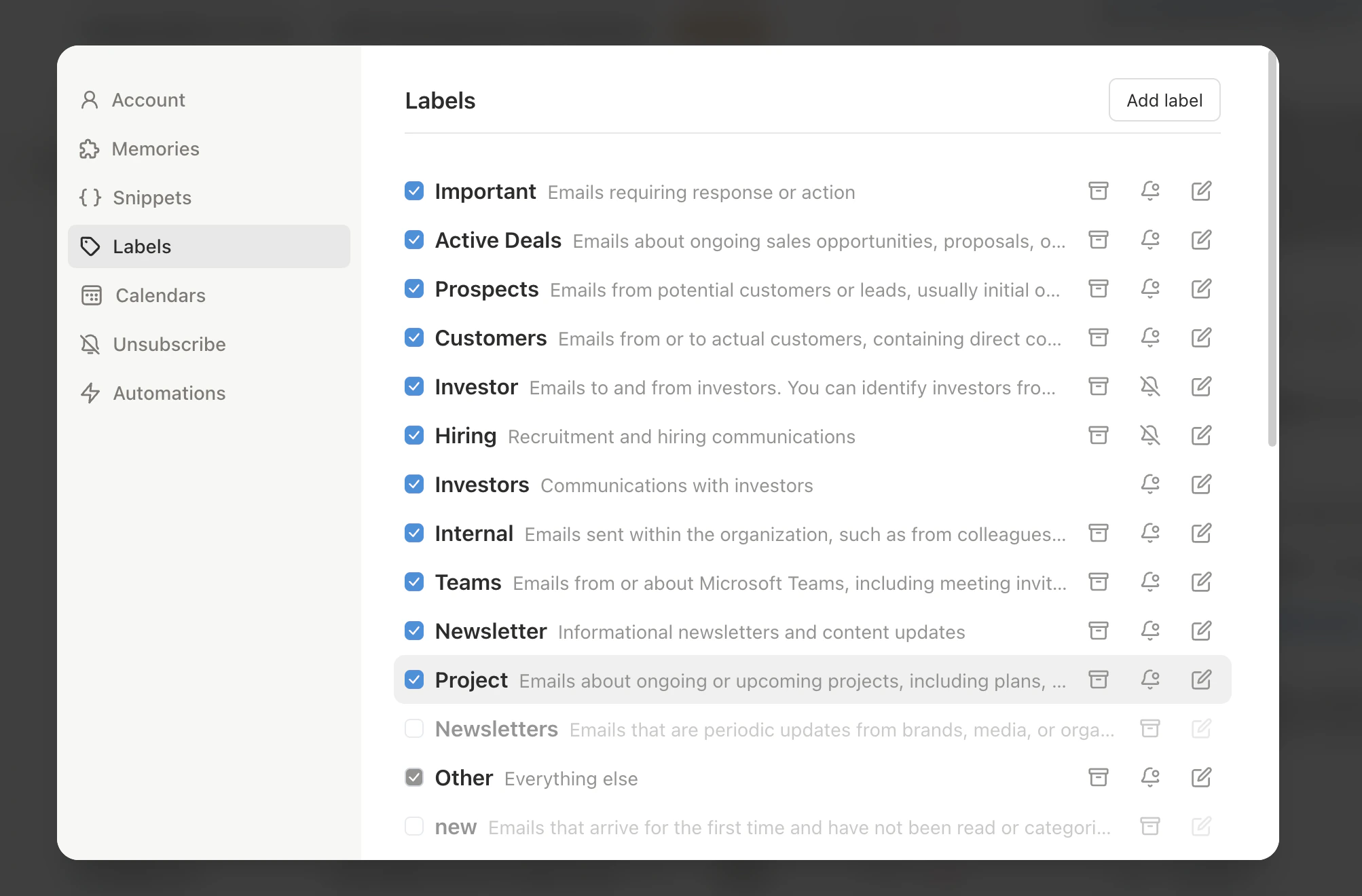
Set up importance labels for each stage of your pipeline: Cold Outreach, Engaged, Meeting Booked, Nurture. Slashy auto-sorts emails so you always know where every lead stands.
Press `Shift+Cmd+A` while composing to insert open time slots into follow-up snippets so interested prospects can grab a time without the back-and-forth.
## Automations For You
Open the AI agent sidebar (`Cmd+Shift+L`) and set up these automations:
When a prospect does not reply within 2 days, Slashy drafts the next follow-up in your sequence and queues it for review. You approve with one click instead of manually tracking who needs a bump.
When a prospect opens your email 3 or more times, get an instant iMessage notification. Multiple opens signal buying intent -- this is your cue to call or send a personalized reply.
Compose outreach anytime, then let Slashy schedule delivery for 8:30 AM in the prospect's timezone. Morning sends consistently outperform afternoon and evening sends in open rates.
Daily morning scan for leads that have gone cold -- no reply in 7+ days across any account. One summary tells you exactly which sequences need attention or a breakup email.
When a prospect replies, Slashy automatically moves them from Cold Outreach to Engaged and drafts a response. No manual re-labeling, no leads slipping through stage cracks.
## Workflow: Run a 50-Person Outreach Campaign in 30 Minutes
Switch to the outreach account you want to send from using the account switcher. Check the From field to confirm the correct sender address before composing.
Press `Cmd+N` to start a new email. Insert your outreach snippet with `Cmd+Shift+S`, then ask the AI agent: *"Personalize this cold email for \[name] at \[company] based on their recent Series B announcement."* The AI adds a relevant opening line in seconds.
Press `p o` to enable open tracking, then use **Scheduled Send** to queue delivery for the prospect's morning. Repeat for each prospect -- the snippet + AI personalization loop takes about 30 seconds per email.
Once your batch is sent, tell the agent: *"For all emails I sent today from \[outreach account], if no reply in 2 days, draft a follow-up using my first-follow-up snippet."* This creates your automated sequence without a separate tool.
The next morning, check your open tracking panel (`p o`) and iMessage engagement alerts. Prospects with 3+ opens get a personal follow-up or a call. Prospects with zero opens after 3 days get a subject-line variant resend.
## Pro Tips
* **Separate accounts by campaign type:** Use one account for cold outreach and another for warm nurture sequences. This protects your sender reputation and keeps engagement metrics clean.
* **Snippet variables save minutes per email:** Build snippets with AI variables like `{{company}}`, `{{role}}`, and `{{trigger_event}}`. The AI fills them in contextually, so 50 emails feel individually written.
* **Track opens, but act on patterns:** A single open means nothing. Three opens in one day means the prospect is interested. Five opens over a week with no reply means they are sharing your email internally -- send a follow-up that addresses the team.
* **Use the breakup email:** After 3 follow-ups with no reply, send a short breakup email. It consistently generates the highest reply rate in any sequence because it creates urgency.
* **Batch your outreach blocks:** Process all composing in one 30-minute block, all follow-up reviews in another. Context-switching between outreach and other work kills your send velocity.
* **Ask the agent for campaign reports:** Before a team standup, ask *"How many outreach emails did I send this week and what is the reply rate?"* for an instant performance snapshot.
## Sample Agent Commands
Try these in the agent sidebar (`Cmd+Shift+L`):
* *"How many outreach emails did I send this week from \[account]?"*
* *"List all prospects who opened my email but haven't replied"*
* *"Which sequences have gone stale in the last 5 days?"*
* *"Draft a cold email to \[name] at \[company] about \[product]. Reference their recent \[trigger event]. Keep it under 4 sentences."*
* *"Write a breakup email for prospects who haven't replied after 3 follow-ups"*
* *"Create a snippet for re-engagement outreach to leads who went cold 30 days ago"*
* *"Show me all prospects who opened my emails 3+ times this week"*
* *"Summarize my email activity across all accounts this month"*
* *"Which outreach subject lines got the most opens?"*
***
## Related Articles
How open and click tracking works
Create, organize, and insert reusable templates at scale
Four layers of automated follow-up protection
Connect and manage multiple Gmail accounts
## Your Setup Checklist
Go to **Settings > Accounts** and connect every Gmail account you use for campaigns. Slashy supports multiple accounts with unified inbox view, so you can run different campaigns from different sender addresses without switching clients.
Press `n s` to create snippets for every stage of your sequences: initial outreach, first follow-up, second follow-up, breakup email, and re-engagement. Use AI variables like `{{company}}` and `{{pain_point}}` so each message feels personal at scale.
Press `p o` on every outreach email to enable open tracking. This is your engagement signal -- when a prospect opens your email three times, they are warm and ready for a call.
Open the AI agent sidebar (`Cmd+Shift+L`) and create automations for each follow-up stage. Tell the agent: *"If a prospect hasn't replied in 2 days, draft a follow-up using my first-follow-up snippet."*
Set up importance labels for each stage of your pipeline: Cold Outreach, Engaged, Meeting Booked, Nurture. Slashy auto-sorts emails so you always know where every lead stands.
Press `Shift+Cmd+A` while composing to insert open time slots into follow-up snippets so interested prospects can grab a time without the back-and-forth.
## Automations For You
Open the AI agent sidebar (`Cmd+Shift+L`) and set up these automations:
When a prospect does not reply within 2 days, Slashy drafts the next follow-up in your sequence and queues it for review. You approve with one click instead of manually tracking who needs a bump.
When a prospect opens your email 3 or more times, get an instant iMessage notification. Multiple opens signal buying intent -- this is your cue to call or send a personalized reply.
Compose outreach anytime, then let Slashy schedule delivery for 8:30 AM in the prospect's timezone. Morning sends consistently outperform afternoon and evening sends in open rates.
Daily morning scan for leads that have gone cold -- no reply in 7+ days across any account. One summary tells you exactly which sequences need attention or a breakup email.
When a prospect replies, Slashy automatically moves them from Cold Outreach to Engaged and drafts a response. No manual re-labeling, no leads slipping through stage cracks.
## Workflow: Run a 50-Person Outreach Campaign in 30 Minutes
Switch to the outreach account you want to send from using the account switcher. Check the From field to confirm the correct sender address before composing.
Press `Cmd+N` to start a new email. Insert your outreach snippet with `Cmd+Shift+S`, then ask the AI agent: *"Personalize this cold email for \[name] at \[company] based on their recent Series B announcement."* The AI adds a relevant opening line in seconds.
Press `p o` to enable open tracking, then use **Scheduled Send** to queue delivery for the prospect's morning. Repeat for each prospect -- the snippet + AI personalization loop takes about 30 seconds per email.
Once your batch is sent, tell the agent: *"For all emails I sent today from \[outreach account], if no reply in 2 days, draft a follow-up using my first-follow-up snippet."* This creates your automated sequence without a separate tool.
The next morning, check your open tracking panel (`p o`) and iMessage engagement alerts. Prospects with 3+ opens get a personal follow-up or a call. Prospects with zero opens after 3 days get a subject-line variant resend.
## Pro Tips
* **Separate accounts by campaign type:** Use one account for cold outreach and another for warm nurture sequences. This protects your sender reputation and keeps engagement metrics clean.
* **Snippet variables save minutes per email:** Build snippets with AI variables like `{{company}}`, `{{role}}`, and `{{trigger_event}}`. The AI fills them in contextually, so 50 emails feel individually written.
* **Track opens, but act on patterns:** A single open means nothing. Three opens in one day means the prospect is interested. Five opens over a week with no reply means they are sharing your email internally -- send a follow-up that addresses the team.
* **Use the breakup email:** After 3 follow-ups with no reply, send a short breakup email. It consistently generates the highest reply rate in any sequence because it creates urgency.
* **Batch your outreach blocks:** Process all composing in one 30-minute block, all follow-up reviews in another. Context-switching between outreach and other work kills your send velocity.
* **Ask the agent for campaign reports:** Before a team standup, ask *"How many outreach emails did I send this week and what is the reply rate?"* for an instant performance snapshot.
## Sample Agent Commands
Try these in the agent sidebar (`Cmd+Shift+L`):
* *"How many outreach emails did I send this week from \[account]?"*
* *"List all prospects who opened my email but haven't replied"*
* *"Which sequences have gone stale in the last 5 days?"*
* *"Draft a cold email to \[name] at \[company] about \[product]. Reference their recent \[trigger event]. Keep it under 4 sentences."*
* *"Write a breakup email for prospects who haven't replied after 3 follow-ups"*
* *"Create a snippet for re-engagement outreach to leads who went cold 30 days ago"*
* *"Show me all prospects who opened my emails 3+ times this week"*
* *"Summarize my email activity across all accounts this month"*
* *"Which outreach subject lines got the most opens?"*
***
## Related Articles
How open and click tracking works
Create, organize, and insert reusable templates at scale
Four layers of automated follow-up protection
Connect and manage multiple Gmail accounts