> ## Documentation Index
> Fetch the complete documentation index at: https://help.slashy.com/llms.txt
> Use this file to discover all available pages before exploring further.
# Track Email Opens & Follow Up
> Monitor who opened your emails, set up VIP open alerts, and combine tracking with follow-up automations.
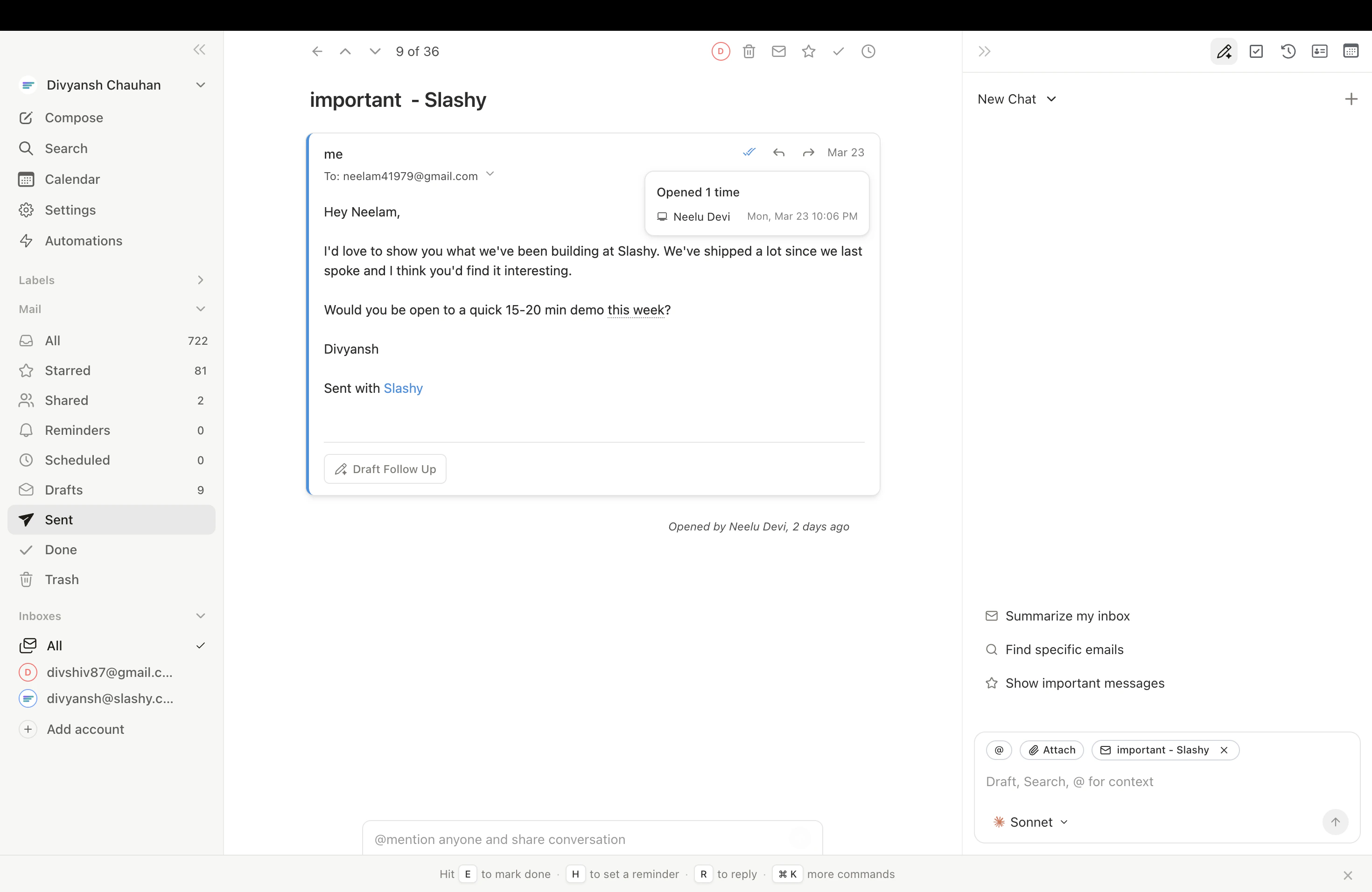
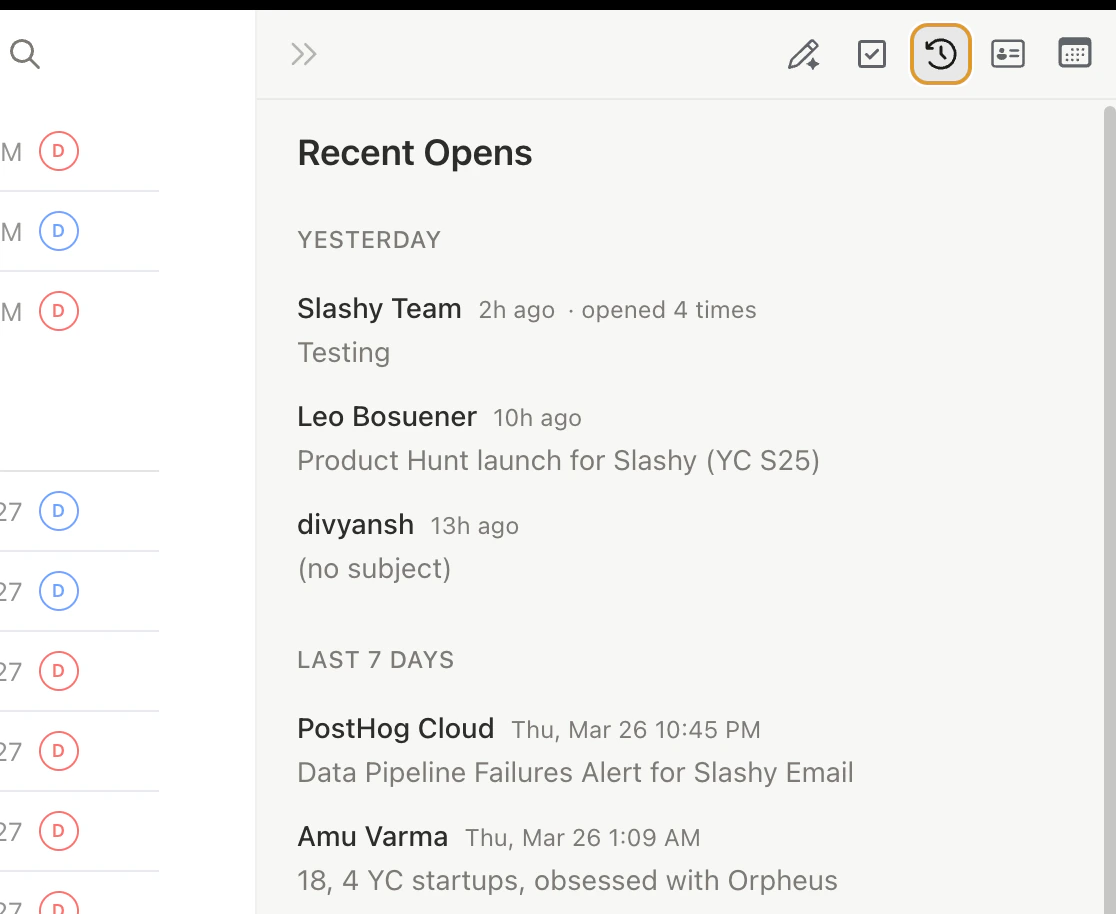
Slashy tracks opens for sent emails and shows the data in the Recent Opens panel. Set up automations that alert you or trigger follow-ups when specific people open your messages.
## How It Works
Slashy embeds a tiny invisible pixel in sent emails. When the recipient opens the email, the pixel loads and Slashy records the open, timestamp, open count, and device type.
Some email clients block tracking pixels (Outlook often does). Treat open data as a signal, not a guarantee.
Open tracking is enabled by default. Toggle it off per-email in the compose window if needed.
## The Recent Opens Panel
Press `p o` to open the panel. It shows a chronological feed of who opened your tracked emails:
* Recipient name and email
* Subject line
* Timestamp (grouped: just now, today, yesterday)
* Device type when detectable
Click any entry to jump to that thread.
 ## VIP Open Alerts
For high-priority contacts, get notified the moment they open your email:
1. Open the agent sidebar (`Cmd+Shift+L`)
2. Type: *"When someone from @bigcustomer.com opens an email I sent, alert me on iMessage with the subject and when they opened it."*
3. Confirm the trigger
You'll get messages like: *"John from Sequoia just opened your email 'Q1 Metrics Update' (first open, 2 minutes ago)."*
## VIP Open Alerts
For high-priority contacts, get notified the moment they open your email:
1. Open the agent sidebar (`Cmd+Shift+L`)
2. Type: *"When someone from @bigcustomer.com opens an email I sent, alert me on iMessage with the subject and when they opened it."*
3. Confirm the trigger
You'll get messages like: *"John from Sequoia just opened your email 'Q1 Metrics Update' (first open, 2 minutes ago)."*
 ## Combine with Follow-up Automation
| Pattern | Command |
| ------------------------- | ------------------------------------------------------------------------------- |
| **Opened, no reply** | *"When a prospect opens but doesn't reply in 2 days, draft a follow-up"* |
| **Never opened** | *"When a prospect hasn't opened after 3 days, resend with a different subject"* |
| **Opened multiple times** | *"When someone opens 3+ times, alert me -- they may be discussing internally"* |
## Daily Workflow
1. **Morning:** `p o` to scan overnight opens
2. **Spot hot leads:** Multiple opens or late-night opens indicate interest
3. **Prioritize:** If someone opened 5 minutes ago, follow up now while top-of-mind
4. **Let automations handle the rest**
Use tracking data to time follow-ups, not to pressure people. Don't mention to recipients that you know they opened your email.
***
Set up automatic follow-up sequences.
Essential automations every user should set up.
## Combine with Follow-up Automation
| Pattern | Command |
| ------------------------- | ------------------------------------------------------------------------------- |
| **Opened, no reply** | *"When a prospect opens but doesn't reply in 2 days, draft a follow-up"* |
| **Never opened** | *"When a prospect hasn't opened after 3 days, resend with a different subject"* |
| **Opened multiple times** | *"When someone opens 3+ times, alert me -- they may be discussing internally"* |
## Daily Workflow
1. **Morning:** `p o` to scan overnight opens
2. **Spot hot leads:** Multiple opens or late-night opens indicate interest
3. **Prioritize:** If someone opened 5 minutes ago, follow up now while top-of-mind
4. **Let automations handle the rest**
Use tracking data to time follow-ups, not to pressure people. Don't mention to recipients that you know they opened your email.
***
Set up automatic follow-up sequences.
Essential automations every user should set up.