> ## Documentation Index
> Fetch the complete documentation index at: https://help.slashy.com/llms.txt
> Use this file to discover all available pages before exploring further.
# The Slashy Method
> Three principles for AI-first email: let AI triage, automate repetitive actions, and keep Slashy as your primary client.
Slashy is a fundamentally different approach to email. Users who follow three principles spend 10-15 minutes per day on email instead of 1-2 hours, with compounding improvements every week.
The Slashy Method is not a feature -- it is a mindset shift. Users who adopt all three principles report **70-85% less time** on email within their first month.
 ## Principle 1: Let AI Handle Triage
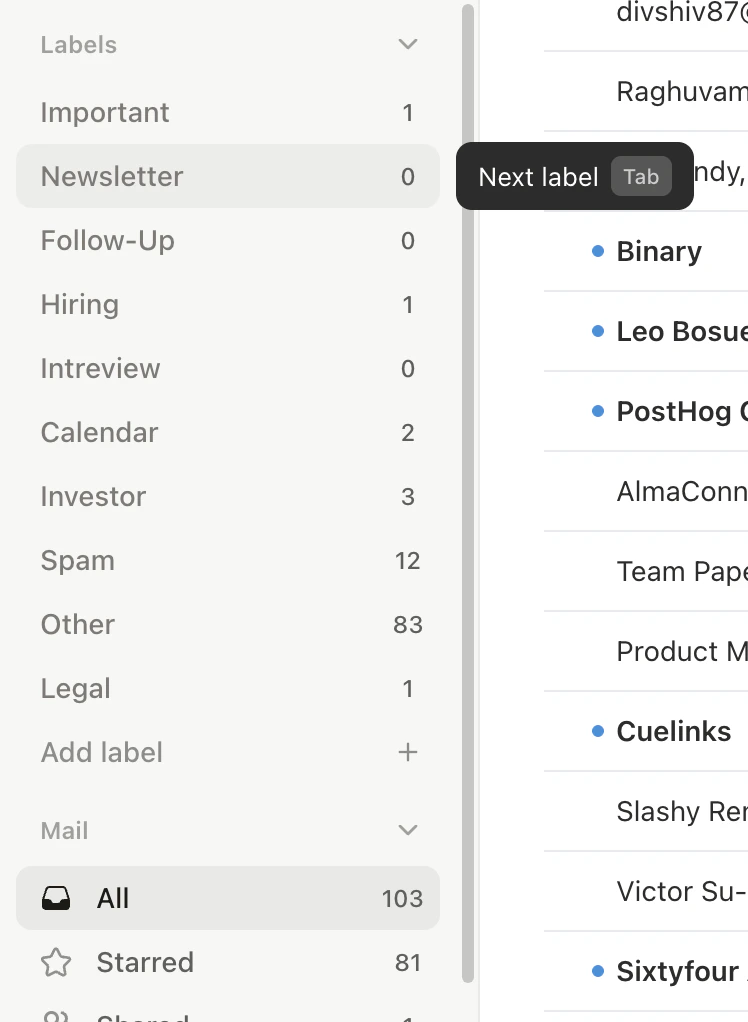
Stop reading every email. AI importance labels sort your inbox before you touch it.
Go to **Settings > Labels** (`Cmd+,`). The 10 default labels (Important, Newsletter, Billing, etc.) are already active. Add custom labels for your workflow.
Press `Tab` to cycle through labels. Begin each email session in the **Important** tab -- everything else is secondary.
Switch to Newsletter or Notifications, press `Cmd+A` to select all, then `e` to archive the batch. No individual review needed.
When an email is in the wrong label, move it to the correct one with `l`. The AI learns from every correction and gets more accurate over time.
**The shift:** You go from reading 100 emails to reviewing 15 important ones.
## Principle 2: Automate Repetitive Actions
If you do the same thing with email more than twice, automate it. One sentence to the agent creates an automation.
| Automation | What It Eliminates | Setup Command |
| ---------------------- | ------------------------------------- | ----------------------------------------------------------------------------------- |
| Receipt forwarding | Manually forwarding to expense tools | *"Forward all receipts to [receipts@expensify.com](mailto:receipts@expensify.com)"* |
| Meeting prep briefings | Researching attendees before calls | *"Send me a briefing 30 min before external meetings"* |
| Dropped ball scanner | Manually auditing for missed replies | *"Every morning, show me emails I haven't replied to in 3+ days"* |
| OTP forwarding | Switching apps for verification codes | *"Forward verification codes to my phone via iMessage"* |
| VIP email alerts | Checking inbox for important senders | *"Alert me on iMessage when anyone from @sequoia.com emails me"* |
| Follow-up drafts | Remembering to follow up manually | *"Draft a follow-up when prospects don't reply in 3 days"* |
You can set up all six automations in under 10 minutes. Open the agent sidebar (`Cmd+Shift+L`) and paste the commands above one at a time.
**The shift:** You handle exceptions and decisions, not repetitive tasks.
## Principle 3: Keep Slashy as Primary
This is the one people underestimate. The AI compounds:
* **Writing style** improves from emails you send through Slashy
* **Labels** get more accurate from your corrections
* **Memories** accumulate about contacts and preferences
* **Autocomplete** predictions sharpen from your patterns
When you switch to Gmail for some emails, those interactions don't train the AI. The agent can't learn from what it doesn't see.
**The compounding effect:** Week 1, the AI is decent. Week 4, it's good. Month 3, it writes emails you'd send with minimal edits. But only if you keep using it.
## Principle 1: Let AI Handle Triage
Stop reading every email. AI importance labels sort your inbox before you touch it.
Go to **Settings > Labels** (`Cmd+,`). The 10 default labels (Important, Newsletter, Billing, etc.) are already active. Add custom labels for your workflow.
Press `Tab` to cycle through labels. Begin each email session in the **Important** tab -- everything else is secondary.
Switch to Newsletter or Notifications, press `Cmd+A` to select all, then `e` to archive the batch. No individual review needed.
When an email is in the wrong label, move it to the correct one with `l`. The AI learns from every correction and gets more accurate over time.
**The shift:** You go from reading 100 emails to reviewing 15 important ones.
## Principle 2: Automate Repetitive Actions
If you do the same thing with email more than twice, automate it. One sentence to the agent creates an automation.
| Automation | What It Eliminates | Setup Command |
| ---------------------- | ------------------------------------- | ----------------------------------------------------------------------------------- |
| Receipt forwarding | Manually forwarding to expense tools | *"Forward all receipts to [receipts@expensify.com](mailto:receipts@expensify.com)"* |
| Meeting prep briefings | Researching attendees before calls | *"Send me a briefing 30 min before external meetings"* |
| Dropped ball scanner | Manually auditing for missed replies | *"Every morning, show me emails I haven't replied to in 3+ days"* |
| OTP forwarding | Switching apps for verification codes | *"Forward verification codes to my phone via iMessage"* |
| VIP email alerts | Checking inbox for important senders | *"Alert me on iMessage when anyone from @sequoia.com emails me"* |
| Follow-up drafts | Remembering to follow up manually | *"Draft a follow-up when prospects don't reply in 3 days"* |
You can set up all six automations in under 10 minutes. Open the agent sidebar (`Cmd+Shift+L`) and paste the commands above one at a time.
**The shift:** You handle exceptions and decisions, not repetitive tasks.
## Principle 3: Keep Slashy as Primary
This is the one people underestimate. The AI compounds:
* **Writing style** improves from emails you send through Slashy
* **Labels** get more accurate from your corrections
* **Memories** accumulate about contacts and preferences
* **Autocomplete** predictions sharpen from your patterns
When you switch to Gmail for some emails, those interactions don't train the AI. The agent can't learn from what it doesn't see.
**The compounding effect:** Week 1, the AI is decent. Week 4, it's good. Month 3, it writes emails you'd send with minimal edits. But only if you keep using it.
 ## Your First Week: Day-by-Day Plan
Set up importance labels. Process your inbox using `Tab` to cycle labels, `e` to archive, `s` to star. Target: reach inbox zero once.
Set up your first automation via the agent sidebar (`Cmd+Shift+L`). Start with receipt forwarding or meeting prep -- both are high-value and low-risk.
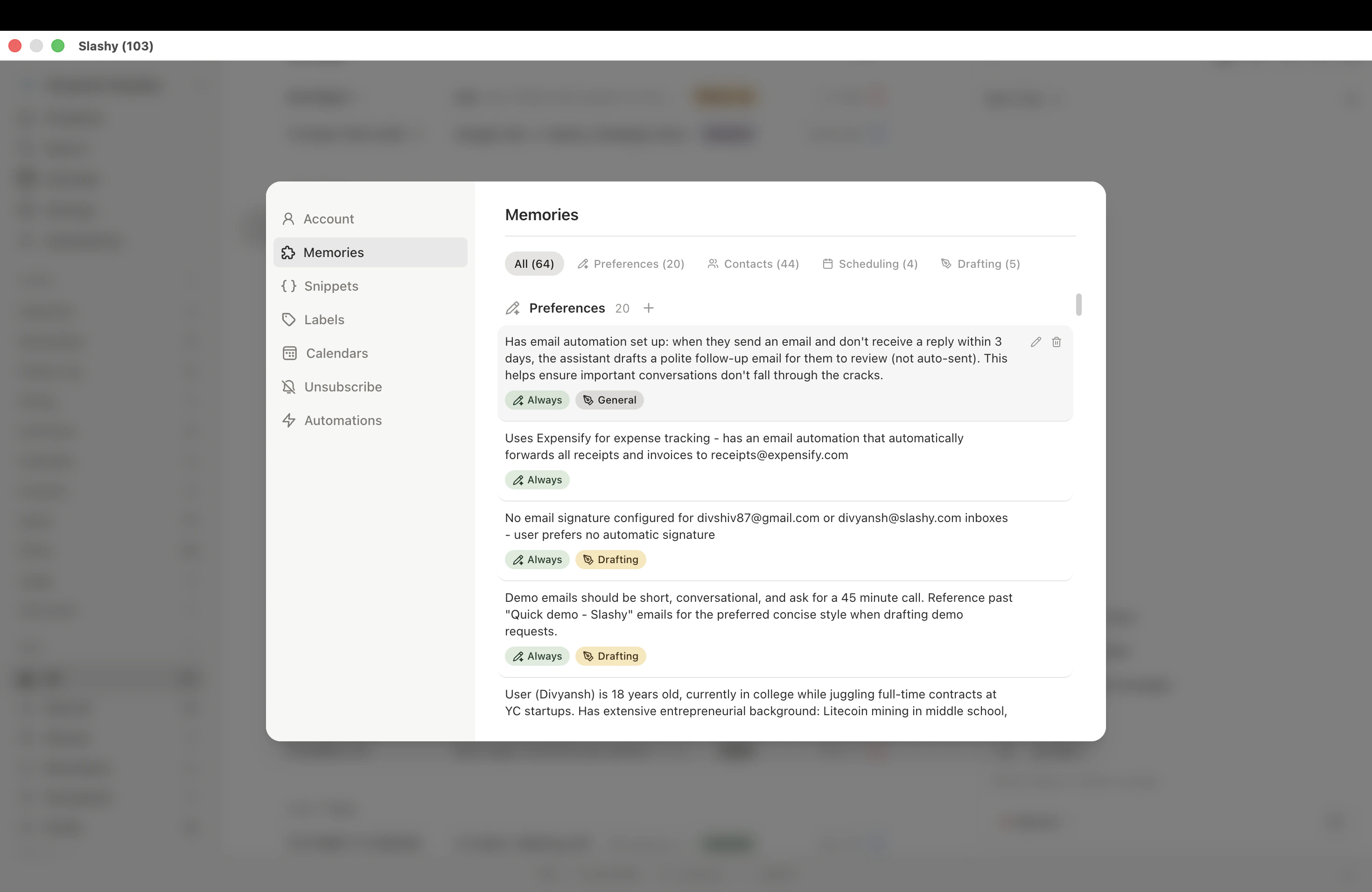
Tell the agent your writing style: *"Remember: I write short, direct emails. No fluff. Sign off with just my first name."* Set 3-5 memories.
Install the desktop app and make Slashy your default email client. The more you use it, the faster the AI improves.
Check your automations in **Settings > Automations**. Add 2-3 more. Review AI draft quality and provide feedback through the sidebar.
## Measuring Your Progress
| Metric | Week 1 | Month 1 | Month 3 |
| -------------------------------- | ------ | ------- | --------------- |
| Daily email time | 45 min | 20 min | 10-15 min |
| AI draft accuracy | \~60% | \~80% | \~90%+ |
| Emails requiring manual response | Most | Half | Exceptions only |
| Automations running | 1-2 | 5-6 | 8-10 |
***
## Related Articles
The 5-minute daily workflow.
Essential automations to set up first.
Day-by-day onboarding guide.
How full-time usage accelerates AI learning.
## Your First Week: Day-by-Day Plan
Set up importance labels. Process your inbox using `Tab` to cycle labels, `e` to archive, `s` to star. Target: reach inbox zero once.
Set up your first automation via the agent sidebar (`Cmd+Shift+L`). Start with receipt forwarding or meeting prep -- both are high-value and low-risk.
Tell the agent your writing style: *"Remember: I write short, direct emails. No fluff. Sign off with just my first name."* Set 3-5 memories.
Install the desktop app and make Slashy your default email client. The more you use it, the faster the AI improves.
Check your automations in **Settings > Automations**. Add 2-3 more. Review AI draft quality and provide feedback through the sidebar.
## Measuring Your Progress
| Metric | Week 1 | Month 1 | Month 3 |
| -------------------------------- | ------ | ------- | --------------- |
| Daily email time | 45 min | 20 min | 10-15 min |
| AI draft accuracy | \~60% | \~80% | \~90%+ |
| Emails requiring manual response | Most | Half | Exceptions only |
| Automations running | 1-2 | 5-6 | 8-10 |
***
## Related Articles
The 5-minute daily workflow.
Essential automations to set up first.
Day-by-day onboarding guide.
How full-time usage accelerates AI learning.