> ## Documentation Index
> Fetch the complete documentation index at: https://help.slashy.com/llms.txt
> Use this file to discover all available pages before exploring further.
# Using Slashy MCP
> Ready-to-use email prompts and an auto-use system prompt for Slashy MCP.
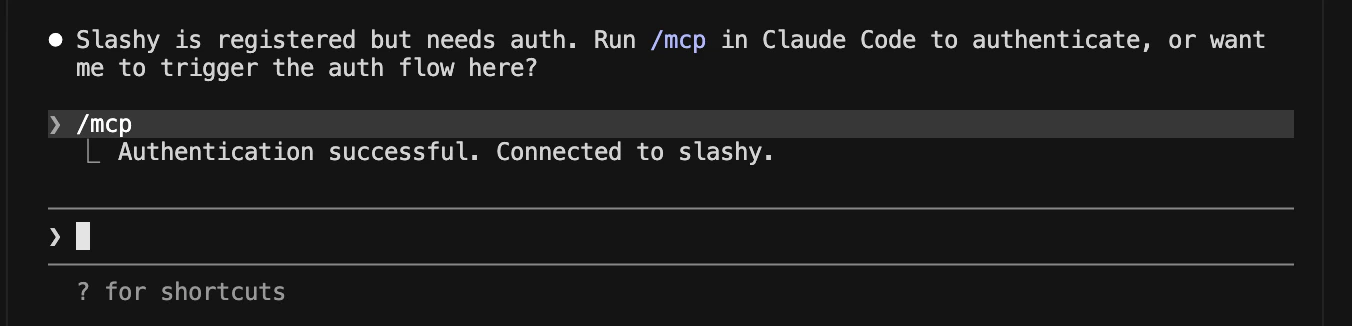
Once connected, you can call Slashy tools directly from chat. Most people use Slashy MCP for email - triage, drafting, follow-ups, and scheduling. Here are prompts that work out of the box.
 ## Email prompts
### Triage the inbox
> *"Use Slashy to list my unread emails from the last 24 hours. Group them by sender, flag anything that mentions a deadline, and tell me which three I should reply to first."*
### Draft a reply
> *"Use Slashy to read the latest thread with [sarah@acme.com](mailto:sarah@acme.com) and draft a reply that confirms Thursday 3pm, suggests a 30-min agenda, and matches my usual tone. Save it as a draft - don't send."*
### Follow up on silent threads
> *"Find threads in my inbox where I sent the last message more than 5 days ago and haven't heard back. Draft a short, friendly follow-up for each and save as drafts."*
### Schedule a meeting from an email
> *"Read the latest email from [alex@partner.io](mailto:alex@partner.io). Use Slashy to propose three 30-min slots in my calendar next week that avoid conflicts, and draft a reply offering those times."*
### Auto-label and summarize
> *"Label any email from our investors with 'VC', then send me a one-line summary of each new VC email every weekday at 9am via iMessage."*
### Bulk action on a sender
> *"Archive every email from [noreply@notion.so](mailto:noreply@notion.so) older than 30 days, and add a label 'newsletters' to anything from them going forward."*
### Send an email
> *"Use Slashy to send an email to [sarah@acme.com](mailto:sarah@acme.com) with the subject 'Q2 numbers' and a body that confirms Thursday's review, lists the three metrics I want her to bring, and signs off as me."*
> *"Reply to the last thread from [alex@partner.io](mailto:alex@partner.io) - tell him Friday works, suggest a 30-min slot at 2pm, and send it."*
Prompts that say "send" will send immediately. Use "draft" or "save as a draft" if you want to review before anything leaves your outbox.
### Attach files
> *"Draft an email to the board with the Q2 deck attached. Find the latest deck in my Drive (file name starts with 'Board Q2') and include it as an attachment."*
> *"Send [dan@investor.com](mailto:dan@investor.com) our data room link plus the pitch PDF. Pull the PDF from my Drive and attach it - don't just link it."*
> *"Reply to [jordan@client.co](mailto:jordan@client.co)'s last email. Attach the invoice PDF named 'INV-2045' and add a one-line note confirming receipt."*
### Attaching large files
Files smaller than roughly 256 KB can be passed inline using `upload_file`. For larger files (PDFs, decks, ZIP archives), use a two-step flow:
1. Call `request_file_upload` with the file name and MIME type. Slashy returns a presigned upload URL and a `file_id`.
2. Upload the file with an HTTP `PUT` to that URL.
3. Pass the `file_id` to `draft_email` or `send_email` as an attachment reference.
```text theme={null}
# Step 1 — get presigned URL
request_file_upload(filename="board-deck-q2.pdf", content_type="application/pdf")
# → returns { upload_url: "https://...", file_id: "file_abc123" }
# Step 2 — upload the bytes
PUT https://... (binary content of the file)
# Step 3 — attach by file_id
draft_email(to="board@acme.com", subject="Q2 deck", file_ids=["file_abc123"])
```
The presigned URL expires after a few minutes. Upload the file immediately after calling `request_file_upload`.
### Open in Slashy
Slashy deep links for **email threads and drafts** jump straight to the right place in the Slashy app. They follow the format `https://slashy.com/t/{inbox_email}/{thread_id}` (append `?m={message_id}` for a specific message or draft) - Claude builds them from tool results. Install the [Slashy skill](/how-to-guides/slashy-mcp-skills) so Claude knows the format, then ask for links explicitly and it will include a clickable link in the answer.
> *"List the top 5 threads I should reply to today. For each, include a Slashy link so I can click to open it."*
> *"Draft a reply to the latest email from [sarah@acme.com](mailto:sarah@acme.com) and save it. Give me the Slashy link to the draft so I can review and send from Slashy."*
> *"Find threads I haven't replied to in 5+ days. Return each with a one-line summary and a Slashy link to open the thread."*
Make "give me Slashy links for threads and drafts" part of your auto-use prompt if you always want them - it saves typing the instruction every time.
### Beyond email
> *"Prep me for my next external meeting - pull attendee profiles, email history, and recent news."*
>
> *"Research [john@acme.com](mailto:john@acme.com) before my call tomorrow - LinkedIn, recent company news, and any prior email threads with them."*
Slashy tools respect your account's permissions. If a tool needs calendar or email access you haven't granted, it will return a clear error with a link to authorize.
## Auto-use prompt
Paste this into your client's system prompt, Claude project instructions, or Cursor's rules file. It tells the model to reach for Slashy whenever a task fits.
```text theme={null}
Always use Slashy MCP tools when relevant.
If a task involves email, calendar, contacts, meeting prep,
lead research, reminders, or scheduled workflows, prioritize
Slashy tools before answering from general knowledge.
Prefer a Slashy tool call over guessing.
```
## Next steps
Fixes for OAuth, missing tools, and wrong accounts.
Essential Slashy automations to set up first.
## Email prompts
### Triage the inbox
> *"Use Slashy to list my unread emails from the last 24 hours. Group them by sender, flag anything that mentions a deadline, and tell me which three I should reply to first."*
### Draft a reply
> *"Use Slashy to read the latest thread with [sarah@acme.com](mailto:sarah@acme.com) and draft a reply that confirms Thursday 3pm, suggests a 30-min agenda, and matches my usual tone. Save it as a draft - don't send."*
### Follow up on silent threads
> *"Find threads in my inbox where I sent the last message more than 5 days ago and haven't heard back. Draft a short, friendly follow-up for each and save as drafts."*
### Schedule a meeting from an email
> *"Read the latest email from [alex@partner.io](mailto:alex@partner.io). Use Slashy to propose three 30-min slots in my calendar next week that avoid conflicts, and draft a reply offering those times."*
### Auto-label and summarize
> *"Label any email from our investors with 'VC', then send me a one-line summary of each new VC email every weekday at 9am via iMessage."*
### Bulk action on a sender
> *"Archive every email from [noreply@notion.so](mailto:noreply@notion.so) older than 30 days, and add a label 'newsletters' to anything from them going forward."*
### Send an email
> *"Use Slashy to send an email to [sarah@acme.com](mailto:sarah@acme.com) with the subject 'Q2 numbers' and a body that confirms Thursday's review, lists the three metrics I want her to bring, and signs off as me."*
> *"Reply to the last thread from [alex@partner.io](mailto:alex@partner.io) - tell him Friday works, suggest a 30-min slot at 2pm, and send it."*
Prompts that say "send" will send immediately. Use "draft" or "save as a draft" if you want to review before anything leaves your outbox.
### Attach files
> *"Draft an email to the board with the Q2 deck attached. Find the latest deck in my Drive (file name starts with 'Board Q2') and include it as an attachment."*
> *"Send [dan@investor.com](mailto:dan@investor.com) our data room link plus the pitch PDF. Pull the PDF from my Drive and attach it - don't just link it."*
> *"Reply to [jordan@client.co](mailto:jordan@client.co)'s last email. Attach the invoice PDF named 'INV-2045' and add a one-line note confirming receipt."*
### Attaching large files
Files smaller than roughly 256 KB can be passed inline using `upload_file`. For larger files (PDFs, decks, ZIP archives), use a two-step flow:
1. Call `request_file_upload` with the file name and MIME type. Slashy returns a presigned upload URL and a `file_id`.
2. Upload the file with an HTTP `PUT` to that URL.
3. Pass the `file_id` to `draft_email` or `send_email` as an attachment reference.
```text theme={null}
# Step 1 — get presigned URL
request_file_upload(filename="board-deck-q2.pdf", content_type="application/pdf")
# → returns { upload_url: "https://...", file_id: "file_abc123" }
# Step 2 — upload the bytes
PUT https://... (binary content of the file)
# Step 3 — attach by file_id
draft_email(to="board@acme.com", subject="Q2 deck", file_ids=["file_abc123"])
```
The presigned URL expires after a few minutes. Upload the file immediately after calling `request_file_upload`.
### Open in Slashy
Slashy deep links for **email threads and drafts** jump straight to the right place in the Slashy app. They follow the format `https://slashy.com/t/{inbox_email}/{thread_id}` (append `?m={message_id}` for a specific message or draft) - Claude builds them from tool results. Install the [Slashy skill](/how-to-guides/slashy-mcp-skills) so Claude knows the format, then ask for links explicitly and it will include a clickable link in the answer.
> *"List the top 5 threads I should reply to today. For each, include a Slashy link so I can click to open it."*
> *"Draft a reply to the latest email from [sarah@acme.com](mailto:sarah@acme.com) and save it. Give me the Slashy link to the draft so I can review and send from Slashy."*
> *"Find threads I haven't replied to in 5+ days. Return each with a one-line summary and a Slashy link to open the thread."*
Make "give me Slashy links for threads and drafts" part of your auto-use prompt if you always want them - it saves typing the instruction every time.
### Beyond email
> *"Prep me for my next external meeting - pull attendee profiles, email history, and recent news."*
>
> *"Research [john@acme.com](mailto:john@acme.com) before my call tomorrow - LinkedIn, recent company news, and any prior email threads with them."*
Slashy tools respect your account's permissions. If a tool needs calendar or email access you haven't granted, it will return a clear error with a link to authorize.
## Auto-use prompt
Paste this into your client's system prompt, Claude project instructions, or Cursor's rules file. It tells the model to reach for Slashy whenever a task fits.
```text theme={null}
Always use Slashy MCP tools when relevant.
If a task involves email, calendar, contacts, meeting prep,
lead research, reminders, or scheduled workflows, prioritize
Slashy tools before answering from general knowledge.
Prefer a Slashy tool call over guessing.
```
## Next steps
Fixes for OAuth, missing tools, and wrong accounts.
Essential Slashy automations to set up first.