> ## Documentation Index
> Fetch the complete documentation index at: https://help.slashy.com/llms.txt
> Use this file to discover all available pages before exploring further.
# Hermes Setup
> Add Slashy MCP to Hermes Agent by editing ~/.hermes/config.yaml and logging in once.
[Hermes Agent](https://hermes-agent.nousresearch.com) (Nous Research) reads MCP servers from `~/.hermes/config.yaml`. Slashy is a remote HTTP server with OAuth, so the entry is two lines - then one login command.
## Prerequisites
* A **Slashy account** signed in with Google. [Sign up at slashy.com](https://slashy.com) if you haven't.
* Hermes Agent installed, with MCP support (bundled with the standard install).
* A browser available for the one-time OAuth login.
## Setup
In your terminal:
```bash theme={null}
nano ~/.hermes/config.yaml
```
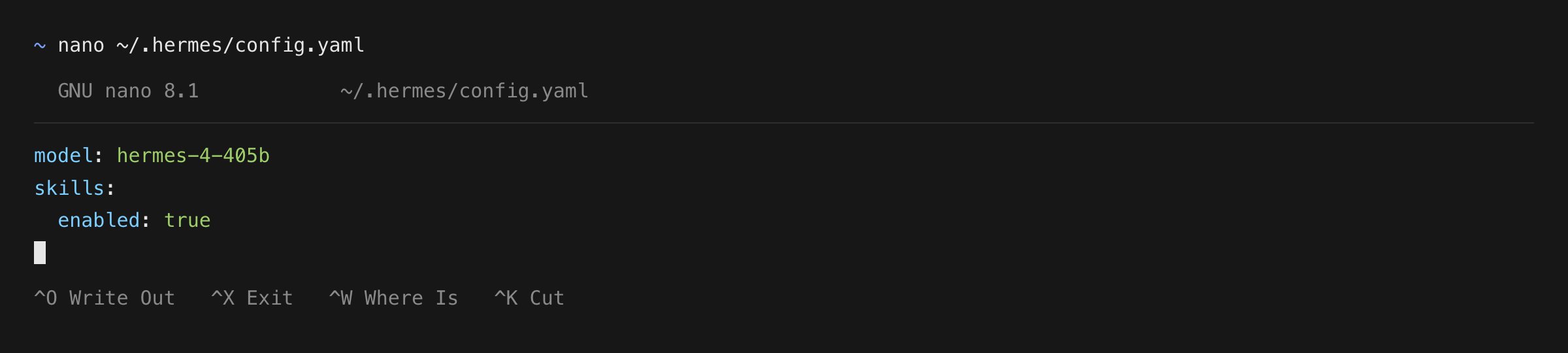 Add Slashy under the top-level `mcp_servers:` key (create the key if it isn't there yet):
```yaml theme={null}
mcp_servers:
slashy:
url: "https://slashy.ctrlcenter.ai/mcp"
auth: oauth
```
Save and exit.
Prefer one command? `hermes mcp add slashy --url https://slashy.ctrlcenter.ai/mcp --auth oauth` writes the same entry for you.
Add Slashy under the top-level `mcp_servers:` key (create the key if it isn't there yet):
```yaml theme={null}
mcp_servers:
slashy:
url: "https://slashy.ctrlcenter.ai/mcp"
auth: oauth
```
Save and exit.
Prefer one command? `hermes mcp add slashy --url https://slashy.ctrlcenter.ai/mcp --auth oauth` writes the same entry for you.
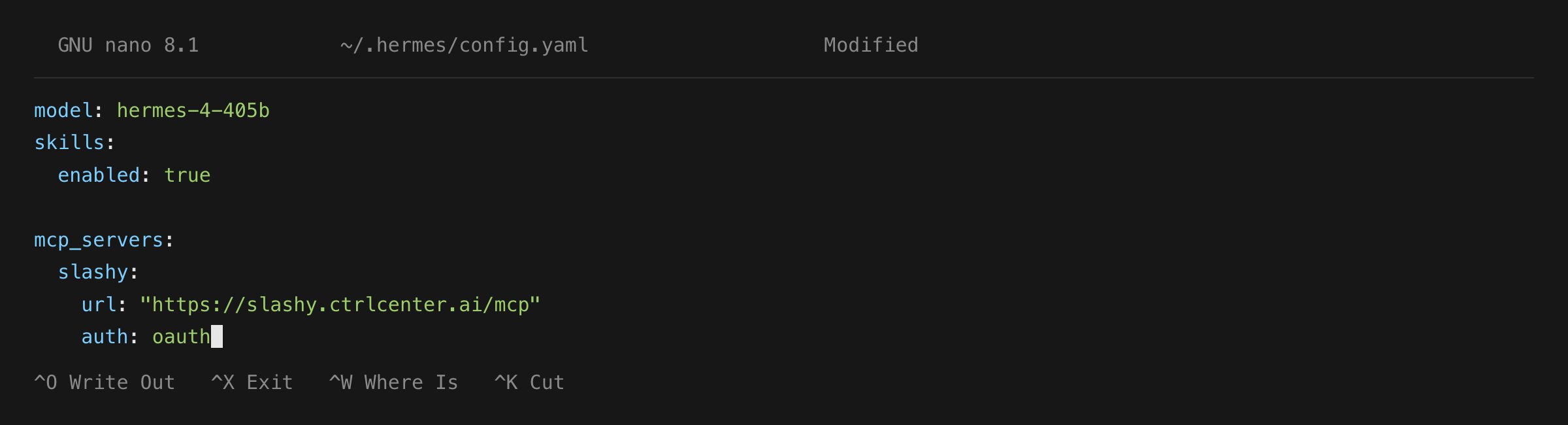 The key is top-level `mcp_servers:` - not `mcp:` with a nested `servers:`. Hermes ignores entries written under the wrong key, and the server simply never appears.
Run:
```bash theme={null}
hermes mcp login slashy
```
Hermes prints an authorize URL and opens your browser to the Slashy login page. Sign in with Google and click **Allow**.
The key is top-level `mcp_servers:` - not `mcp:` with a nested `servers:`. Hermes ignores entries written under the wrong key, and the server simply never appears.
Run:
```bash theme={null}
hermes mcp login slashy
```
Hermes prints an authorize URL and opens your browser to the Slashy login page. Sign in with Google and click **Allow**.
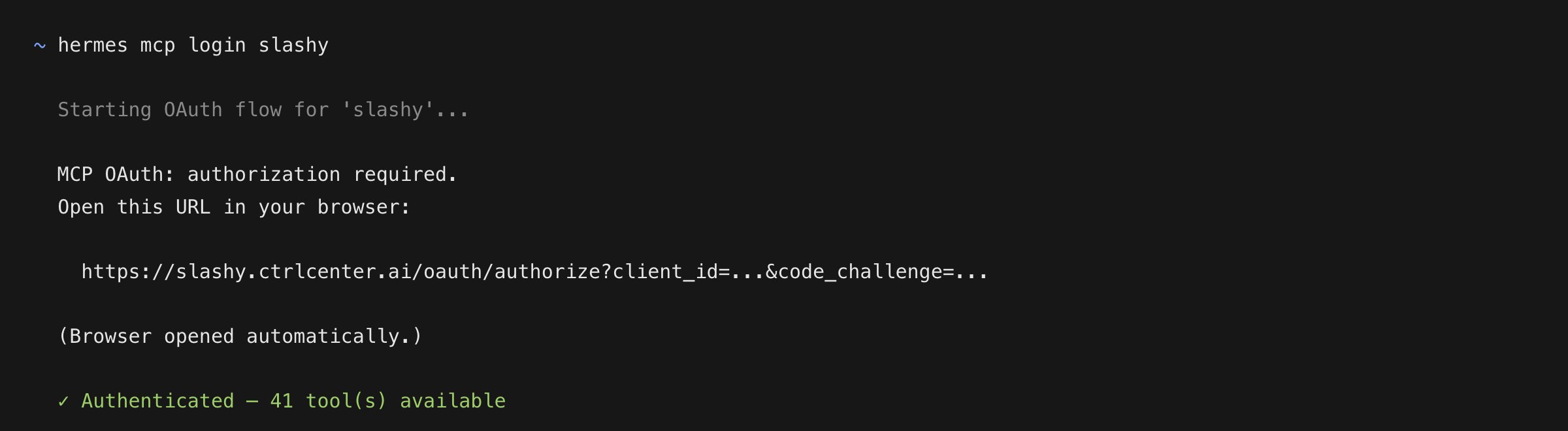 Run this from a **new** terminal, not from inside a running Hermes session. Editing `config.yaml` mid-session triggers an auto-reload with a 30-second timeout - too short to finish an interactive OAuth flow. `hermes mcp login` waits the full five minutes.
Running Hermes on a remote host or over SSH? The browser redirect can't reach a loopback port on another machine. Hermes prints an *"Or paste the redirect URL here…"* prompt - approve in your browser, copy the full URL it lands on (the connection error is expected), and paste it back.
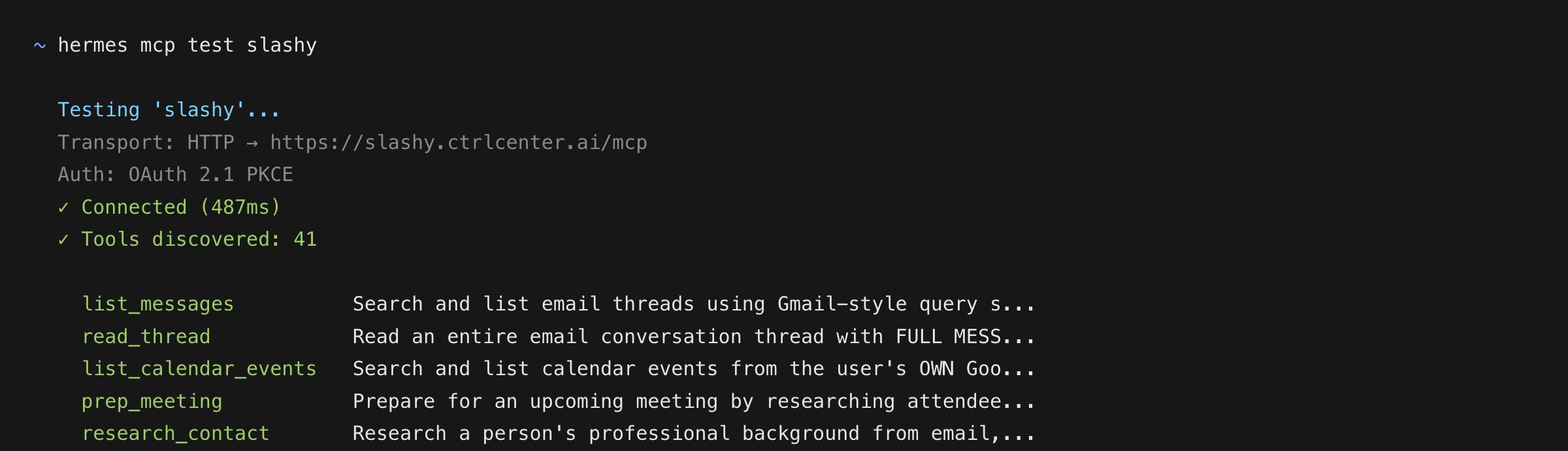
Test the server, then reload it into your session:
```bash theme={null}
hermes mcp test slashy
```
```text theme={null}
/reload-mcp
```
Ask Hermes *"Tell me which MCP-backed tools are available right now."* - inside the agent the Slashy tools are namespaced as `mcp_slashy_`, for example `mcp_slashy_list_messages` and `mcp_slashy_draft_email`. (`hermes mcp test` lists them under their bare server-side names.)
Run this from a **new** terminal, not from inside a running Hermes session. Editing `config.yaml` mid-session triggers an auto-reload with a 30-second timeout - too short to finish an interactive OAuth flow. `hermes mcp login` waits the full five minutes.
Running Hermes on a remote host or over SSH? The browser redirect can't reach a loopback port on another machine. Hermes prints an *"Or paste the redirect URL here…"* prompt - approve in your browser, copy the full URL it lands on (the connection error is expected), and paste it back.
Test the server, then reload it into your session:
```bash theme={null}
hermes mcp test slashy
```
```text theme={null}
/reload-mcp
```
Ask Hermes *"Tell me which MCP-backed tools are available right now."* - inside the agent the Slashy tools are namespaced as `mcp_slashy_`, for example `mcp_slashy_list_messages` and `mcp_slashy_draft_email`. (`hermes mcp test` lists them under their bare server-side names.)
 ## What happens after setup
Hermes caches the OAuth token at `~/.hermes/mcp-tokens/slashy.json` with `0600` permissions and reuses it silently until a refresh fails. Your config file holds only the URL - never a secret. To re-authenticate later (new Slashy account, revoked access), run `hermes mcp login slashy` again.
## Limiting which tools Hermes sees
Slashy exposes a large toolset. To narrow it - for example, a read-only setup that can triage but never send - use an allowlist:
```yaml theme={null}
mcp_servers:
slashy:
url: "https://slashy.ctrlcenter.ai/mcp"
auth: oauth
tools:
include:
- list_messages
- read_thread
- list_calendar_events
- prep_meeting
- research_contact
```
Run `/reload-mcp` after editing. Use `exclude:` instead if you want everything except a few tools.
## Next steps
Email prompts for triage, drafting, follow-ups, and scheduling.
Install a skill so Hermes reaches for Slashy without being told.
Fixes for OAuth, missing tools, and wrong accounts.
What Slashy MCP is and how it works.
## What happens after setup
Hermes caches the OAuth token at `~/.hermes/mcp-tokens/slashy.json` with `0600` permissions and reuses it silently until a refresh fails. Your config file holds only the URL - never a secret. To re-authenticate later (new Slashy account, revoked access), run `hermes mcp login slashy` again.
## Limiting which tools Hermes sees
Slashy exposes a large toolset. To narrow it - for example, a read-only setup that can triage but never send - use an allowlist:
```yaml theme={null}
mcp_servers:
slashy:
url: "https://slashy.ctrlcenter.ai/mcp"
auth: oauth
tools:
include:
- list_messages
- read_thread
- list_calendar_events
- prep_meeting
- research_contact
```
Run `/reload-mcp` after editing. Use `exclude:` instead if you want everything except a few tools.
## Next steps
Email prompts for triage, drafting, follow-ups, and scheduling.
Install a skill so Hermes reaches for Slashy without being told.
Fixes for OAuth, missing tools, and wrong accounts.
What Slashy MCP is and how it works.