> ## Documentation Index
> Fetch the complete documentation index at: https://help.slashy.com/llms.txt
> Use this file to discover all available pages before exploring further.
# Cursor Setup
> Add Slashy MCP to Cursor with a small JSON config.
Cursor reads MCP servers from a JSON config file.
## Setup
In Cursor, open **Settings → MCP** (or press `Cmd+Shift+J`, then search for "MCP").
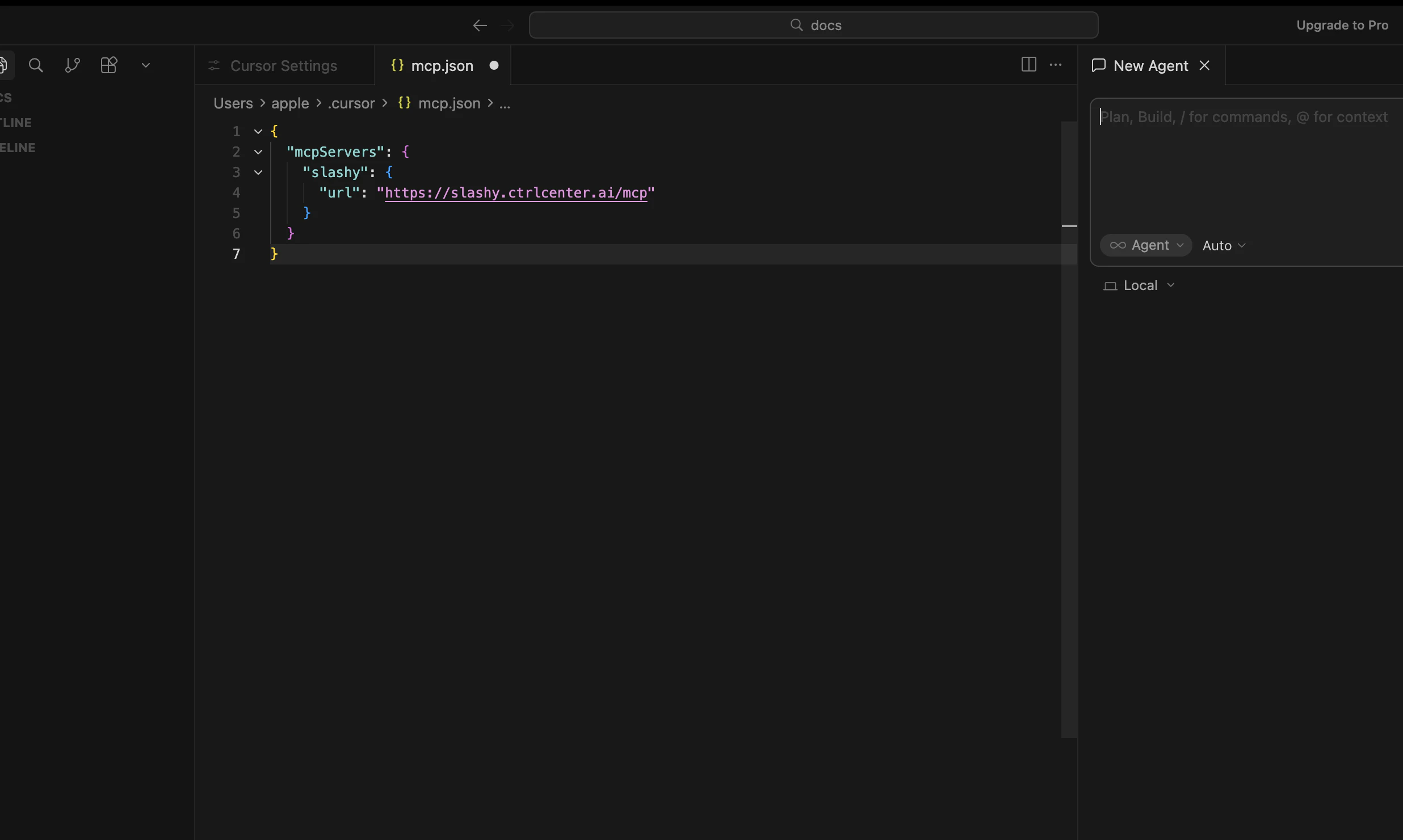
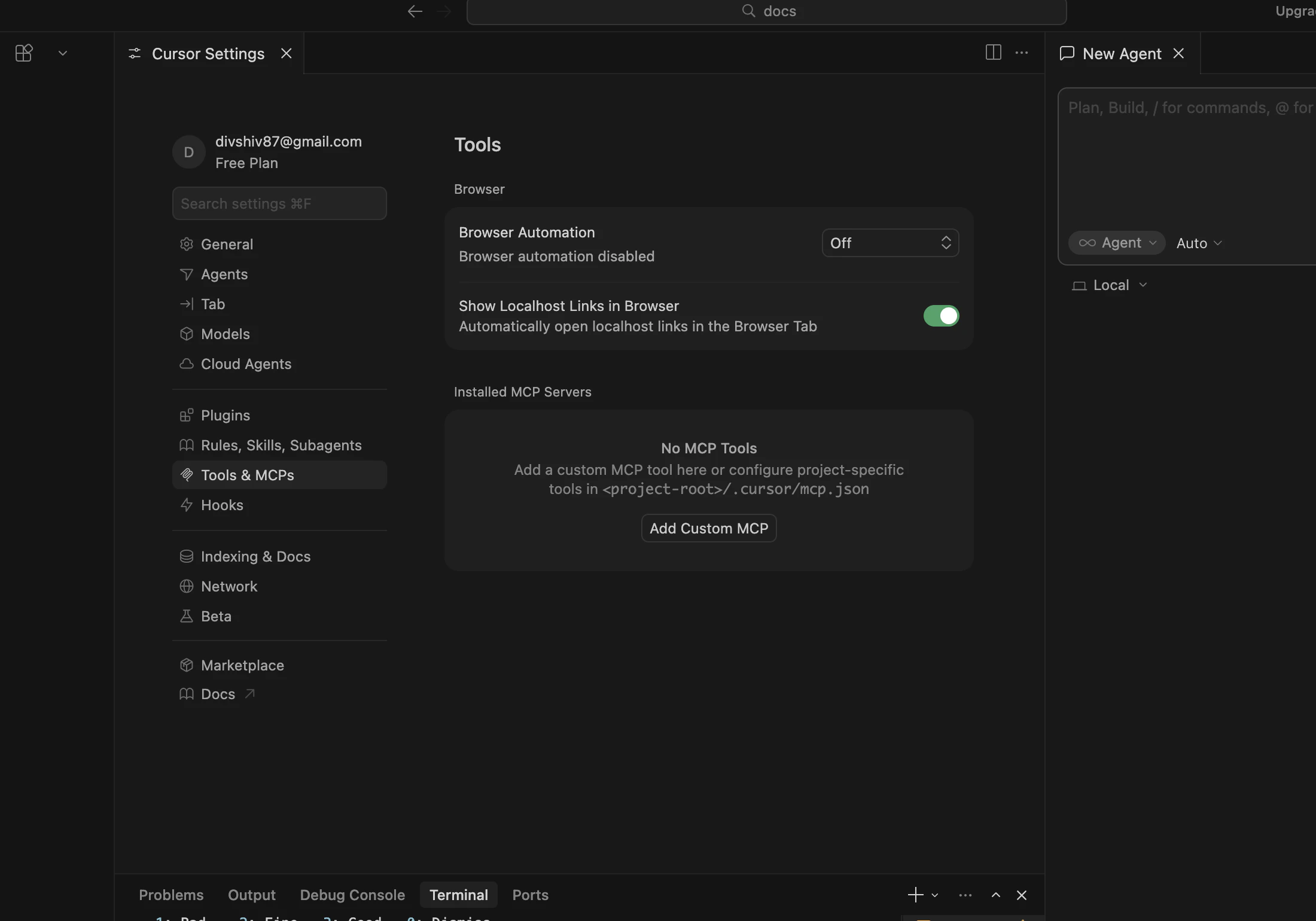 Paste this into your `mcp.json` (or the MCP section of `settings.json`):
```json theme={null}
{
"mcpServers": {
"slashy": {
"url": "https://slashy.ctrlcenter.ai/mcp"
}
}
}
```
Save the file.
Paste this into your `mcp.json` (or the MCP section of `settings.json`):
```json theme={null}
{
"mcpServers": {
"slashy": {
"url": "https://slashy.ctrlcenter.ai/mcp"
}
}
}
```
Save the file.
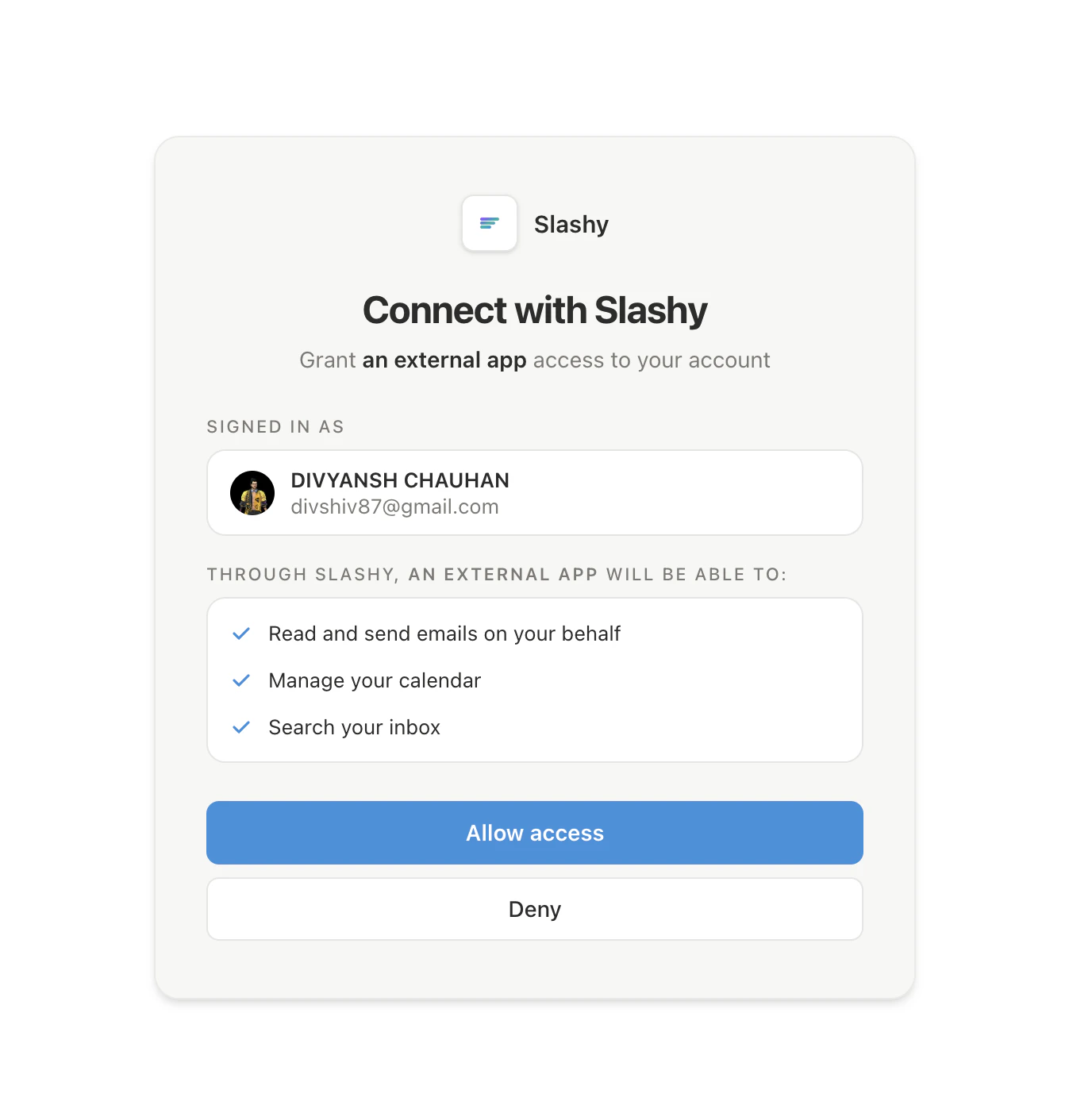
 Fully quit Cursor (`Cmd+Q`) and reopen it. Cursor will open your browser to the Slashy login page. Sign in and click **Allow**.
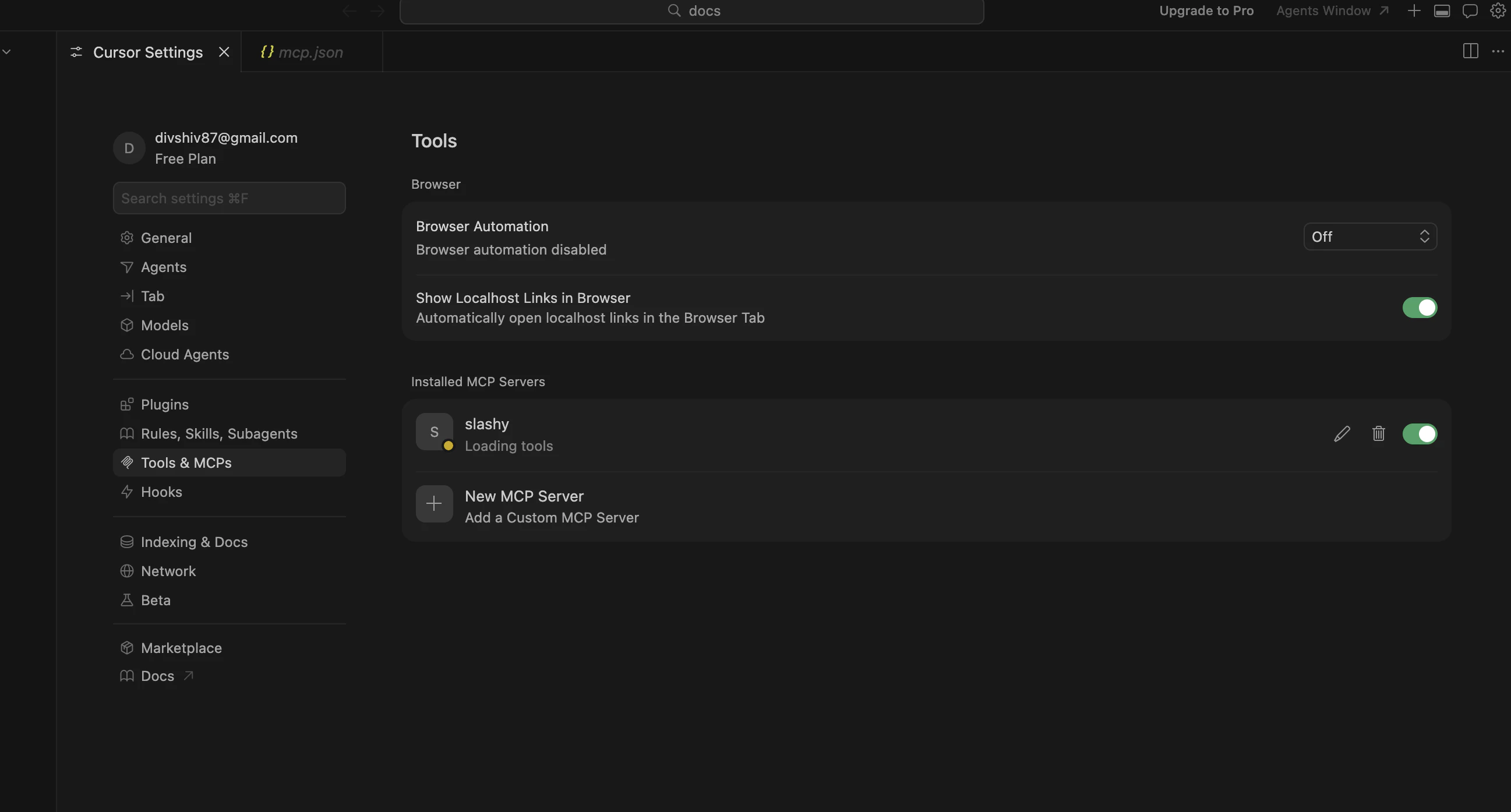
 Open the MCP panel in Cursor. **Slashy** should show a green dot. Open a chat and ask *"What Slashy tools are available?"* - the agent will list them.
 ## What happens after setup
Cursor stores the OAuth token in its secure credential store. The config file holds only the URL - never a secret.
## Next steps
Email prompts for triage, drafting, follow-ups, and scheduling.
Fixes for OAuth, missing tools, and wrong accounts.
## What happens after setup
Cursor stores the OAuth token in its secure credential store. The config file holds only the URL - never a secret.
## Next steps
Email prompts for triage, drafting, follow-ups, and scheduling.
Fixes for OAuth, missing tools, and wrong accounts.