> ## Documentation Index
> Fetch the complete documentation index at: https://help.slashy.com/llms.txt
> Use this file to discover all available pages before exploring further.
# Claude Desktop Setup
> Add Slashy MCP to Claude Desktop via Settings → Connectors.
Claude Desktop uses a visual settings panel - no config files needed.
## Setup
Click your profile in Claude Desktop, then **Settings → Connectors**.
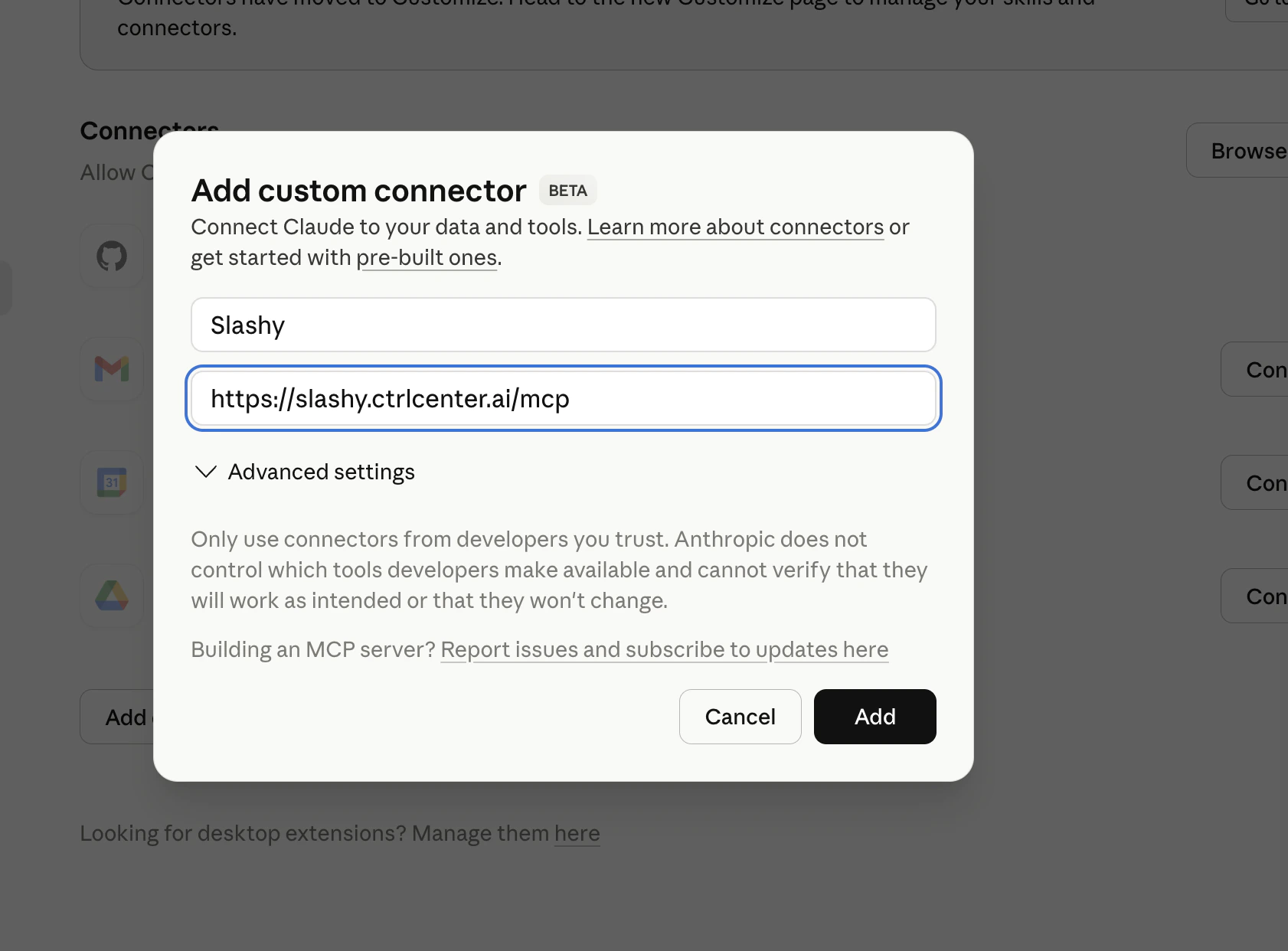
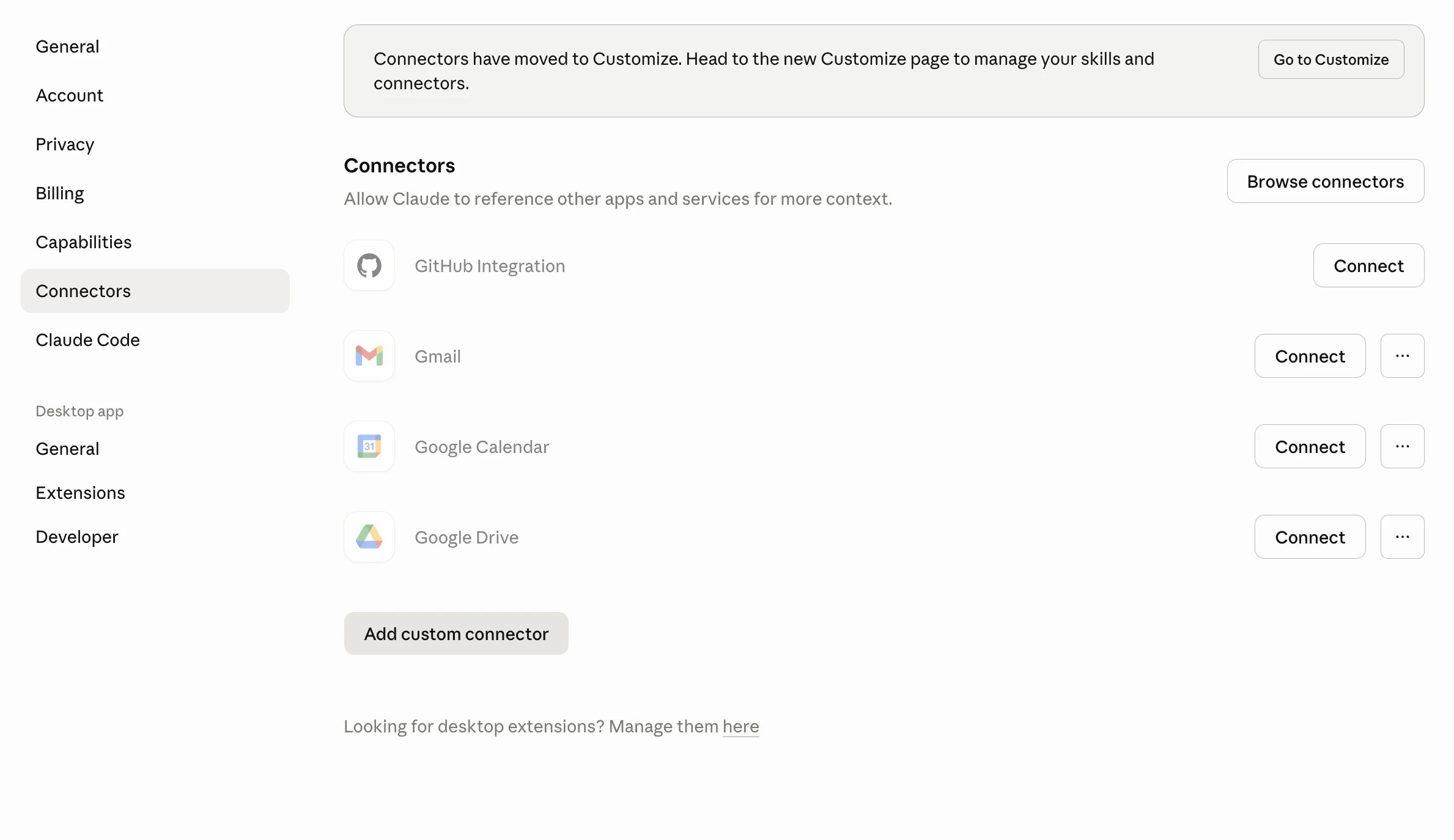 Click **Add Custom Connector** and fill in the form:
* **Name:** `Slashy`
* **URL:** `https://slashy.ctrlcenter.ai/mcp`
Click **Add**.
Click **Add Custom Connector** and fill in the form:
* **Name:** `Slashy`
* **URL:** `https://slashy.ctrlcenter.ai/mcp`
Click **Add**.
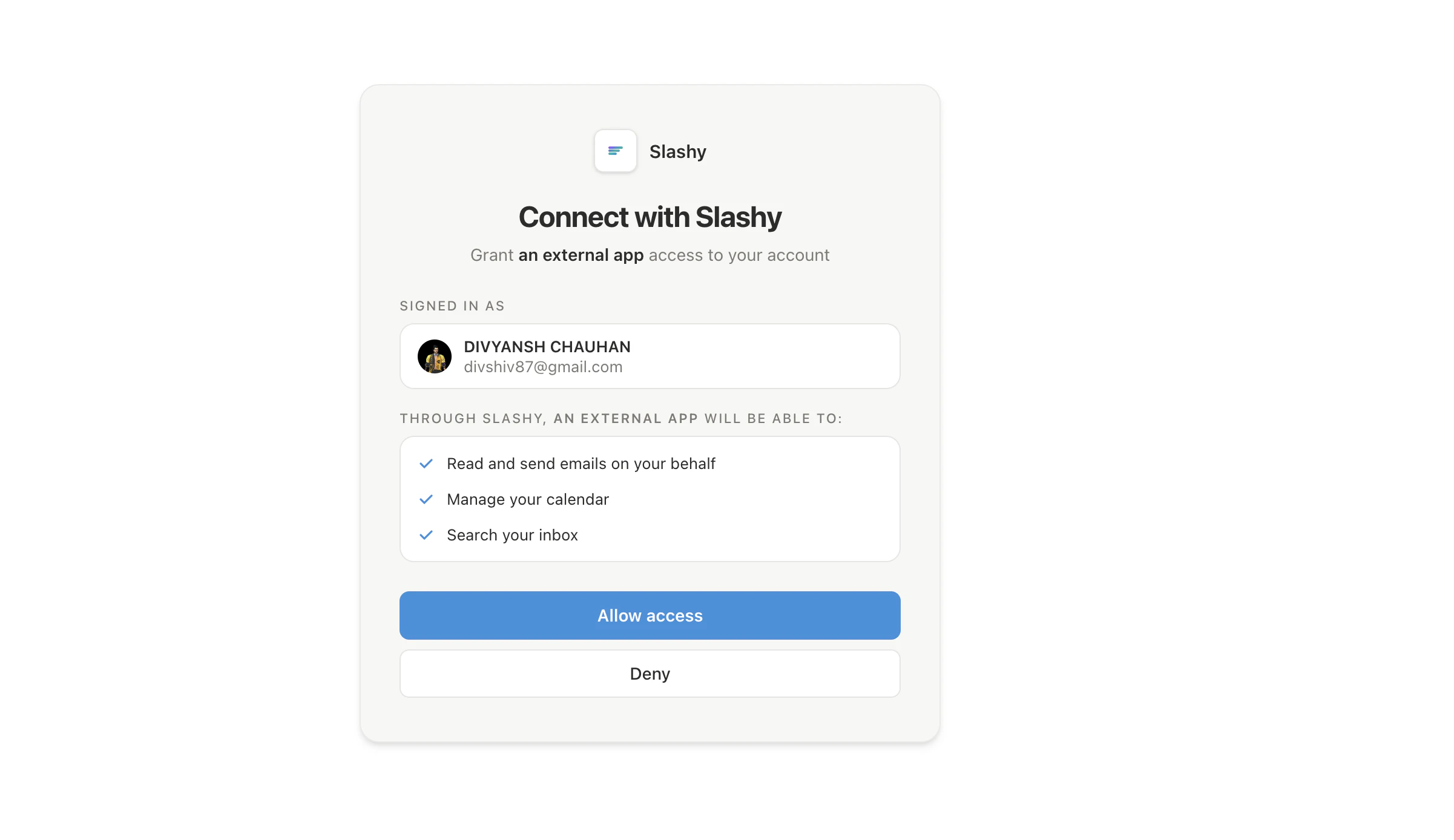
 Claude Desktop opens the Slashy login page. Sign in with Google and click **Allow**.
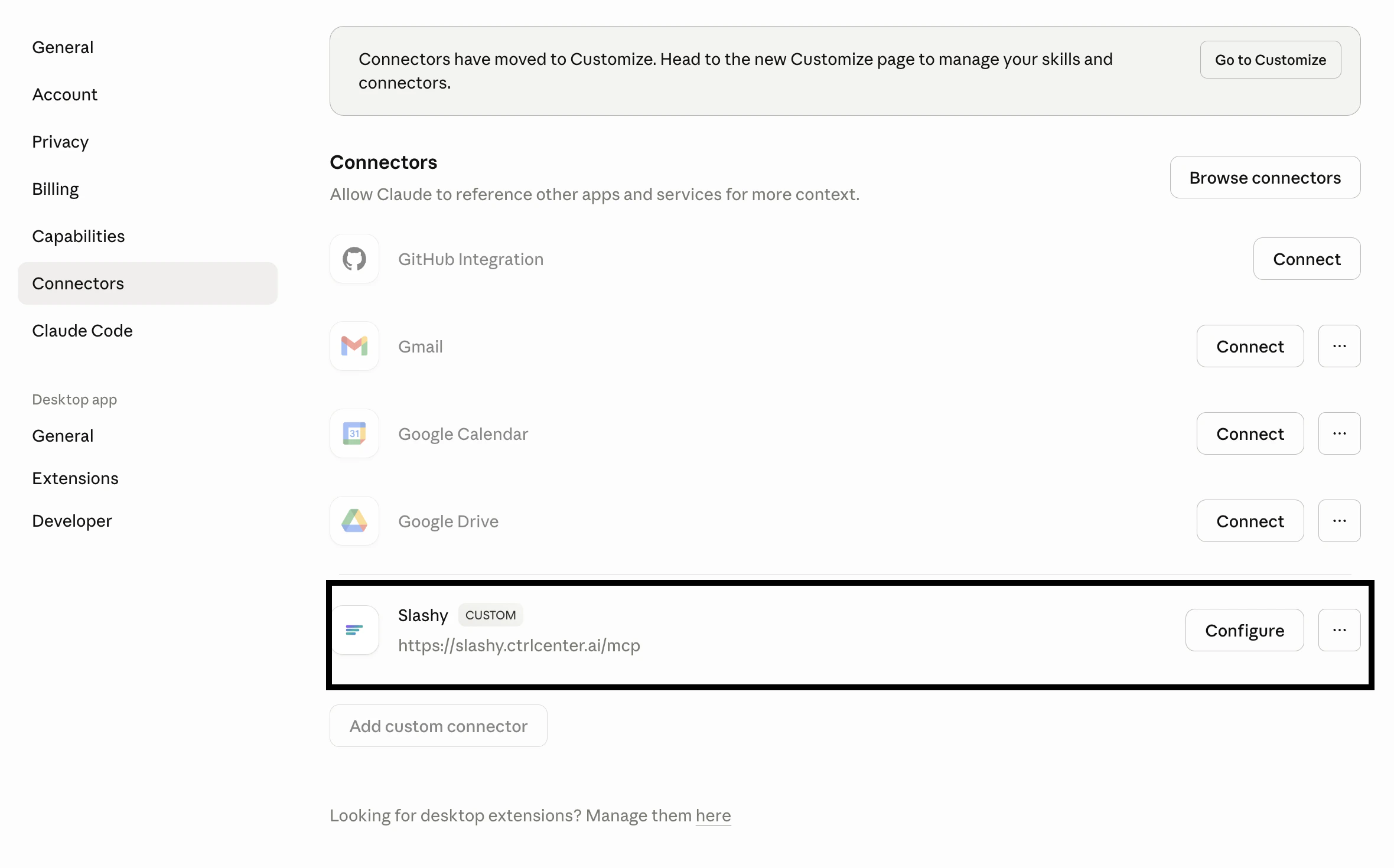
 Back in Connectors, you should see **Slashy** with a green **Connected** badge. Start a new chat and you'll see Slashy tools available in the tool tray.
 ## What happens after setup
Claude Desktop manages the OAuth token silently. If you sign out of Slashy or revoke access, Claude Desktop will prompt you to reconnect.
## Next steps
Email prompts for triage, drafting, follow-ups, and scheduling.
Fixes for OAuth, missing tools, and wrong accounts.
## What happens after setup
Claude Desktop manages the OAuth token silently. If you sign out of Slashy or revoke access, Claude Desktop will prompt you to reconnect.
## Next steps
Email prompts for triage, drafting, follow-ups, and scheduling.
Fixes for OAuth, missing tools, and wrong accounts.