> ## Documentation Index
> Fetch the complete documentation index at: https://help.slashy.com/llms.txt
> Use this file to discover all available pages before exploring further.
# Claude Code Setup
> Connect Slashy MCP to Claude Code with a single terminal command.
Claude Code is Anthropic's terminal-based coding agent. Adding Slashy is a single command.
## Setup
In your terminal, run:
```bash theme={null}
claude mcp add --transport http slashy https://slashy.ctrlcenter.ai/mcp
```
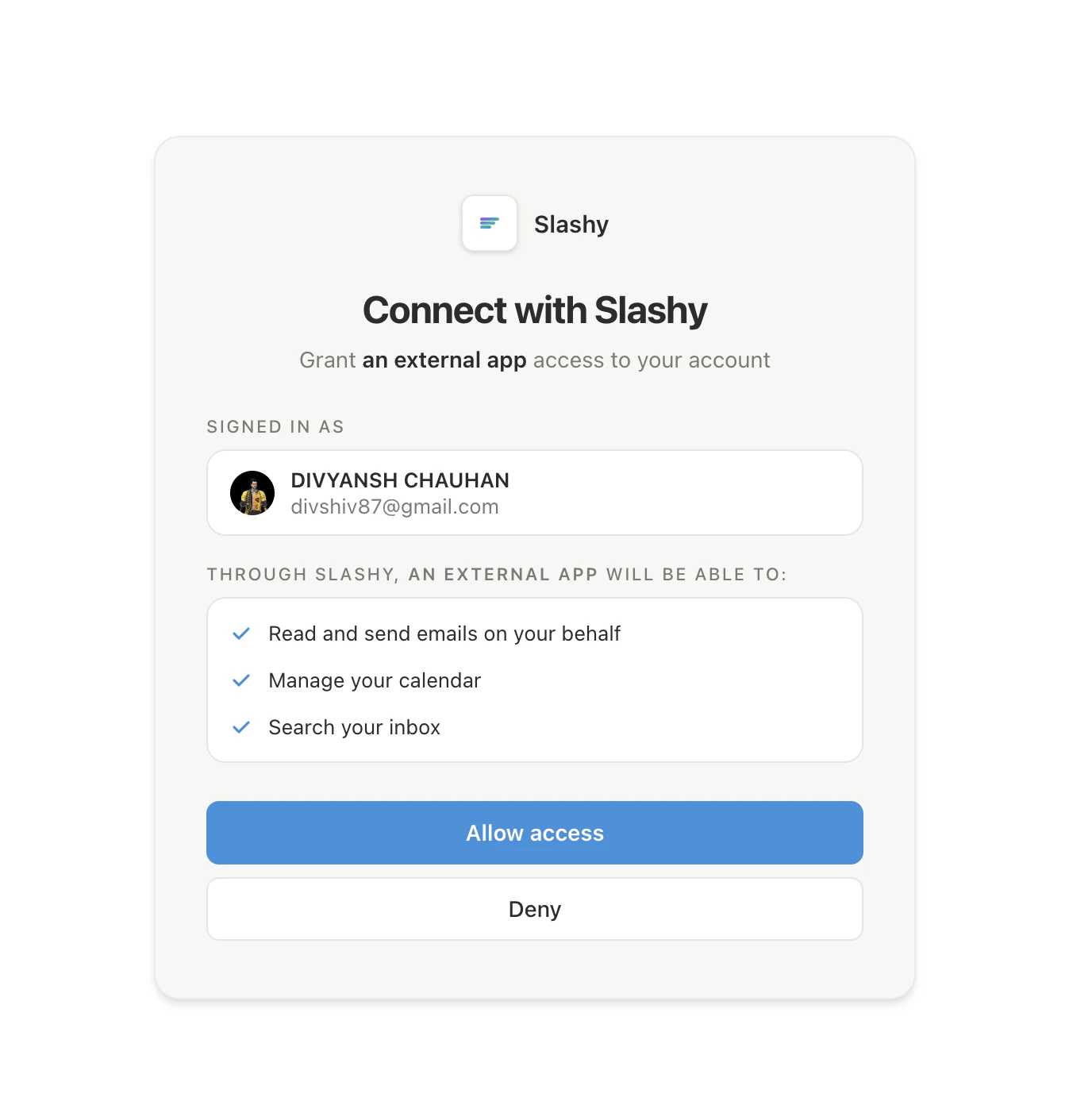
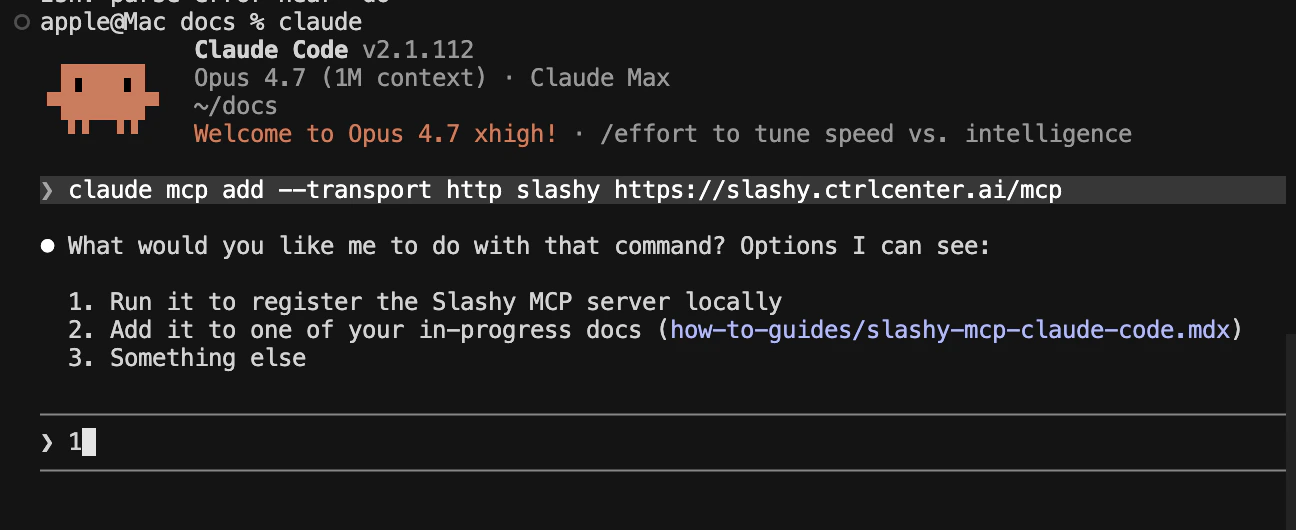 Claude Code opens your default browser to the Slashy login page. Sign in with Google and click **Allow** to grant access.
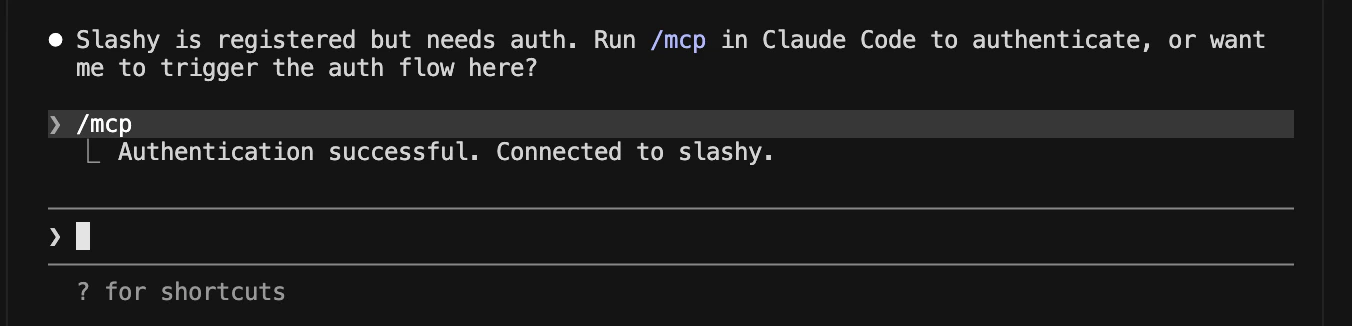
 Back in the terminal, run:
```bash theme={null}
claude mcp list
```
You should see `slashy` listed as **connected**.
Back in the terminal, run:
```bash theme={null}
claude mcp list
```
You should see `slashy` listed as **connected**.
 ## What happens after setup
Claude Code stores a short-lived OAuth token locally. It refreshes automatically. You never see or handle the token.
## Next steps
Email prompts for triage, drafting, follow-ups, and scheduling.
Fixes for OAuth, missing tools, and wrong accounts.
## What happens after setup
Claude Code stores a short-lived OAuth token locally. It refreshes automatically. You never see or handle the token.
## Next steps
Email prompts for triage, drafting, follow-ups, and scheduling.
Fixes for OAuth, missing tools, and wrong accounts.