> ## Documentation Index
> Fetch the complete documentation index at: https://help.slashy.com/llms.txt
> Use this file to discover all available pages before exploring further.
# Signatures and Removing 'Sent with Slashy'
> Toggle off the Slashy footer, configure your email signature, and control signatures in replies.
## Removing "Sent with Slashy"
### Globally
1. Go to **Settings** (`Cmd+,`) > **Account**
2. Toggle off **"Sent with Slashy" Signature**
All future emails will be sent without the footer. Already-sent emails are unaffected.
 ### Per Email
Delete the Slashy signature directly from the compose area before sending. Only affects that one email.
## Your Email Signature
Slashy detects your signature from Gmail during setup. The AI uses it when generating drafts.
To update: **Settings** (`Cmd+,`) > **Account** > **Email Signature** field.
### Per Email
Delete the Slashy signature directly from the compose area before sending. Only affects that one email.
## Your Email Signature
Slashy detects your signature from Gmail during setup. The AI uses it when generating drafts.
To update: **Settings** (`Cmd+,`) > **Account** > **Email Signature** field.
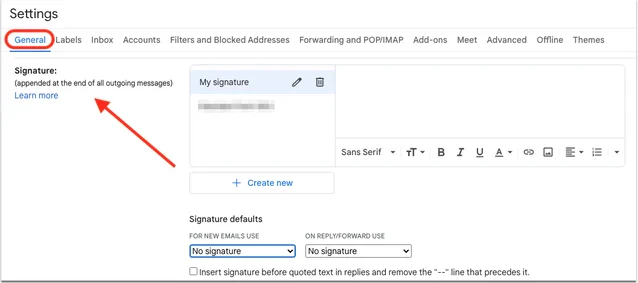 This is separate from your Gmail signature settings. It controls what the AI references when drafting.
## Signatures in Replies
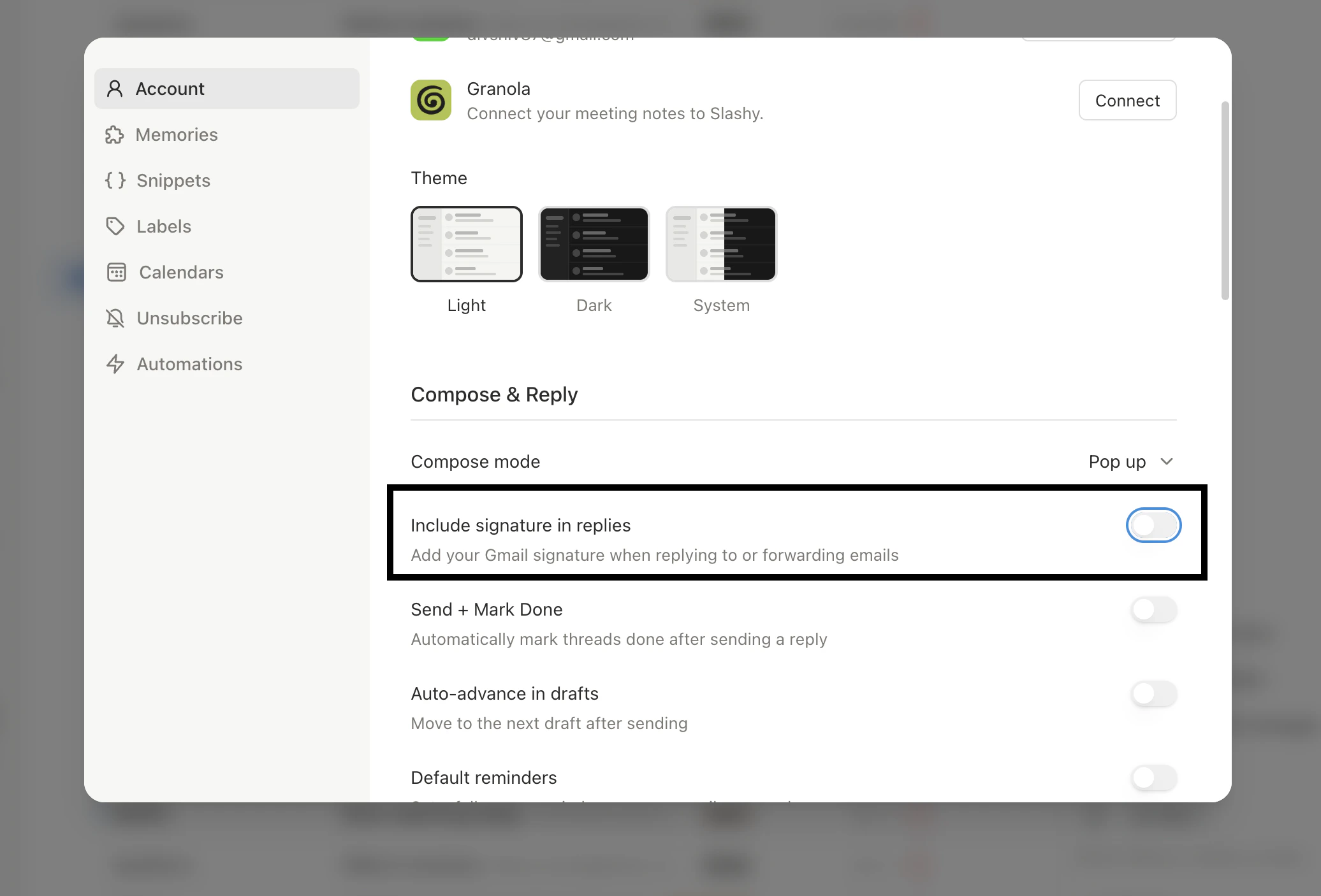
By default, Slashy does not include your full signature in replies — most people don't repeat it in every thread message.
To change: **Settings > Account** > toggle **"Include Signature in Replies"** on.
## How Signatures Work with AI Drafts
The AI knows whether to use your full signature block or just your first name, your preferred sign-off, and whether the context is formal or informal.
If the AI uses the wrong sign-off, update your signature in Settings or tell the agent: *"Remember: I sign off with just my first name, no closing phrase."*
## Per-Recipient Signatures
Not yet a built-in setting, but achievable with agent memories:
Open the sidebar (`p a`) and say: *"Remember: when emailing anyone @bigclient.com, use my full formal signature. When emailing my team, just sign with my first name."*
This works for AI-generated drafts. For manual emails, use a snippet (`Cmd+Shift+S`) with your formal signature saved as a template.
## Multiple Inboxes
Each connected Gmail account has its own detected signature. Switch the sending account using the **From** dropdown in the compose window.
***
Auto-suggestions and learning
Set writing style and preferences
Automate your inbox
This is separate from your Gmail signature settings. It controls what the AI references when drafting.
## Signatures in Replies
By default, Slashy does not include your full signature in replies — most people don't repeat it in every thread message.
To change: **Settings > Account** > toggle **"Include Signature in Replies"** on.
## How Signatures Work with AI Drafts
The AI knows whether to use your full signature block or just your first name, your preferred sign-off, and whether the context is formal or informal.
If the AI uses the wrong sign-off, update your signature in Settings or tell the agent: *"Remember: I sign off with just my first name, no closing phrase."*
## Per-Recipient Signatures
Not yet a built-in setting, but achievable with agent memories:
Open the sidebar (`p a`) and say: *"Remember: when emailing anyone @bigclient.com, use my full formal signature. When emailing my team, just sign with my first name."*
This works for AI-generated drafts. For manual emails, use a snippet (`Cmd+Shift+S`) with your formal signature saved as a template.
## Multiple Inboxes
Each connected Gmail account has its own detected signature. Switch the sending account using the **From** dropdown in the compose window.
***
Auto-suggestions and learning
Set writing style and preferences
Automate your inbox